
Until now, a rostered day off (RDO) repeated weekly. If someone was off every second Tuesday, you had to tick Tuesday and accept that the system treated every Tuesday as a day off.
You can now build a cycle of as many weeks as you need. Each week in the cycle has its own days off and its own offline hours, and the system works out which week of the cycle today falls in.
Nothing changes for staff who are off the same days every week. Their roster is a one-week cycle and the screen looks exactly as it did before.
Before you start
- You need the User Admin permission to edit another user's roster.
- RDO settings are managed on desktop. The mobile app doesn't include them.
- Available on New Zealand and Australian accounts.
How the week cycle works
Weeks run Monday to Sunday and are counted from a single start date that applies across the whole system: Monday 03/08/2026, the Monday multi-week rosters went live. Every dealership, account and user is on the same calendar, so Week 1 is the same seven days for everyone.
The system works out which week of someone's cycle today falls in by counting weeks from that date. A person on a two-week cycle alternates between Week 1 and Week 2; a person on a three-week cycle runs Week 1, Week 2, Week 3, then back to Week 1.
The cycle isn't anchored to the RDO start date on a user's profile. That field keeps its existing meaning, and you can't move someone's cycle forward or back.
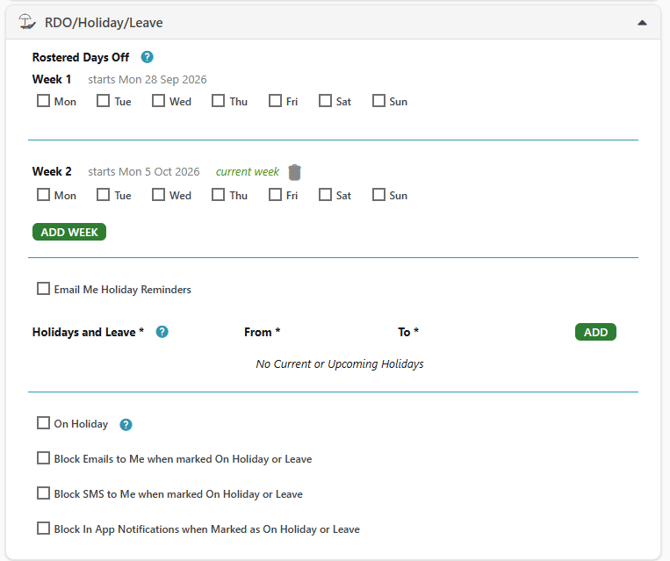
Set up a cycle
- Go to Company Settings › Users and open the staff member.
- Open the RDO / Holiday / Leave section.
- Tick the days off for the first week of the cycle, and set any offline hours for that week.
- Select Add Week. A new week appears below with no days ticked.
- Tick the days off for that week. Leave it empty if the person works the full week.
- Repeat for as many weeks as the cycle needs, then save.
Once there's more than one week, each block is headed Week 1, Week 2 and so on, and the week the person is in today carries a Current label.
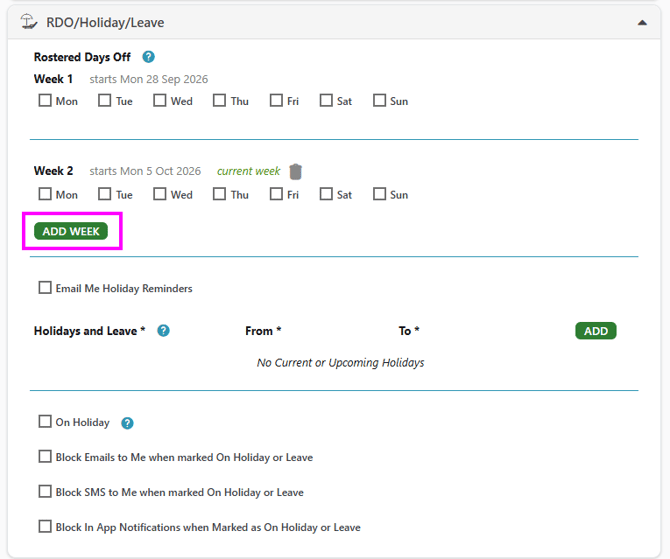
Example: off every second Tuesday and Wednesday
This is a two-week cycle with one working week in it.
| Week | Days ticked |
|---|---|
| Week 1 | Tuesday, Wednesday |
| Week 2 | None — add the week and leave it empty |
An empty week is how you record the weeks someone works in full. Without it, the cycle is only one week long and the days off repeat every week.
If the days off are showing in the wrong week, swap them: move the ticks from Week 1 to Week 2, or the other way round. The cycle itself can't be shifted.
Offline hours
Offline hours work the same as before, but they belong to the week you add them to. Offline hours set on Week 1 apply only in Week 1.
You can combine the two in the same week. Someone might be off all day Tuesday and Wednesday in Week 1, and offline from 12:00 on Thursday in the same week.
Change or remove a week
To change a week, tick or untick days in that block and save. Nothing else in the cycle moves.
To shorten a cycle, use Remove on the last week. Only the last week can be removed, so a four-week cycle comes down to three weeks before it comes down to two.
Removing a week deletes that week's days off and offline hours. Week 1 can't be removed — a staff member always has at least one week.
Where the cycle applies
On any given day, only that day's week in the cycle counts. In the other weeks, the system treats those days as working days.
This carries through to lead allocation and to the times offered when booking a calendar invite, so a staff member isn't handed a lead or booked in on a day they're off — and isn't skipped on the weeks they're working.
View Roster on Lead Management shows the days off for the current week of each person's cycle.
Common questions
Do I need to change existing rosters?
No. Everyone set up before this change is on a one-week cycle and behaves exactly as they did before.
How many weeks can a cycle have?
There's no limit. Add as many weeks as the pattern needs.
Can I set this up in the mobile app?
No. RDO settings are managed on desktop.
Does the RDO start date affect which week someone is in?
No. The start date keeps its existing meaning and editing it doesn't move the cycle.