
If you are an AutoGrab customer, you can get real-time pricing assistance through AutoGrab's Inventory Pricing Tool, connected directly into AutoPlayAuto.com.
Provisioning
Two things need to be set up before AutoGrab valuations work.
1. Role Management
Create a Role Management record under Settings > Company Settings > Role Management called AutoGrab. This controls visibility of the AutoGrab integration in an appraisal, and activates AutoGrab for Appraisal Valuations. Set:
- Users: who can see the integration table
- Yards: which yards the integration applies to
- AutoGrab Table Visibility: All Users, Manager, or Manager Only
- All Users can accept AutoGrab values and update an appraisal
- Manager: only flagged managers can accept and approve a trade price, though other users can still see the AutoGrab window
- Manager Only: the AutoGrab integration is visible to managers alone
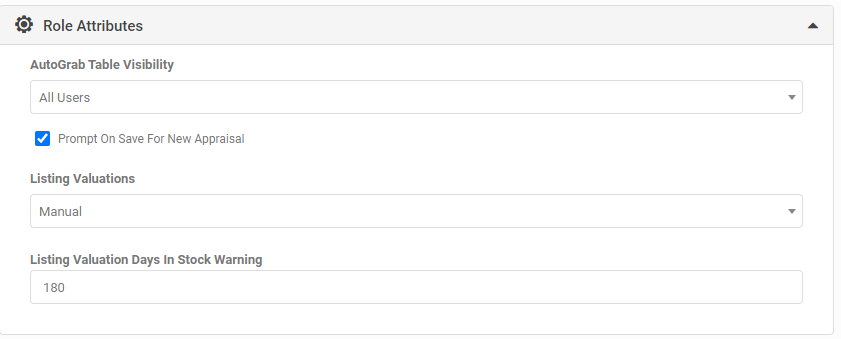
Two Role Attributes must also be turned on:
- Listing Valuations: set to Manual to run lookups by hand from the Listing screen, or Automatic to run whenever a listing is saved. Automatic only affects manually edited listings; changes from lookups such as Fuel Saver, or from imports, do not trigger it. Setting this to Automatic also enables the manual lookup button.
- Listing Valuation Days In Stock Warning: a number of days that feeds the "Vehicles Over 180 Days Old" widget on the Listing Dashboard.
2. API connection
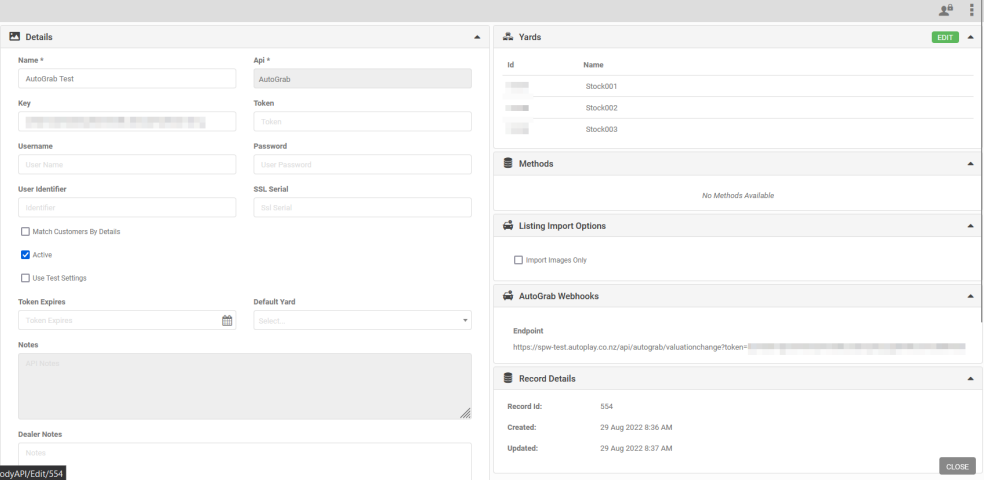
Create a Dealer API Record under Settings > Company Settings > API Management to manage authorisation, data exports and webhook creation for the integration. Set:
- Name: AutoGrab, plus the dealership name or location
- API: AutoGrab
- Yard: the yards this integration applies to
- Key: the API key AutoGrab provides for the dealership
To request the underlying AutoGrab API access, contact AutoGrab and ask them to set up GetVehicleCheck, GetListingData, GetVehicleValuation and GetMarketData for your account.
Lead mapping
When setting up AutoGrab, make sure leads submitted from AutoGrab into AutoPlay via the AutoPlay Lead API carry the correct Lead Source, Campaign and Label.
- Source = AutoGrab (Source ID #1165, set up as a global Lead Source)
- Campaign = Sourcing
- Lead Label = AutoGrab Sourcing
This is the agreed default with AutoGrab. If you need a different Lead Source, Campaign or Label, this must be agreed with AutoGrab as part of onboarding, since AutoGrab submits leads on this basis by default.
Using AutoGrab pricing in AutoPlayAuto.com
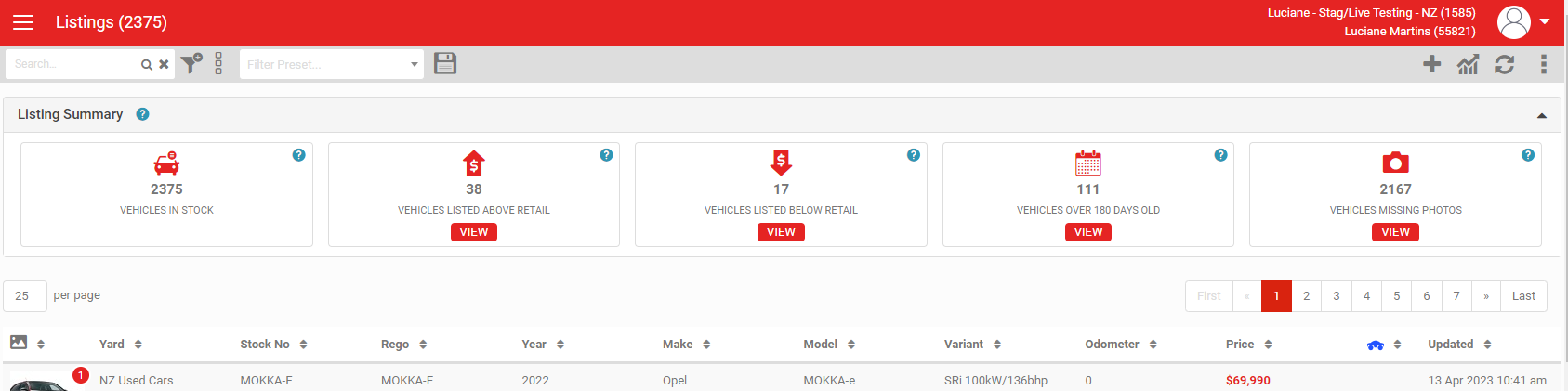
Once provisioned, users see a Listing Summary section on the Listing Dashboard, combining AutoPlay data with AutoGrab data:
- Vehicles In Stock: count of listings matching current filters (excluding external brochureware)
- Vehicles Listed Above Retail: listings where AutoPlay's price is higher than AutoGrab's average retail price, based on the last AutoGrab check run for that listing
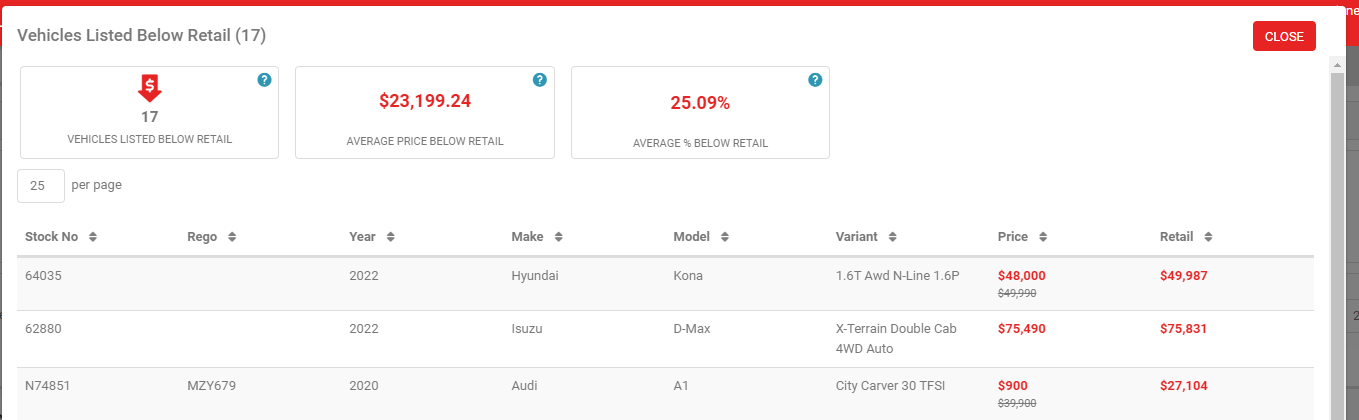
- Vehicles Listed Below Retail: listings where AutoPlay's price is lower than AutoGrab's average retail price
- Vehicles Over 45 Days Old: listings created more days ago than the threshold set in the Listing Valuation Days In Stock Warning attribute
- Missing Photos: listings with zero photos
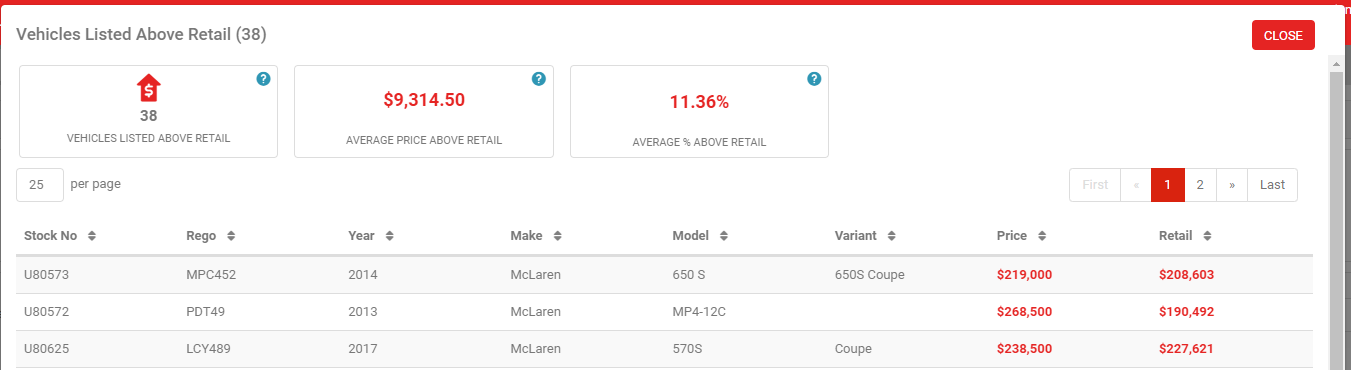
Click VIEW on any tile for a breakdown:
- Vehicles Listed Above Retail shows the count and list of vehicles above retail, plus the average $ and % amount above AutoGrab's retail price.
- Vehicles Listed Below Retail shows the same, below retail.
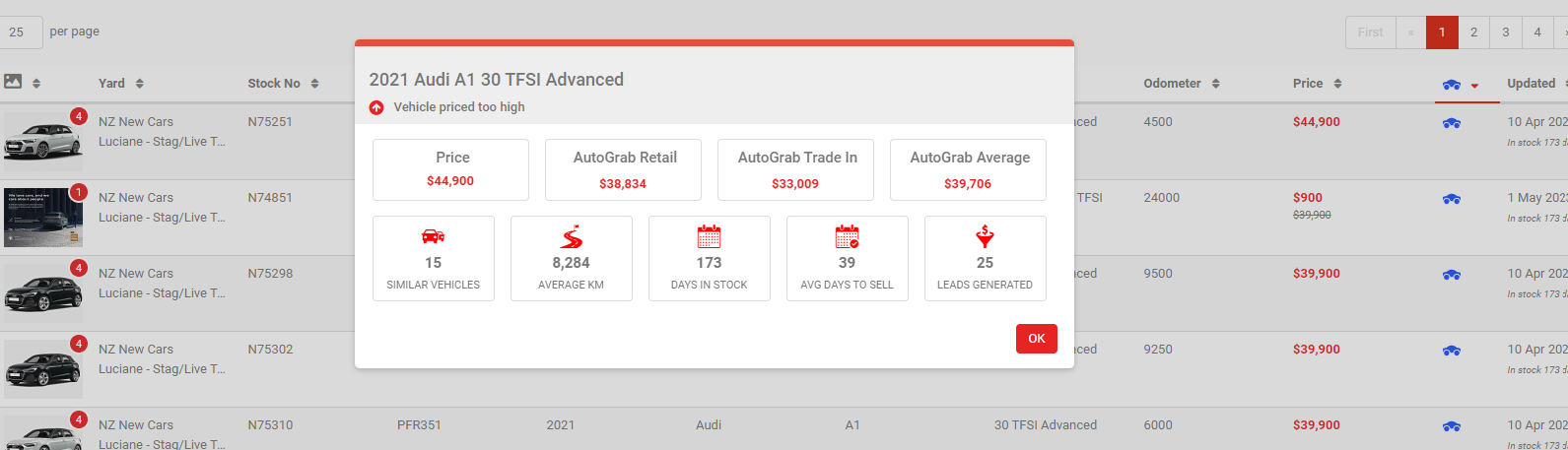
On the Listing Dashboard, any listing with a completed valuation shows an icon. Click it for a popup with key stats:
- A warning if the vehicle is priced too high or too low against AutoGrab's average market value
- Price: the listing's current price, or Special Price if one is set
- AutoGrab Retail: AutoGrab's calculated retail value
- AutoGrab Trade In: AutoGrab's calculated trade-in value
- AutoGrab Average: the average price across matching listings from AutoGrab's Market Overlay API
- Similar Vehicles: count of similar vehicles AutoGrab returned
- Average KM: average odometer reading across those similar vehicles
- Days In Stock: days this listing has been current in AutoPlay (resets if the listing moves from Current to Sold and back)
- Avg Days To Sell: AutoGrab's average time from first listed to sold
- Leads Generated: number of leads against this listing in AutoPlay
Running a valuation on an individual listing
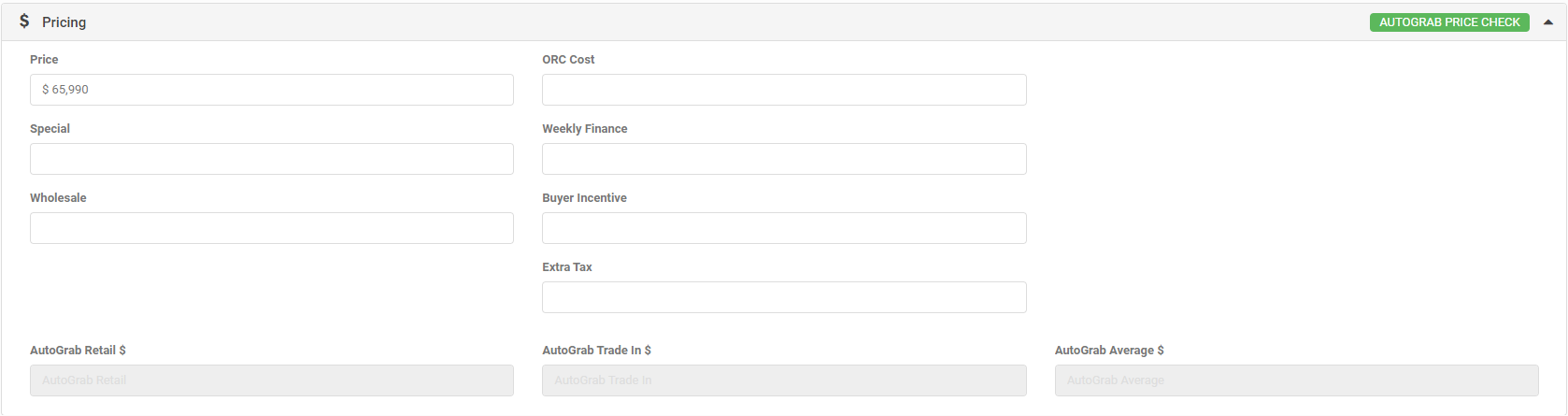
With the role enabled, scroll to the Pricing section on a listing and click AUTOGRAB PRICE CHECK on the right. This is available for any yard configured in the AutoGrab role, including ones you have already checked.
AutoGrab only returns a valuation when the listing:
- Is included in the Role Management settings
- Is not ticked as New (Demo is allowed)
- Has a Year more than 1 year old
- Has an Odometer reading over 50km
- Has both a Rego and a VIN
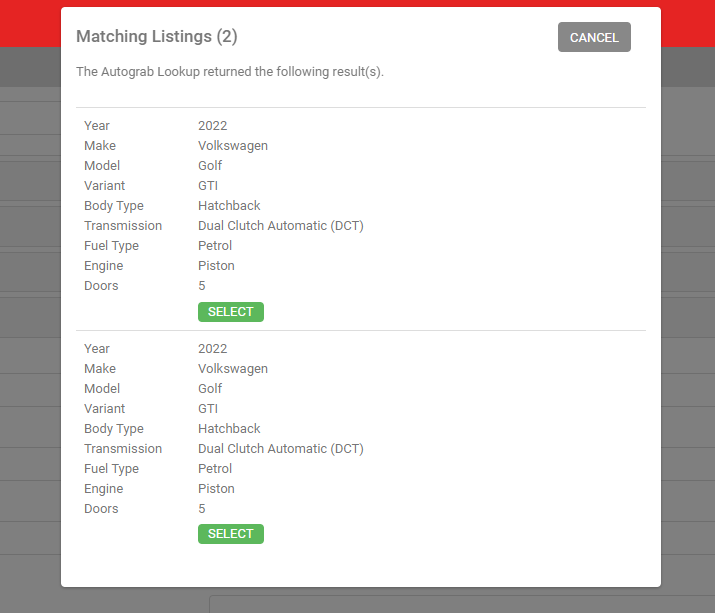
A price check can return multiple matching listings, sometimes very similar or apparently identical. AutoPlay does not control this data, so select the vehicle that most closely matches the one you are checking.
Once you select a match, three fields populate in the Pricing section:
- AutoGrab Retail $: AutoGrab's calculated retail value
- AutoGrab Trade In $: AutoGrab's calculated trade-in value
- AutoGrab Average $: the average price across matching listings from the Market Overlay API
