This article explains how AutoPlay's automatic web inactivity timeout works and how a Company Admin can adjust it.
AutoPlayAuto.com is a web application, so best practice is to log users out automatically after a period of inactivity. The default is 60 minutes. If you keep using the application, you will not be logged out.
We recommend leaving this at 60 minutes. If a device is lost or stolen, the automatic log-out protects your data by ending the session eventually.
If 60 minutes doesn't suit your account, you can change it from the My Company screen if you hold the Company Admin role.
- Go to Settings > Company Settings > My Company.
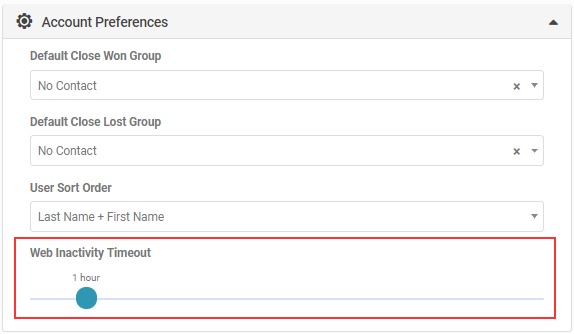
- Open the Account Preferences section.
- Drag the Web Inactivity Timeout slider to set the number of minutes of inactivity allowed before automatic log-out.
Note
This setting applies to the whole account. You cannot set a different timeout per user or per yard.
This setting applies to the whole account. You cannot set a different timeout per user or per yard.