This article explains how AutoPlay automatically deactivates users who stop logging in, and how to reinstate them.
Overview
Since release 23.10.1, AutoPlay can warn a user who has been inactive for a set number of days, then deactivate their account if they still haven't logged in once that threshold passes. A deactivated user cannot log in to AutoPlay.
Only an AutoPlay support team member can reactivate a deactivated user. Roles attached to the user stay in place while deactivated, so access and visibility are restored as they were if the account is reinstated.
A deactivated user stops receiving AutoPlay notifications and is removed from lead allocation.
Deactivation settings live inside Password Policies and can only be turned on by an AutoPlay employee. Contact your account manager if you want this provisioned on your account.
Provisioning
Inactivity deactivation is built into the password policy screen, so the same screen manages both security and account management. AutoPlay intends to make this a standard security setting for all dealerships over time. This screen is available to AutoPlay employees only.
Admin > Studio Admin > Password Policies
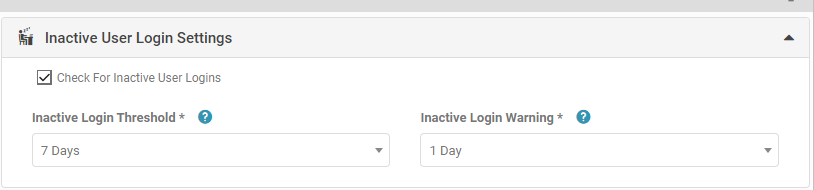
The Inactive User options are:
- Check For Inactive User Logins: turns the inactive-user process on for the policy.
- Inactive Log In Threshold: number of days without a login before the process starts.
- Inactive Login Warning: number of days after the threshold is reached before the account is deactivated.
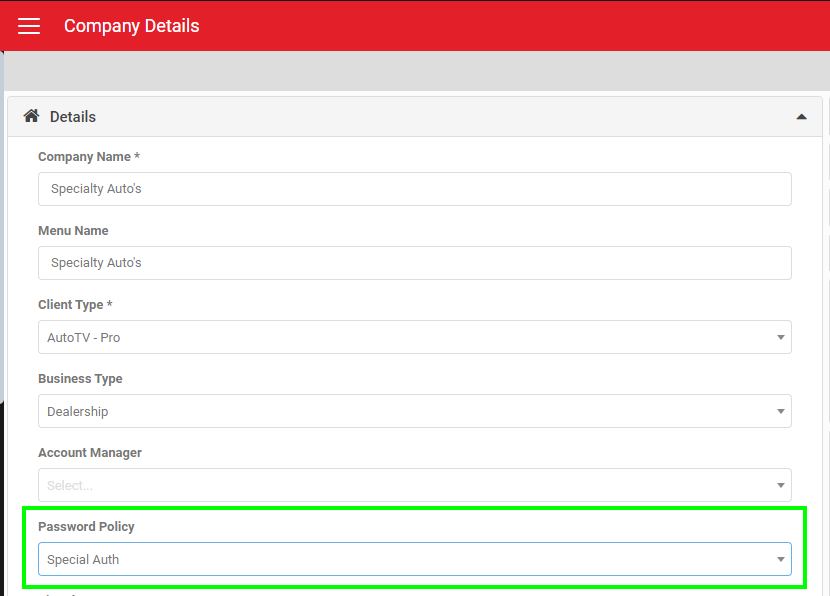
The policy still needs to be applied to the account in the usual way.
Settings > Company Settings > My Company > Details
Managing users
Once deactivation is enabled on a policy and a user has not logged in for the Threshold period, the following happens.
User notification
AutoPlay emails the user to say they haven't logged in for X days. The email explains that logging in keeps the account active, and that doing nothing will lead to automatic deactivation. It also confirms that a deactivated account can be reactivated later by contacting AutoPlay Support.
Pending deactivated users
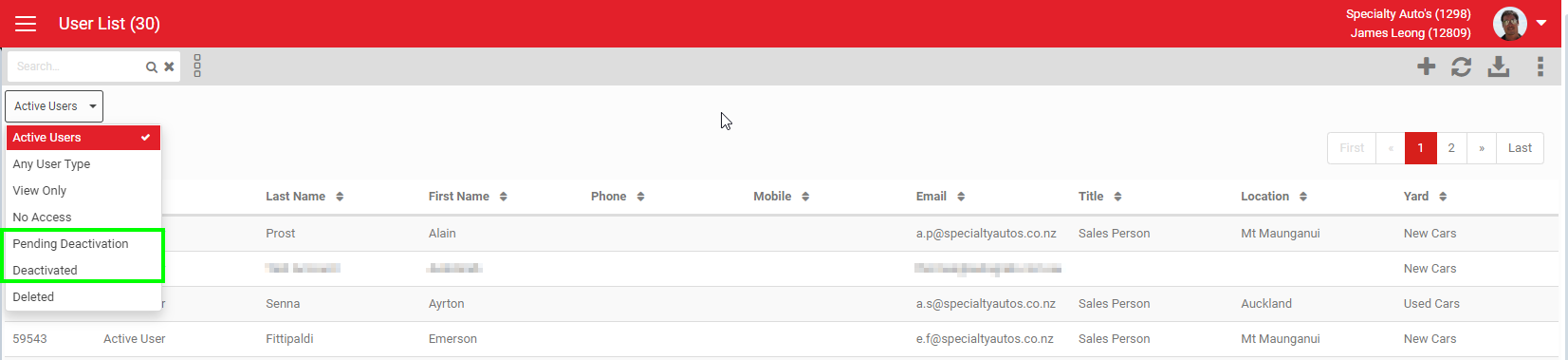
As soon as the warning email goes out, the user's status changes to Pending Deactivation. They keep full access during this period. The status change makes them easy to spot in the user admin list.
Deactivated
When the warning period expires without a login, the user's status automatically changes to Deactivated. All settings linked to the account stay in place (Automations, Auto Responses, Lead Management Allocation settings, Scheduled Reports), by design, since the user had a clear warning before deactivation.
If the user tries to log in after this point, they see:
"Sorry, for security reasons your account has been deactivated due to inactivity as you have not logged into AutoPlay within the last X days. If you still require access please talk to your manager, or contact support@autoplayauto.com"
An AutoPlay employee then needs to reinstate the account.
Reactivating a deactivated user
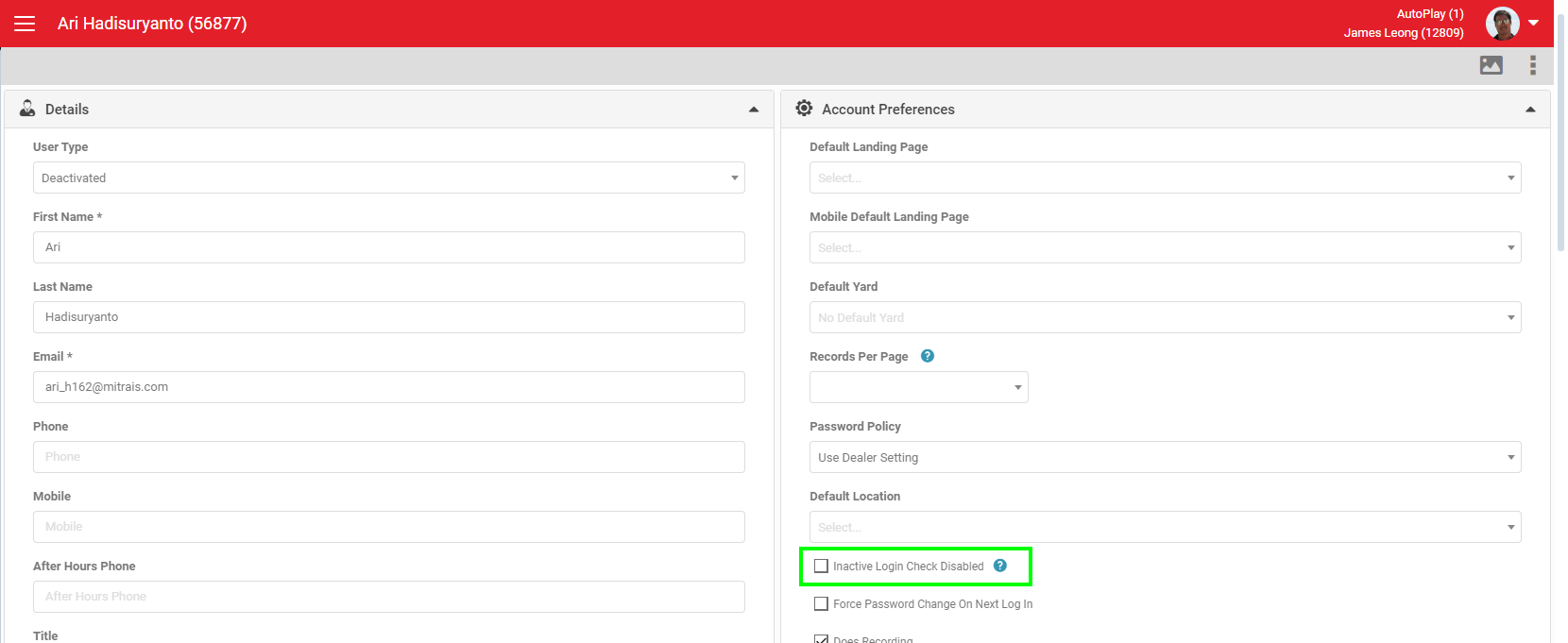
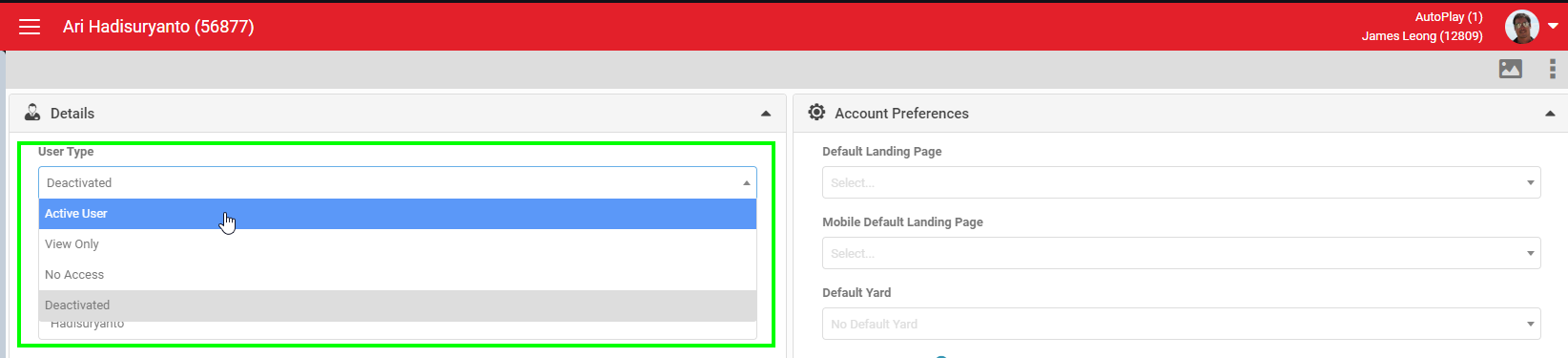
To reinstate a user, filter to find them, open the User Detail page, set the user status back to Active, and save.
You can exempt specific users from this process, for example a Dealer Principal who doesn't log in regularly, or a Test Drive Kiosk user. This setting is on the user record.