This article explains the password policy options AutoPlay can apply at Dealership or Dealer Group level, and how they affect users.
Since release 23.2.1, AutoPlay can apply specific password policies at either a Dealership level or a Dealer Group level.
Different users see different levels of customer personal information, so you can set different policies for Sales Team members, Managers or National-level visibility. A password policy forces a user to change their password after a set number of days, which lowers the chance of a compromised password giving access to personally identifiable information.
Provisioning
Only an AutoPlay employee can access these settings. Speak to your account manager if you want a policy applied to your account or Dealer Group.
Admin > Studio Admin > Password Policies
Setting up a policy
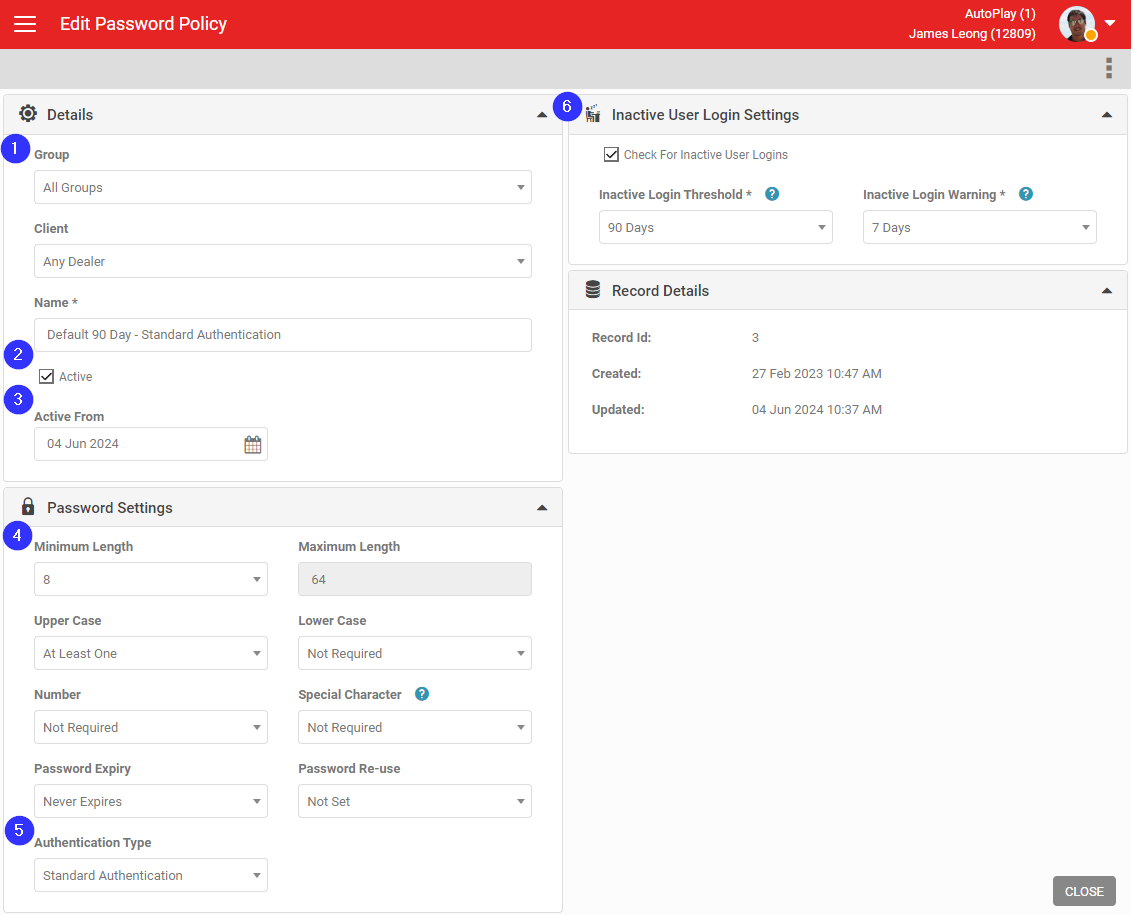
- Select the account or group the policy applies to:
- Group: a Dealer Group setting.
- Client: a specific AutoPlay account.
- Name: a name for the policy, shown when selecting it elsewhere.
- Active: whether the policy is live now.
- Active From: set a future date if the policy should only apply from then.
Password policy settings
- Minimum Length: minimum number of characters required.
- Maximum Length: capped at 64 characters.
- Upper Case: whether an upper-case character is required.
- Lower Case: whether a lower-case character is required.
- Number/Special Character: whether a number or special character is required.
- Password Expiry: how many days a password stays valid before it must be changed.
- Password Re-Use: prevents a user reusing the same password for a set number of resets.
Other policy settings
- Authentication Type: if a password policy is active on an account, this overrides the Authentication setting on the My Company screen.
- Inactive User Policy: removes a user's access if they haven't logged in within a set time frame.
- Inactive Threshold: how long a user can go without logging in before deactivation.
- Inactive Login Warning: how long before deactivation AutoPlay starts warning the user.
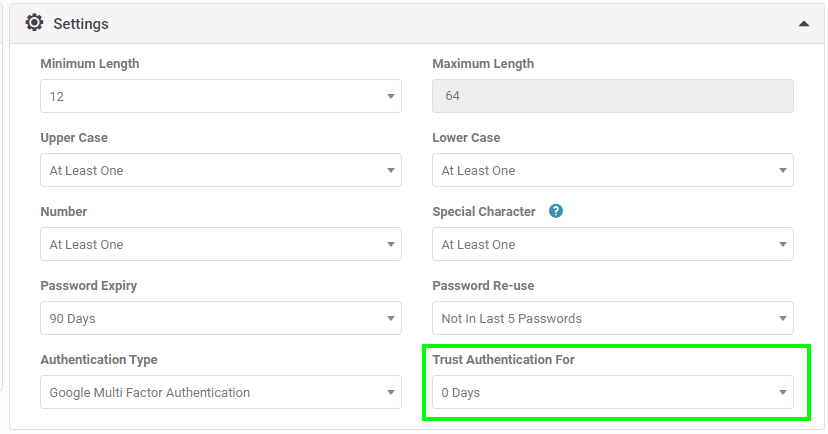
Since release 23.6.1, you can also apply Trusted Authentication to an account. This removes the requirement to enter an authenticator app or SMS code on every login, while still asking for a password. Trusted authentication can be set to 0, 7, 14 or 30 days.
Application
The Company Details section of an AutoPlay account has a drop-down for this.
Settings > Company Settings > My Company
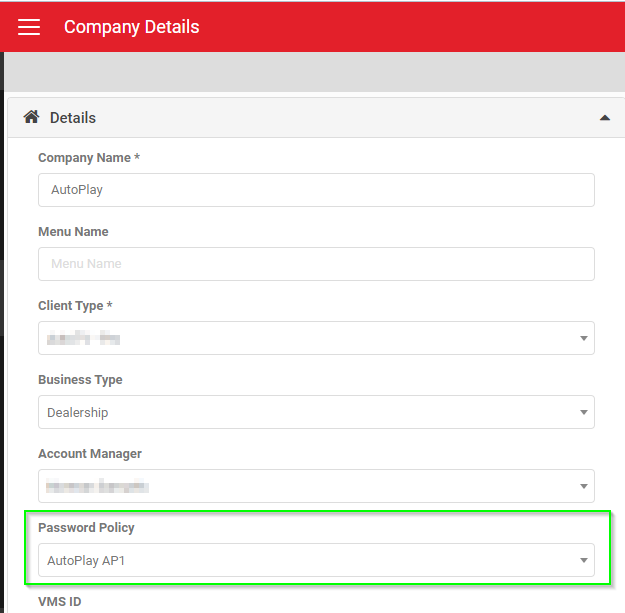
Anyone with access to this section (AutoPlay users, or a user with the Company Admin access privilege) can select any policy that has been provisioned for their account.
User policies
You can also apply a policy to an individual user.
Settings > Company Settings > My Users > User > Account Preferences
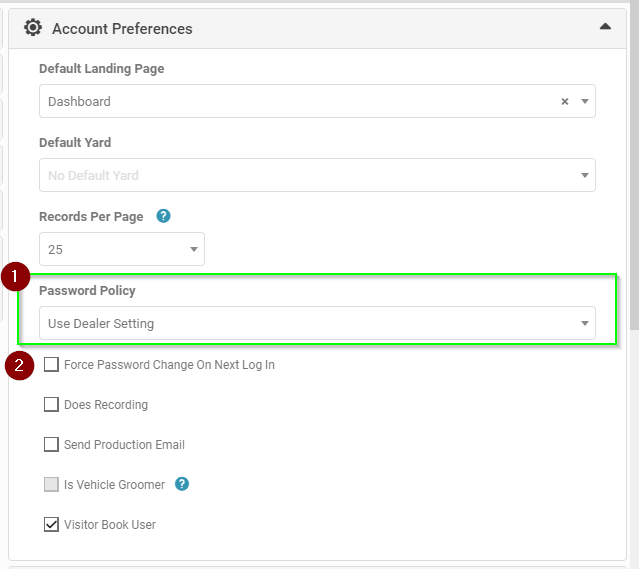
- Choose between the account's default Dealer setting or another policy available to the account.
- Tick the box to force the user to change their password at next login. This is applied automatically if the policy has an Active From date set.
Account-wide update
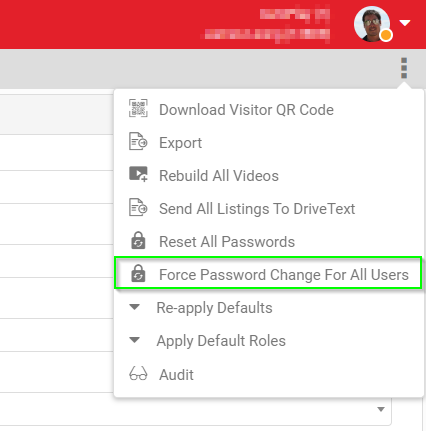
If you need every user to reset their password at their next login, you can trigger this from the My Company menu.