
The Columns picker is now available on the Listing Dashboard and the Lead Dashboard. You can hide the columns you don't use, reorder the ones you do, and your layout is remembered the next time you open the screen.
This is the same picker already in use on the admin grids, so it behaves identically.
Where to find itOpen the Listing Dashboard or the Lead Dashboard in grid view. The Columns button sits in the toolbar above the table.
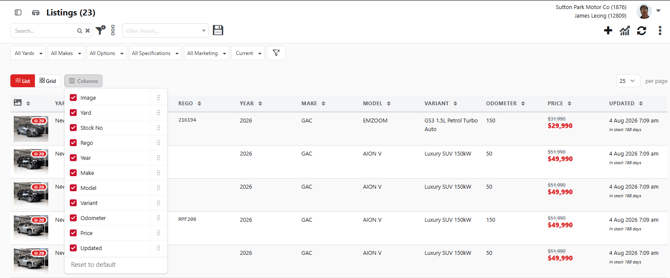
Click Columns to open the dropdown. Each column in the grid is listed as a row with a checkbox and a drag grip.
- Tick or untick a checkbox to show or hide that column.
- Drag a row by its grip to move the column left or right in the grid.
- Reset to default returns the grid to its original column set and order.
At least one column must stay visible. Unticking the last one is blocked.
[Screenshot — Columns dropdown open, showing checkbox rows and drag grips]
Your selection is saved and applied before the grid draws, so the screen loads with your layout already in place rather than flashing the default first.
Columns you can't changeThree groups are always shown and don't appear in the picker at all:
- The bulk-select checkbox column on the far left
- Each grid's Updated and Created columns
- Phone-only columns, which only apply on small screens
These hold a fixed position in the grid. A column you drag in the picker can't be moved past them.
Columns that aren't listedIf your role or your dealership's setup doesn't give you access to a column, it won't appear in the grid or in the picker. This covers columns tied to integrations such as Trade Me and Autograb, and columns like Dealer Group leads. Reset to default won't bring these back either. Talk to your administrator if you expect to see a column and it isn't there.
LimitationsThe picker is available on desktop only. It does not appear on mobile or narrow screens.