
What the Contact Dashboard is
The Contact Dashboard is a new way to see your leads and what you need to do today, with the full picture of the person behind them in the same place.
It does not replace any existing screen. The Lead Dashboard, the contact screen, the Prospect Dashboard, Email and the wizards all stay exactly where they are and work exactly as they do today. This is an additional way in, and nobody has to change how they work.
What it adds is the mix. The work list you would get off the Lead Dashboard now sits alongside a fuller view of the contact you are about to ring: what is scheduled with them, and everything the dealership has done with them before.
Everything about a contact sits on one screen behind tabs: Overview, Timeline, Leads, Vehicles, Prospects, Details and Communication Preferences, rather than in cards you open one at a time. A good deal of what SPW already holds on a contact, particularly on their vehicles, is visible here for the first time.
All the activity is in one feed. Communications, automated messages, leads, test drives, appraisals, prospects, vehicle ownership and showroom visits used to be eight separate lists to check. On the Timeline they are one run of events in date order, split by who did the thing, so what is coming up with this person and what has already passed between you read as one story.
The contact list also gained working queues, so it is no longer just a list of contacts. It knows what is due today, what is overdue and what is coming.
Visibility carries over as it stands. The Contact Dashboard reads the same role settings as the rest of AutoPlay, so every user sees the same leads and contacts here that they can already see elsewhere. Nothing new was granted and nothing was tightened.
This is phase one. In Market Leads, custom contact fields and a separate Company record are phase two and are not here.
Getting there, and Personal vs Team
Contacts → Contact Dashboard in the left menu. The address is /contact/dashboard, and a contact's record is /contact/dashboard/record/{id}. Old /Crm links redirect, so existing bookmarks keep working.
Access is behind the AutoPlay Preview role while it beds in. A user without it has no Contact Dashboard menu item at all.
At the top of the contacts nav sit two buttons, PERSONAL and TEAM.
Personal is the user's own work: contacts where they own the lead, the prospect or the test drive. It is ownership of the work, not the consultant name written on the contact, so the open lead counts here line up with the Lead Dashboard.
Team is everyone's. It renders for lead managers only, meaning Manage Leads with the Manager flag. A consultant who gets to a Team view another way is refused with a message rather than shown an empty list.
The scope switch changes every count in the nav at once. If someone reports that their numbers "changed overnight", check which scope they are on first.
Below the views, RECENTLY VIEWED keeps the last four contacts, each with their first lead vehicle or suburb so two people with the same name are tellable apart.
All contacts and the six queues
The nav holds two groups. EVERYTHING has All contacts. PIPELINE has the six working queues: Contact today, Follow-up overdue, Future events, Open leads, Prospects and Unassigned leads. Every row carries a live count for the scope the user is on.
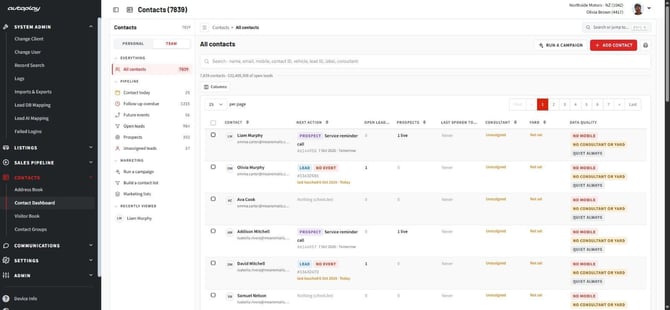
All contacts is the whole database as a table: Contact, Next action, Open leads with value, Prospects, Last spoken to, Consultant, Yard and data quality flags. Every column sorts, and the default order is Next action. The open lead value loads on its own, so it can appear a moment after the rest of the row.
How the next action is worked out
For each contact, AutoPlay takes the soonest dated item across their lead events, prospects and test drives. That one date decides which queue they land in: dated today → Contact today, dated before today → Follow-up overdue, dated later → Future events. A contact appears in every queue they belong in, not just the earliest.
A lead with nothing scheduled does not vanish. It falls into the queues off its last-touched date carrying a NO EVENT chip, plus a NEW LEAD chip where it has never been worked. The type filter above the list carries All, Leads, Prospects, No next event, and the last of those isolates exactly the defaulted rows.
Twenty days past due or last touch, a lead or prospect is flagged Stalled. One threshold for both. Worth knowing: this also changes the Prospect Dashboard, where a prospect 20 to 28 days past last touch now flags stalled when it previously did not.
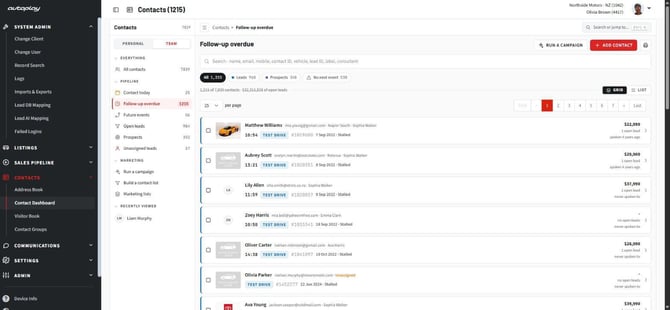
Cards or a dense list
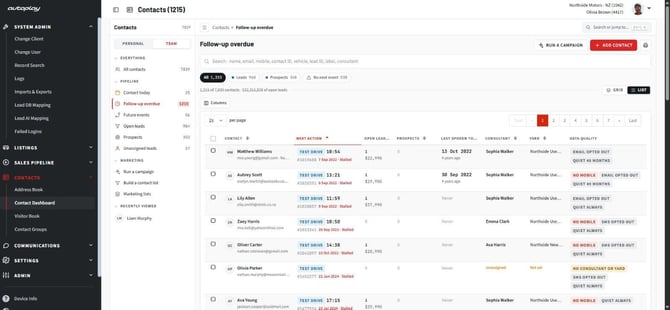
Rows render as cards by default. The GRID / LIST switch at the right swaps to a dense table, and the choice sticks between sessions. Same rows, same order, same chips. Only the density changes.
A card leads with the queue's own event: time, type, record reference and due state. On the right sit the open lead value, the open lead count and how long since anyone spoke to them. Clicking a card whose event is a lead or a prospect opens a light summary panel first rather than the whole record, because a queue is a scan across many people.
Unassigned leads is lead-manager only: contacts carrying at least one open lead with nobody allocated. A consultant does not see the view, the count, or the entry in the jump menu.
Selecting rows raises a bulk bar. In this release only Run a campaign and Clear do anything. Assign consultant, Add a label and Export render but are not wired yet.
Searching, and Ctrl K
The search box sits above the table, not in the nav, and it always searches the entire database regardless of which view is open. The heading says so: Every contact matching smith across all 7,839 records, whatever view you came from.
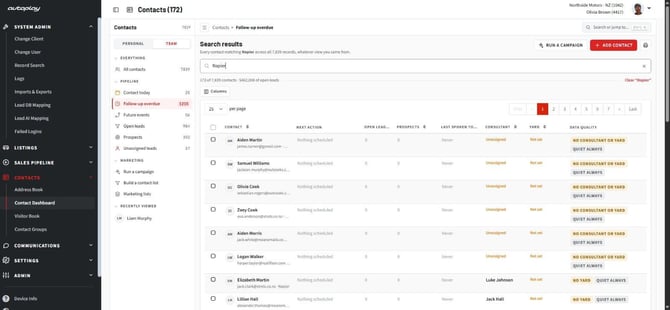
It matches name, email, mobile, contact ID, suburb, city, lead vehicle, lead ID, prospect action, contact label and consultant name. Clear "smith" on the right drops the query and puts the user back in the view they came from.
A common support call: "I filtered to Contact today and searched, and got people who aren't due today." That is correct. Search is never narrowed by the active view.
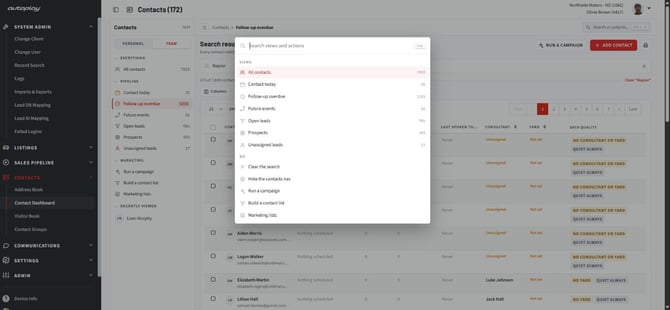
Ctrl K opens the jump menu, also reachable from Search or jump to... in the top bar. It lists the views with their counts under VIEWS, and the things you can do under DO. On a contact record it also lists that record's tabs, its Start workflows and its open leads. Manager-only views are left out of a consultant's menu entirely, and nothing in it bypasses a permission. If a button is hidden for that user, so is its jump entry. No match reads Nothing matches.
Opening a contact
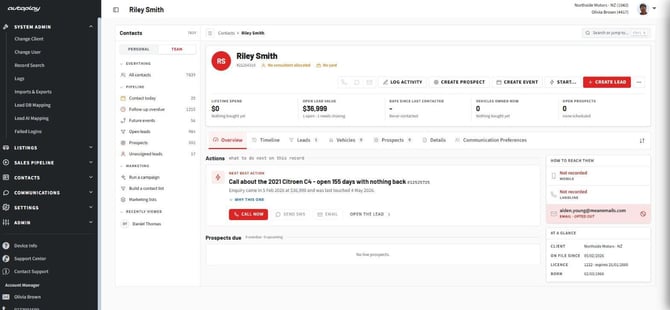
The header carries the name, the contact ID, label chips, suburb and city, the allocated consultant and the yard. Where there is no consultant or no yard it says so in orange rather than leaving a gap. There is no stage chip anywhere in this release.
The three channel icons
Call, SMS and email sit as one cluster. An icon is dead for two reasons only: nothing is recorded for that channel, or SMS Status is STOP. Hovering a dead icon says which, for example No mobile number on the record.
An address or number that is Undeliverable, Invalid Email or Invalid Number leaves the icon live and flags the problem instead. The consultant can still try it, then go and fix it.
Clicking call asks which number where the contact has both a mobile and a landline, then asks which open enquiry the call belongs to. Only open leads are offered. If there are none, the call goes ahead and files as general activity. AutoPlay writes the call log the moment you click, carrying the number, the time and the lead you picked. Nothing matches it up afterwards, so the lead you choose there is the attribution.
The five tiles
Lifetime spend, Open lead value, Days since last contacted, Vehicles owned now, Open prospects. Each carries a second line: vehicles bought and conversion rate, how many open leads need chasing, the last contact date, traded-out and test drive counts.
Days since last contacted turns red past 90 days. A thin record shows honest zeroes rather than placeholders.
The customer rail
Three cards, none of them repeating what the header already says.
HOW TO REACH THEM lists mobile, landline and email with the status on each row and its own action control. A STOP on SMS replaces the control with a blocked indicator. An opt out of that contact method reds the row. An invalid value leaves the control clickable with the warning beside it.
AT A GLANCE holds only what lives nowhere else: client, source, on file since, occupation, groups, licence number and expiry, date of birth. Consultant, yard and last spoken to are deliberately not here.
OWNS NOW lists currently owned vehicles with the next date that actually needs doing something about (insurance, service, warranty, finance) rather than specifications. It only renders where the contact owns something.
The Timeline
Everything that ever passed between the dealership and this person, newest first, in one feed.
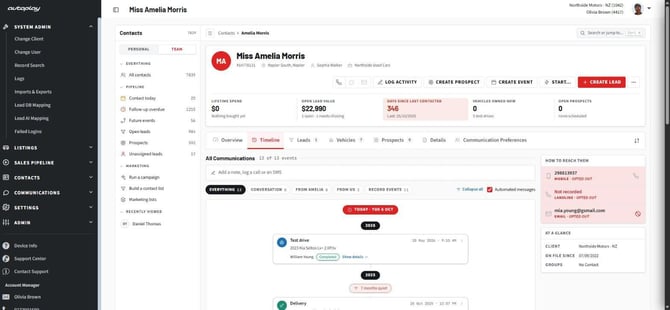
It reads by side. The customer's own actions sit on the left: inbound calls, texts they sent, showroom visits. What the dealership did sits on the right: outbound calls, sent texts, emails, notes, campaigns. Record events run down the middle: lead created, test drive, delivery, prospect, purchase. Below tablet width the lanes collapse into one and keep a coloured left edge so you can still tell which side an item came from.
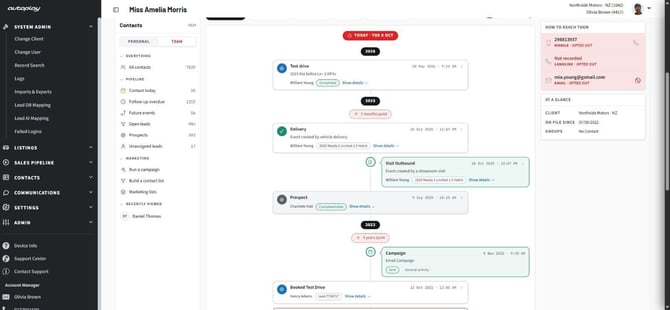
A red TODAY marker sits at the top, year markers break up the feed, and a quiet stretch is named: 7 months quiet, 3 years quiet. Anything over 45 days gets a marker, and it is drawn more heavily past 180 days.
The filter chips
EVERYTHING, CONVERSATION, FROM <their first name>, FROM US, RECORD EVENTS, each with its own count. For a consultant, FROM US reads FROM ME. Selecting a filter rebuilds the toolbar around it rather than greying things out, so the automated-messages tick and the available actions change with the filter. Collapse all / Expand all folds the bodies and the detail blocks.
Every bubble that resolves to a record opens it in a slide-in panel (the lead, the test drive, the appraisal, the prospect, the vehicle) after the same permission check the contact screen does. Show details on a bubble opens its label-and-value block without leaving the feed.
Who sees what
A sales consultant sees only their own communications on a record. A lead manager sees the whole team's. This is enforced on the server, not by hiding rows, so the counts on the filter chips are already the counts for that user.
Record events and automated sends always show, to everybody, because they belong to the record rather than to a person.
A campaign appears on the recipient's timeline as a single entry on the dealership side, labelled Campaign with the channel underneath and a Sent chip. One line, no recipient count, no reference to anyone else it reached.
Logging straight from the feed
The line at the top of the feed, Add a note, log a call or an SMS, expands into the same logging panel described below, with Note, Call and SMS tabs, an inbound/outbound switch and a link-to-lead picker that defaults to general activity.
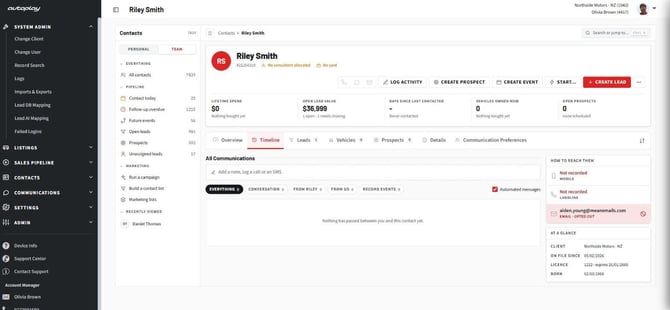
On a contact with no history the feed says so plainly: Nothing has passed between you and this contact yet.
Overview, Leads, Vehicles, Prospects
Overview
Only what needs doing. Anything settled or historic lives on its own tab.
NEXT BEST ACTION names one lead to work and says why in the headline itself: Call about the 2021 Citroen C4 - open 155 days with nothing back. It is ranked by lead value, with an outstanding test drive breaking a tie, never by age. WHY THIS ONE folds the reasoning away. The card's own buttons are call, send SMS, email and open the lead, with email replaced by a blocked indicator where consent is withdrawn.
Under it, Prospects due lists overdue and upcoming prospects, and Recent activity previews the last four timeline entries, permission-gated the same way, so a consultant's preview is their own communications.
Where nothing is scheduled at all, the tab says so and offers Create event rather than showing an empty box.
Leads
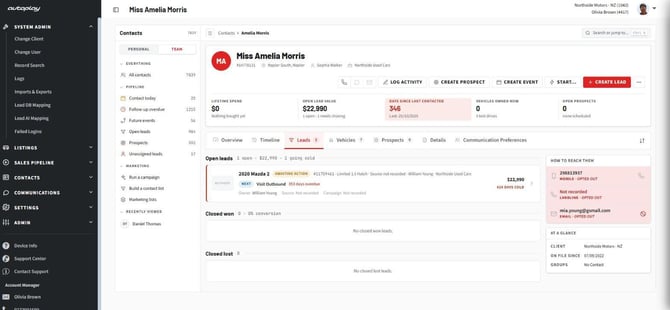
Three groups: Open sorted by value with the total and how many are going cold in the heading, then Closed won and Closed lost by recency, with the conversion rate on the won heading.
Each card carries the vehicle photo, one state chip, the reference, variant, source, consultant or an Unallocated warning, yard, owner, campaign, asking price with any struck-through previous price, and the next action line using the same rules as the queues. Past 60 days it picks up a days-cold treatment. A closed card states the outcome and the closing reason instead of a next action.
Soft-deleted leads are now excluded from the counts, so a few numbers read lower than people remember. That is correct.
Vehicles
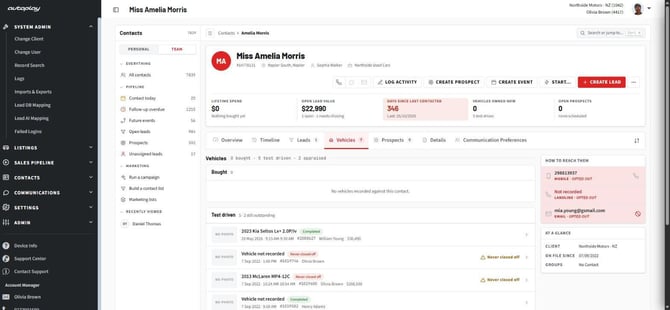
Three sections with counts: Bought, Test driven, Appraised.
Bought rows carry the photo, year make model, variant, rego, odometer, purchase date and price, deal number, and a row of expiry chips for insurance, service, warranty, service plan and finance, coloured by urgency. A fold opens every ownership field SPW holds: VIN, stock number, body, drive, transmission, condition, delivery date, odometer at sale and now, warranty and service plan dates and distances, finance amount, rate and end date. Most of this has never been visible on a contact before.
Test driven rows show the booking, the consultant, the price and a Never closed off warning where a drive was due and never completed. Appraised rows show the offer or No offer recorded, the date, the reference and who did it.
One caution for support: whether an ownership record was auto-created from a sold lead or typed by hand does not tell you whether this dealership sold the car. Last Purchase This Dealer on the Details tab is still the only answer to that.
Prospects
Live prospects in one list, completed ones behind a fold. Each row shows the action, activity and status chips, the context, the reference, the assigned user or an unallocated warning, and either the completion date or an urgency-coloured due age.
In this release the tab is read-only. Mark complete and reschedule open the panel but do not finish the job yet.
Details, and how saving works
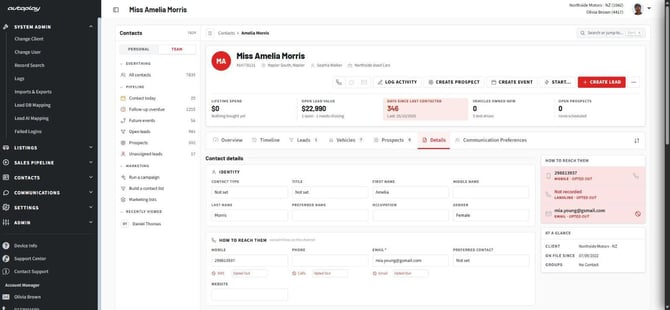
One form, one Save, no autosave anywhere. The groups are IDENTITY, HOW TO REACH THEM, Address, allocation and admin, and notes.
Change a field and it marks itself dirty and raises the Save bar. Enter on a dirty field moves focus to that bar. Escape reverts the field. Nothing is written to the record until Save is pressed. The same key never means save in one place and cancel in another.
Tell users this plainly, because the old screen behaved differently: leaving the tab with the Save bar up throws the edit away.
Field history
Fields with audit data show a History control on hover. It opens a panel listing each saved value, who set it and when. Saved values only. Where the field is sitting on an unsaved edit, the panel says so and states that the edit does not exist anywhere yet.
What changed on the form
- Fax no longer renders. Existing fax data is kept, not deleted.
- Attention To stays. It is the named person on Business and Fleet records, and the only place that name lives until the Company record arrives in phase two.
- Last Purchase This Dealer stays, and is still the bought-here signal.
- Last Purchase and Last Purchase Vehicle now derive from the vehicle ownership record where one exists. Where none exists the typed value is kept and stays editable, so pre-AutoPlay purchases are not blanked.
- Region is a select against the locale list, not free text.
- Country offers New Zealand and Australia, with the full sixteen where the account is configured for it.
- Contact type renders all six stored values (Private, Business, Fleet, Government, Wholesale, Other) where the account has the field switched on. Where it does not, the field is absent.
- The yard list is a typeahead rather than a long select.
- Postal address sits behind the Postal address is the same tick.
Notes
The notes panel shows every notes field on the customer in one place (the contact's own, and each of its leads) with one search across all of them. That search is new; it was not possible at all before.
A lead note saved here exports to the dealer's DMS like any other lead save. The lead slide-in has no notes section, so Details → Notes is the only way in.
Consent, and the Communication Preferences tabThis is where most of the support calls will land, so it is worth being exact.
Consent lives on the channel. It is enforced where the channel is chosen, not at the moment you press send, which is why a blocked channel refuses up front rather than failing afterwards.
|
What the contact holds |
Sending to them one to one |
Including them in a campaign |
|---|---|---|
|
Nothing recorded for that channel |
Control is dead |
Skipped, reason No mobile number |
|
SMS Status |
SMS blocked outright, no exception |
Skipped |
|
Opted out on that channel |
Outbound on that channel is refused, the row reds |
Skipped, reason Opted out of SMS |
|
Undeliverable, Invalid Email, Invalid Number |
Control stays live, carries a warning |
Skipped |
|
Opted out on a different channel |
No effect |
No effect on this channel |
Logging something inbound is never blocked. If the customer rang you or texted you, you can always write that down.
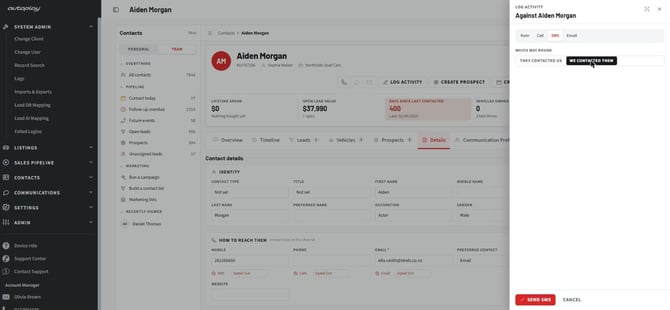
The wording on screen: This contact has opted out of SMS. The channel is refused here rather than failing after you press the button, consent belongs to the channel, so it is enforced where the channel is chosen. Writing down that they contacted you is not affected.
The Communication Preferences tab
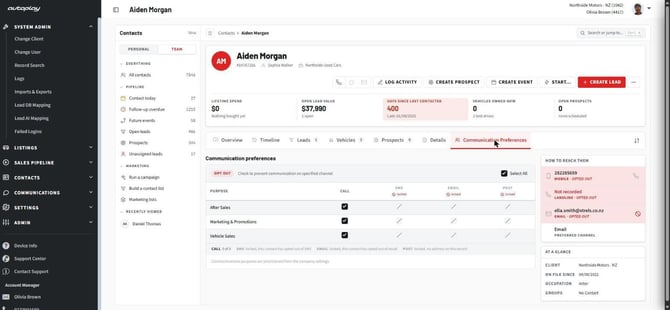
A grid of purposes down the side and channels across the top, each cell a tick box. Ticking a box opts the contact out, and the header says so: Check to prevent communication on specified channel.
The purposes come from the dealership's own configuration, not a fixed list, which is why one dealer shows three rows and another shows seven. The footer notes it: Communications purposes are provisioned from the company settings.
Where the contact has already opted out of a channel on their record, that whole column locks and the footer says why: SMS locked, this contact has opted out of SMS. There is nothing to decide per purpose once the channel itself is off.
The tab only renders where the dealership holds the Privacy Enhanced role. Without it the user sees six tabs and no way to turn this one on. A contact with no rows in the grid still gets the tab; the first tick creates the rows on save.
The three status fields on the Details tab stay separate and keep their own value sets. Nothing was merged or migrated.
- Email Status:
New,Current,Undeliverable,Opted Out,Invalid - SMS Status:
New,Current,Invalid Number,Opted Out,STOP - Phone Status:
New,Current,Invalid Number,Opted Out
STOP is scoped to the dealership account the user is logged into. It is not a global property of the person.
Logging, events, prospects and Start
Everything opens as a panel on the right. The contact stays underneath with its tab, its scroll position and its filter intact, and closing the panel puts the user back exactly where they were. Escape closes it.
Log activity
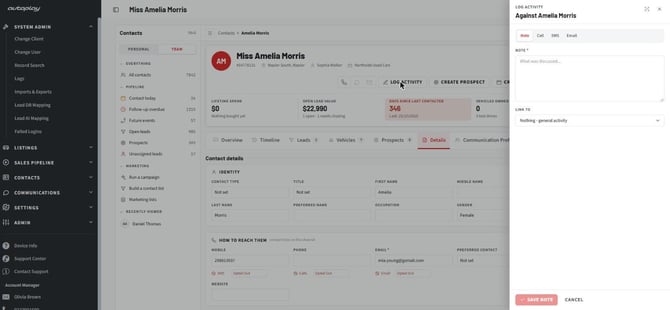
Four tabs: Note, Call, SMS, Email. Call and SMS carry a WHICH WAY ROUND switch, THEY CONTACTED US or WE CONTACTED THEM. Underneath sits the body field and LINK TO, which defaults to Nothing · general activity.
One thing worth saying out loud, because the button text changes with it: inbound is logged, outbound sends. On an inbound text the button reads LOG THE TEXT; switch to outbound and it reads SEND SMS and goes through the normal composer. A consultant who only wants to record a text they already sent from their phone should log it as inbound-style note, not use the outbound tab.
The panel needs Manage Contacts. Without it there is no Log activity at all.
Create event
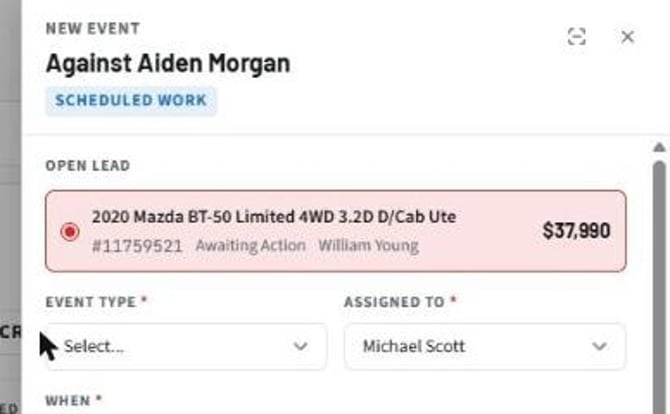
It asks which open lead the event belongs to before anything else, because an event hangs off an enquiry. Each option shows the vehicle, the reference, the status, the owner and the value. Where the contact has no open leads, the panel says so and offers lead creation instead.
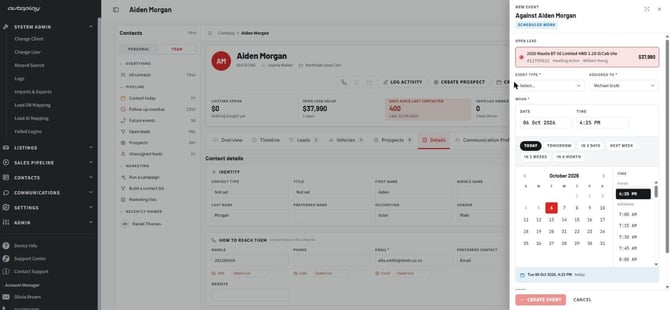
Then event type, who it is assigned to (new, the old event modal never allowed that) and the date and time, with TODAY, TOMORROW, IN 3 DAYS, NEXT WEEK, IN 2 WEEKS, IN A MONTH shortcuts above the calendar. On save it lands on the timeline above the today marker and in Future events from the one write.
The next action prompt
The same panel comes back after an activity is logged against a lead. It confirms what was logged and states that skipping means the lead falls back to overdue off its last touch, which is now. Skipping is a visible choice, not a silent default.
It also appears on completing a prospect, but only where the user's Manage Prospects role has Prompt For Another Prospect Event set, and that resolves per yard, not per dealership. Two users at the same dealer can legitimately see different behaviour here.
Create prospect
Opens empty, needs no open lead and creates none. Fields in order: Prospect Title, Activity, Action, Event Type, Date and Time, User, Yard, Notes. Date and time default to today rather than opening blank.
Activity and Action read the dealership's own configured lists. Every listing (the Prospects tab, Overview, queue cards, the timeline) still reads a prospect by its Action, not its title.
Start
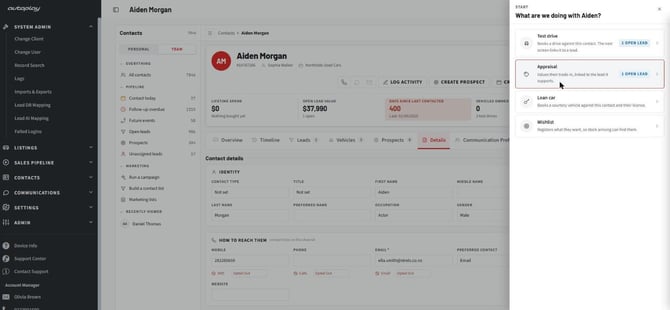
The walk-in menu, four rows: Test drive, Appraisal, Loan car, Wishlist. Each states what it hangs off and whether it needs a lead first, then hands over to the existing workflow. All four are also in the Ctrl K menu.
Lists and campaignsThree entries in the nav, all gated on Email Campaign: Run a campaign, Build a contact list, Marketing lists.
Build a contact list
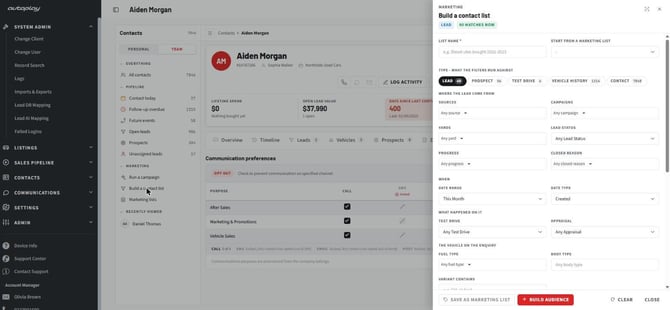
The legacy builder rebuilt as a panel. Five types across the top: LEAD, PROSPECT, TEST DRIVE, VEHICLE HISTORY, CONTACT, each showing a live match count that updates as criteria change. The old PREVIEW button is gone because the count is always current.
Four behaviours changed from the old screen, and all four are things people complained about:
- Switching type keeps what was entered on the other panels. Criteria are held per type and do not leak between them.
Cancelkeeps the entered criteria rather than throwing them away.- Test drive and Appraisal now expose the No option, so "never test drove" and "never appraised" are reachable for the first time.
- Any filter that cannot be expressed against the data is named on screen instead of being dropped silently.
Two things to set expectations on. The date range only narrows Lead and Prospect. Vehicle history and Contact have no date field, because the underlying query never used one. And Test drive as a type only appears where the dealership has standalone test drives switched on.
Closed Reason reads the dealership's own active list, keeps historical values that have since been deactivated so closed-lead targeting does not quietly lose records, and states on screen that it only applies where the lead is closed. Opt Out is no longer offered here at all. It moved to suppression, below.
Marketing lists
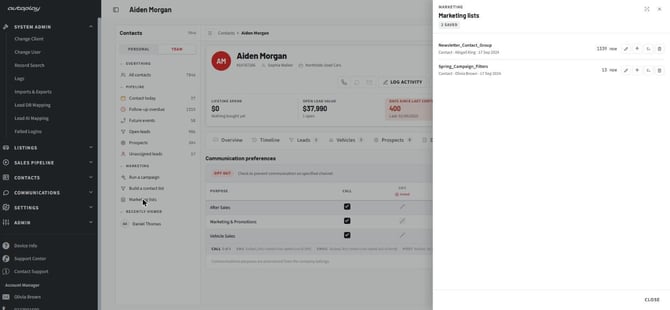
A marketing list is a saved set of criteria, not a frozen set of people. It resolves against the live database every time it is opened or run, which is why the count beside it says now.
Each row carries the name, type, owner, created date and live count, with controls to open it in the builder, run a campaign at it, rename it and delete it. Rename takes the same permission delete does, so a consultant cannot rename or delete somebody else's list. Loading a list warns before it overwrites criteria already entered.
Run a campaign
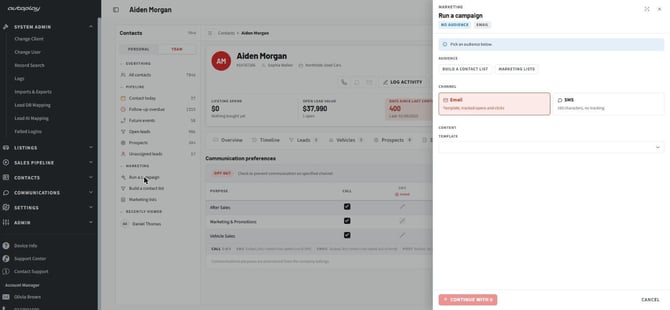
Pick an audience first: a list you build now, or a saved marketing list. Those are the only two. Running a campaign at whatever the contact list happens to be showing is not supported in this release.
Then pick the channel, email or SMS, and a template. There is no email designer here; it selects an existing template.
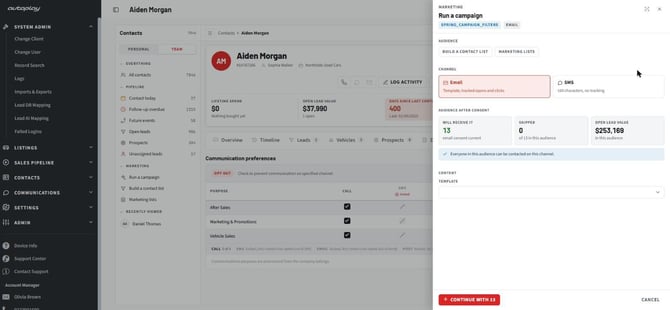
AUDIENCE AFTER CONSENT is the part to point people at: how many will receive it, how many were skipped, and the open lead value sitting in the audience. Where nobody is blocked it says so: Everyone in this audience can be contacted on this channel.
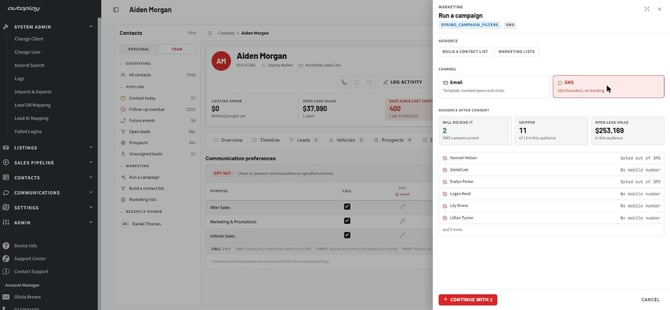
Where people are skipped, each one is named with its own reason: Opted out of SMS, No mobile number. The same thirteen-person list drops to two on SMS and skips eleven. Suppression is applied per channel at the moment the campaign is built. It is never offered as a filter, so there is no way to accidentally target people who have opted out.
Two things support should know and users will ask about.
The Contact Dashboard does not send. The button reads CONTINUE WITH 13 and hands the resolved audience to the existing Email Campaign screen, which is where the send happens. There is deliberately only one send path.
There is no scheduling. The existing message saying a campaign is being scheduled to send means it is queued to go now. It reads like a schedule and is not one.
Customise
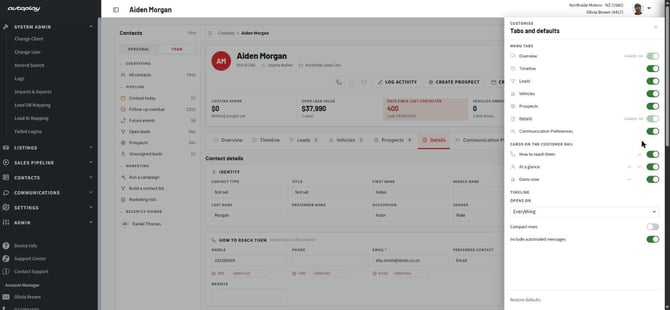
The control at the right end of the tab row opens the Customise panel, headed Tabs and defaults.
MENU TABS turns tabs on and off. Overview and Details are marked always on and cannot be hidden. Everything else, including Communication Preferences where the dealership has it, is the user's choice.
CARDS ON THE CUSTOMER RAIL reorders and hides the three rail cards. Owns now appears here even for a contact who owns nothing, so the user can set its position before they ever hit a record that uses it.
TIMELINE sets what the feed opens on (Everything, Conversation, From them, From us, Record events) plus compact rows and whether automated messages are included. Without this the feed resets to Everything on every contact, every visit.
Restore defaults puts it all back.
One thing to tell users: this is saved per user per machine. A consultant who sets it up on the showroom PC will not find their layout on the laptop at home.
Support notes: who sees whatAccess here follows the roles a user already holds, so a consultant sees the leads they see on the Lead Dashboard and a lead manager sees the team's. When two people describe the screen differently, this table says which setting is doing it.