
This article shows you how to set up a new user in AutoPlay.
Before you start
You need the User Admin role to create users. If you have this role, you will see a + button in the grey action menu on the My Users screen.
Create a new user
- Go to the My Users screen.
- Click the + button in the grey action menu.

Note
Creating a user is only half the job. You also need to set up the right role management for that user, or they will not have access to the screens and functions they need.
Creating a user is only half the job. You also need to set up the right role management for that user, or they will not have access to the screens and functions they need.
Duplicate an existing user (recommended)
The fastest way to set up a new user with the correct access is to copy an existing user who already has the right permissions.
- Find a user who has the access settings you want to copy.
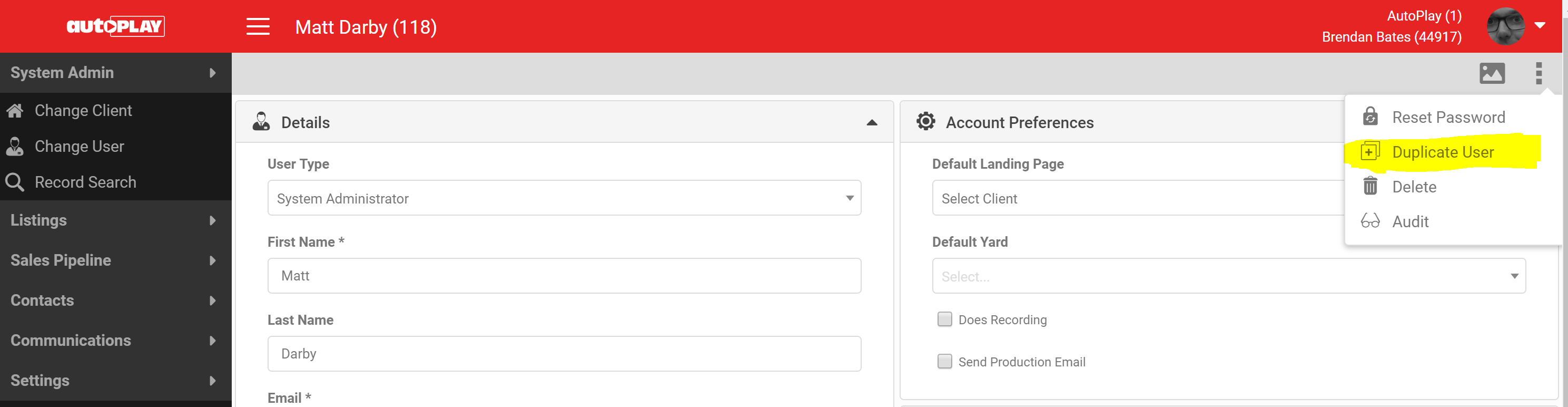
- Open the grey action menu and click Duplicate User.
- This creates a copy of the user, including their role management settings.
- Update the new user's name and email address.
Creating users in bulk
If you need to set up several users at once, you can do this in bulk. See Creating Users in Bulk for details.