
The Add New User wizard walks you through creating a user in five steps: who they are, what they can do, where they work, whether they get leads, and a review before anything is saved.
Nothing is created until you press one of the two create buttons on step 5. You can go back to any completed step, and you can leave part-way through and pick it up later.
The wizard replaces the old single-page form as the recommended route, but the old form is still there and still works. Use the wizard when you want the access, yards and lead settings done in one pass instead of adding roles after the user is saved.
Before you start
You need User Admin with the manager tick. Without the manager tick the wizard is not offered at all, and you will not see an error explaining why. If the option described below is missing from your My Users screen, that is the reason.
The wizard is desktop only, and is available to both NZ and AU dealerships.
Have these ready:
- The person's first name, last name and email address. The email is their login and is where their password setup link goes.
- Their mobile number, if they are to get text alerts for new leads. Without a mobile on the record, the SMS options in step 4 stay switched off.
- Which yards they work in, and which one their dashboard should open on.
- Whether they manage anyone, or approve anyone's work. This is the manager tick, and it is asked per permission.
Two other routes exist and are unchanged:
- The classic single-page form you have always used, where roles still have to be added after the first save. It is also the way to create a second record on an email address the dealership already holds, which the wizard refuses.
- Import Users, for adding several people at once from a spreadsheet.
Opening the wizard
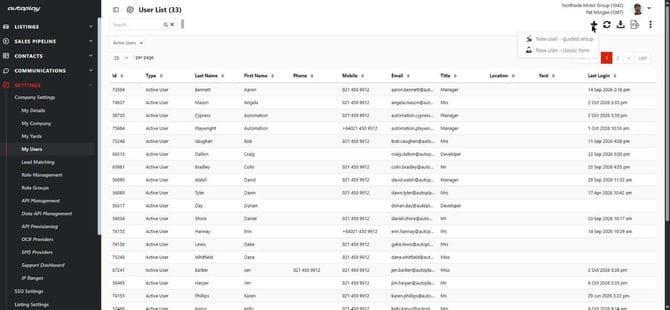
Go to Settings, then Company Settings, then My Users. The wizard opens from the plus icon on the action bar above the user list.
The plus icon gives you two choices:
- New user, guided setup. Step-by-step: identity, access, yards and leads, with nothing saved until the end. This is the wizard, and the recommended route.
- New user, classic form. The existing single-page form. Roles still have to be added after the first save.
Adding several people at once? Use Import Users on the action bar instead.
While the wizard is open, the left navigation shows Settings expanded with My Users active and Add New User underneath it. The five steps run across the top, and a help panel on the right explains whatever step you are on.
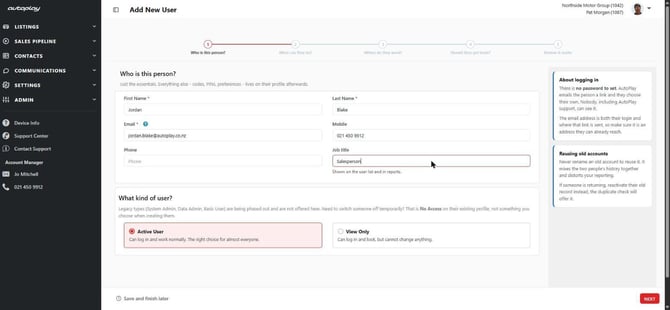
Step 1, who is this person
Fill in their details. Only first name, last name and email are compulsory.
|
Field |
Required |
Notes |
|---|---|---|
|
First name |
Yes |
|
|
Last name |
Yes |
|
|
|
Yes |
This is how they log in, and where the password setup link is sent |
|
Mobile |
No |
Enter it if they are to get text alerts. Without it, the SMS options in step 4 stay disabled |
|
Phone |
No |
|
|
Job title |
No |
Shown on the user list and in reports |
|
User type |
Yes |
Active User, or View Only |
Active User can log in and work normally, and is the right choice for almost everyone. View Only can log in and look, but cannot change anything.
The older types, System Admin, Data Admin and Basic User, are being phased out and are not offered here. Switching someone off temporarily is done by setting No Access on their existing profile, not at creation.
The duplicate check
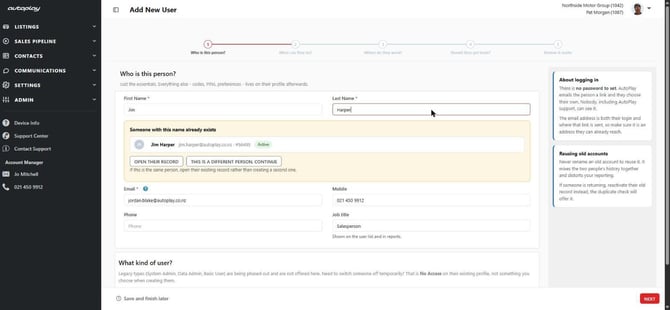
As you type the name, the wizard looks for anyone already on your dealership with the same details. It only ever looks at your own dealership, and it includes deactivated people.
The same first and last name is a warning, not a block. The panel shows who it matched, their email, yard and whether they are active or deactivated, and offers you up to three things:
- Reactivate their record, offered only when the match is deactivated. Prefer this. A fresh record splits that person's history in two.
- Open their record, to check whether this is in fact the same person.
- This is a different person, continue, which dismisses the warning. Change either name afterwards and the check runs again.
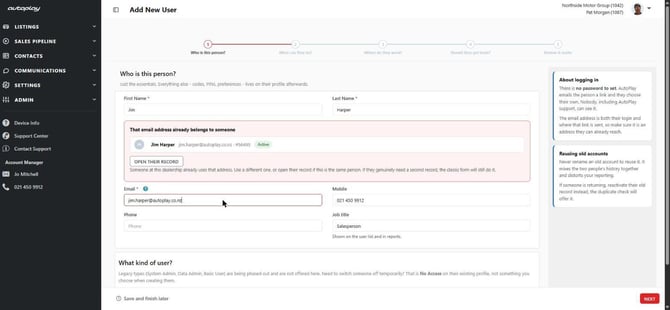
An email that already belongs to someone here stops the step. You cannot continue, and the panel names the person holding it with a link to open their record. Where a second record on that address is genuinely needed, the classic form is the way to do it.
Step 2, what can they do
Pick one of four ways to set up their access. Which cards you see depends on your dealership and on your own permissions, so you may see two of them rather than four.
|
Card |
When you see it |
What it does |
|---|---|---|
|
Use a setup template |
Only where your dealership uses role groups |
Applies one or more saved templates |
|
Copy someone else's access |
Always |
Starts from an existing person's permissions |
|
Choose individual permissions |
Only if you hold Role Manager Admin |
Pick permissions one by one |
|
No access yet |
Always |
Creates the login with nothing attached |
Click a card to open it. Click it again to close it. Changing from one card to another clears any manager switches you had set.
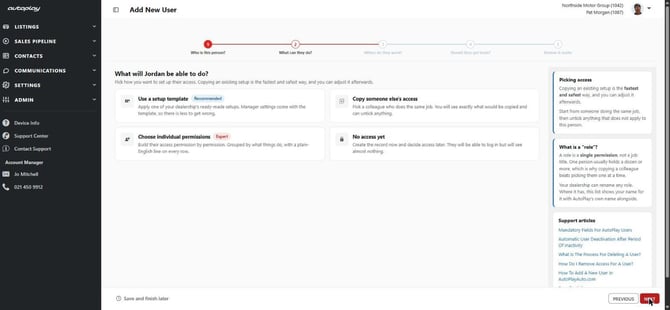
Use a setup template
Most dealerships are not on role groups, so this card is hidden for them. Where it is shown, you can pick more than one template and they stack, which is how a base template plus a manager add-on is done.
Each template shows what it is for, how many people already use it, and how many permissions it carries. Show technical detail lists the actual roles if you want to check.
If your dealership is on role groups but has no templates yet, the card becomes Create your first template. Pick an existing person with a reasonable set of permissions, give the template a name, and it is saved and applied in one go. Name it after the job rather than the person, since it will outlive both.
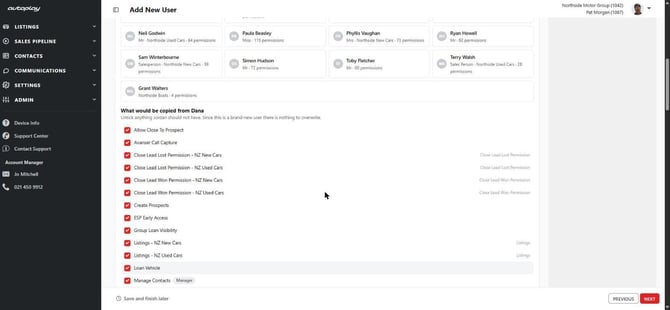
Copy someone else's access
Pick the person you want to copy. The wizard then lists every permission that would be copied across, one line each. Untick anything the new person should not have.
Do not untick everything. That is the same as choosing No access yet, and the wizard will stop you.
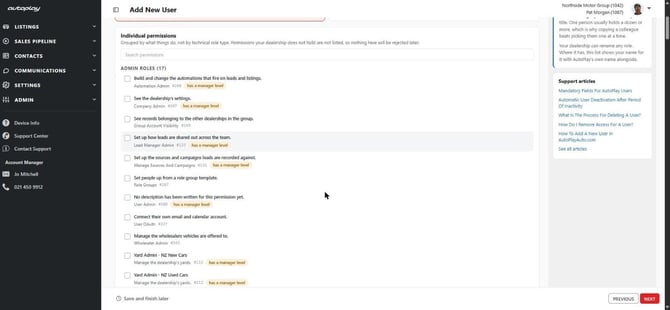
Choose individual permissions
This card appears only if you hold Role Manager Admin. If it is missing, a note under the cards tells you which permission you are short of and who to ask.
Every row leads with what the permission lets the person do, with the technical role name underneath, and the search box filters across all of them. Anything your dealership is not licensed for is not listed, so nothing you pick here can be rejected later.
No access yet
They get a login and see almost nothing. Only choose this while you are waiting on a decision about what they should have. Tick the reminder so you are prompted in three days to finish their access.
The manager question
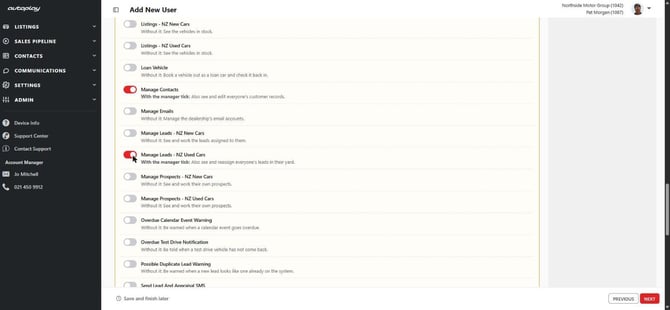
Underneath the access card, the wizard asks whether this person manages each of the things they can do. It only asks about permissions that have a manager level, and it tells you how many of the ones you picked do not have one.
Each switch has a sentence under it saying what the tick itself changes, not what the permission does. Manage Leads with the tick on, for example, means they see and reassign everyone's leads in their yard rather than only their own.
Switches that came from a template are locked and show a padlock. The template decides them, and the link beside the row takes you to where that is set.
Tick nothing here and they will do their own work normally. You can add manager powers later on their profile.
Step 3, where do they work
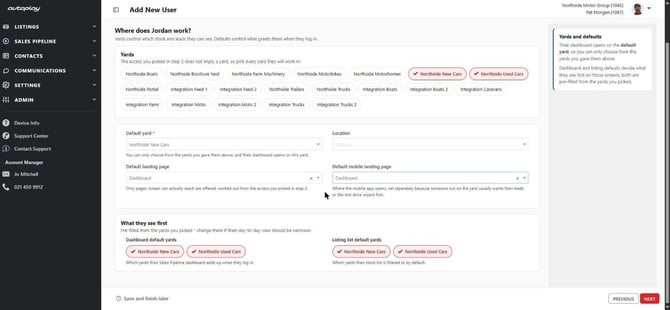
Tick the yards this person works in. The list is already narrowed to the yards the access you picked in step 2 can reach, so it is usually shorter than your full yard list. Integration and system yards are tucked behind a toggle at the bottom.
Some yards may already be ticked for you, taken from the templates you applied or from the person you copied. The moment you change the selection yourself, the wizard stops pre-filling it. Going back to step 2 and changing the access will not overwrite what you have chosen.
The sentence above the list tells you which situation you are in: pre-filled from your step 2 choices, narrowed because the access only works in some yards, or wide open because the access does not imply a yard at all.
The defaults underneath
|
Setting |
Required |
What it does |
|---|---|---|
|
Default yard |
Yes |
The yard their dashboard opens on |
|
Location |
Only where your dealership has made it compulsory |
The company location they sit at |
|
Default landing page |
Yes |
The screen they land on when they log in on a computer |
|
Default mobile landing page |
Yes |
The screen they land on in the app. Set separately from the desktop one |
|
Dashboard default yards |
Yes |
Which yards the Sales Pipeline dashboard totals on login |
|
Listing list default yards |
Yes |
The default filter on the stock list |
The landing page lists only offer screens the person can actually reach. Someone without lead permissions is not offered the Sales Pipeline Dashboard.
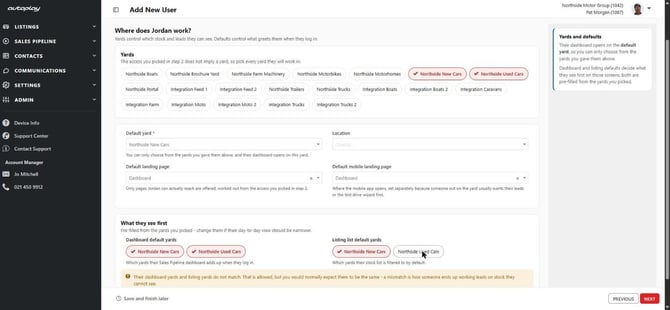
The dashboard yards and the listing yards can differ, and the wizard warns you when they do. It is allowed, but it is how someone ends up working leads on stock they cannot see. Match them unless you have a reason not to.
Step 4, should they get leads
This step is optional. Skip it and the person simply does not take part in lead distribution.
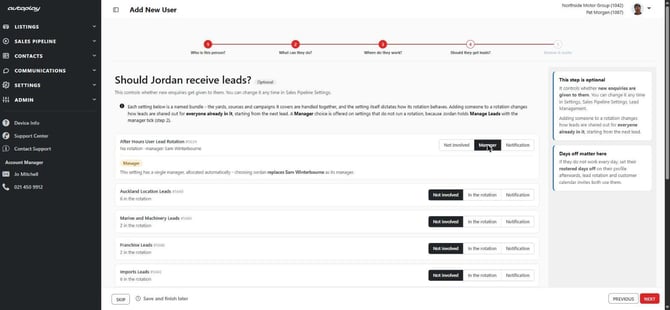
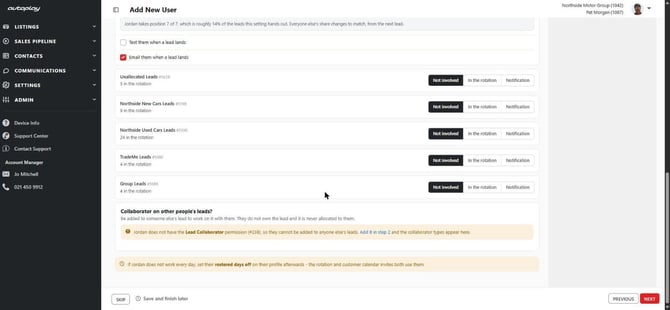
Your dealership's Lead Management Settings are listed one per row, with the yards, sources and campaigns each one covers, how many people are already in it, and who manages it. Each setting gets one choice:
|
Choice |
Offered when |
What happens |
|---|---|---|
|
Not involved |
Always. The default |
They take no part in this setting |
|
In the rotation |
The setting runs a rotation |
They start receiving leads from it |
|
Manager |
The setting does not run a rotation, and their access includes a lead permission with the manager tick |
They become the setting's manager |
|
Notification |
Always |
They get told about new leads without ever being given one |
What each setting offers comes from the setting itself, not from the person. A setting that runs a rotation has no Manager option, and one that does not has no rotation to join.
A setting has one manager. If it already has one, the wizard names who you would be replacing. If the Manager option is greyed out, the person is missing the manager tick on a lead permission back in step 2.
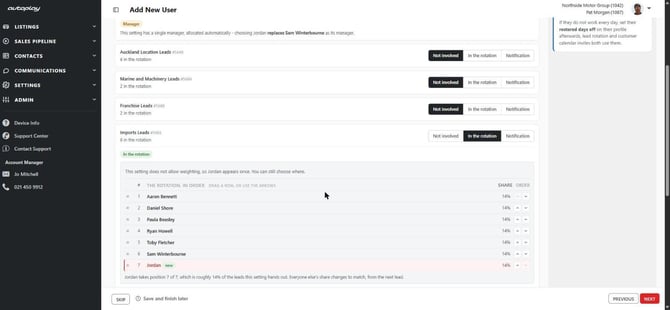
Choosing In the rotation opens the setting out, showing who is already in it, the order they are in, what share of the leads each one gets, and the new person added at the end. Drag a row or use the arrows to move them. Where a setting allows weighting, a person can appear more than once and take a larger share; where it does not, the wizard says so on the row.
Adding someone to a rotation changes distribution for everyone already in it, from the next lead onward.
Text alerts need a mobile number from step 1. Without one the SMS tick stays disabled and says so.
Collaborator types
Underneath, switch on any collaborator types this person acts as: Call Centre, Product Specialist, Business Manager, Sales Manager, Finance Manager. Each one you switch on offers its own text and email ticks. Collaborators are copied in on leads they help with, without owning them.
The types only appear where the person holds the Lead Collaborator permission. Without it the section says so and links back to step 2.
Rostered days off are set on the person's profile after they are created. Both the rotation and customer calendar invites use them.
Step 5, review and invite
Nothing has been saved at this point. Read the review, then create.
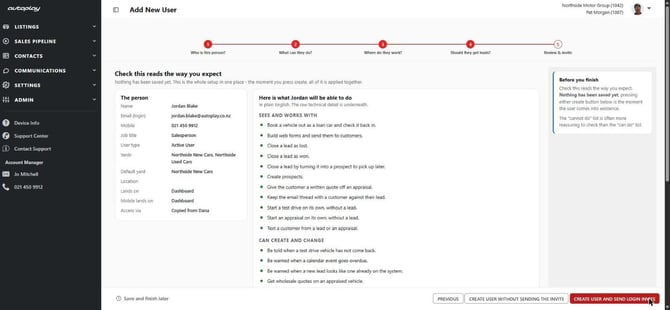
The left column lists what you entered: name, login email, job title, user type, yards, default yard, location and both landing pages.
The right column says what they will be able to do, in four groups: what they see and work with, what they can create and change, what they can approve or oversee, and what they cannot do. This is the part worth reading to someone who asked you to set them up a login. If approve or oversee is empty, they hold no manager powers, which is a safe starting point.
Show the technical detail lists the actual role IDs and names if you need them for a support ticket.
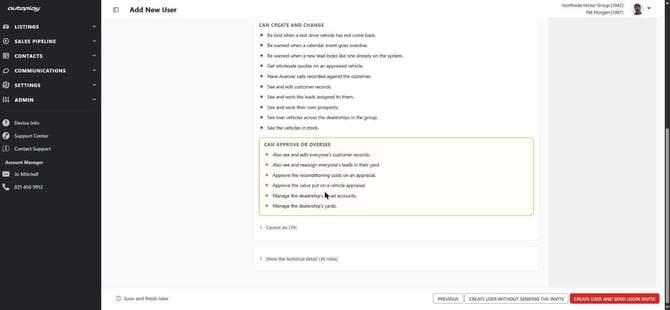
Two buttons finish the job:
- Create user and send login invite. Creates them and emails the password setup link straight away. Use this unless they are starting later.
- Create user without sending the invite. Creates them with no email sent. They cannot log in until you send it.
If anything on steps 1 to 3 is incomplete, pressing either button takes you back to that step and tells you what is missing.
After you create them
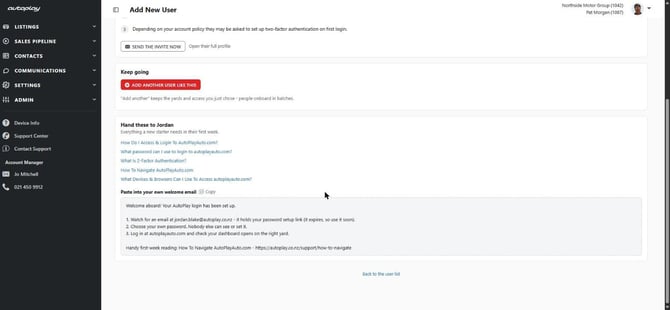
The success screen confirms the person exists, and whether the invite went out.
What happens next, in order:
- An email goes to the address you entered with a password setup link. The link expires, and you can resend it.
- They choose their own password. Nobody can see or set it for them, AutoPlay support included.
- Depending on your account's policy they may be asked to set up two-factor authentication the first time they log in.
If you created them without an invite, the screen says so and offers Send the invite now. They cannot log in until it is sent.
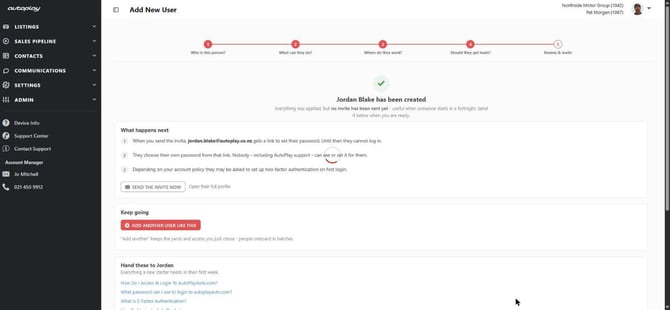
Two other things are offered from this screen. Open their full profile takes you to the complete user record, for anything the wizard does not cover, rostered days off among them. Add another user like this restarts the wizard keeping the access, yards, landing pages and lead settings, and clearing only the name, email and phone numbers, which is what you want when you are setting up three salespeople at the same yard.
The screen also lists the support articles worth sending a new user, and a block of welcome text you can copy and paste into your own email to them.
Stopping part-way through
Save and finish later sits in the footer on every step. It keeps everything you have entered and the step you were on.
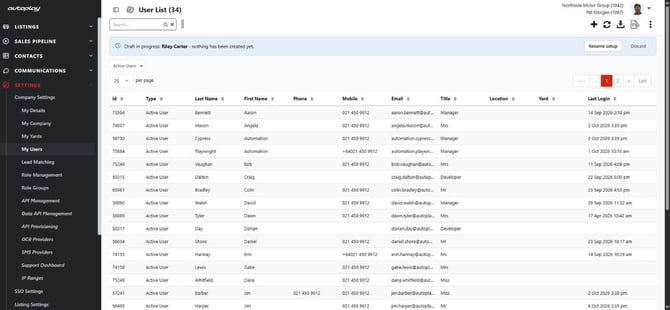
A banner above the user list names each draft you are holding, says nothing has been created yet, and offers Resume setup or Discard. You can hold several drafts at once and starting a new one never overwrites an existing one.
A draft is not a user. Nobody is created, and nobody can log in, until you finish the wizard.
If something goes wrong
If you cannot find the guided setup option on My Users, you hold User Admin without the manager tick, or your dealership does not have the wizard switched on yet. Ask whoever administers your account, or raise a ticket with AutoPlay support.
If it says the email already belongs to someone, that address is already on a user record at your dealership, active or deactivated. Open their record from the panel. If they have left and someone new has their address, that is still the same record and it should be deactivated rather than duplicated. Where you genuinely need a second record on one address, use the classic form.
If it warns you about a name match but you know it is a different person, check their record first, then choose This is a different person, continue.
If the person already worked here and you want their old setup back, reactivate their record from the duplicate panel rather than creating a new one. A second record splits their history across two logins.
If you cannot see the individual permissions card, it needs Role Manager Admin. The note under the cards says who to ask.
If you cannot see the setup template card, your dealership is not using role groups. Copy someone else's access instead.
If the Manager option on a lead setting is greyed out, go back to step 2 and tick the manager level on their lead permission. Settings that run a rotation never offer Manager.
If the text alert tick will not switch on, no mobile number was entered in step 1. Go back and add one.
If it says a step needs attention when you press create, something on steps 1 to 3 is incomplete. The wizard takes you to the step and names the field.
If it says the user was created but something failed, the person exists but is not finished. Do not run the wizard again for them. Open their profile to see what landed, or send the ticket to AutoPlay support with their name and the error you saw.
If they never got the invite email, check their junk mail first, then resend from their profile. The link in an old invite expires.
If they log in and see almost nothing, they were created with No access yet, or the access did not finish applying. Open their profile and check their roles.