This article explains how to set default email templates for your company, yards and users.
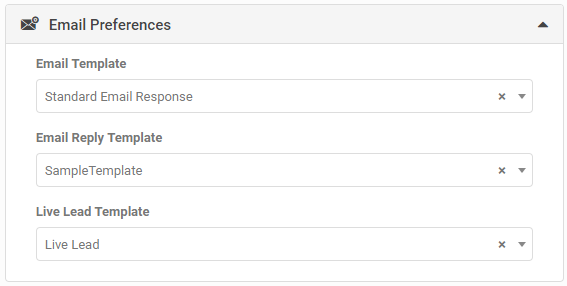
The My Company, My Yards, My Details and My Users screens each have an Email Preferences section. Use these fields to set the default email templates for an individual user, a yard, or the whole account.
How the levels work
Email preferences apply in this order, with the more specific setting always winning:
- Company: if you set the default emails at Company level only, every email from every user defaults to the Company level templates.
- Yard: if you set the default emails at Yard level, any email sent on a listing from that yard defaults to the Yard level templates. Yard settings override Company settings.
- User: if you set the default emails at User level, any email sent by that user defaults to the User level templates. User settings override both Company and Yard settings.
Email Preferences fields
- Email Template: the default template used when sending an Email Response to a customer (from My Emails, the Dashboard, View Lead and similar screens). This field only lists templates with type = Email Response.
- Email Reply Template: the default template used when sending an Email Reply. An Email Reply happens when you have the 'Track Email Conversation' role turned on, have captured a customer's reply, and want to reply again. You can set this separately, since you may not want a video-email template once the conversation is under way. This field only lists templates with type = Email Reply.
- Live Lead Template: the user's default template when sending a Live Leads email from Email Campaigns. This field only lists templates with type = Live Leads.
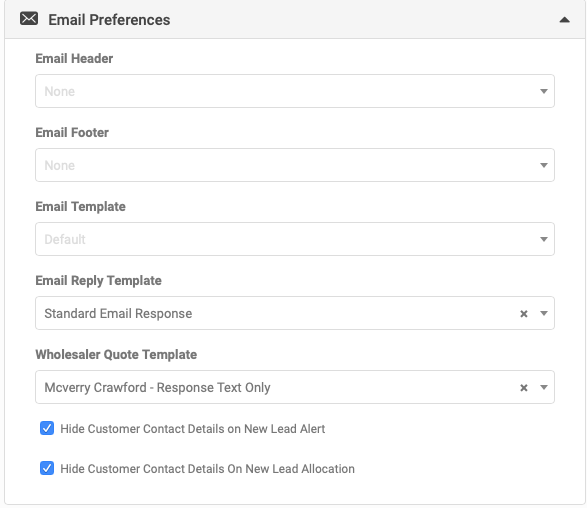
On the My Company and My Yards screens you will also see fields for Email Header, Email Footer and Wholesale Quote Template.
Email Header and Footer
Use these fields to set a default header or footer graphic for the 'Standard Email Response' template (template ID 1). You choose the Header or Footer image type when you load the graphic in the Images screen.
These fields only work with the Standard Email Response template, or another customised template built the same way. Most other email templates have their header and footer images built into the template itself.
Wholesale Quote Template
When you email a wholesaler, AutoPlay uses a generic default template called 'Default Wholesale Quote Request'. You can build your own branded email template instead and select it here. See How to Send a Wholesale Quote.
Hiding customer contact details on alerts
On the My Company screen you will also see two checkboxes:
- Hide Customer Contact Details on New Lead Alert
- Hide Customer Contact Details on New Allocation
When you tick these options, New Lead and Allocation alerts will not display the customer's mobile number, phone number or email address.