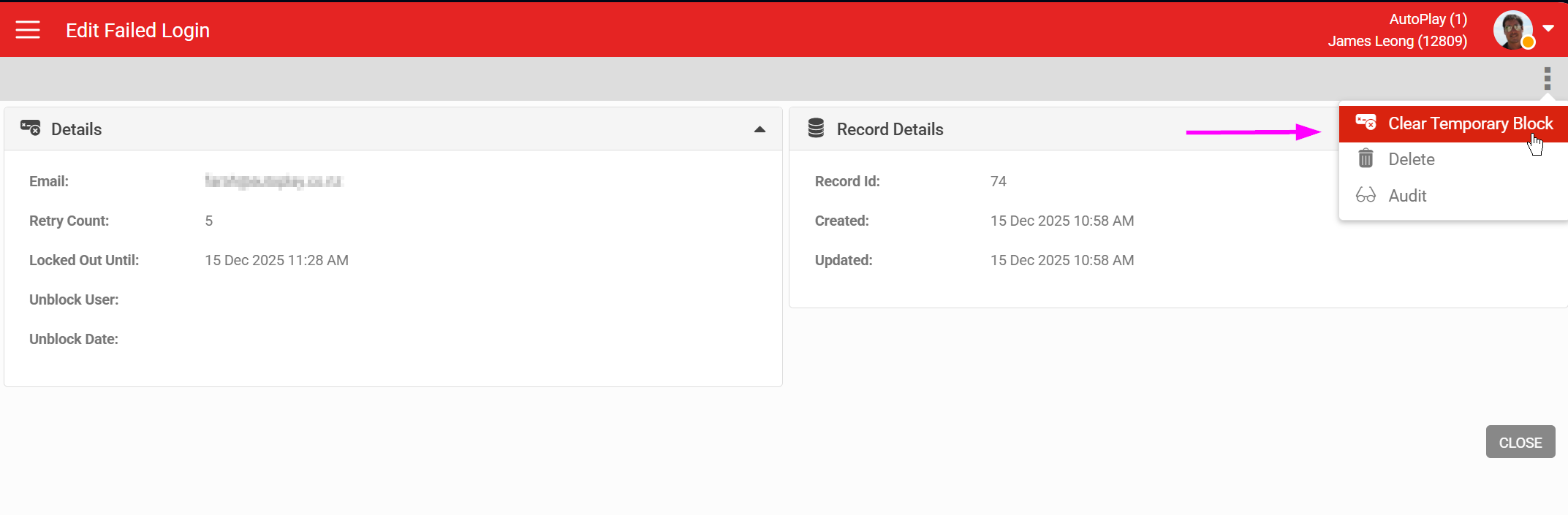
This article explains what happens when a login fails repeatedly, and how to get back in sooner if you are locked out.
Overview
AutoPlay enforces a global login security policy. If a user fails to authenticate, the account associated with the entered email address is temporarily locked for 30 minutes. An on-screen message tells you when the lockout is in effect.
If you need access sooner, contact AutoPlay Support to have the temporary lock removed. Support can also help with a password reset if needed.
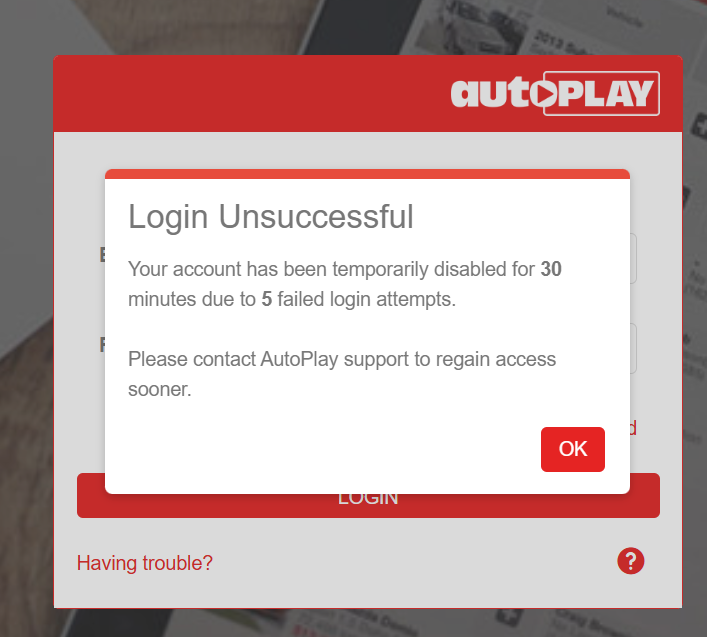
Each incorrect email and password combination adds a failed attempt to the count, with no set timeframe. A successful login resets the count. If the same email address is used across multiple AutoPlay accounts, a lockout blocks access to all of them.
Remove a temporary block
You can try logging in again after 30 minutes. If you need access sooner, contact AutoPlay Support or your Account Manager, who can do the following:
- Go to the Failed Logins admin menu (AP1 users only).
- Find the user record.
- Open the three-dot menu.
- Select Clear Temporary Block.