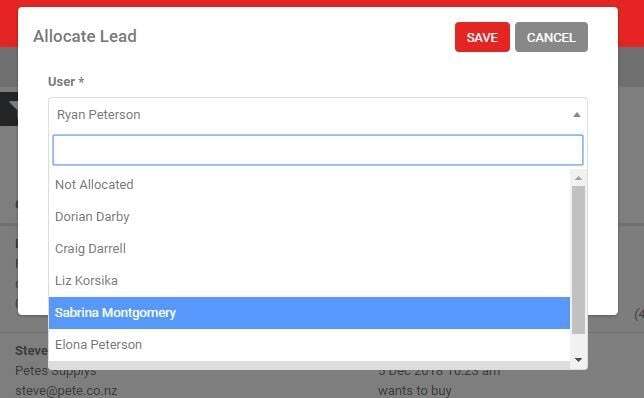
There are two ways to allocate a lead to a team member: from the new lead alert email, or from the View Lead screen in AutoPlayAuto.com.
Allocating from the new lead alert email
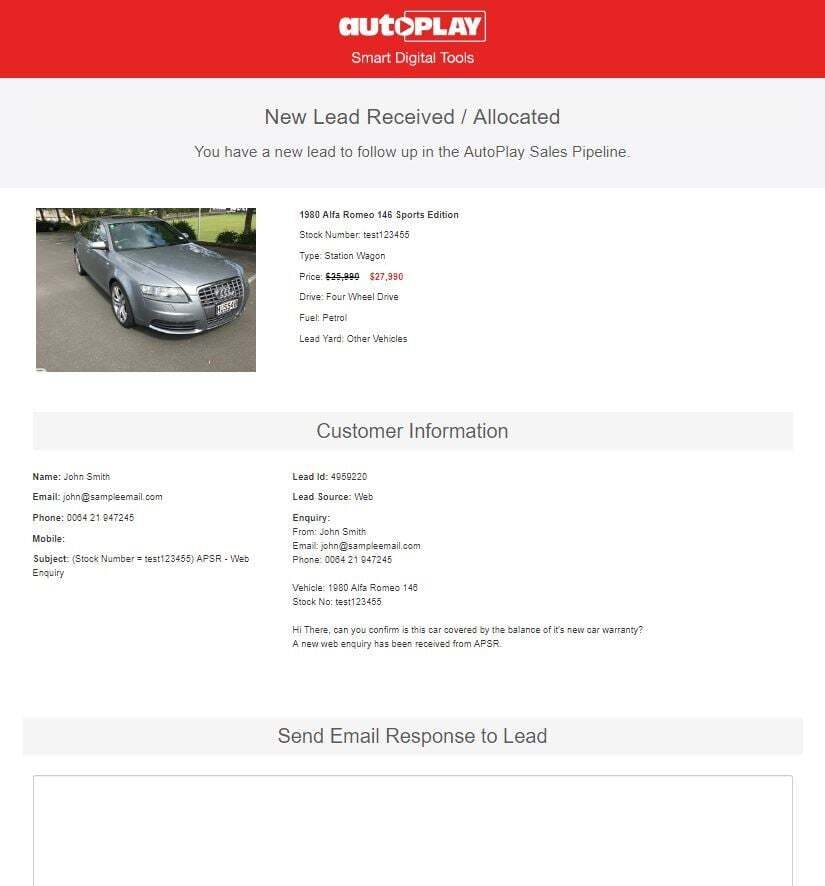
When an electronic lead is captured, AutoPlay sends a new lead alert email (bulk lead imports are excluded). This goes to whoever is set as the new lead recipient in Settings > Sales Pipeline Settings > Lead Management. Read more about the Lead Management screen here.
The alert email shows a summary of the vehicle enquiry, and lets you reply directly using a standard email response template you've set as default. This method can't include a voice-over, but it's a quick way to reply on the fly before following up in more depth later, either from the same email or by logging into AutoPlayAuto.com.
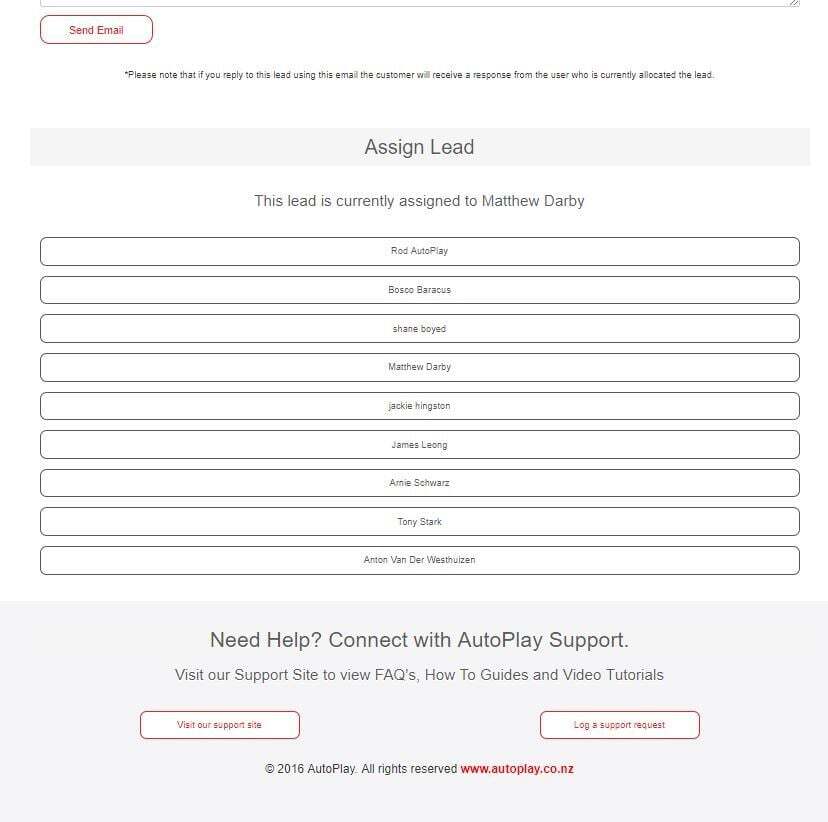
You can also allocate straight from this email. Scroll down to the "Assign Lead" section and choose the team member. The list of available users is based on everyone you share the Manage Leads role with (read more about that role here). This list can get long in a large dealership. If it's hard to find the right person, allocate directly in AutoPlayAuto.com instead.
When you allocate a new lead, the team member receives an email or SMS notification, controlled by the same Lead Management screen.
Allocating leads within AutoPlayAuto.com
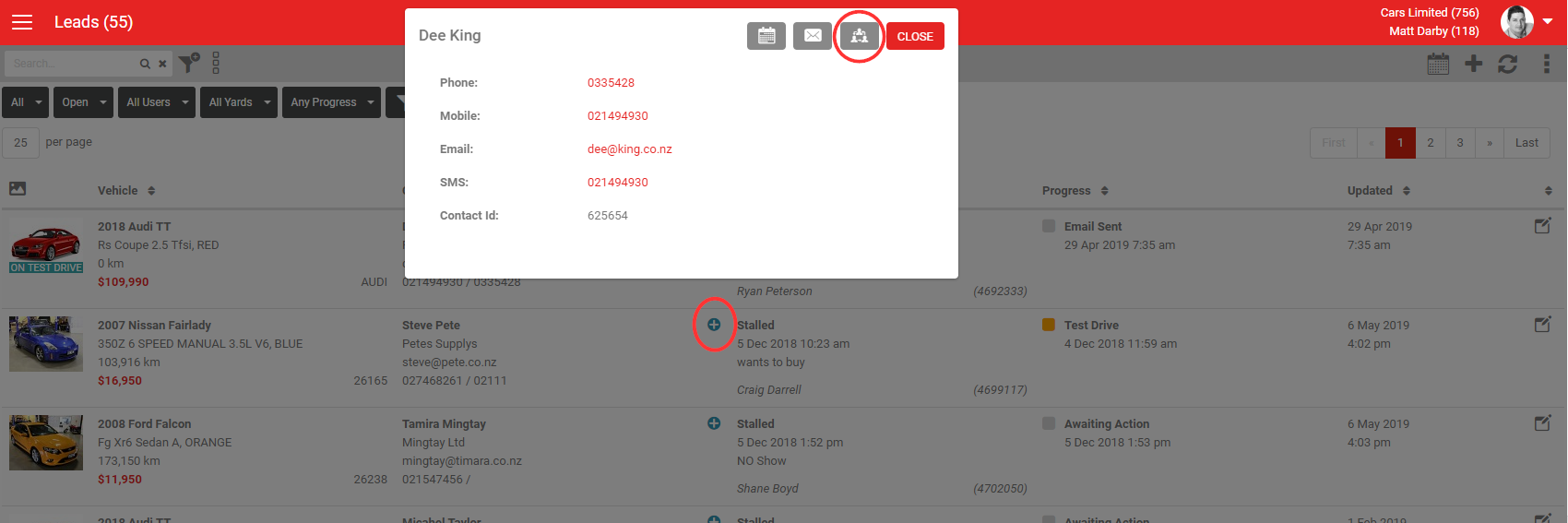
From the Dashboard you can allocate an existing lead without opening it. Click the blue + icon in the Customer column to open a shortcut popup: schedule a calendar event, send an email response, or tap the customer's phone or email to contact them directly. Click Allocate to open the Allocate Leads window.
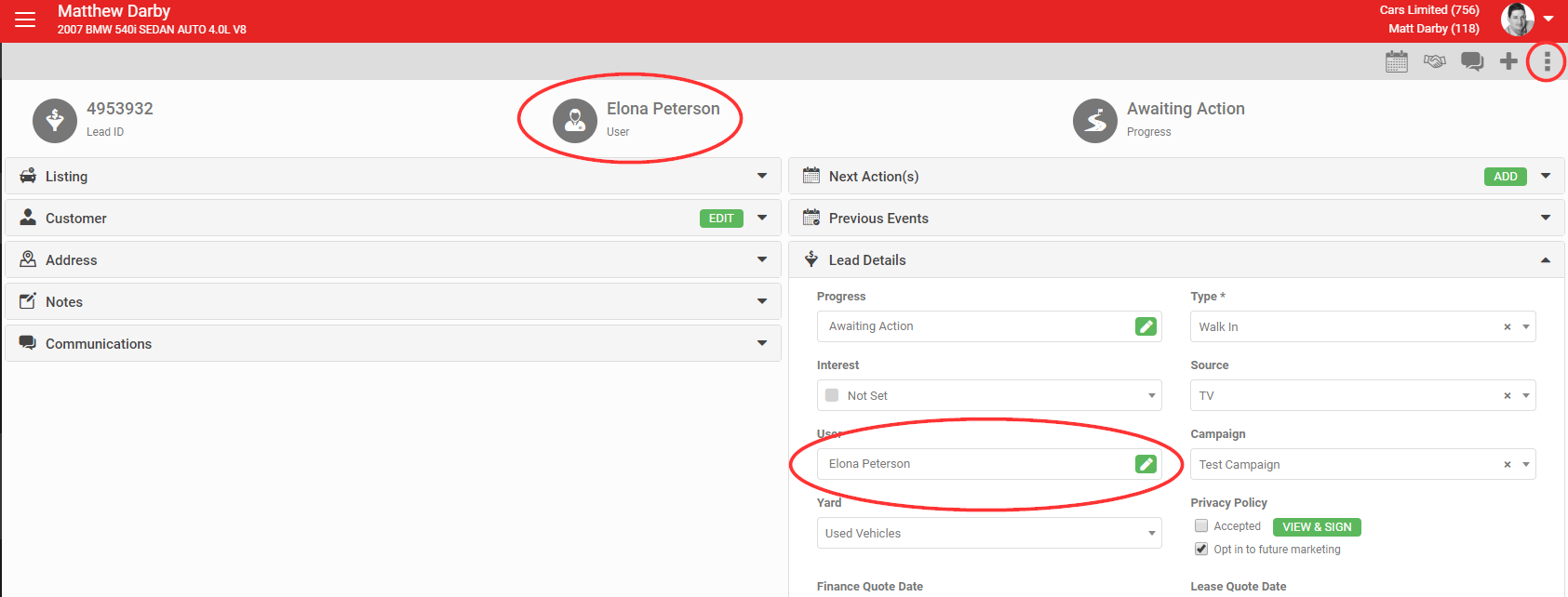
You can also open the Allocate Lead window from three places when viewing an individual lead:
- The grey action menu, under More: Allocate Leads
- The Lead Details section, under User: the green edit icon
- The icon and user name at the top of the screen
The Allocate Lead window lets you search users by first or last name, which helps in a large team. When you allocate to a user, you can add notes with any key information they need to take over the lead.