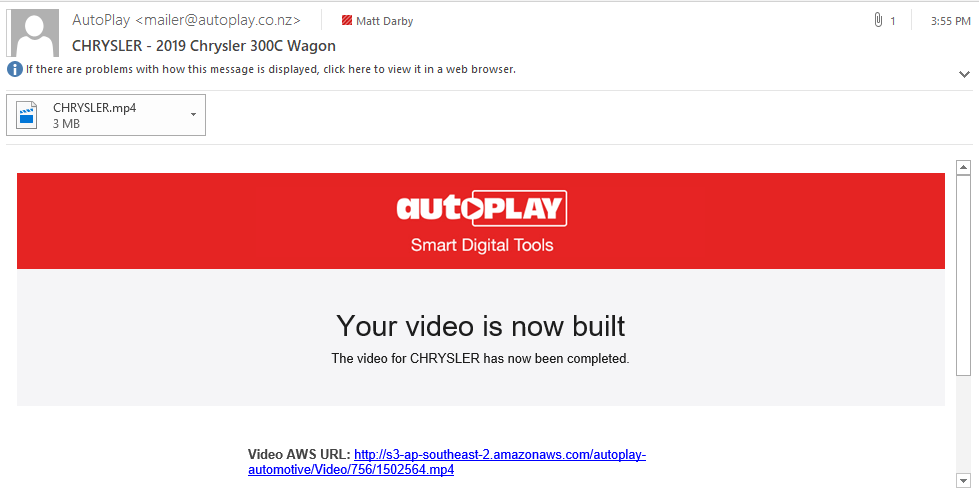
Virtual Demo Videos are stitched together automatically from your existing listing photos and an audio track, for use on AutoPlay Vehicle Display Pages or in Live Leads eDMs.
1. Automatic video builds
If you have the Automate Virtual Demos role, and are signed up to the Data Management or Full Pro Packages, your Virtual Demo Videos build automatically the first time a listing is created in AutoPlayAuto.com.
A video only builds once these conditions are met:
- The listing has at least 5 photos.
- The listing has Year, Make, Model and Variant.
- The listing has Transmission, Fuel Type and Odometer (shown on slide 4).
- If the listing has a Special Price, the video builds with "Was/Now" pricing on slides 1, 2, 9 and 10.
- If the listing has Fuel Saver and Safety Ratings, these show on slides 4 to 7. If no rating is found, that slide is skipped.
Changing any of the above, including the sort order of the photos, triggers an automatic rebuild.
Automated builds use whatever branded audio is set as the Default Listing Audio under Settings > Listing Settings > Audio. If more than one audio record is active, the build randomises across them.
2. Manual video builds
If you have the Manual Virtual Demos role and are on the Data Management or Sales Pipeline Package but don't use AutoPlay Vehicle Display Pages, you may need to build videos manually.
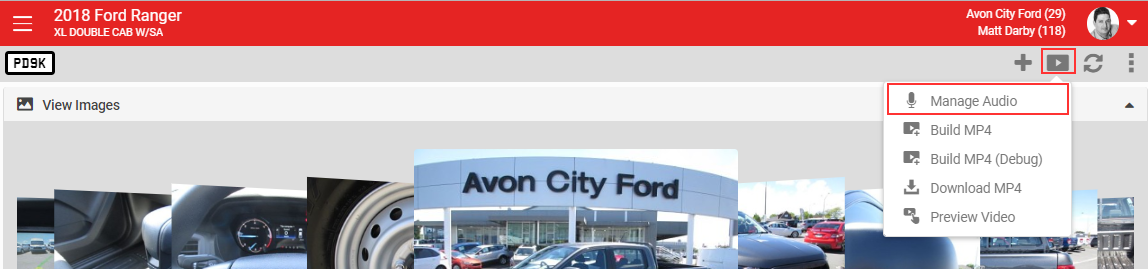
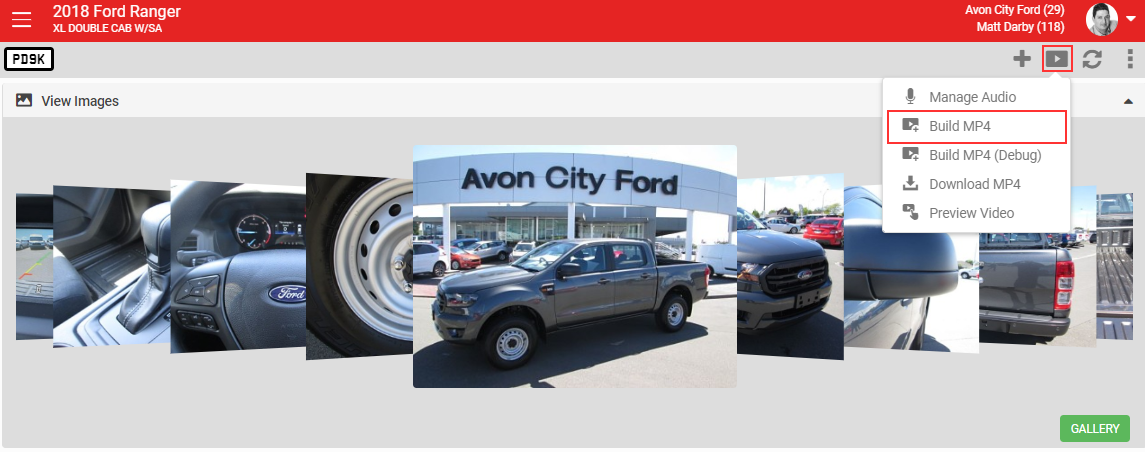
Click Manage Audio to record a custom voice-over.
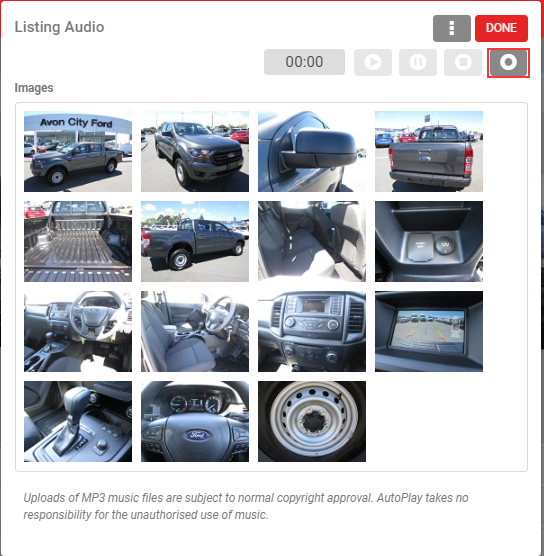
You can record directly in AutoPlayAuto.com with the built-in recording studio. Click RECORD to start, PAUSE to pause, STOP to save, and PLAY to listen back.
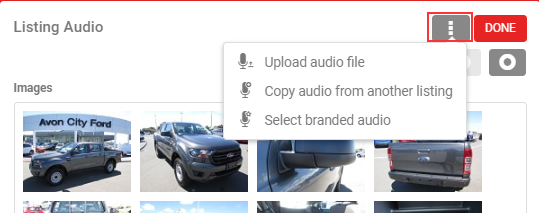
You can also click MORE for other audio options:
- Upload audio file: browse your device for an MP3 file to upload. You are responsible for making sure you have permission to use the audio you upload.
- Copy audio from another listing: reuse a recording already done for a different listing.
- Select branded audio: choose from the Default Listing Audio records set up for the dealership or yard.
Once your voice-over is ready, click Build MP4. The build is scheduled within 2 hours, and you'll get an email when it's ready.
Build MP4 (Debug) is visible to AutoPlay staff only. It lets AutoPlay build a preview without publishing the video live on the dealership's Vehicle Display Pages.
3. Previewing your video
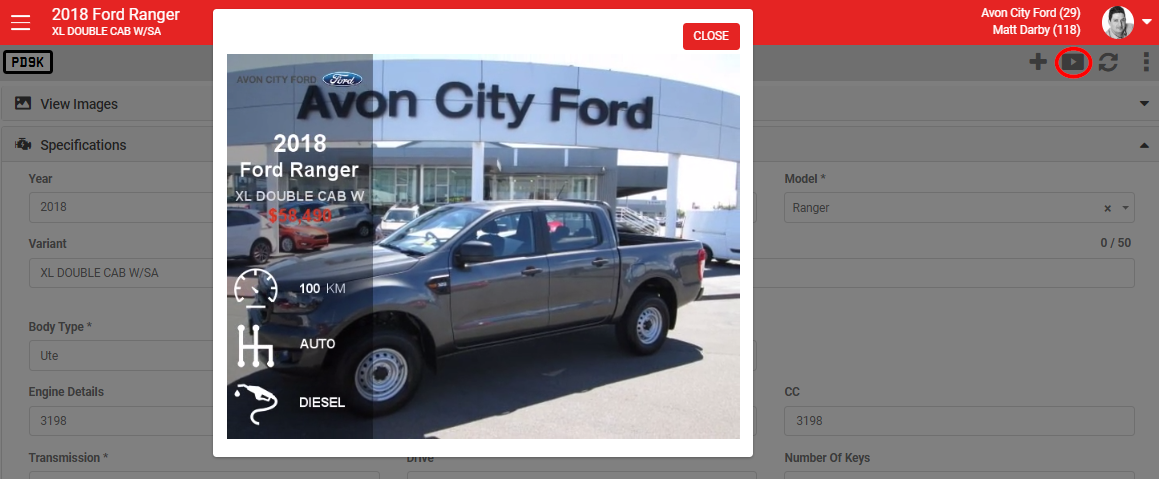
Click the Video icon in the grey action menu, then Manage Video, to open a popup showing how the video currently looks and sounds.
4. Downloading your video
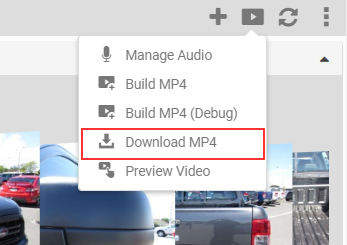
Click Download Video in the grey action menu to email yourself a copy. You get both an MP4 file and an AWS URL. The video belongs to your dealership, so you can use it however you like, including on YouTube or in other marketing.
5. Adding your logo
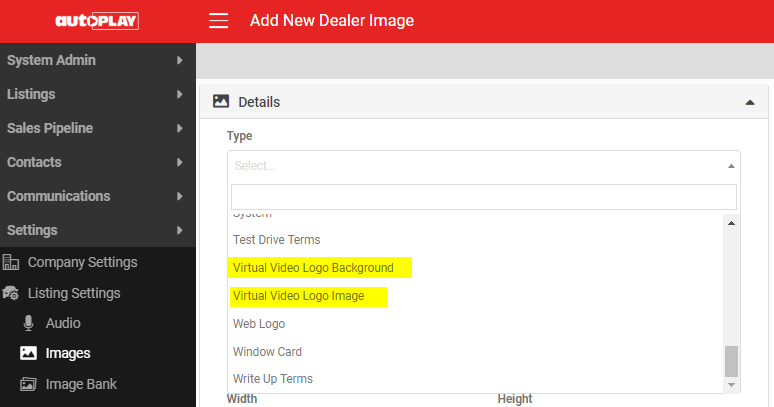
Go to Settings > Listing Settings > Images and select the Virtual Video Logo Image type to upload a transparent PNG of your dealership logo. You can also upload a background image via Virtual Video Logo Background.
6. Building videos for Live Leads eDMs
Virtual Demo Videos matter for Live Leads eDMs because they let you track video views to measure customer engagement. When selecting listings for a Live Leads eDM, the Select Listing popup defaults to listings that already have a video.
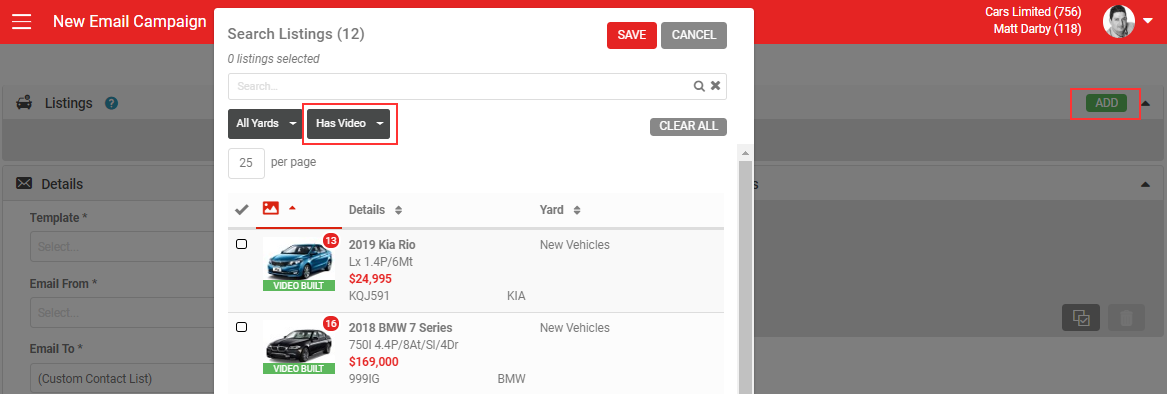
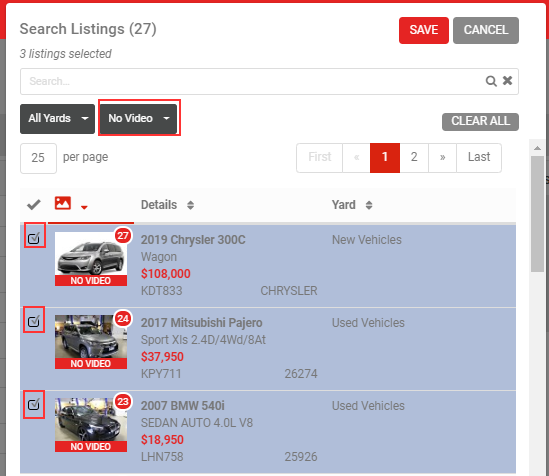
If you want to feature a listing without a video, filter to No Video and tick the listings you want in your eDM. You still need at least 5 photos to schedule a build.
Click SAVE and SEND. If some selected listings still don't have a video, you get a warning that the email can't be sent. Either swap in listings that already have videos, or click Schedule Video Build to queue the missing ones.
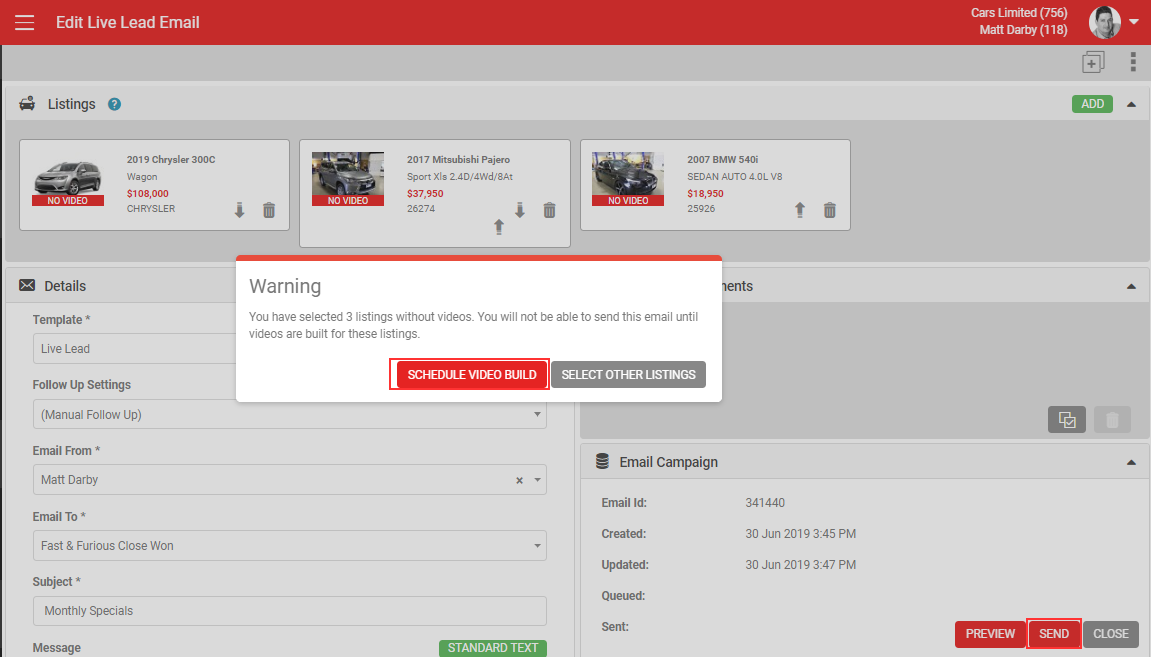
Click SCHEDULE VIDEO BUILD to queue the builds.
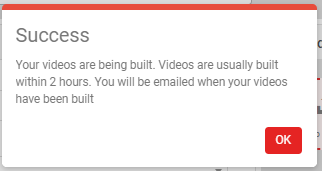
Once the videos are built, you'll get an email, and can return to the Live Leads Email Campaign screen to finish sending.