
You can create Write Up Forms on a lead in AutoPlayAuto.com to build and record an offer.
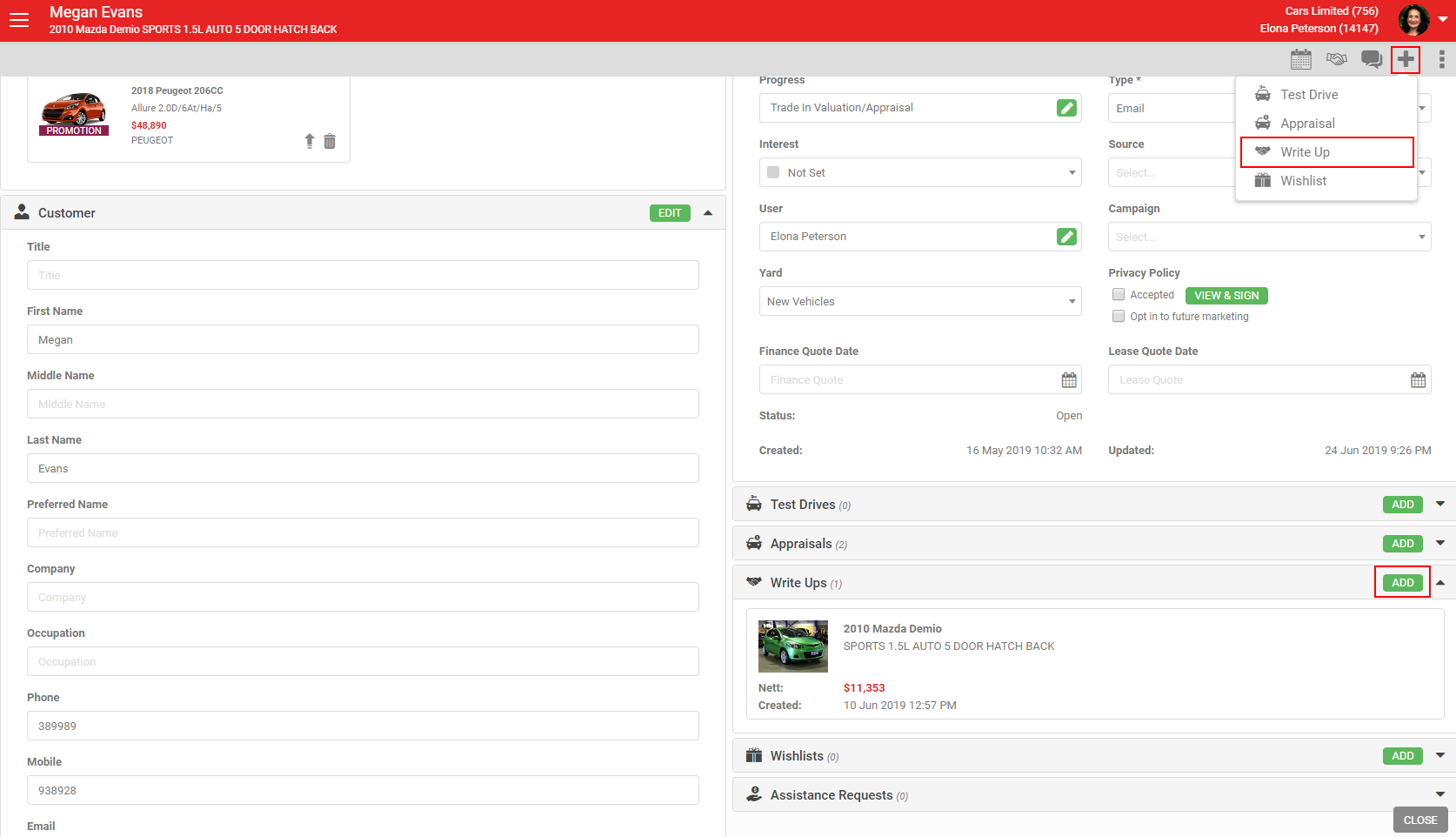
Create a Write Up Form from the + icon in the grey action menu, or by clicking the green Add button in the Write Ups section. This requires the Write Up role.
1. Adding listings
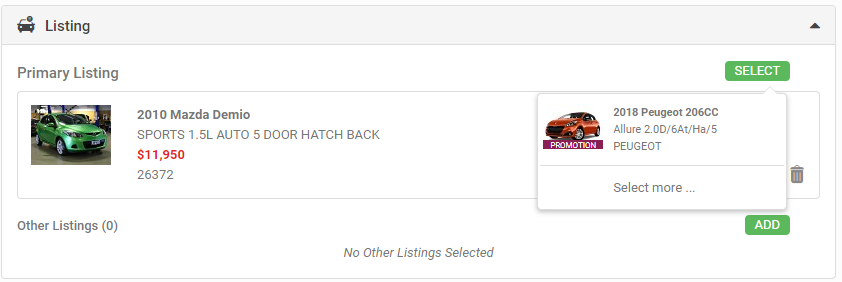
A new Write Up automatically pulls in the lead's Primary Listing. If the lead has other listings, choose between them using the green Select button, or use Select more to browse your full inventory. Any listing you choose here is added to the lead's Other Listings.
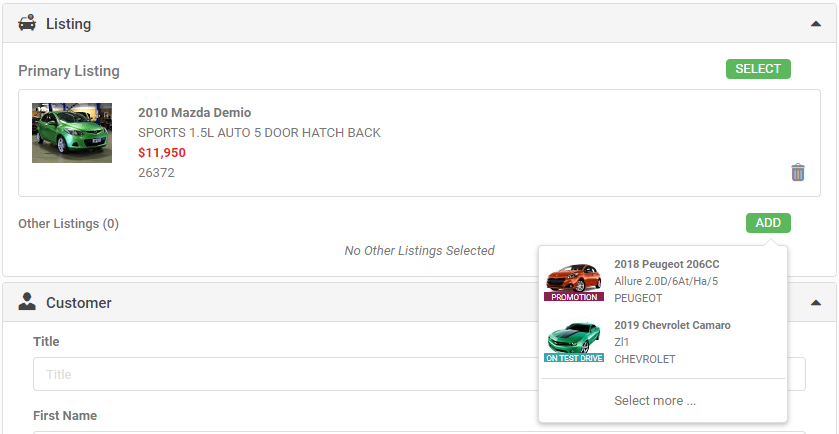
To add multiple listings to the Write Up, click Add under Other Listings and choose from the lead's other listings. This needs the Multiple Listings Write Up role. Totals sum across all listings added. Check that your Write Up Form template supports multiple listings; if it doesn't display correctly, contact Support to request a template change (charges may apply).
VIN, rego and colour on brochureware Write Ups
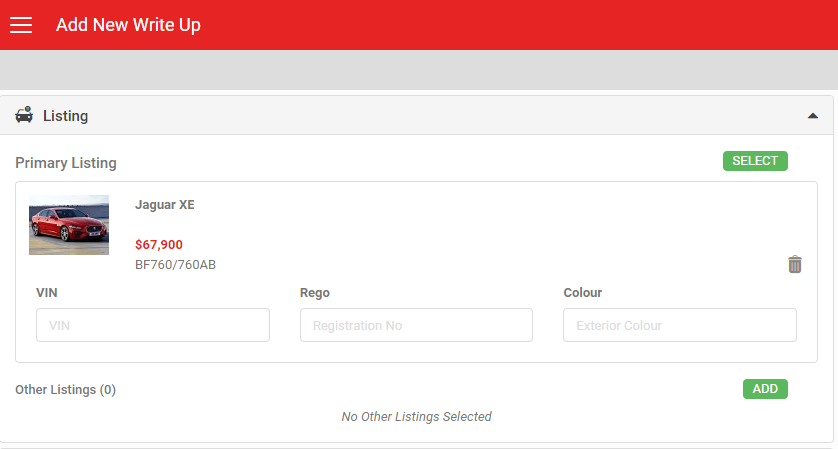
Brochureware listings let you load a lead before the vehicle is in local inventory. Because brochureware listings are often generic, the Write Up Form adds three extra fields when the listing comes from a brochureware yard managed outside your main account: VIN, Rego and Colour. These fields don't appear for listings from your own yards.
If the brochureware listing already has these details, they carry over to the Write Up Form's text fields, but can be overwritten there without changing the original brochureware listing.
2. Customer details
Customer information from the lead carries through automatically. Any edits you make on the Write Up Form update the customer record everywhere it's used.
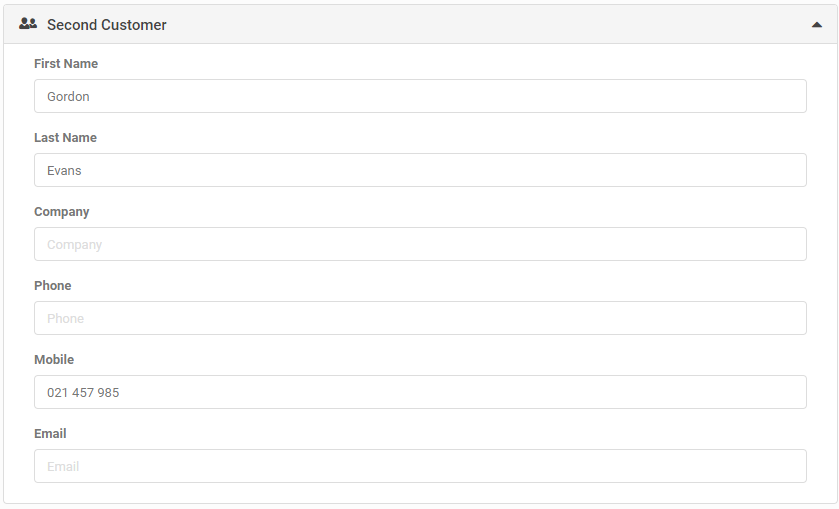
To add a second customer, use the Second Customer section. This customer is stored on the Write Up Form only. No contact record is created, and they are not added to the lead or exported via DMS/CRM integration.
3. Purchase
Build the offer for the deal in the Purchase section:
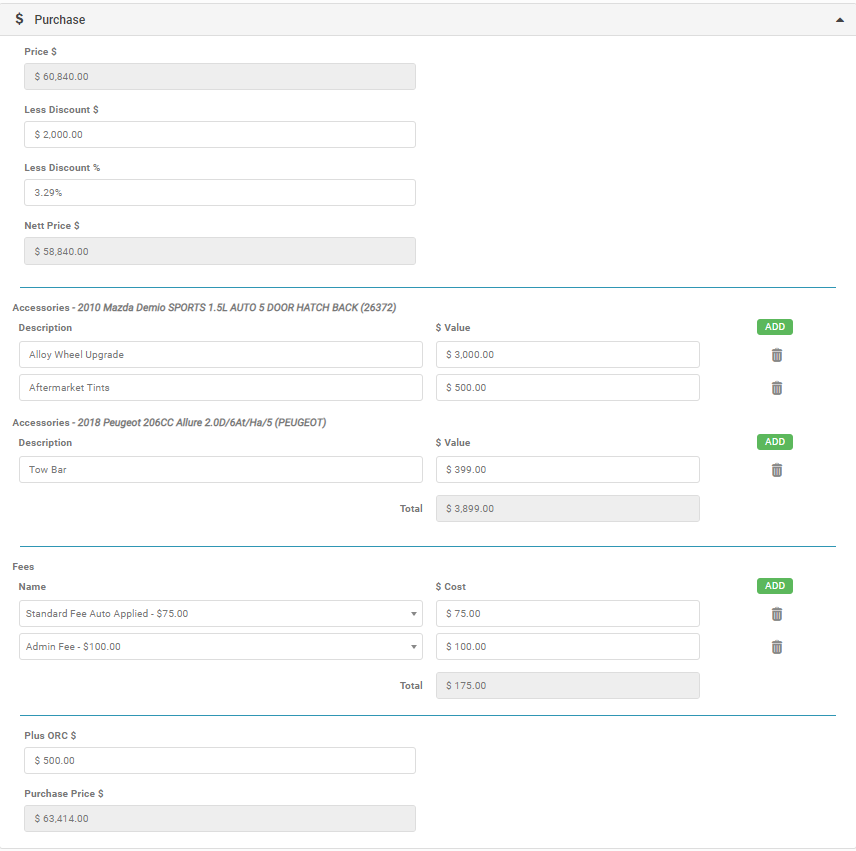
- Price: pulls automatically from the sum of all listings on the Write Up, using the lower of Price or Special Price for each.
- Less Discount $ and Less Discount %: enter either field and the other calculates automatically. Discounts only appear on the printed form if entered.
- Nett Price: calculated as Price minus Discount.
- Accessories: add accessories per listing via the Add button. The total shows in this section's Total field. Remove one via the rubbish bin icon.
- Fees: added via the Fees section. Fees are configured in advance under Settings > Sales Pipeline Settings > Write Up Fees. A fee set to Auto Apply is added to every Write Up automatically. See Write Up Fees for more.
- Plus ORC: add on-road costs (NZ only).
4. Appraisals
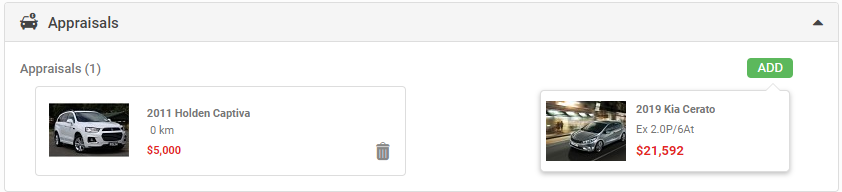
Select any appraisal completed on the lead via the Add button. You can add multiple appraisals, which are summed into the Appraisals field in the Summary section.
5. Summary
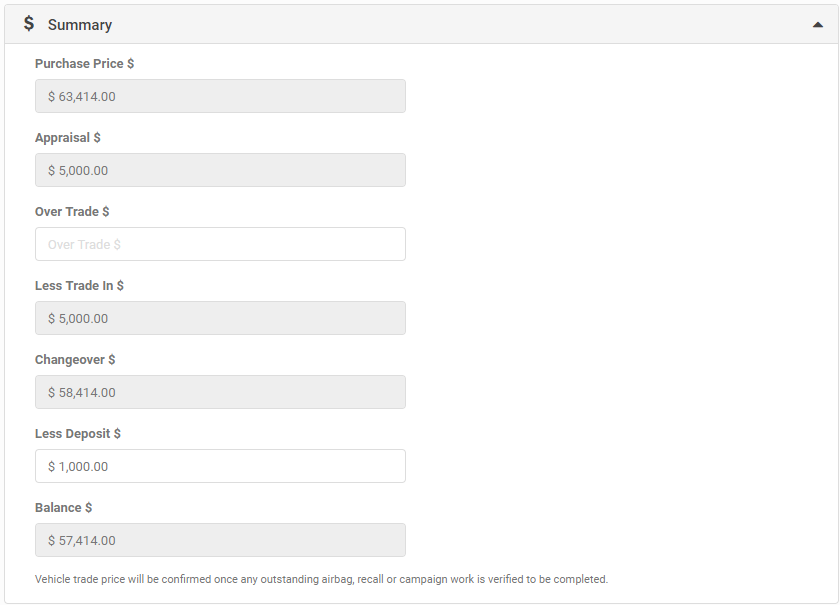
- Purchase Price $: carried from the bottom of the Purchase section.
- Appraisal $: the sum of all appraisals added to the Write Up.
- Over Trade $: any amount agreed above the appraisal value, if applicable.
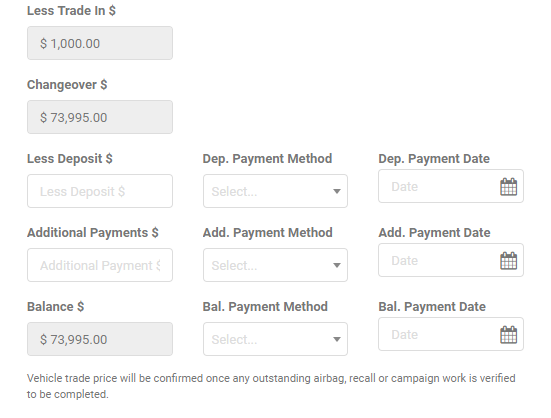
- Less Trade In $: Appraisal plus Over Trade.
- Changeover $: Purchase Price minus Less Trade In.
- Less Deposit $: any deposit the customer is paying.
- Balance $: the final amount owing once accessories, fees, discounts, ORC, appraisals and deposits are all accounted for.
NZ Write Up Forms also include:
- Deposit payment method (bank transfer or credit card) and payment date
- Additional payment method and payment date
- Balance payment method and payment date
These fields are on the default AutoPlay Write Up Form. If you have a custom form built and want these fields added to your PDF/print version, contact support@autoplay.co.nz (no extra charge for this specific change).
6. Terms and conditions
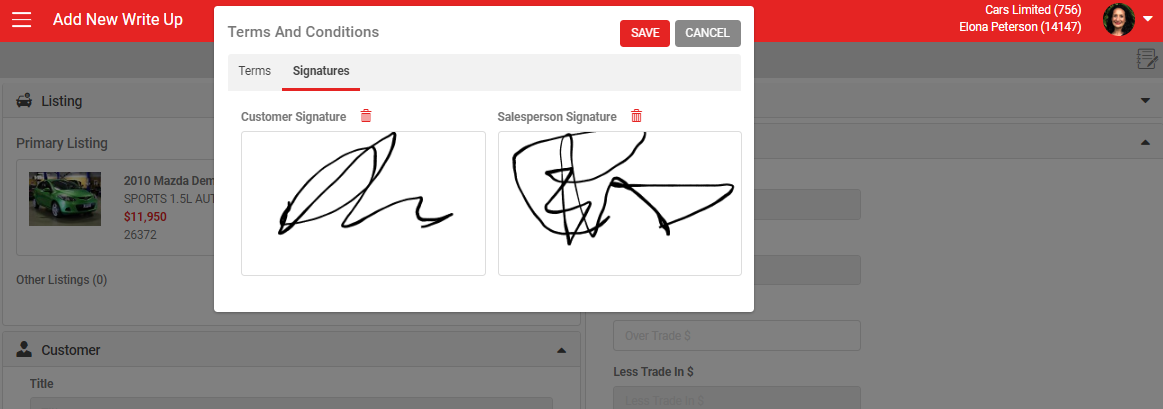
Sign the terms and conditions by clicking the green View & Sign button in the Terms & Conditions section. The Terms tab shows the document set by the Terms & Conditions drop-down. Once signed via the Signatures tab, signatures are date-stamped and the Terms Accepted checkbox is ticked.
7. Notes and special conditions
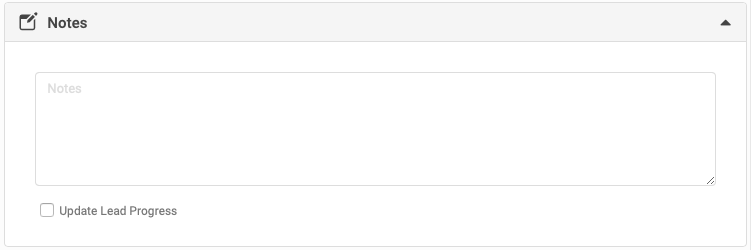
Add any relevant notes in the Notes field. Drag the bottom-right corner of the field for more space if needed.
Completing a Write Up updates the lead's progress to Present Deal. Untick Update Lead Progress to override this.
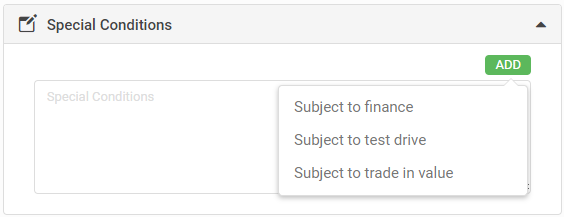
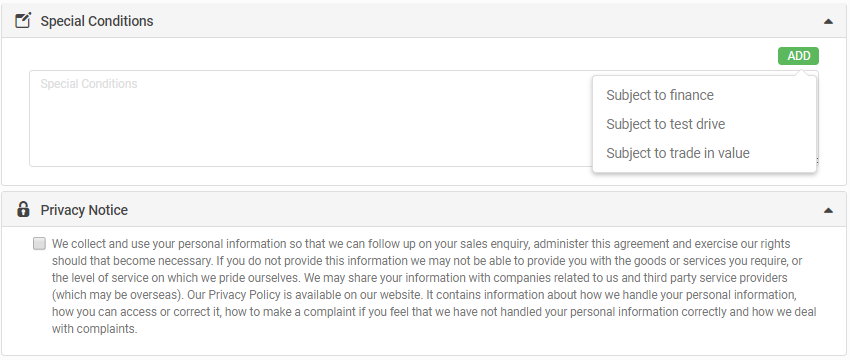
NZ Write Up Forms also have a Special Conditions text box. Free-type into it, or click Add to quickly populate "Subject to finance", "Subject to test drive" or "Subject to trade in value". These preset options are not currently customisable.
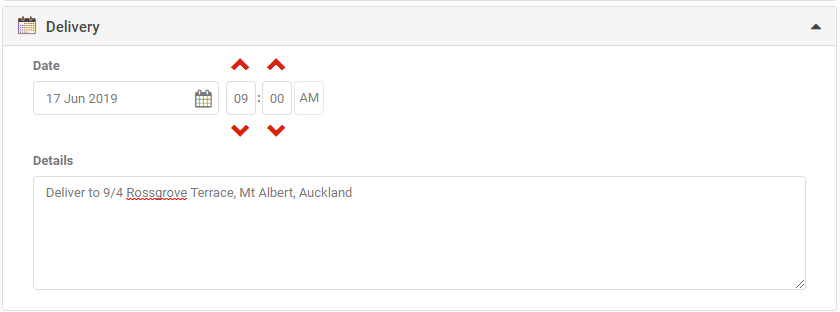
8. Delivery
Record a delivery date and any details specific to the vehicle's delivery.
9. Form
Choose which version of the form to print or email. See How To Print Your Write Up Form for more.

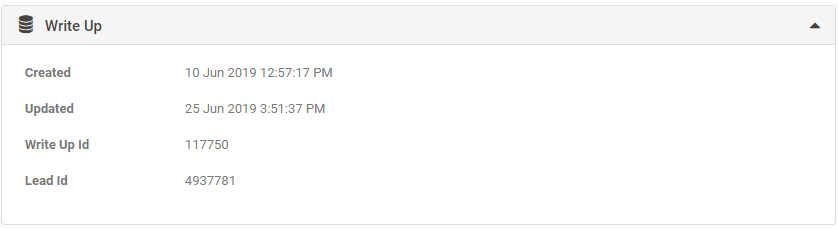
10. Write Up
This section shows basic record details: Created Date, Updated Date, Write Up ID and Lead ID.
11. Special conditions and privacy notice
Some accounts use an alternate Write Up Form version that also includes Special Conditions and a Privacy Notice. Special Conditions lets the dealer choose from pre-set options; the Privacy Notice is an additional disclaimer the customer can tick beyond the Write Up terms and conditions.
After saving
Click Save to keep your Write Up Form. Once saved, you can:
- Print: see How To Print Your Write Up Form.
- Email: see the same article for detail.
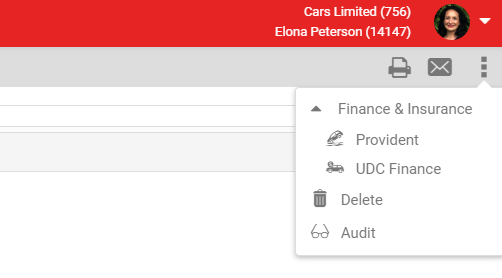
- Delete: available to managers in the Manage Leads role.
- Audit: available with the Lead Audit role, showing a history of every change.
- Finance & Insurance: AutoPlayAuto.com integrates with Provident Insurance and UDC Finance (NZ only). Clicking either option pushes the Write Up data to that provider. See this article for more.
You can archive a Write Up Form to keep old forms out of the selection list without deleting them.