Add a new vehicle listing to AutoPlayAuto.com manually.
Prerequisites
Your dealership must be signed up to AutoPlay's Data and Web Tool Package, and you must have the relevant user permission set in Role Management.
Steps
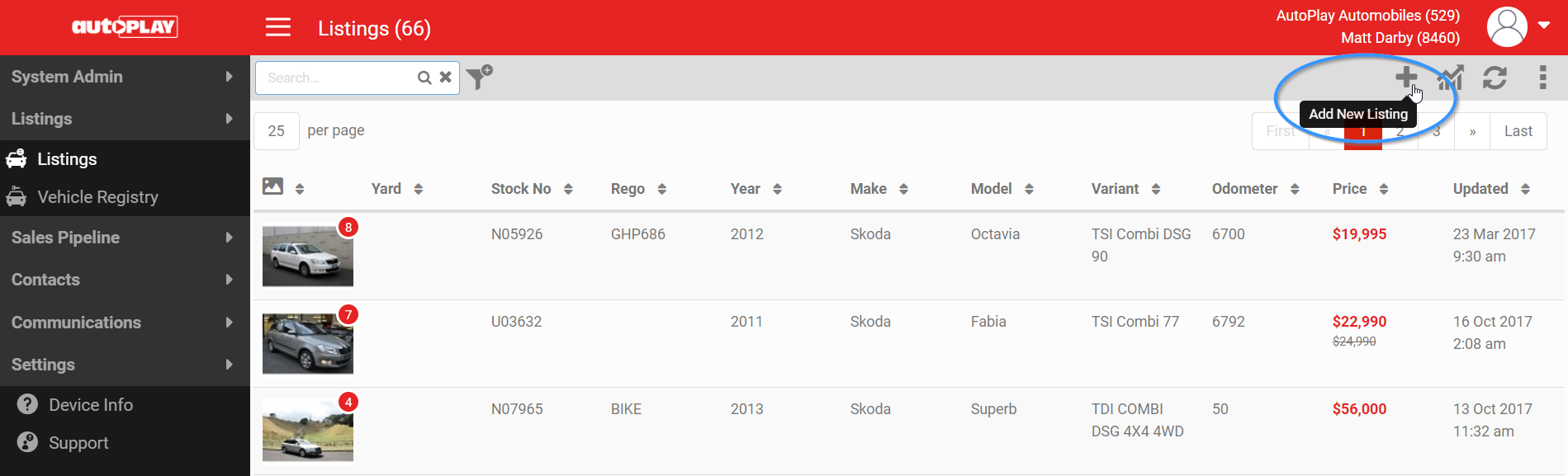
- From the left-hand menu, select Listings > Add New Listing.
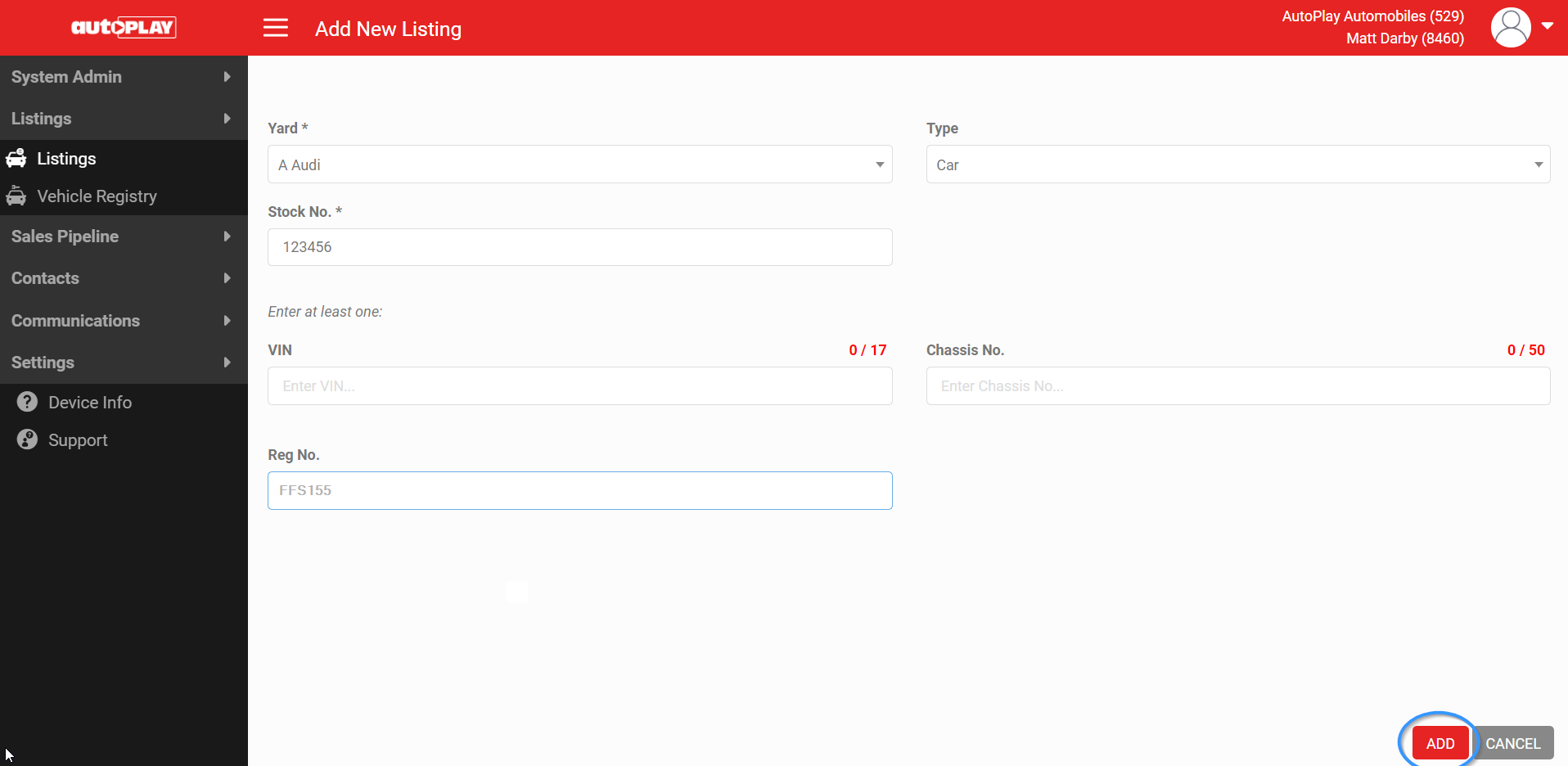
- Select the yard the listing will display in.
- Enter a unique stock number.
Warning
AutoPlay does not allow duplicate stock numbers. If your listings export to Trade Me, a duplicate stock number can stop that listing from being advertised.
AutoPlay does not allow duplicate stock numbers. If your listings export to Trade Me, a duplicate stock number can stop that listing from being advertised.
- Enter the Reg No and click Add. AutoPlay creates the listing, runs the Fuel Saver lookup, and fills in the available vehicle information automatically.
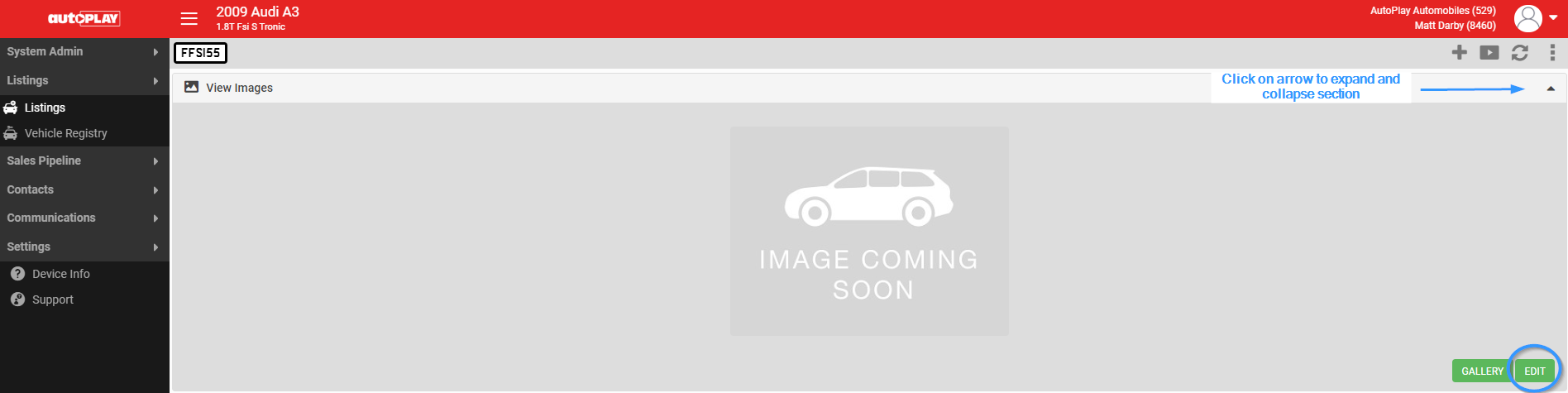
- To add images, open the View Images section (click the arrow to expand it if needed) and click Edit.
- Choose how you want to add photos:
- Click the camera icon to take photos with your device's camera.
- Click the camera roll icon to select photos already in the Image Bank.
- Click the browse icon to upload existing images from your device.
- Once all your images are uploaded, click Finish.

- Complete the remaining fields, including Features and Comments.
- Click SAVE.
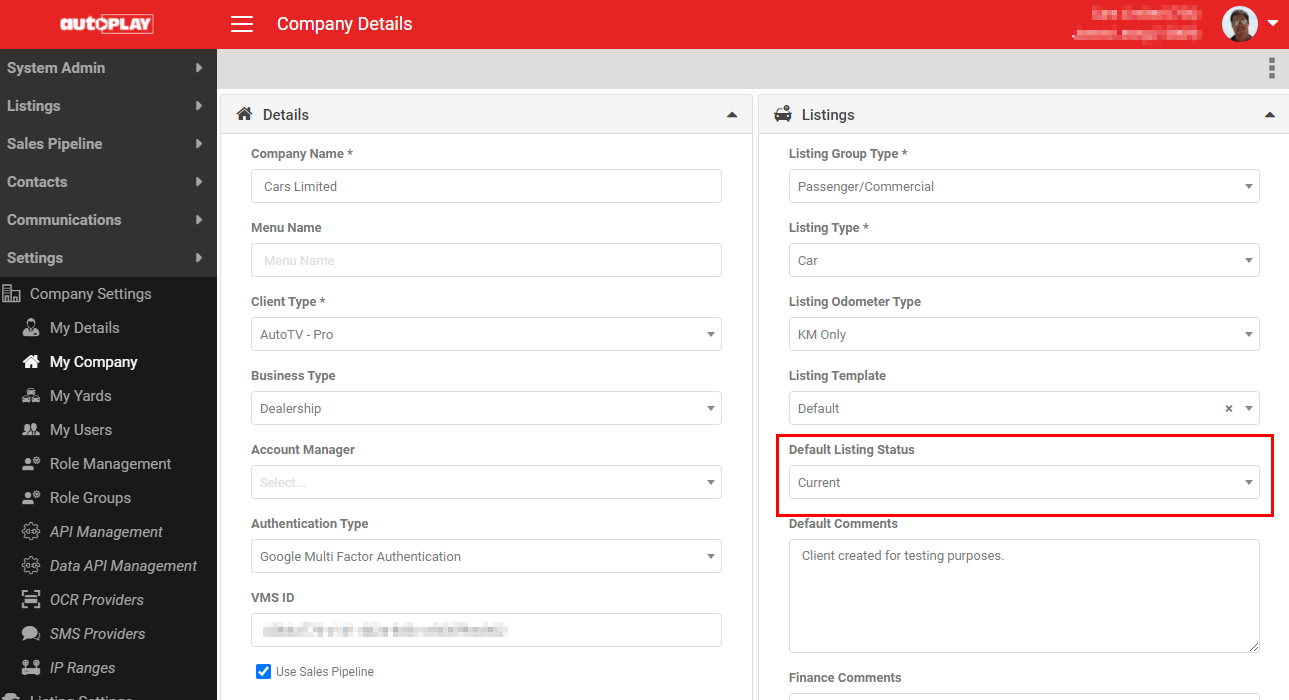
You can set a default status for manually loaded listings (Current, Pending or On Hold) at both My Company and Yard level, so new listings created by a user default to the right status automatically.