
Assistance Request Forms let a dealership ask a brand for help meeting the competition on a deal. They're only available on makes where AutoPlay works with the brand at head office level.
Create an Assistance Request Form from the View Lead screen, on a lead whose primary listing is an eligible make. At a multi-franchise dealership, you won't be able to create one on a make that isn't supported.
Click + and select Assistance Request, or click Add in the Assistance Request section. You also need the Assistance Request role to see this option (read more about it here).
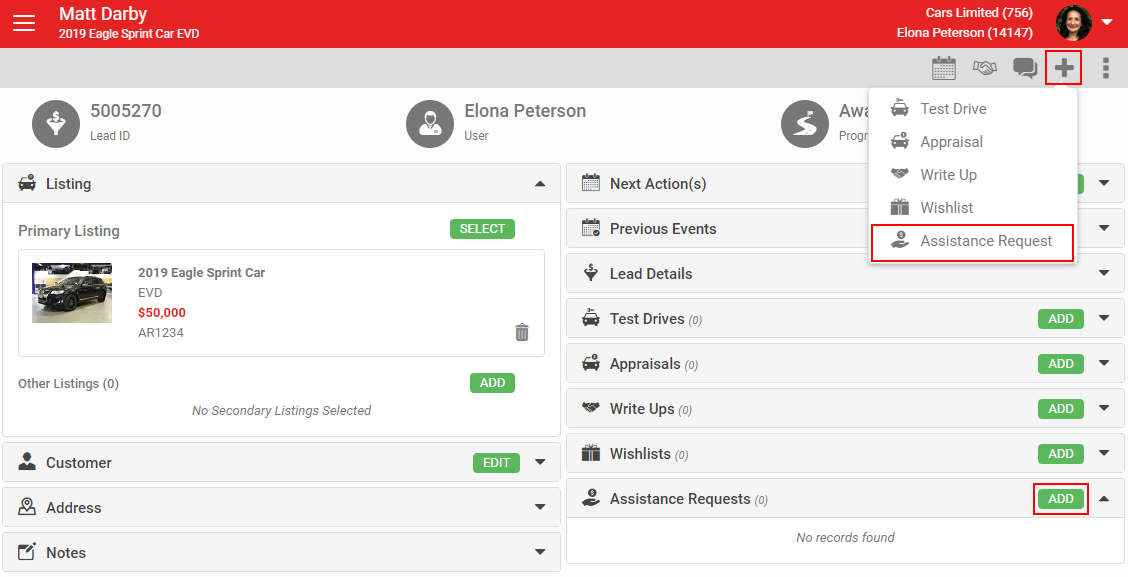
The fields shown, and which are mandatory (marked with an asterisk), differ by brand. Assistance Request Forms are generally made up of several sections.
1. Customer
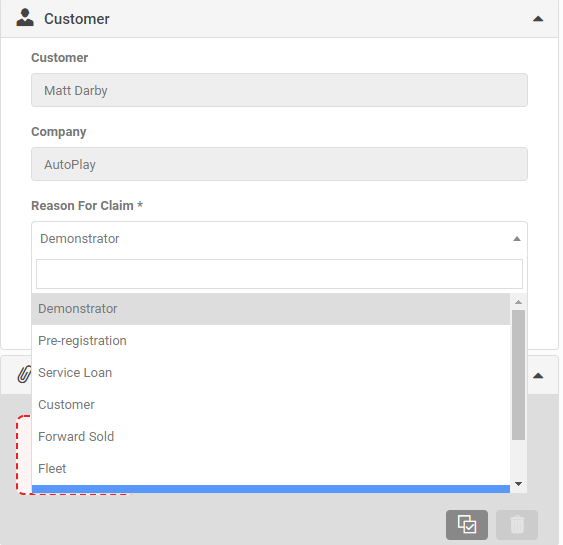
Customer details, including name and company, pull through from the lead automatically. Fields vary by brand, but there's usually a Business/Private classification and a Fleet Size field.
Most brands also have a mandatory Reason For Claim field. The options differ by brand but usually include Demonstrator, Pre-Registration and Service Loan, among others. Selecting one of these three lets you create an Assistance Request Form from the Assistance Requests screen without first creating a lead. Every other claim type must be created from a lead.
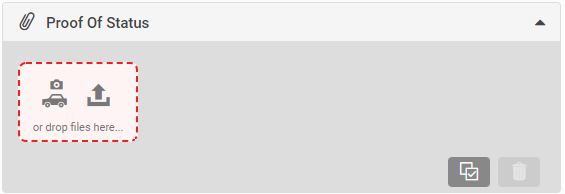
2. Proof of status
Many brands require Proof Of Status to confirm the customer's purchaser type. Upload a JPG, PNG or PDF, or use your device's camera to photograph it directly in AutoPlayAuto.com.
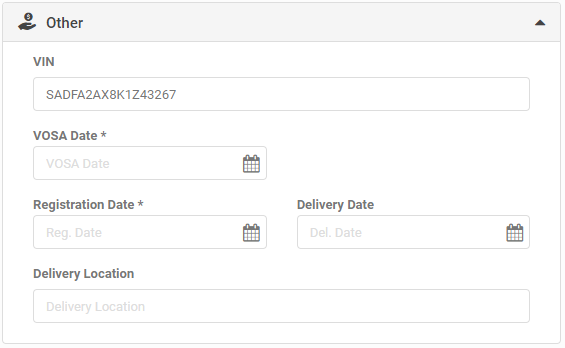
3. Other
Fields here vary by brand, but usually include VIN (pulled from the listing where available), Registration Date and Delivery Date.
4. Request
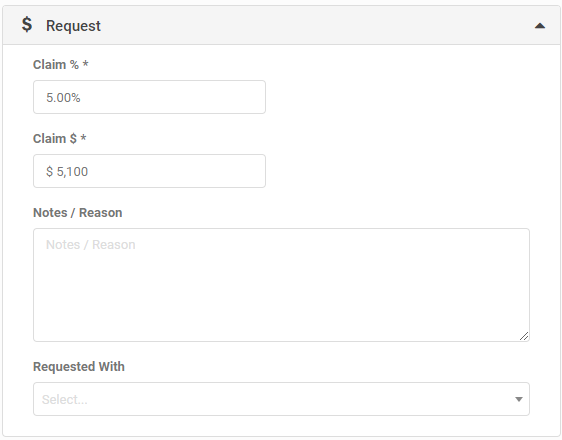
The Request section captures what assistance the dealership is asking for, usually including auto-calculating Claim % and Claim $ fields plus a Notes field to explain the reason for the request.
5. Terms and conditions
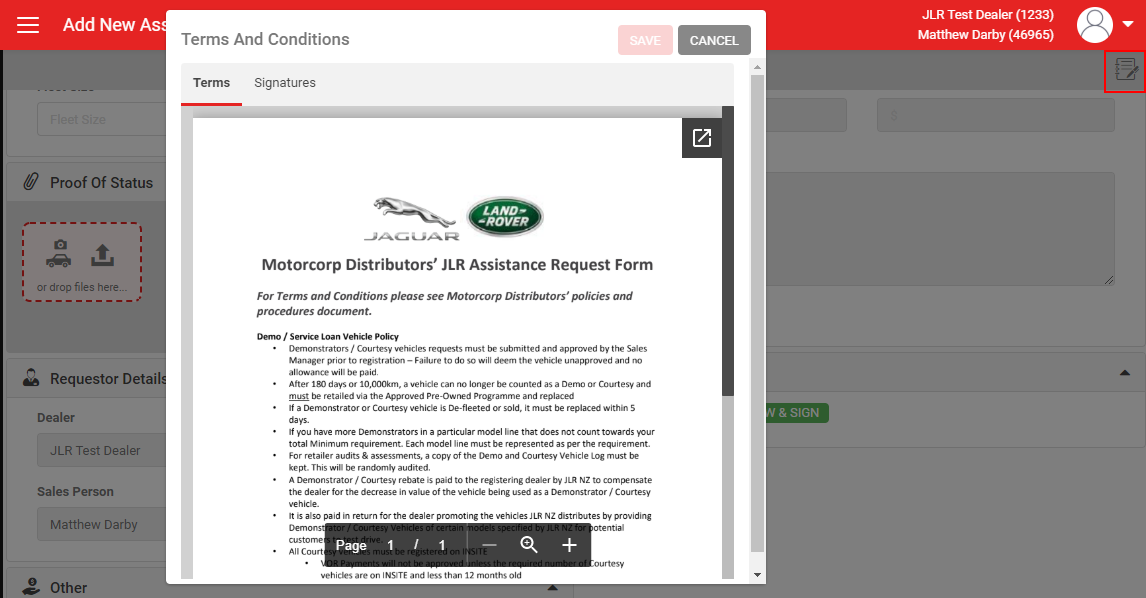
Every Assistance Request has terms and conditions the dealership can sign, via the View & Sign button in the Terms & Conditions section, or the icon in the grey action menu.
6. Brand approve/decline
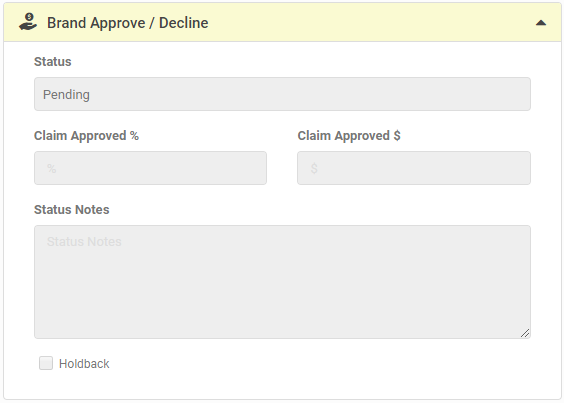
Dealership users can't edit this section. Brands with Assistance Requests set up can enter Claim Approved % and Claim Approved $ values, change the Status between Pending, Approved and Declined, and add Status Notes explaining the decision.
7. Submitting a request
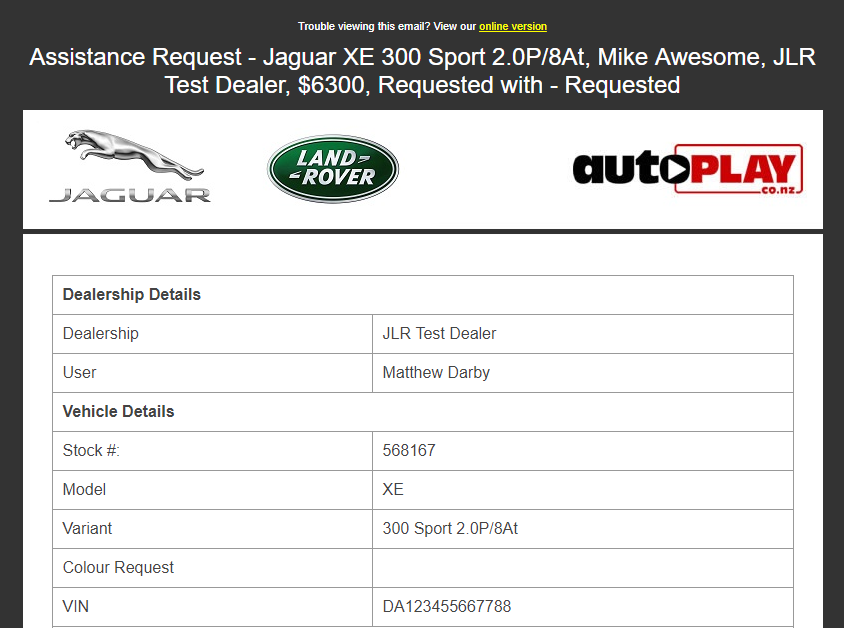
Clicking Save emails the brand to notify them of the new request. Once submitted, a dealership can no longer edit the form. You can resubmit at any time with the Re-Submit button, but if you need to amend anything, you'll need to create a new Assistance Request Form.
8. Managing your requests
Every Assistance Request Form is visible on the Assistance Requests screen. If you're not a manager in the Assistance Request role, you'll only see your own requests. Managers see every request created within the dealership.
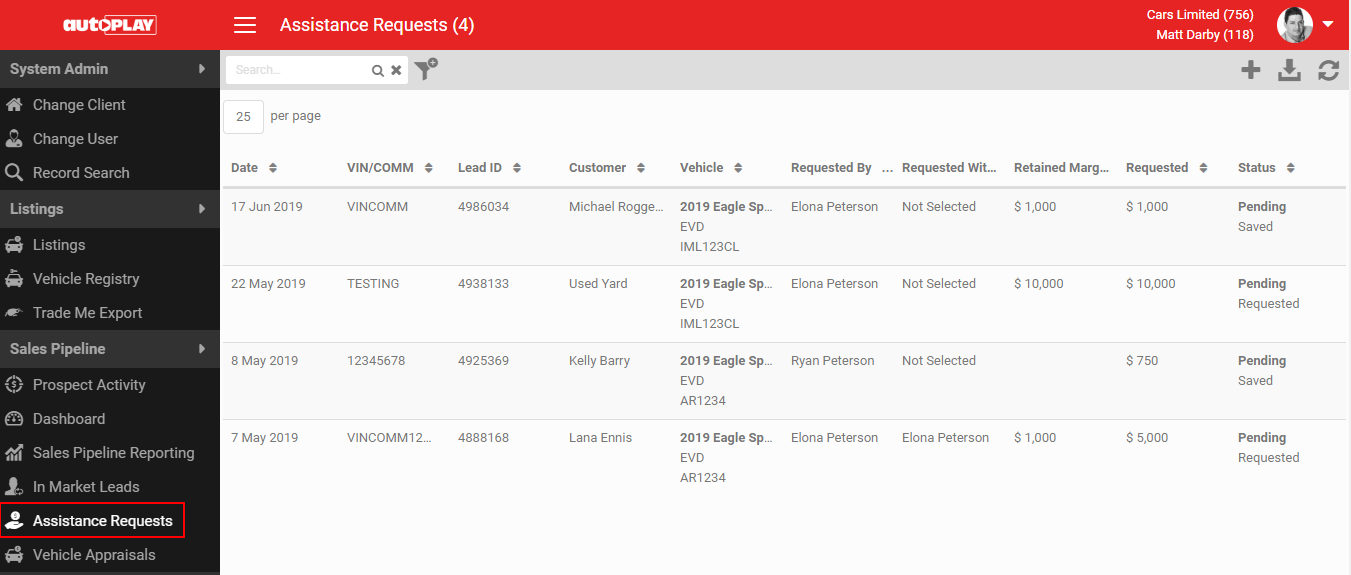
Search using the keyword field, or filter by Make, Salesperson, Date Range or Status (Pending, Conditional, Approved, Declined).