
AutoPlayAuto.com has a built-in calendar so salespeople can schedule follow-up on their leads. There are several ways to schedule a follow-up.
1. From the Dashboard
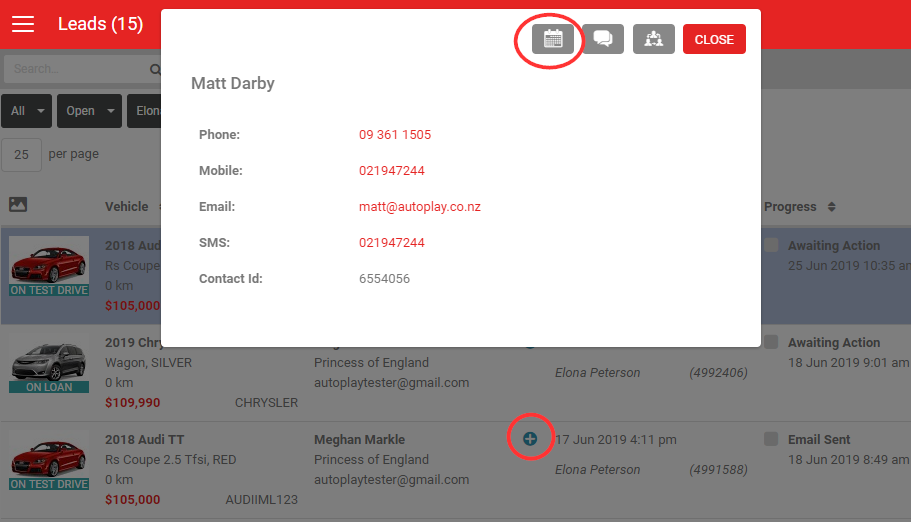
Click the blue + icon in the Customer column, then the calendar icon, to schedule a follow-up without opening the lead.
2. From a lead
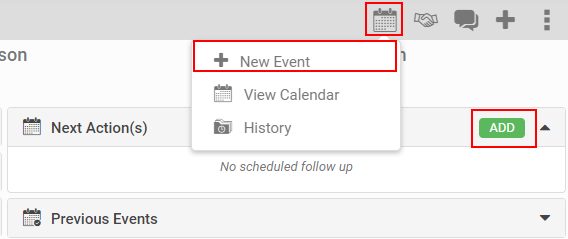
When viewing a lead, click + New Event in the Calendar icon in the grey action menu, or click Add in the Next Action section.
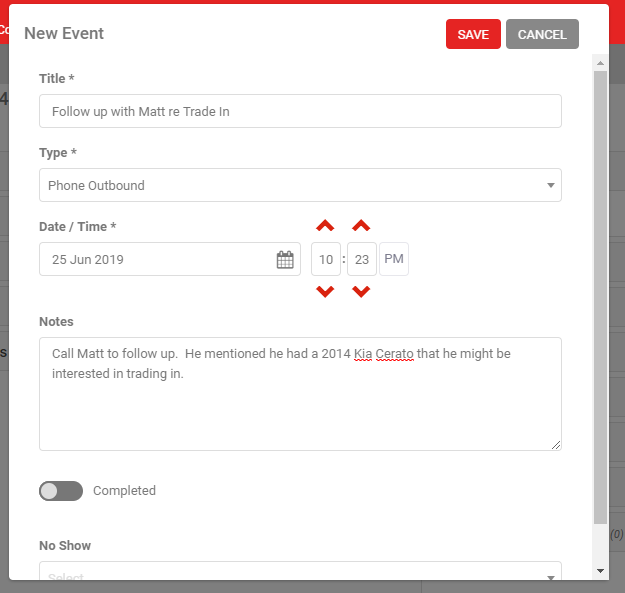
Complete the New Event popup:
- Title (mandatory): describe the follow-up.
- Type (mandatory): choose from the list of preset event types, including Phone Inbound/Outbound, Email Inbound/Outbound, Visit Inbound/Outbound, Booked Test Drive, Delivery, 48 Hour Follow Up, 3-7 Day Follow Up, 14 Day Follow Up, Attempted Contact, Notes, Live Leads Follow Up, SMS and Post Sales Follow Up.
- Date/Time: defaults to now.
- Notes: any detail specific to this event.
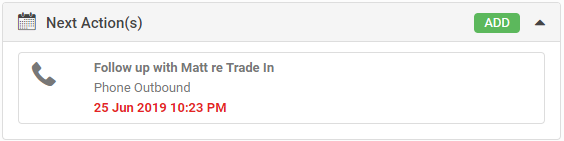
Click Save to create the event. It appears in the Next Action section on the lead.
3. Via the calendar
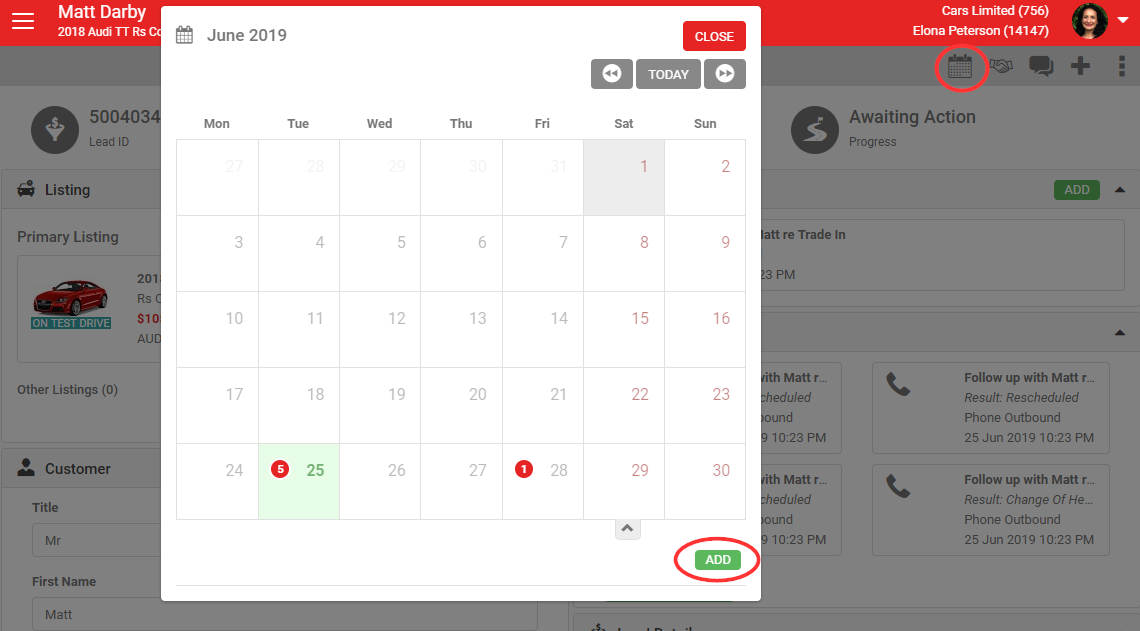
Click View Calendar in the grey action menu to open the calendar popup. Select a day to reveal a green Add button and create a new event for that date, rather than the current date/time.
4. Via bulk manage
You can also schedule follow-up events in bulk across multiple leads using Bulk Manage. See How To Bulk Manage Leads for more.
5. Calendar events and the Dashboard
The dates on a lead's calendar events affect when it appears in the Lead Dashboard, when filtering by Action Date:
- The Next Action date is the date of the next incomplete calendar event. With multiple incomplete events, the oldest one is used.
- Completing one of several incomplete events moves the Next Action date to the next oldest incomplete event.
- With no incomplete events, the Next Action date falls back to the lead's most recent updated date (completing an event does update this date).
- With no calendar events at all, the Next Action date falls back to the lead's updated date, which for a brand new lead is the same as its created date.