
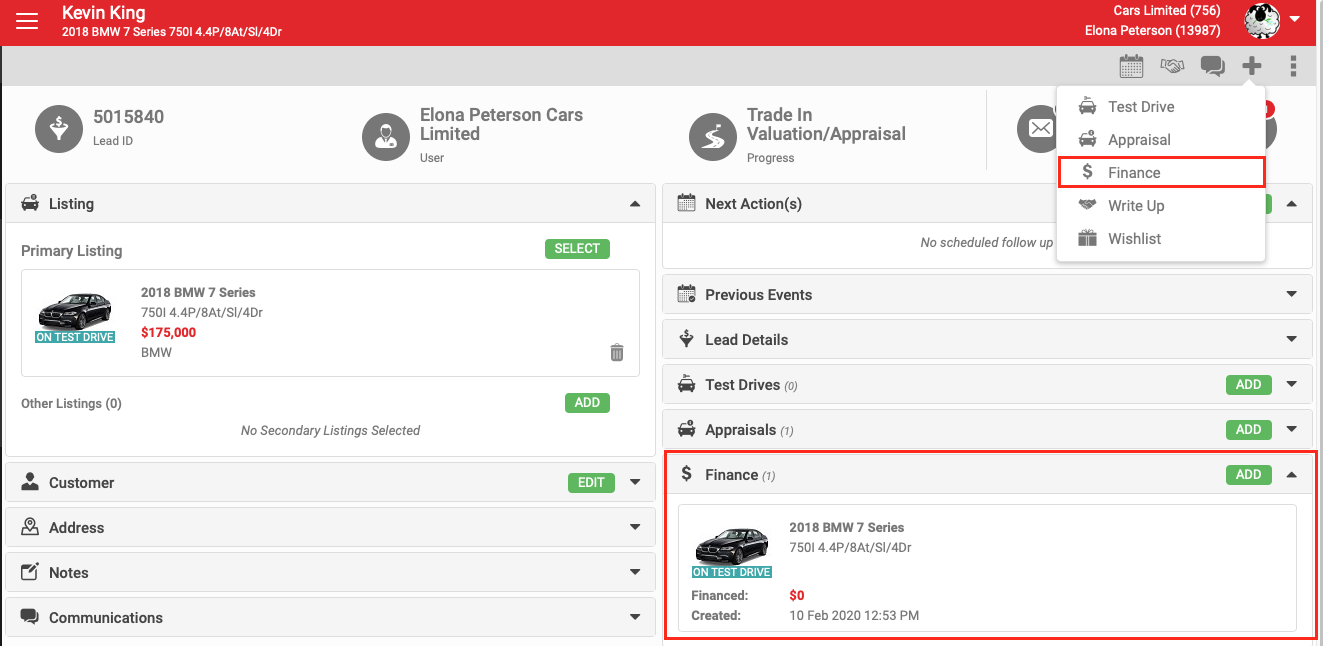
Users in the F&I Form role see a Finance section on every lead.
- Expanding the section shows a thumbnail of any Finance Forms already created, and an Add button.
- The + icon in the grey action menu also includes an option to add a Finance Form.
- Clicking Add or the + icon opens a new Finance Form.
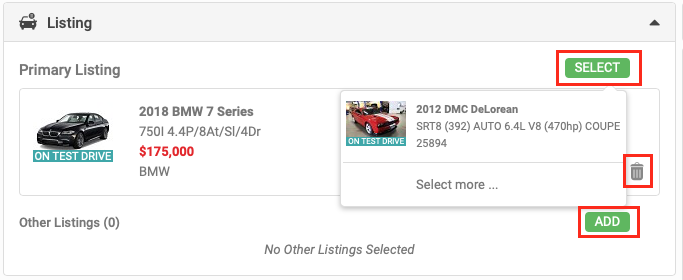
Listing
- The lead's Primary Listing is pulled in by default. To replace it with one of the lead's Other listings, click Select, or click Select more to add a listing that isn't already on the lead.
- A new Primary or Other listing added on the Finance Form is also added to the lead's Other Listings section.
- Delete a Primary or Other listing by clicking the rubbish bin icon.
- A listing must be present on the Finance Form for the record to display.
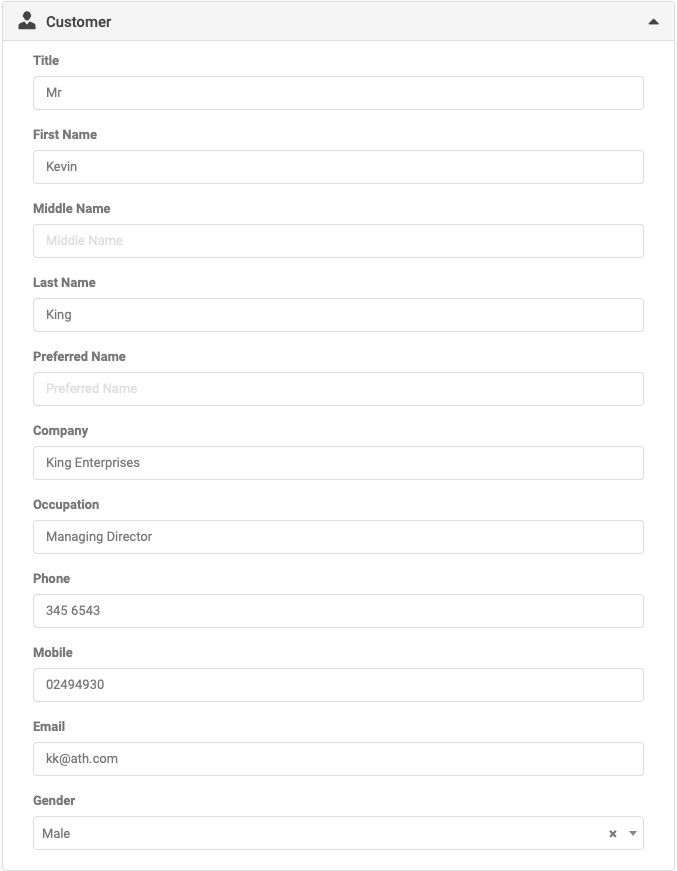
Customer
Customer details pull through from the lead automatically. Changes made on the lead, the Finance Form, or the contact record in the Address Book stay in sync across all three.
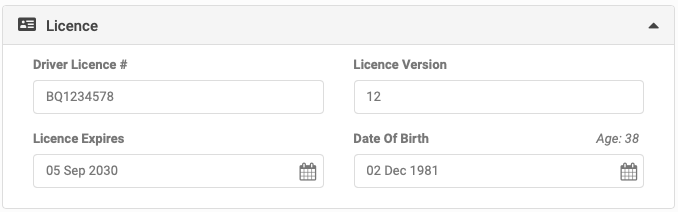
Licence
Licence details pull through from the lead automatically, and stay in sync across the lead, the Finance Form and the Address Book contact record, the same way customer details do.
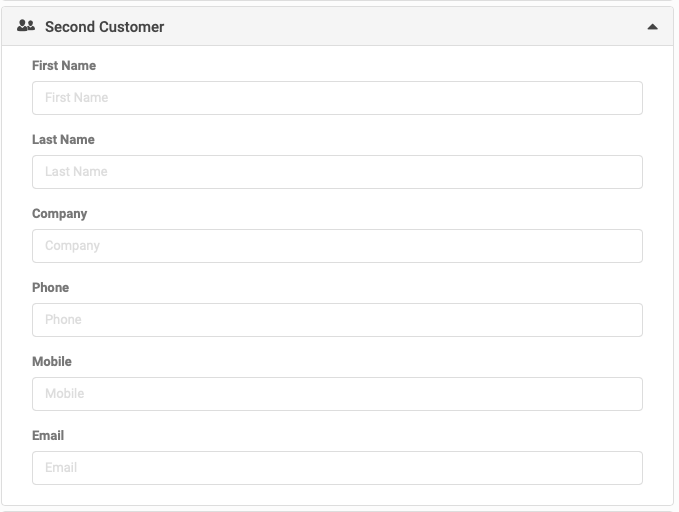
Second customer
This is a free-text section. Details are stored on the Finance Form only, and no contact record is created for the second customer.
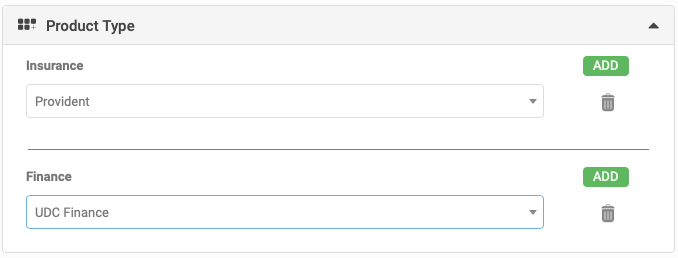
Product type
- Select the required insurance and finance providers from the drop-down. Add as many records as you need, depending on what's available.
- Remove a product type using the rubbish bin icon.
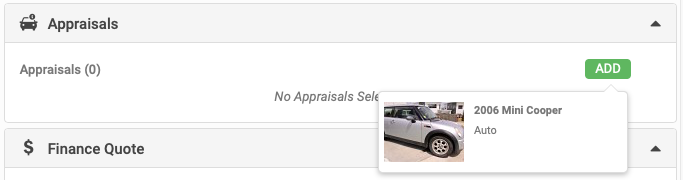
Appraisal
Add any appraisal already completed on the lead. Expand the Appraisal section and click Add.
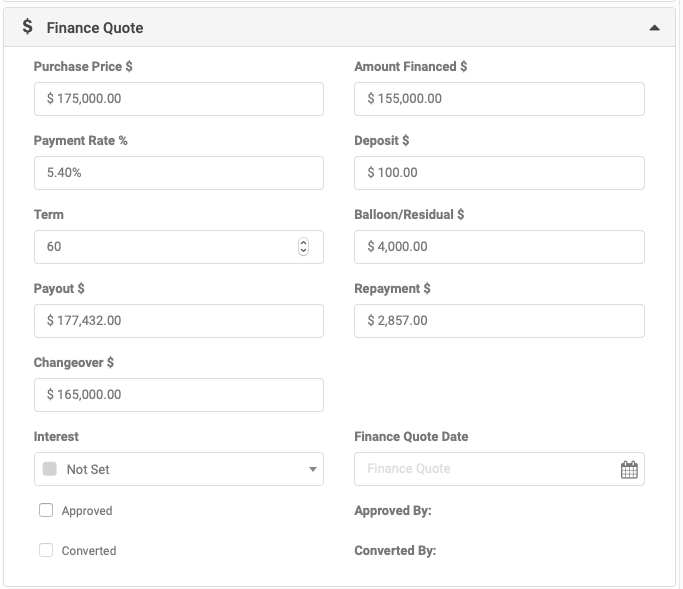
Finance quote
- Purchase Price: the vehicle's price.
- Amount Financed: purchase price, less deposit and trade-in amount.
- Payment Rate %: the interest rate.
- Deposit
- Term: the finance term.
- Balloon/Residual: the amount left to pay at the end of the finance term.
- Payout: the actual amount paid, with interest.
- Repayment
- Changeover: the vehicle's price, less trade-in.
Only users flagged as a manager can set the Approval and Converted flags. If the user is not a manager, saving the record sends a notification to managers to approve and convert the request.
Notes
A free-text field for any relevant notes.
Clicking Save creates the Finance Form.