
If you have the Loan Vehicle role, you'll see the + icon in the grey action menu on the Vehicle Registry screen, letting you create a Loan Vehicle Form.
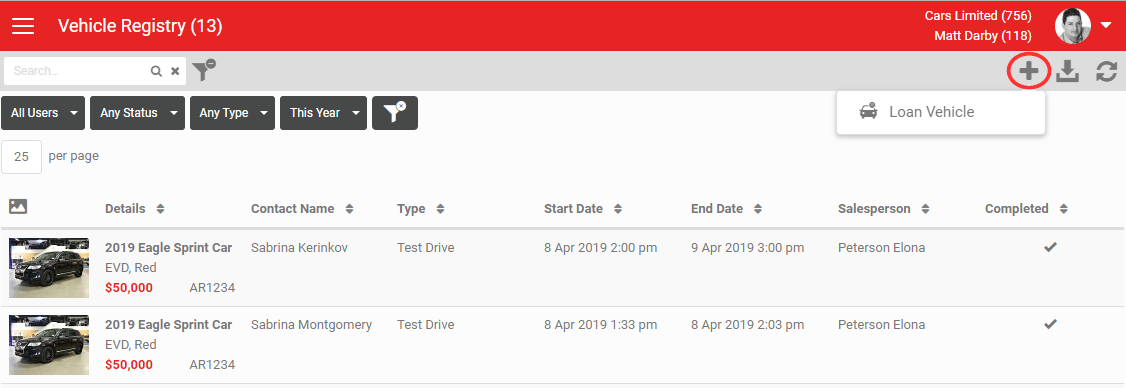
Loan Vehicle Forms can be created directly from the Vehicle Registry, with no need to create a lead first. This lets a dealership track where its vehicles are, even without a direct sales opportunity attached.
Creating a Loan Vehicle Form is similar to loading a lead and a Test Drive. The first step is loading a customer against the form so you can track who has the vehicle, using one of the following methods.
1. Type in the contact's details manually
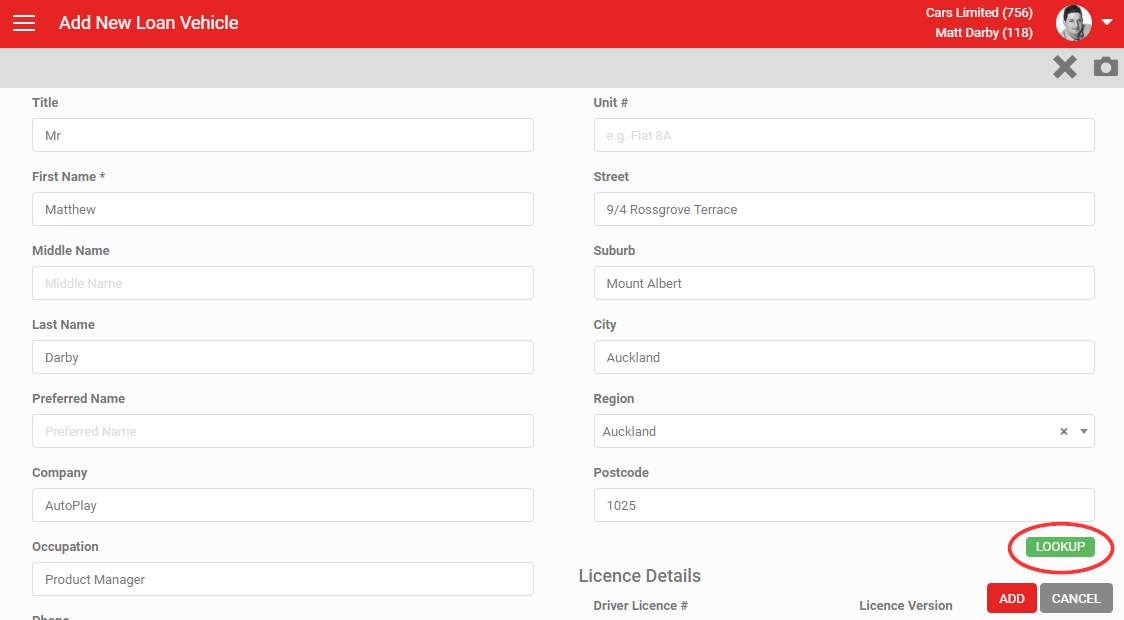
Key in the customer's name, address and licence details. Accuracy matters here, since this is how you identify who had the vehicle and when. Click Lookup under the address fields to run a Google address lookup.
2. Scan a business card or driving licence
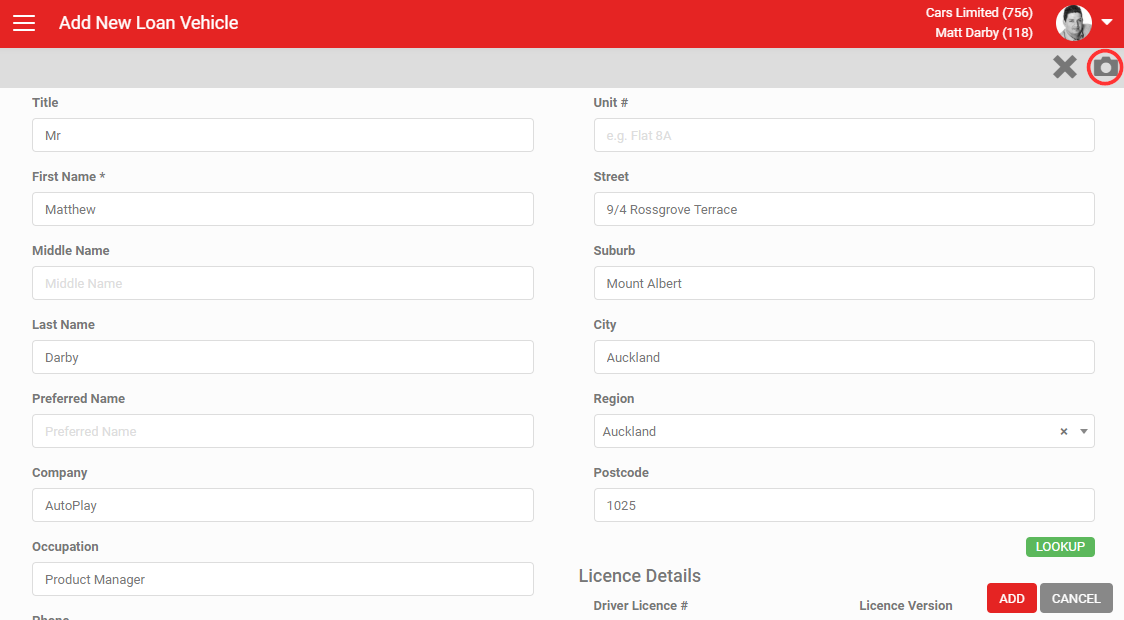
Use the built-in scanner via the camera icon in the grey action menu to scan a business card or driving licence, instead of typing details manually. This is also the most accurate way to capture licence details, which matters when loaning out a vehicle. See How To Scan Drivers Licence Or Business Cards for more.
3. Look the customer up in your database
Click Lookup under the customer fields to search existing customers based on the details you've entered. You don't need every field filled in: at least one of First Name, Last Name or Company, and one of Phone, Mobile or Email, is enough to search.
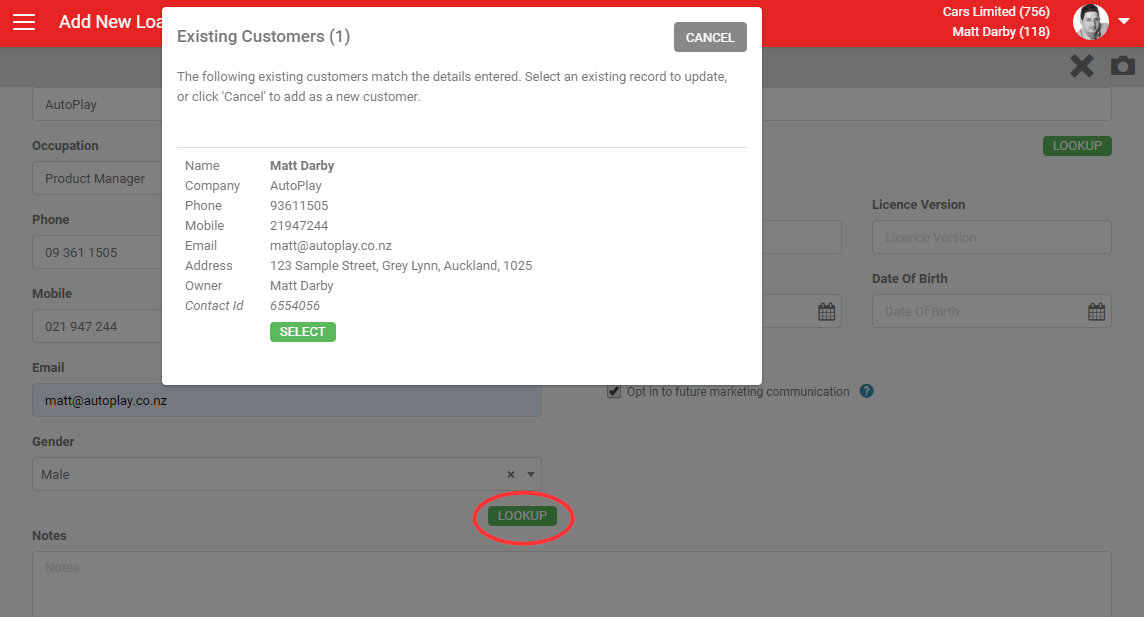
Click the red Add button to proceed. If you haven't already run a customer search, AutoPlayAuto.com runs one automatically and flags any similar existing customers, giving you the chance to update conflicting details.
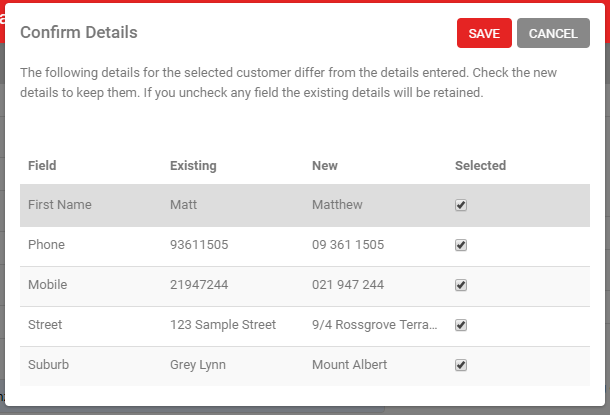
At this point you haven't yet created a Loan Vehicle Form. If you leave the screen now, nothing is saved. Click Save before leaving. You'll need to complete the same mandatory fields used when creating a lead, plus a Type and a Listing.
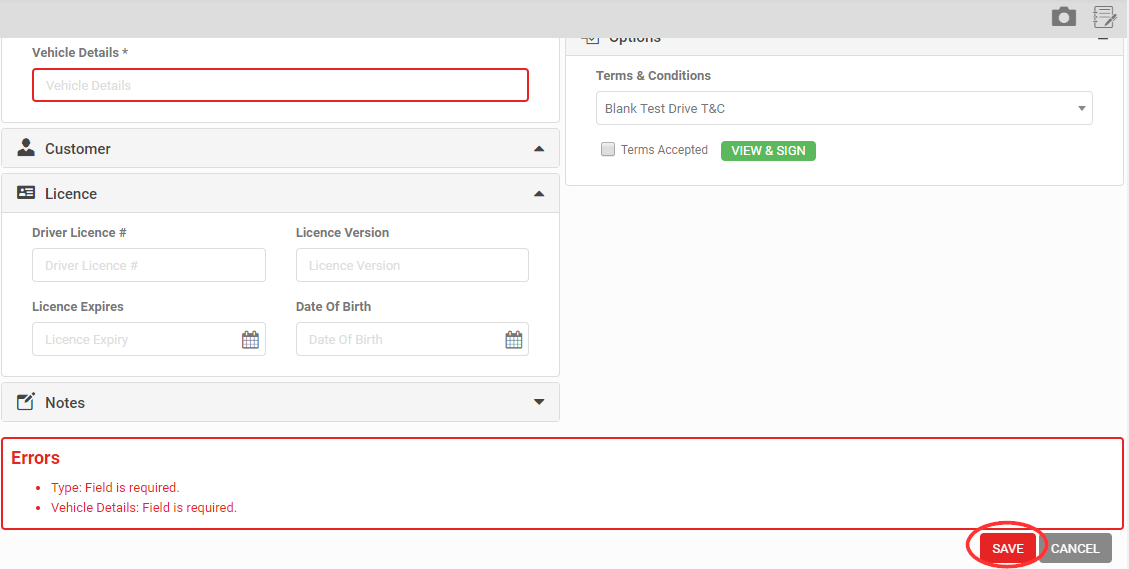
To complete the form, capture as much detail as possible:
- Select the Loan Vehicle Form you want to use for printing. This is compulsory but defaults to whatever's set up for your yard, so it only matters if you have alternate versions. See How To Add A Loan Car Form / Loan Car T&Cs for more.
- Choose the Type: Service, Employee, Sponsorship, Client, Supplier or Press.
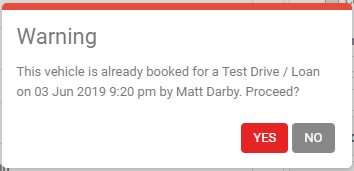
- Click Select to choose a listing from those you have rights to view in the Listings role, searchable by keyword or yard. If the listing is already booked on another Test Drive or Loan Vehicle Form, you'll see a warning.
- Enter any relevant Notes.
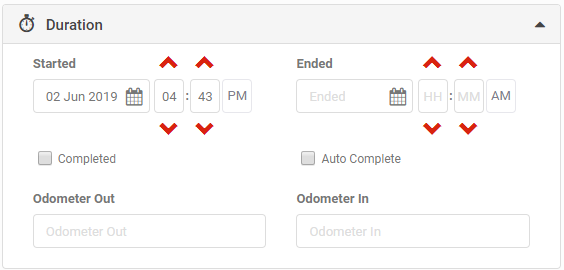
- Enter a Start Date/Time and End Date/Time using the date pickers. Start defaults to now, with no end time set. If you set an end time and it passes before the form is completed, AutoPlay generates an overdue notification.
- Record an Odometer Out reading.
- To automatically book the listing back into stock, enter an end time in advance and tick Auto Complete.
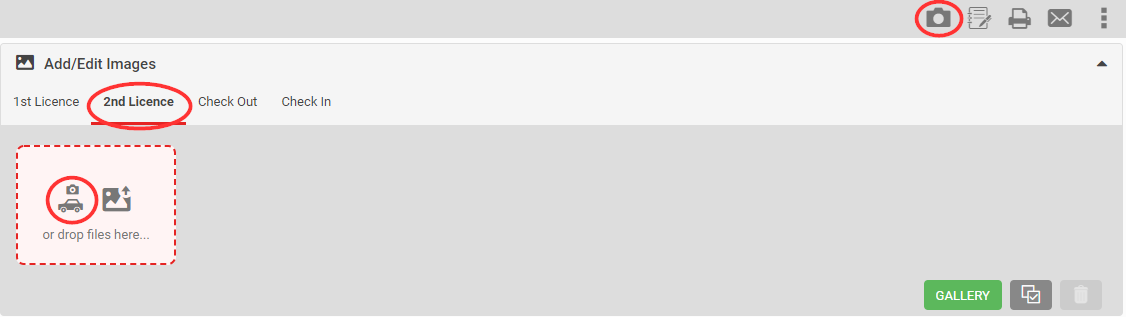
- If there's a second driver, capture their details on the form, including a photo of their licence via the camera icon in the grey action menu, or in the Add/Edit Images section. Click 2nd Licence first to make sure you're adding to the second driver's details, not the first.
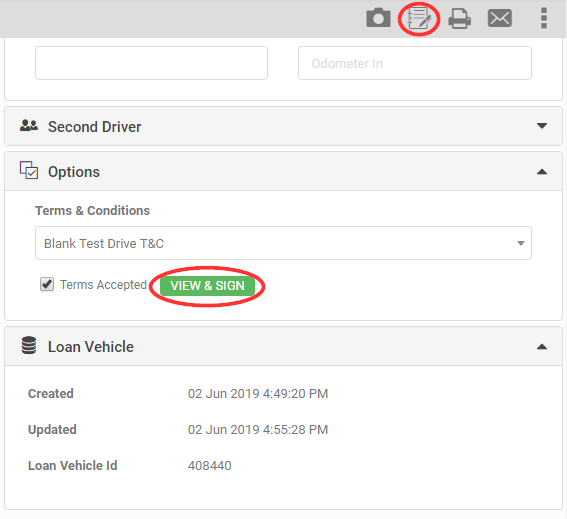
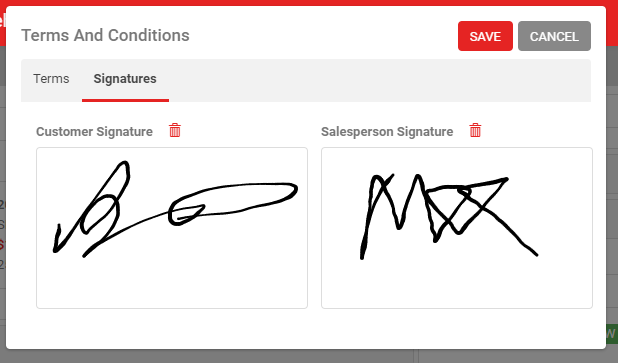
- Before handing over the keys, disclose the Loan Vehicle T&Cs and get them signed (see How To Add A Loan Car Form / Loan Car T&Cs for managing these). Use the icon in the grey action menu, or click View & Sign in the Options section. If you have different sets of T&Cs, select the right one here. Signing date-stamps the signature and ticks Terms Accepted.
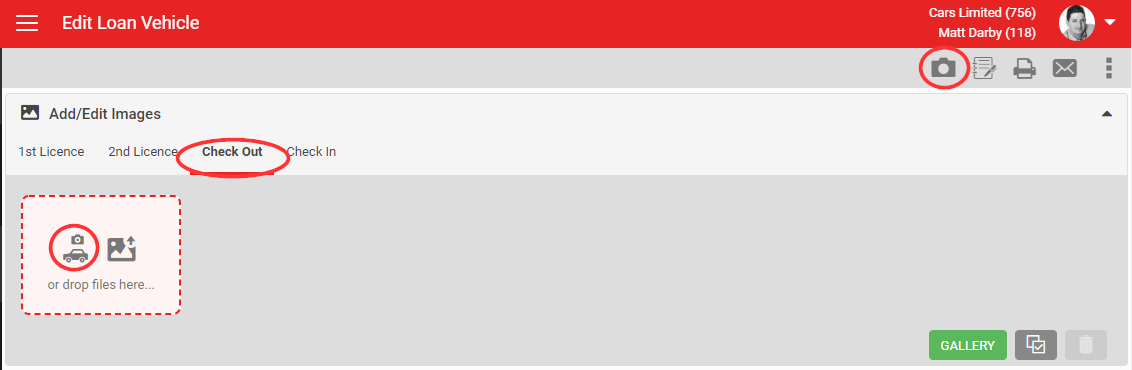
- Before handing the vehicle over, photograph its condition. This isn't compulsory, but helps if any damage is later disputed. Click the Check Out tab in the Add/Edit Images section, then use either camera icon.
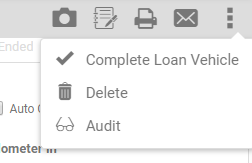
Once saved, a few new options appear in the grey action menu:
- Print: print the form using the printer icon.
- Email: email the form's details using the email icon.
- Delete: available to managers in the Loan Vehicle role, via the More icon.
- Audit: available with the Audit role, showing a full history of changes, via the More icon.
Remember to check the loan vehicle back in when it's returned. While a vehicle is out on loan, an "On Loan" banner appears against the listing throughout the system. Checking it back into stock removes the banner. See How To Check Vehicles Back In Using The Loan Car Form for more.