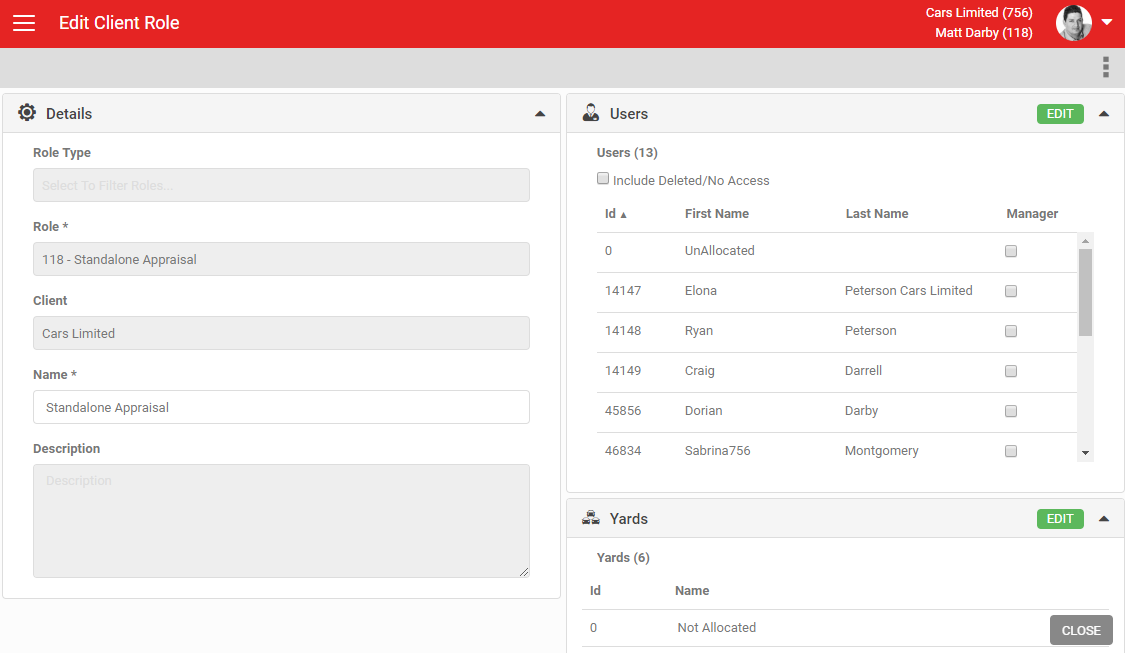
If you have the Standalone Appraisal role, you can create Appraisal Forms from the Vehicle Appraisals screen without attaching them to a lead.
- Users with the Standalone Appraisal Form role see a + on the Appraisal Dashboard to create a standalone form.
- If they're not ticked as a manager, they only see their own standalone appraisal forms.
- If they are ticked as a manager, they see the standalone appraisal forms of every user they share the role with.
- Before you reach the Appraisal Form, you're taken to the Select Customer screen, the same screen used when creating a Loan Vehicle Form.
- On this screen you can:
- Manually enter customer details.
- Search the customer database using the Search Database button. This works the same way as on the New Lead screen, including flagging differences between newly entered data and data already stored against the customer.
- Scan a licence or business card, which works the same way as when loading a new lead.
- A Yard field above the title defaults to the user's default yard, but shows every yard included in their Standalone Appraisal role, in case they don't have a Vehicle Appraisal Manager Approval role.
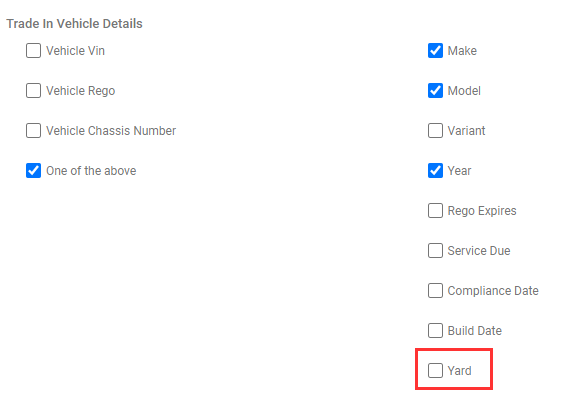
Since version 21.2.1, Yard has also been available as an option under Mandatory Fields on the My Company screen. When ticked, a Yard is required to create an Appraisal Form. This rarely affects appraisals attached to leads, since those always have a yard, but it can affect Standalone Appraisals, which may not. If the creating user has a Default Yard set, it's applied automatically; otherwise they can set the yard manually when creating a Standalone Appraisal that isn't attached to a lead.