
Bulk-upload listings using a CSV file instead of adding them one at a time.
Prerequisites
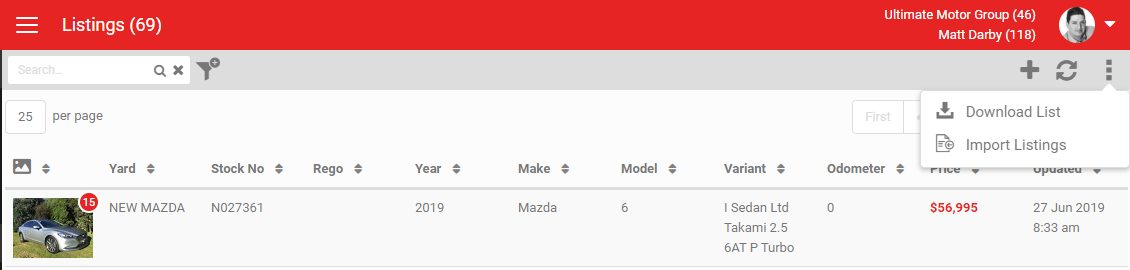
You need the Direct Upload Listings role added to your account. Without it, the Import Listings button is not visible. The role is account-wide: turning it on or off applies to the whole account, not individual yards or users.
Steps
- Click Import Listings. A popup appears.
- Upload your file. Once uploaded, you can view the file name, remove it, or click Upload to proceed.
- Click Upload. The listings in the file are added, provided the file matches the required format.
- Click Download in the same popup for a template showing how the CSV needs to be structured.
Note
The "Yard Ref" column can be either the Yard ID (AutoPlay's internal ID) or the Yard Code. AutoPlay looks up the yard by Yard ID first, then by Yard Code if that doesn't match.
The "Yard Ref" column can be either the Yard ID (AutoPlay's internal ID) or the Yard Code. AutoPlay looks up the yard by Yard ID first, then by Yard Code if that doesn't match.
Field-level import (23.10.1 update)
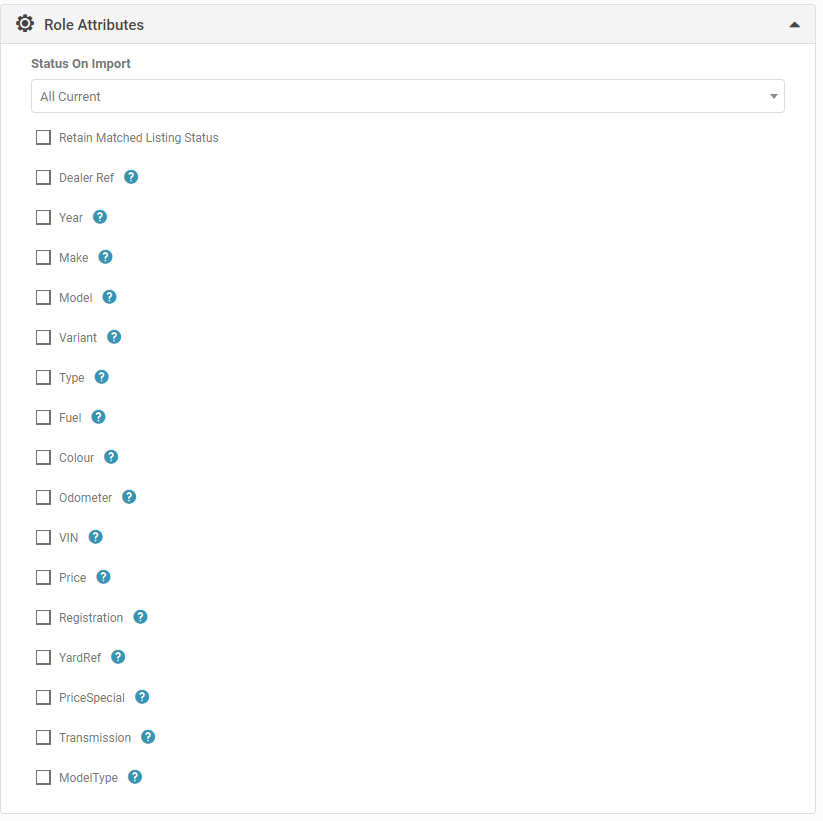
The Direct Listings Upload role has a field-selection Role Attribute. When you select specific fields here, only the values for those fields are updated by the import, leaving the rest of the listing untouched.
Warning
Stock Number is always required. AutoPlay matches vehicles to existing listings using this value.
Stock Number is always required. AutoPlay matches vehicles to existing listings using this value.