
This article shows you how to upload and manage images for use across AutoPlay.
Before you start
You need the Yard Admin role (manager level) to upload images. Go to Settings > Listing Settings > Images.
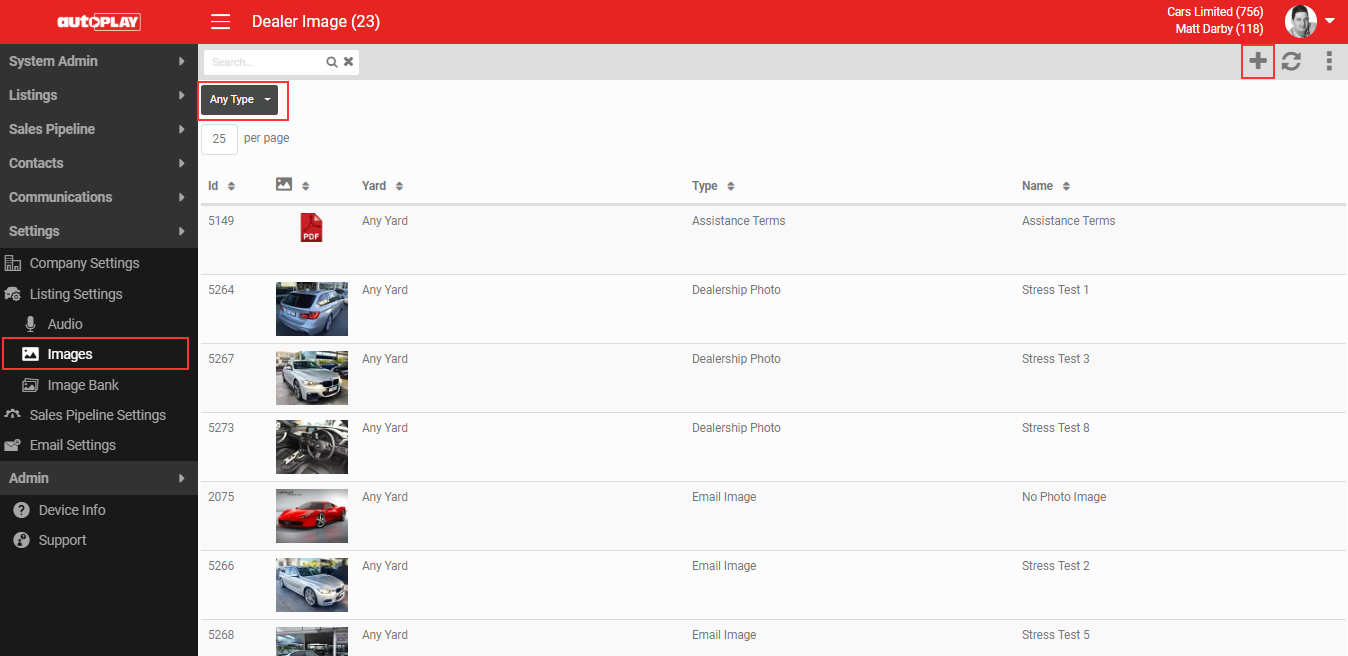
Filtering by image type
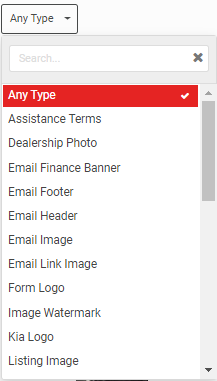
Use the 'Type' dropdown to filter your images, and search it by keyword. Each image type serves a different purpose, from Terms & Conditions PDFs used in forms across the Sales Pipeline, to images used in email communications, to watermarks added to listings on export.
Loading an image
- Click the + icon in the grey action menu to create a new record.
- Select the Type.
- Select the yards you want to apply it to.
- Give it a name for easy identification.
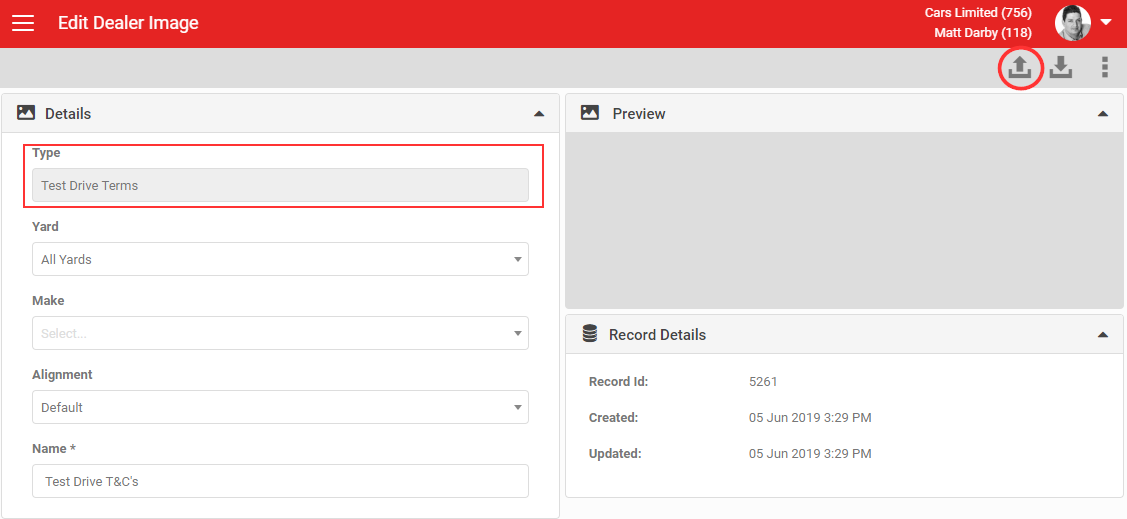
Once you click SAVE, an 'Upload' icon appears in the grey action menu. Depending on the image type you selected, you can upload a PDF, JPG or PNG.
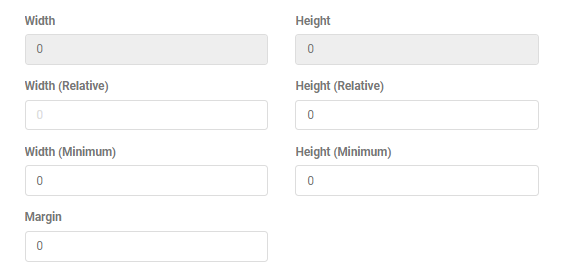
Some image types also show fields for Width, Height and Margin.
Once uploaded, the image is available to use in the relevant section of AutoPlay.