
AutoPlay can integrate with your Outlook or Google Calendar, pushing scheduled events created in AutoPlay out to those calendars, and pulling external calendar events back into AutoPlayAuto.com.
This integration lets you:
- Create calendar events in Outlook from AutoPlay, choosing which calendars are connected.
- Create calendar events in Google Calendar.
- Specify which users' AutoPlay calendars are shared with Outlook or Google.
- Specify which AutoPlay event types are shared with Outlook or Google.
- Share appointments created in Outlook back to your AutoPlayAuto.com calendar.
How to provision calendar integration
Some steps can only be completed by AutoPlay admins. Contact support@autoplay.co.nz to get started.
1. Create a role (AutoPlay staff or Role Admin users only)
Add the User OAuth role to your account. This is a company-wide role that reveals the OAuth Authentication section on the My Details page. Each user authenticates themselves individually: this section isn't visible when logged in as an admin, and can't be set up on behalf of another user by a master admin.
AP1 users can see the section but can't create new connections for any user other than themselves.
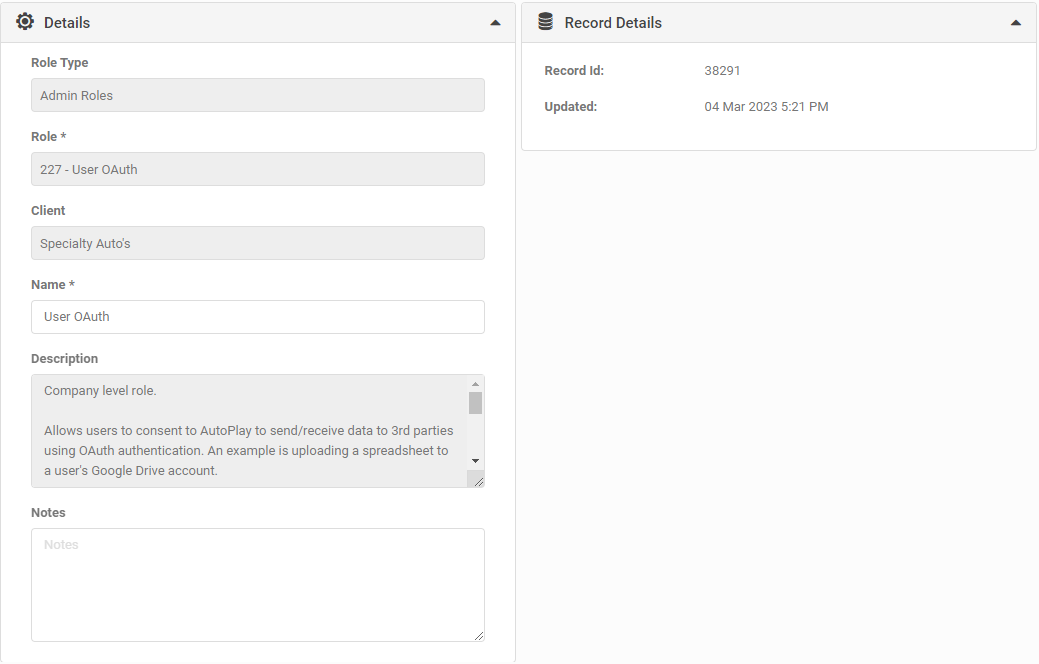
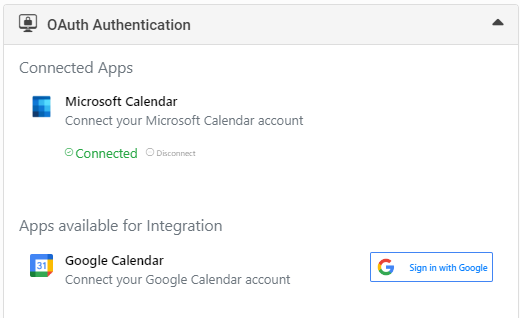
Once the role is enabled, the user sees a new OAuth Authentication section on the My Details screen.
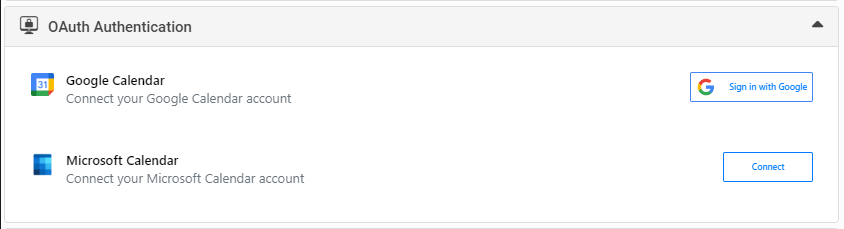
Connecting Microsoft Calendar
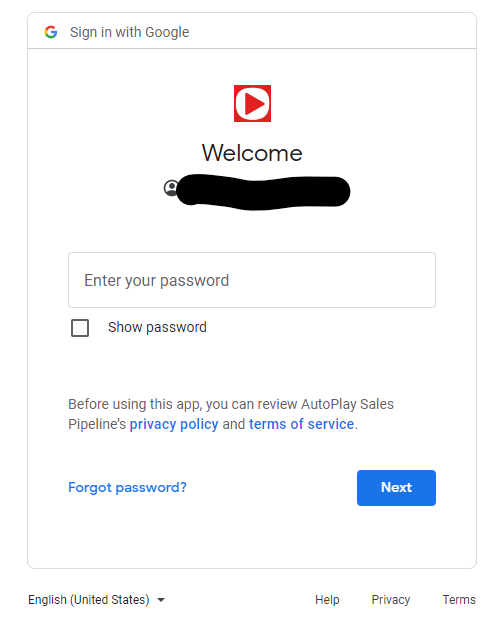
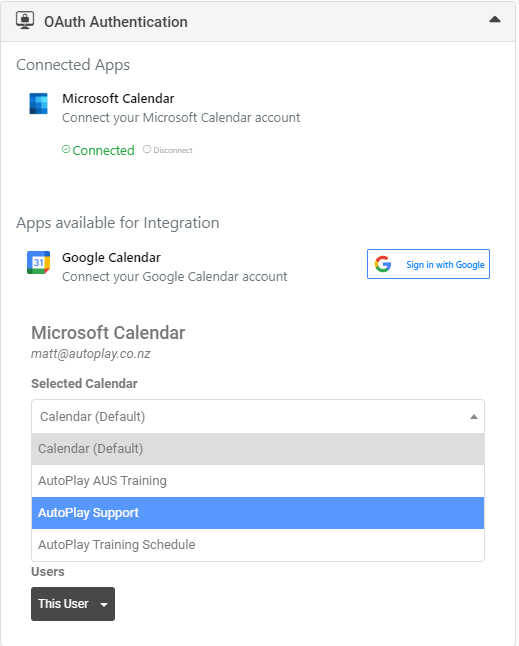
Click Connect next to Microsoft Calendar to open the Microsoft login screen.
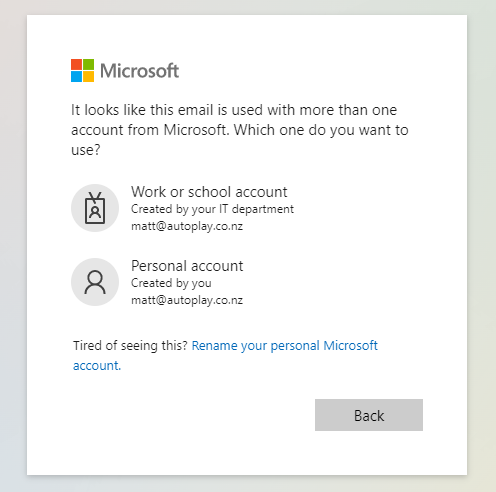
Select the appropriate work or personal Microsoft account.
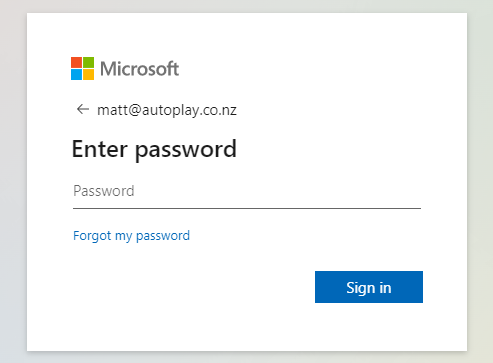
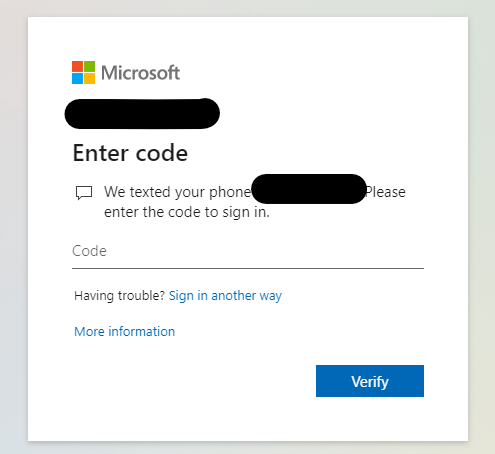
Enter your password. Depending on your Microsoft setup, you may then be asked to receive an SMS or call to the mobile number on your account.
Enter the code once you receive it.
Give AutoPlayAuto.com (AutoPlay Sales Pipeline) permission to access your Microsoft Calendar.
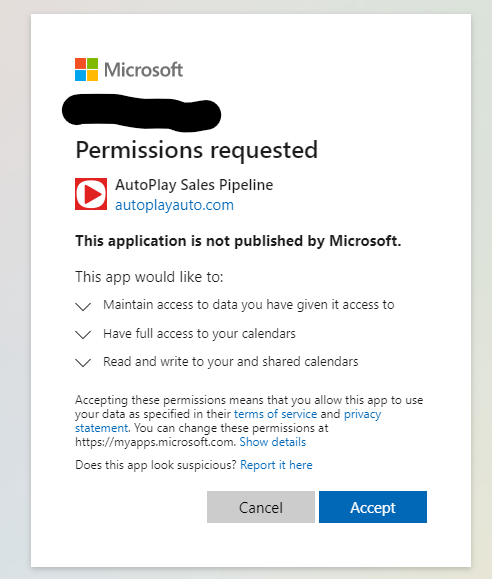
Click Accept. You'll see a success message, and when you return to AutoPlayAuto.com the window refreshes and shows a green "Connected" status.
Connecting Google Calendar
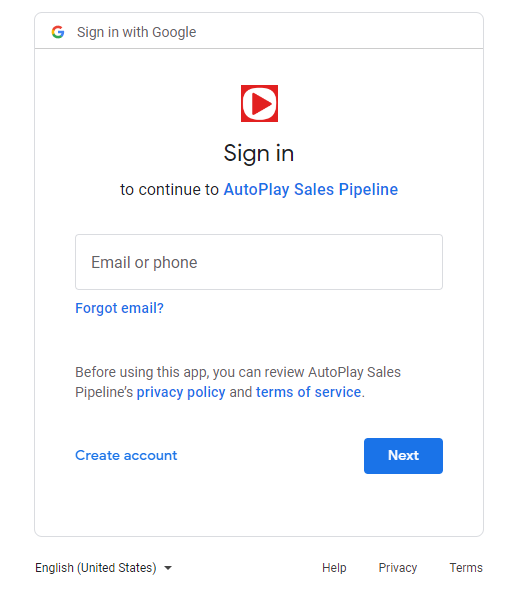
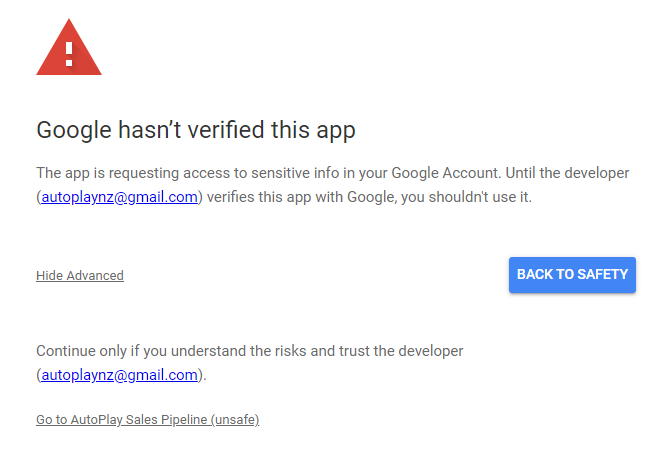
Google hasn't yet verified AutoPlayAuto.com, so you'll see a warning. This verification process takes a while; you can ignore the warning and proceed by clicking Go to AutoPlay Sales Pipeline (unsafe).
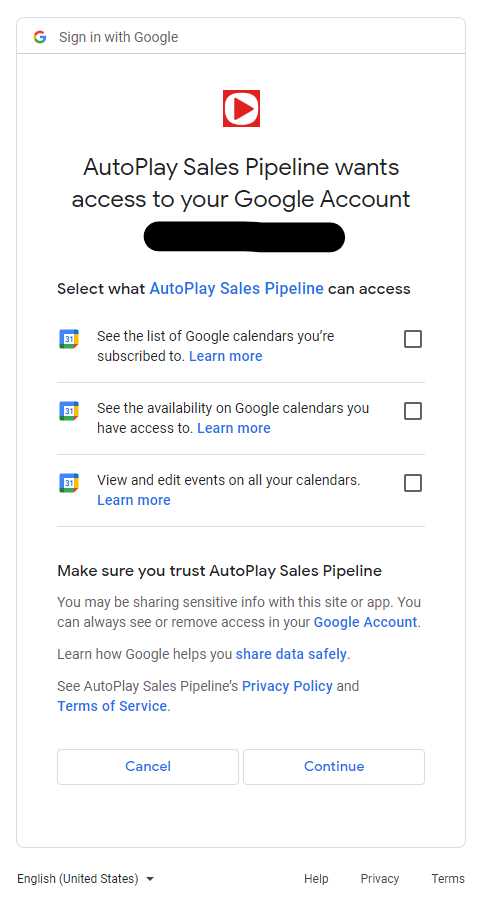
Choose what level of access to give AutoPlayAuto.com over your Google Calendar. Select all three options and click Continue.
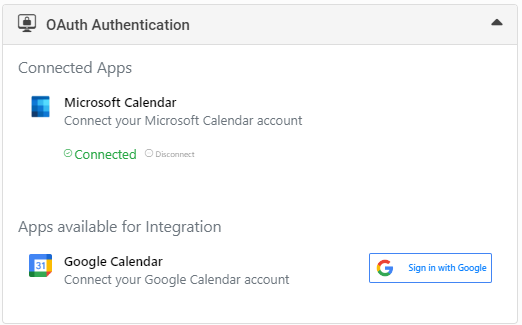
Once connected, you'll see "Connected" under your Google Calendar account in the OAuth Authentication section on the My Details screen.
Your Outlook or Google Calendar is now connected to AutoPlayAuto.com.
How to disconnect your calendar
A connected calendar shows a green "Connected" status next to it. Click Disconnect next to it to remove the connection. This takes a couple of seconds, after which the "Connected" status disappears.
Choosing what's shared with Microsoft and Google Calendars
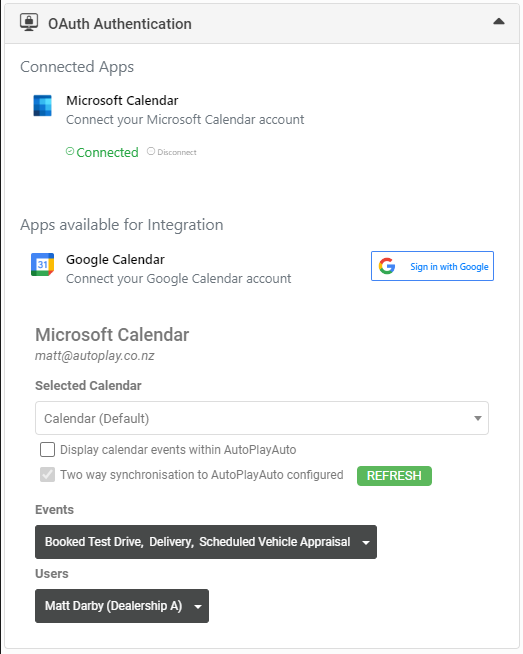
If your login connects to multiple calendars, they appear in the Selected Calendar drop-down. Usually you'll connect your own personal calendar, but if your dealership has a centralised calendar for test drives or deliveries, that option appears here too.
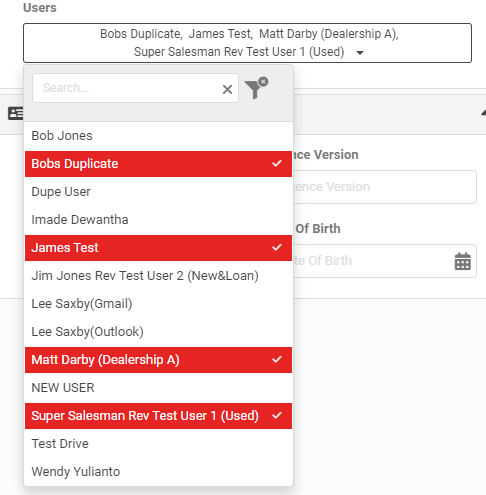
Managers in the Manage Leads role can select multiple users from the Users drop-down, limited to users whose leads and calendars they have rights to see. Every selected user's calendar appointments, created under their name in AutoPlay, are automatically shared to the authenticated calendar.
This is useful for sharing test drive appointments or scheduled deliveries to a central calendar that reception or the service team can see, so everyone in the dealership knows what's happening and when.
Each user in AutoPlay can only connect to a single Outlook or Google Calendar at a time. If you need to share to several centralised calendars, for example separate calendars for Delivery, Test Drives and Scheduled Appraisals, create a new "manager" user in AutoPlay with manager rights over the relevant users, and connect only that manager user to each shared calendar.
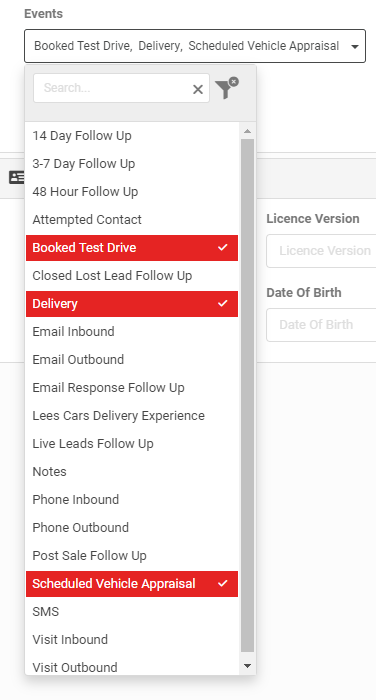
You may not want every AutoPlay calendar event shared with Outlook or Google. The Events drop-down lets you select which event types to share. This suits a dealership using a shared calendar for face-to-face appointments only, letting users exclude their own lead-management reminders and include just the events relevant to that calendar.
The final option in OAuth Authentication is "Two way synchronisation to AutoPlayAuto configured". This checkbox shows AutoPlay staff whether AutoPlayAuto.com successfully set up a webhook with Outlook or Google, so that changing an AutoPlay event in Outlook/Google sends the change back to AutoPlay. This link can occasionally fail to set up correctly, or fail later, and this checkbox flags whether it's still working. Use Refresh to reapply the connection if needed.
Save your changes on the My Details screen before leaving, or they won't be retained.
What AutoPlay calendar events look like in Outlook
Connecting your account doesn't pull through previous events already in your AutoPlay calendar. Only events created after authentication are pushed through. To bring an existing event across, close and recreate it as a one-off.
Create an event as usual, making sure to select an event type you've specified to share with Outlook.
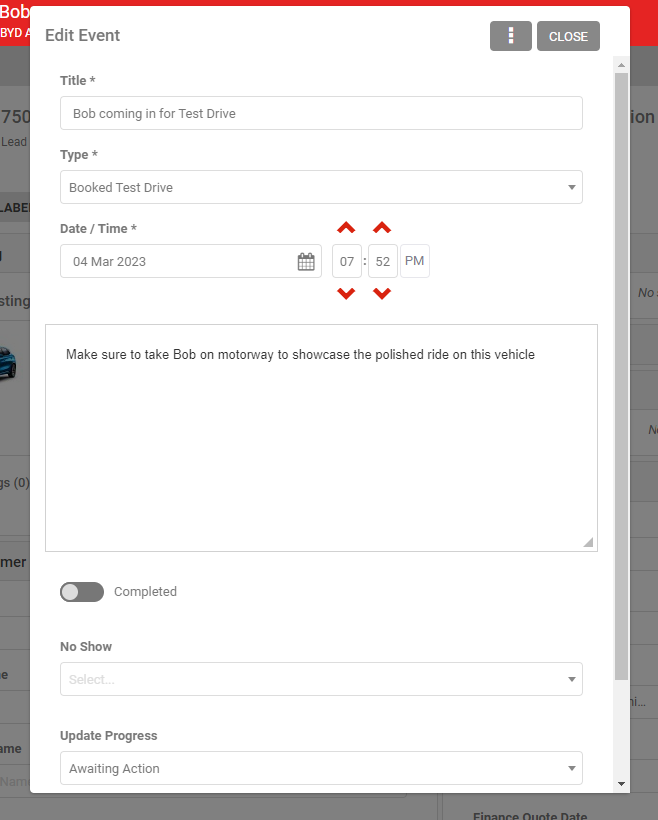
The event appears in your Microsoft Outlook calendar almost immediately.
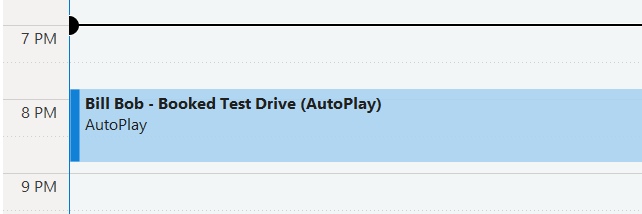
The Outlook calendar event is automatically populated with:
- Event Title, shown as the appointment's title.
- Date/Time, as specified in AutoPlay.
- Location, shown as "AutoPlay" so you can identify the source, also appended after the Event Title in brackets.
- The user who created the calendar event in AutoPlay, included in the appointment body.
- Customer Name.
- Lead ID.
- The lead's Primary Listing.
- Event Title, Event Type and Event Date/Time.
- Event Notes.
- A link back to the event in AutoPlay.
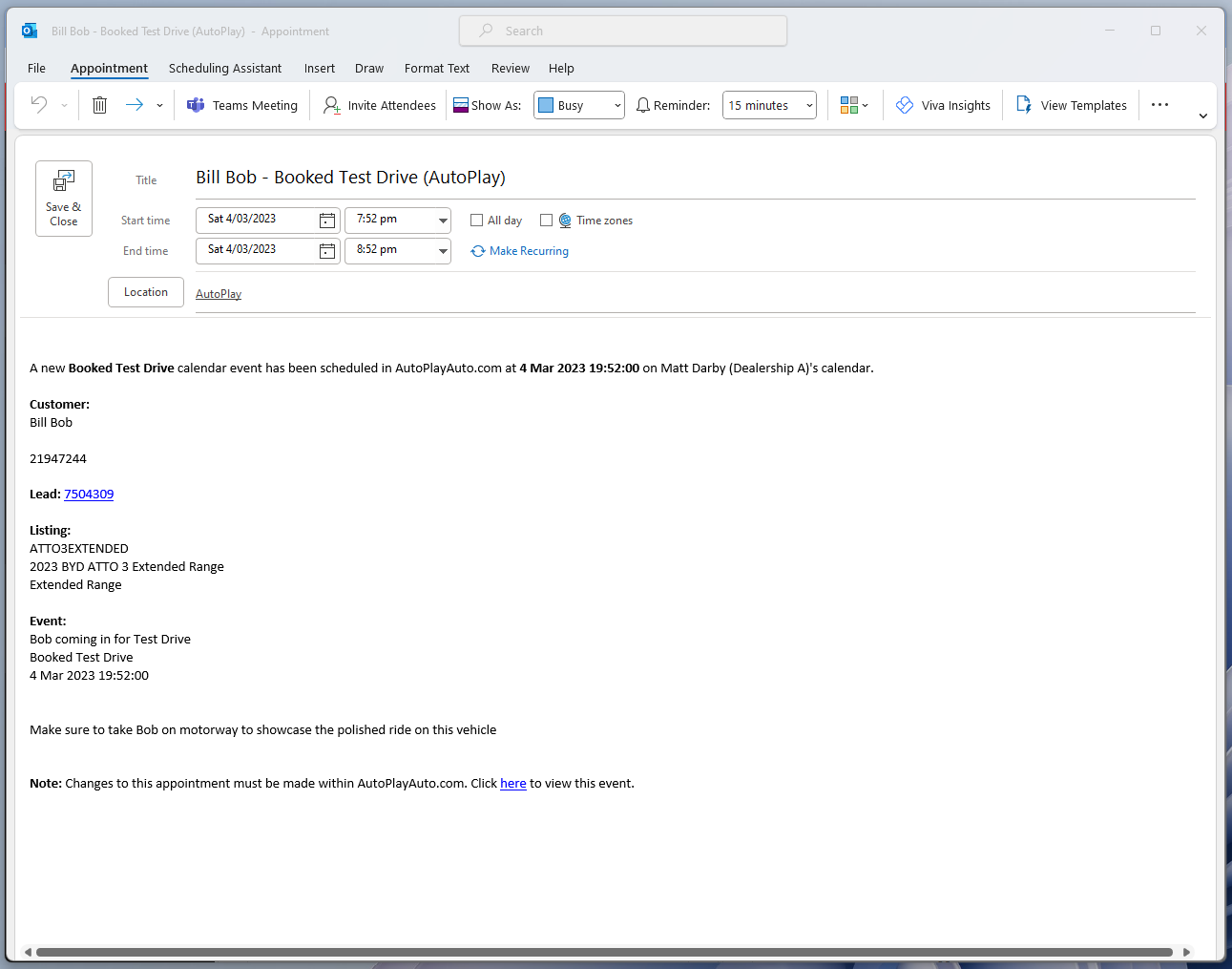
You can't update an event that originated in AutoPlayAuto.com from within Outlook. A link back to AutoPlayAuto.com is provided instead, though it won't work for AutoPlay staff viewing a user's account, since it must go through that user's own authentication.
Updating the event in AutoPlay automatically updates the Outlook appointment.
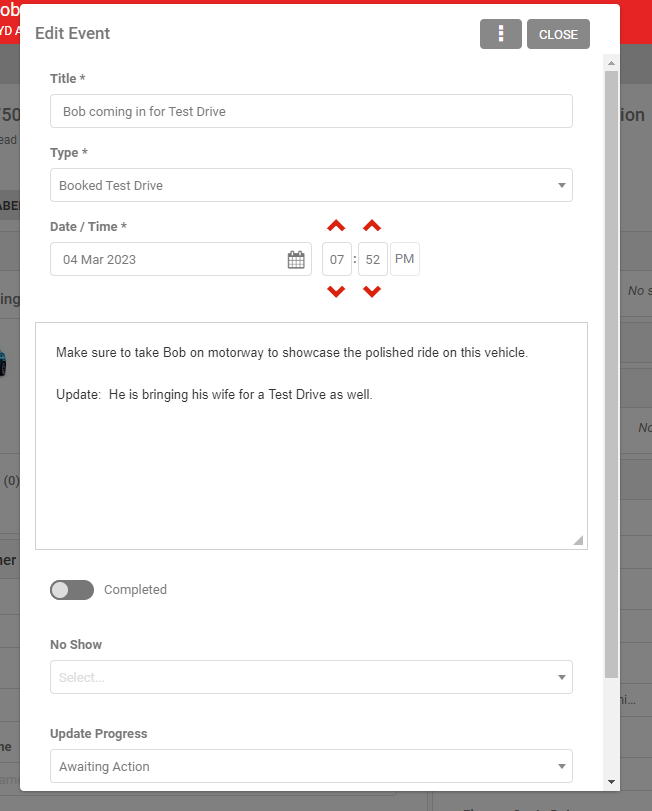
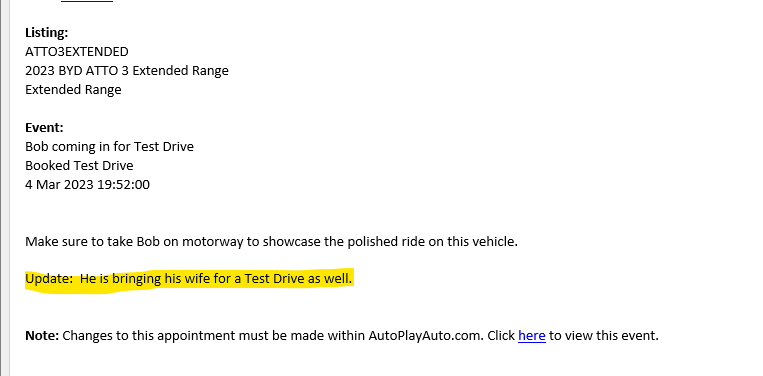
Marking a calendar event "Completed" in AutoPlayAuto.com automatically removes it from your Outlook calendar. It remains as a completed appointment within AutoPlay. Unticking Completed brings it straight back into Outlook.
Marking an event "No Show" in AutoPlay also removes it from Outlook. When you reschedule as prompted, the new event appears in Outlook the same way any newly created event does.
What AutoPlay calendar events look like in Google Calendar
Integration works the same way as Outlook, including which event types and users are shared. Viewing a week or day shows the Customer Name, Event Type, time, and "AutoPlay" as the source.
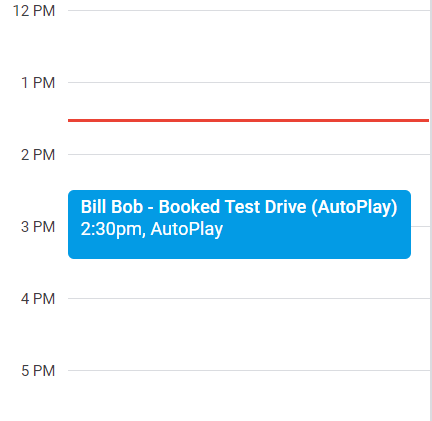
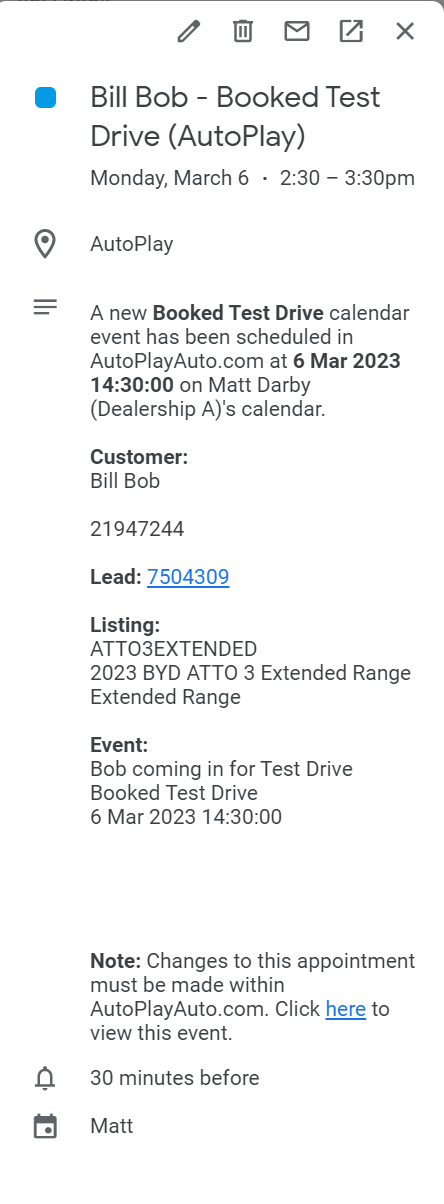
Opening an event in Google Calendar shows the same information as Outlook:
- Event Title, shown as the appointment's title.
- Date/Time, as specified in AutoPlay.
- Location, shown as "AutoPlay", also appended after the Event Title in brackets.
- The user who created the calendar event in AutoPlay, included in the appointment body.
- Customer Name.
- Lead ID.
- The lead's Primary Listing.
- Event Title, Event Type and Event Date/Time.
- Event Notes.
- A link back to the event in AutoPlay.
Sharing your Outlook and Google Calendar events with AutoPlay
If your account is connected, you can also opt to show events from Outlook or Google as standalone events in AutoPlayAuto.com. This helps users avoid double-booking an AutoPlay appointment against something already on their connected calendar.
Go to the My Details screen, tick Display calendar events within AutoPlayAuto, and click Save.
Once ticked, your calendar shows every event from your connected Outlook or Google calendar. AutoPlay queries your calendar:
- When displaying the AutoPlayAuto.com calendar on screen, for example from the Dashboard.
- When checking for conflicting events while creating a new event on a lead.
- When calculating available dates and times on the public-facing Calendar Invite and Reminder Invite screens shown to customers.
Calendar events from external calendars aren't associated with a particular lead, so they're only visible in the scenarios above. AutoPlay checks the user's calendar, as well as any user they have Manage Leads rights for, provided those users also have an external calendar linked. The "Display calendar events within AutoPlayAuto" setting on the User Detail screen controls whether a user's calendar items are visible to others in AutoPlay, letting each user decide how much of their free/busy schedule to share.
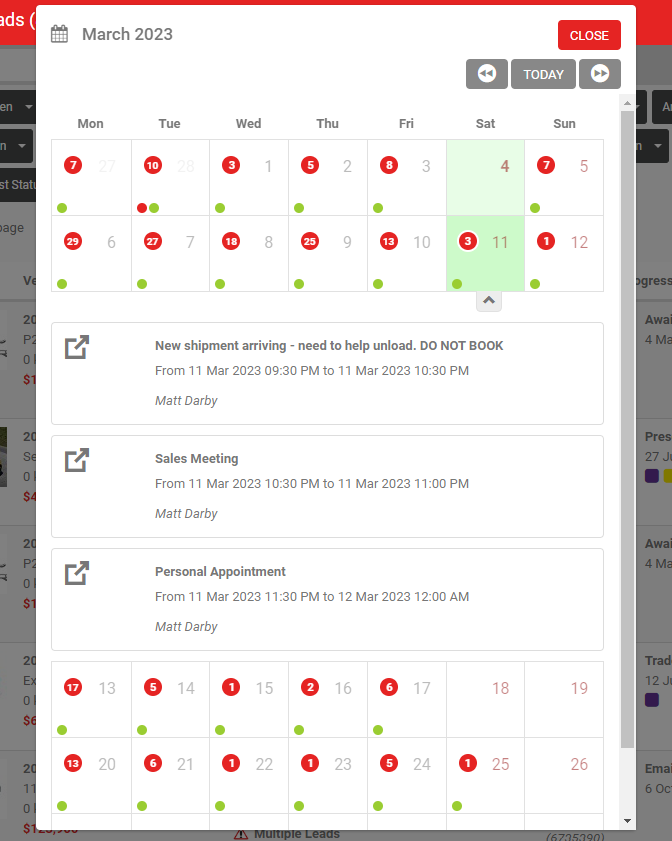
On the Lead Dashboard calendar, AutoPlay-created events show a red dot, reminder events a blue dot, and external events a green dot. Clicking a day shows all these events; external events show limited detail from the external calendar API, including title, date/time, the external calendar's user name, and a snippet of the appointment's first sentence.
If you want to share your Outlook or Google Calendar with AutoPlay but keep specific events fully private, mark them as private in the source calendar.
In Google Calendar, edit the appointment, then under "Default Visibility" or "Public" choose "Private". The event stays visible in AutoPlay calendars, but its title shows as "PRIVATE".
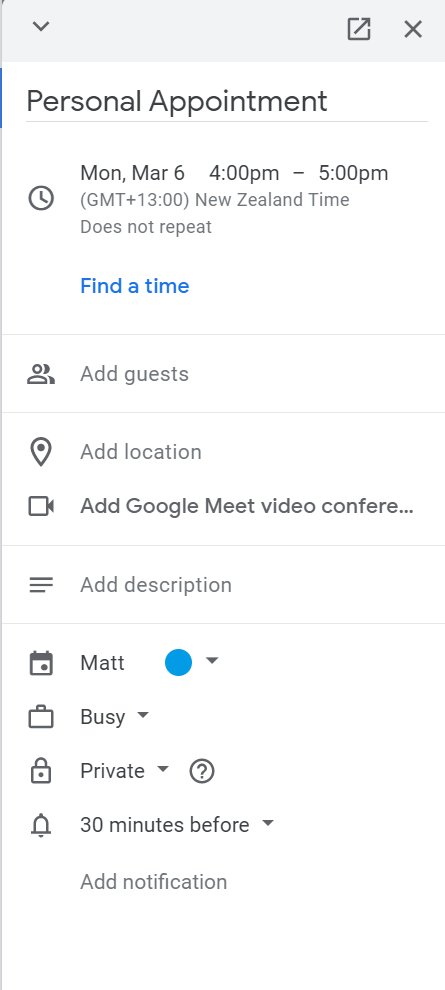
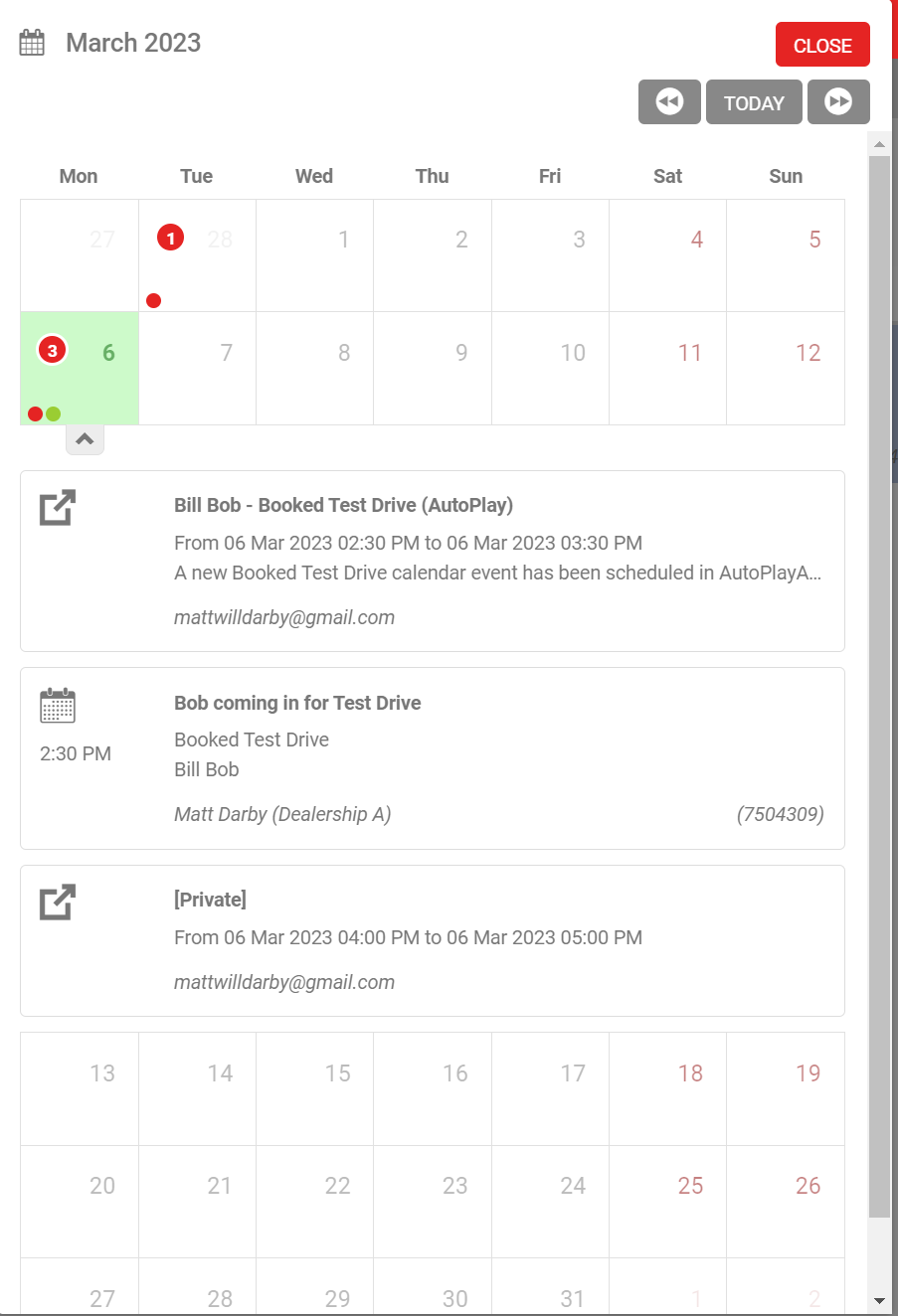
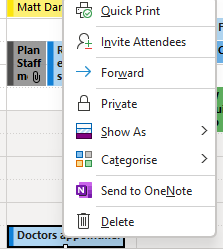
In Outlook, right-click the appointment and set it as "Private". A lock icon then shows on that appointment.
As with Google Calendar, AutoPlay shows the event but with the title and details replaced by "Private".
