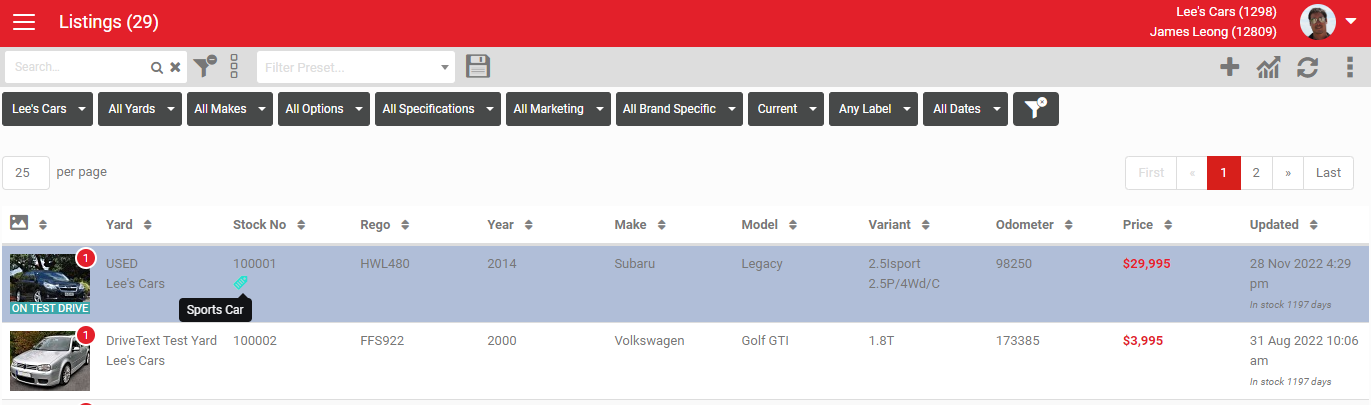
Listing Labels let you tag your listings with extra information, similar to the Lead Labels function on leads.
Provisioning and roles
The Listing Label role is an account-wide setting that makes Listing Labels visible to all users on the account. Any user marked as a Manager in this role gets access to the Listing Label Admin screen.
Setting up label types
To create and edit Listing Labels, you must be marked as a Manager in the Listing Label role. Go to Settings > Listing Settings > Listing Label Types, then click + to add a new label, or select an existing one to edit it.
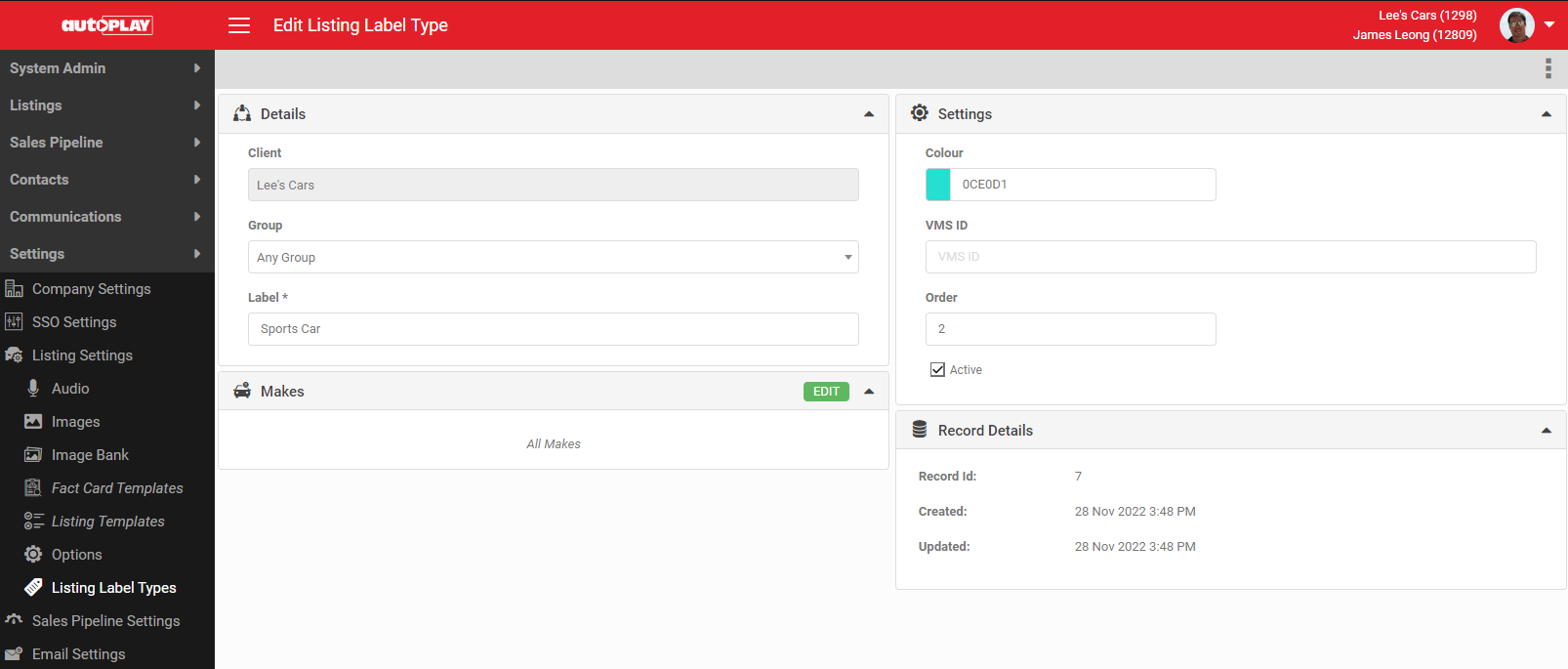
Each label has these fields:
- Group: select a Dealer Group if you are working from a Parent Reporting Account, or Any Group for a single dealership.
- Label: the text that appears on the label.
- Colour: the colour of the label bubble on the listing.
- VMS ID: an optional field to store a third-party ID.
- Order: the order labels appear in during selection.
- Active: when ticked, the label is visible on listings. Unticking it prompts you to choose whether to remove the label from existing listings or leave it attached but inactive.
Adding labels to a listing
The listing details screen has a Labels section above the images accordion.
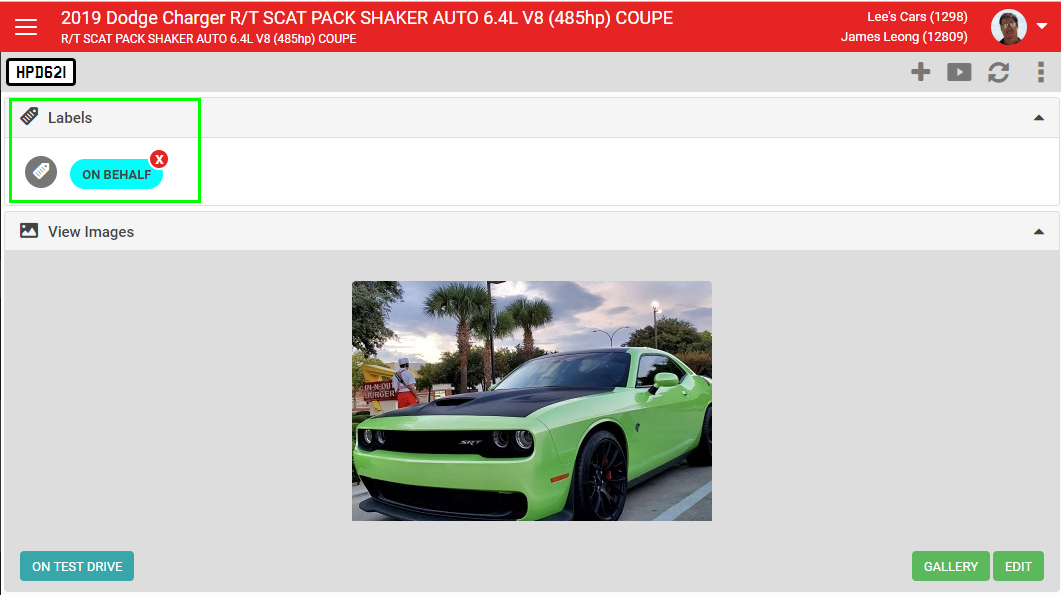
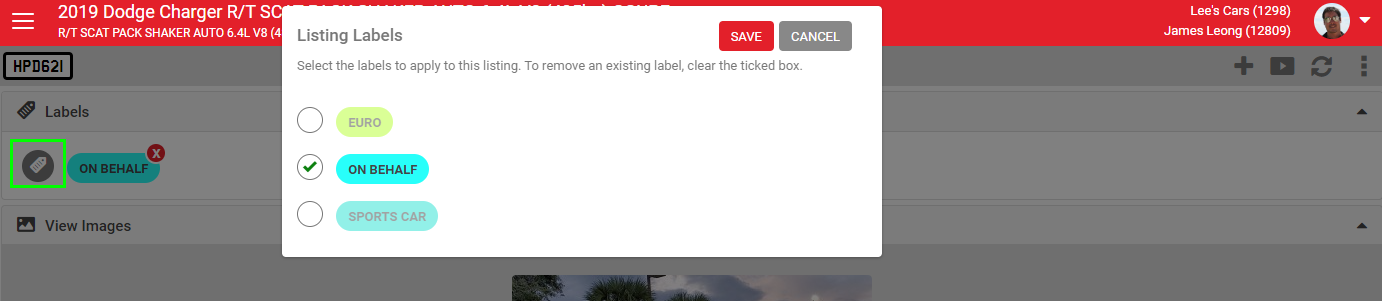
To add or remove a label manually, you must be marked as a Manager in the Listings role. Click the labels icon to see the list of available Listing Labels to add or remove.
If your dealership uses an automated import from a DMS or vehicle aggregator, and AutoPlay can identify the relevant fields in that file, Listing Labels can be applied automatically as part of the import routine. Email support@autoplay.co.nz to set this up.
Where labels show up
On a lead
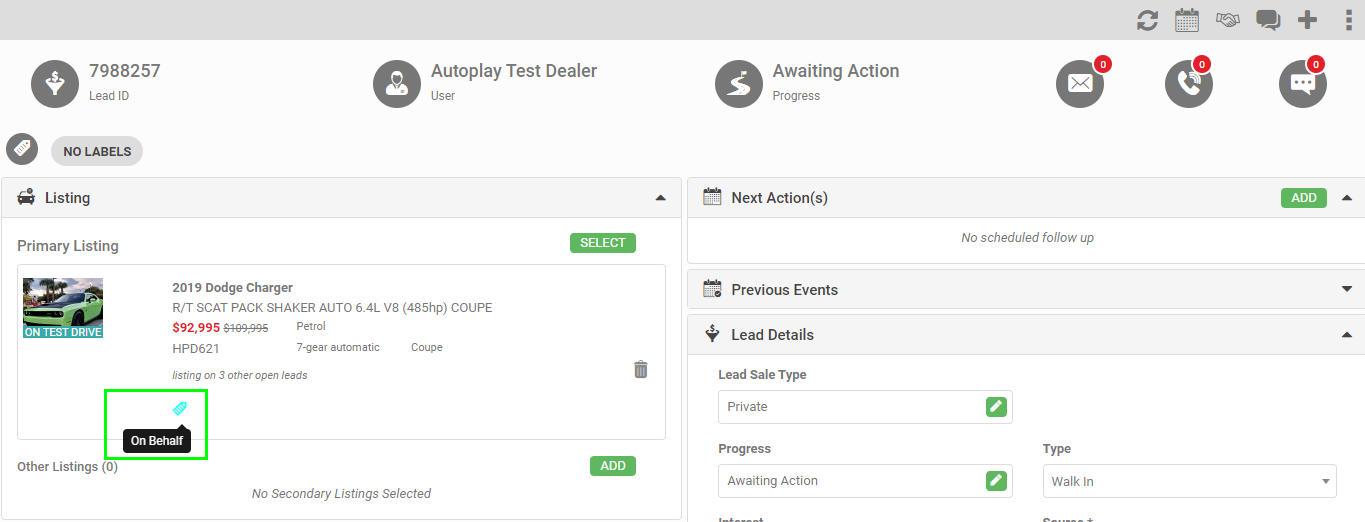
A label icon in the listing's colour appears on the primary listing card in the Lead Detail screen.
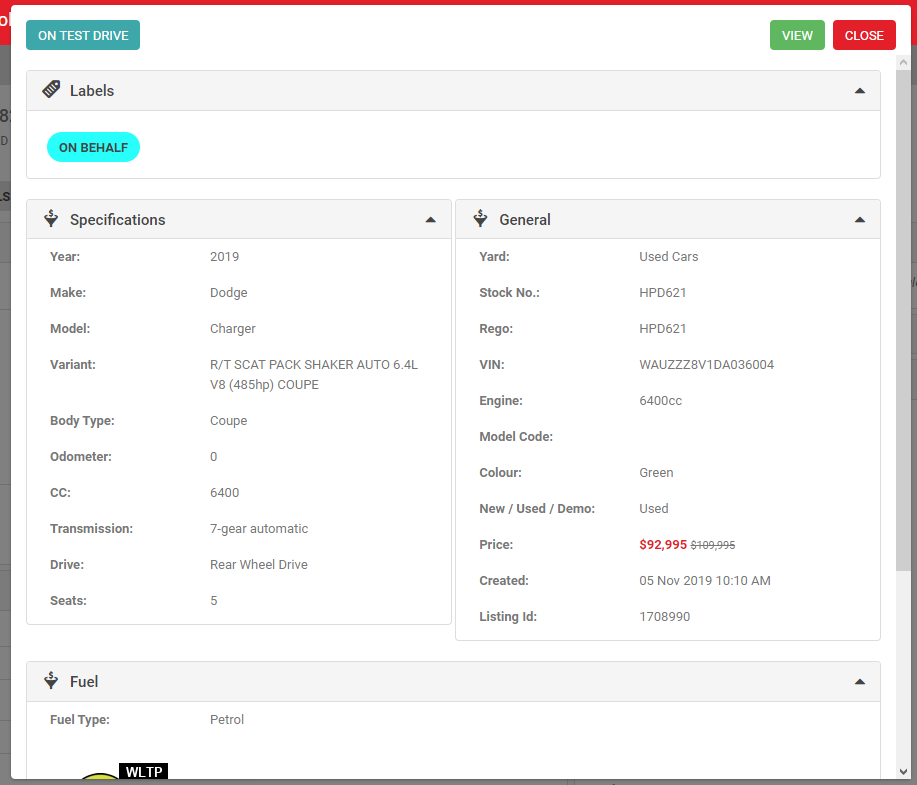
The label also shows when you click the listing card to view the extended information.
On the Listing Dashboard
A new filter lets you search listings by label.
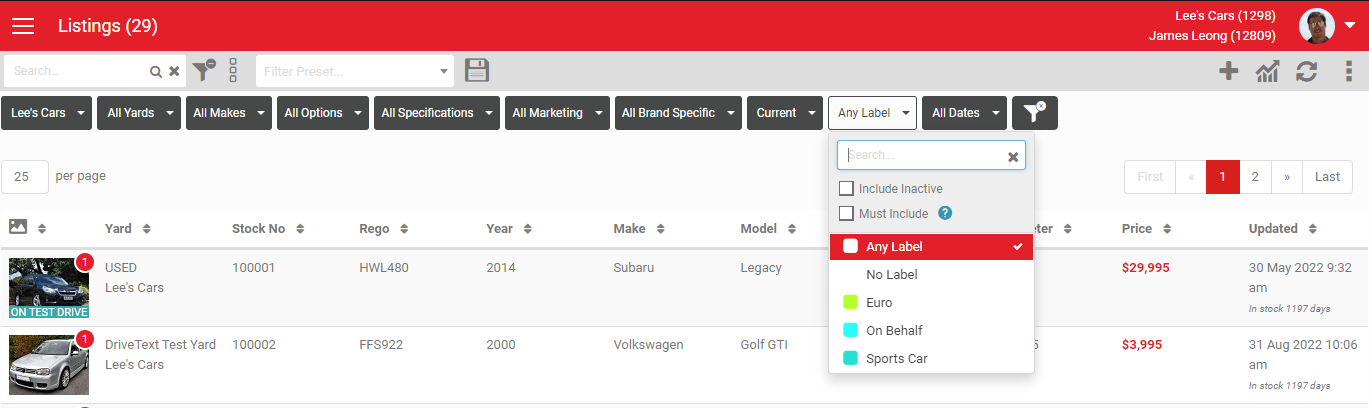
Listings with a label attached show a label icon underneath the stock number.