This article shows you how to set up and manage yards for your dealership in AutoPlay.
A yard can be a physical location, such as an Auckland branch or a Wellington branch, or a virtual grouping, such as New Ford, New Holden or Used Mazda.
Manage yards from Settings > Company Settings > My Yards if you have the Yard Admin role. This screen shows any yards you manage, and you can edit any yard where you are ticked as a manager.
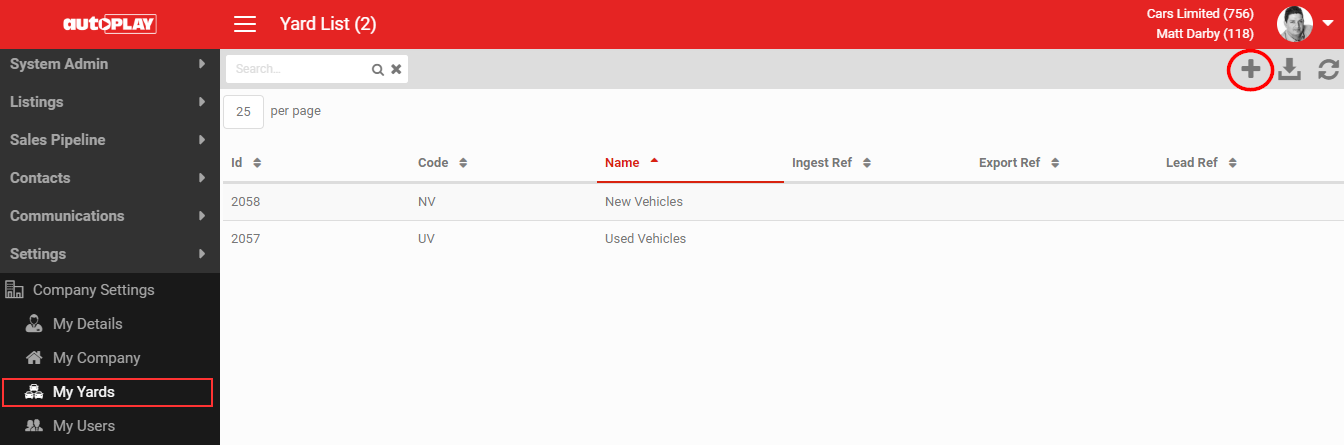
Only a user set up as a manager in the Company Admin role can add a new yard, using the + button in the grey action menu. Company Admins can also edit yards without needing the Yard Admin role.
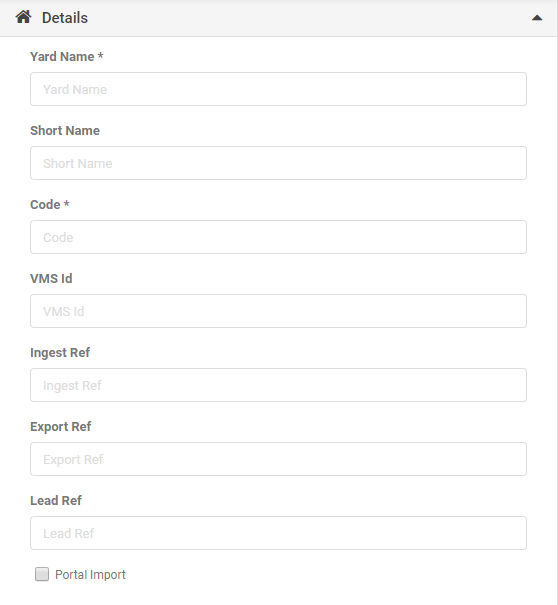
1. Details
- Yard Name: required. This can appear in emails and standard text or responses via the @body_yard tag, so use your full company name.
- Short Name: use this if the Yard Name is too long. It only shows within AutoPlay.
- Code: required. A short code for the yard, for example Audi New might become "AN".
- VMS ID, Ingest Ref, Export Ref, Lead Ref, Portal Import: identifiers that help match listings and leads on import.
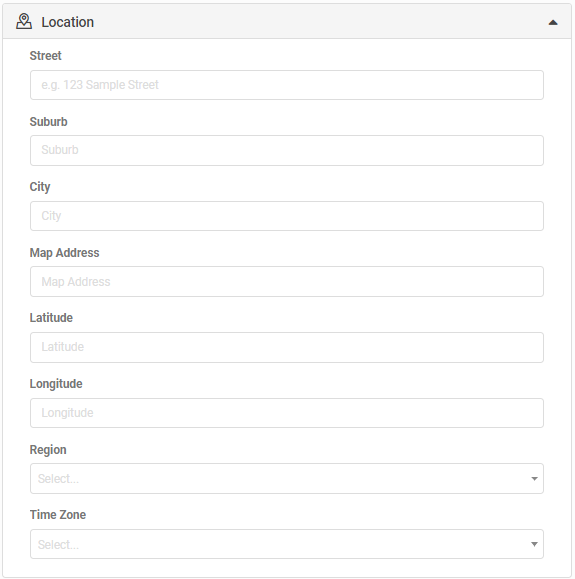
2. Location
- Street, Suburb, City, Region: the dealership's address. Street covers both the street number and street name, for example 123 Sample Street.
- Map Address, Latitude, Longitude: use these to pin the dealership location more precisely if you use AutoPlay Vehicle Display Pages, or feed this data to your own website.
- Time Zone: important for date-stamping activity within AutoPlay.
There is no Country field on the yard: it inherits whatever country is set at company level.
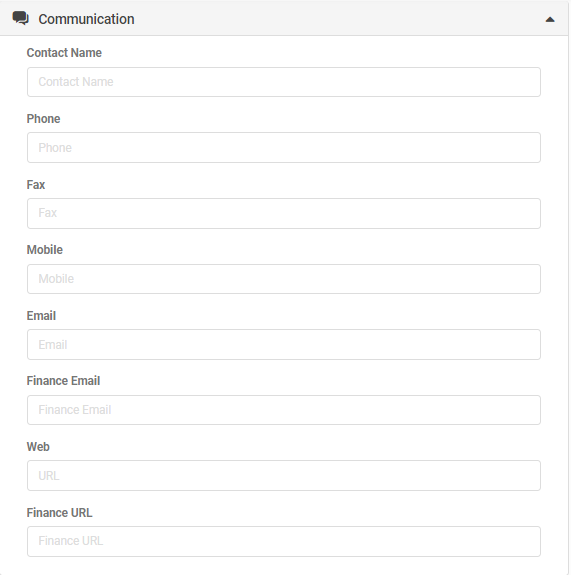
3. Communication
These fields are used by AutoPlay to contact the dealership. Keep them current so AutoPlay support can reach the right person.
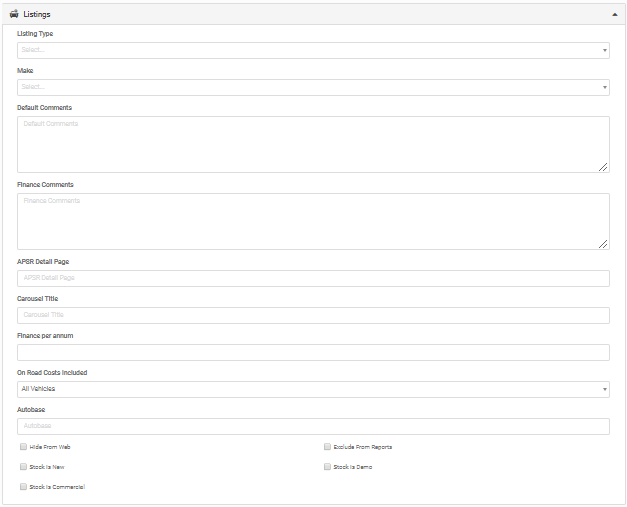
4. Listings
This section applies only to dealers on the Data Management package.
- Listing Type: Passenger/Commercial or Machinery. Controls which fields you see by default when loading a listing.
- Make: sets a default make for the yard.
- Default Comments: text automatically added to every listing in the yard when shown on an AutoPlay Vehicle Display Page, or exported to a third-party listing site or your own website. You can also set Default Comments at yard or export level.
- Finance Comments: text automatically added to a finance calculator or Vehicle Display Page for listings in this yard.
- APSR Detail Page: the URL for the detail page shown for this yard on a Vehicle Display Page.
- Carousel Title: a title shown above the carousel module on Vehicle Display Pages.
- Finance Per Annum: a default finance rate percentage for the finance calculator on Vehicle Display Pages.
- On Road Costs Included: controls whether ORC applies to listings. Search Support for "How To Manage On Road Costs" under Data Management > Managing Listings for more detail.
- Autobase: NZ-only field used to set the export limit for Autobase exports.
- Hide From Web: ticked, this prevents a listing from being exported, showing in the Listing API, or displaying on a Vehicle Display Page.
- Exclude From Reports: ticked, this omits leads and listings in the yard from reporting in AutoPlay and the AutoPlay Reporting Suite.
- Stock Is New and Stock Is Demo: automatically tick every listing manually created in this yard as New or Demo.
- Stock Is Commercial: marks the yard as a commercial yard rather than passenger.
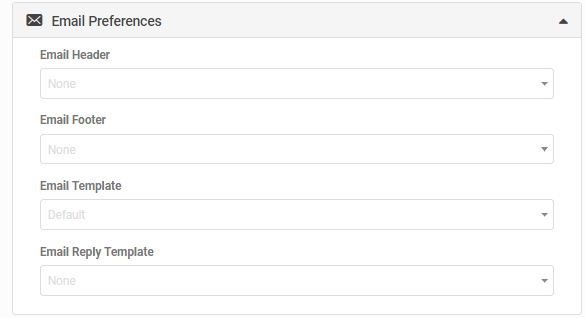
5. Email preferences
These fields set the company defaults for email templates used within AutoPlay. See Sales Pipeline > Settings > Email Settings for more on email preferences.
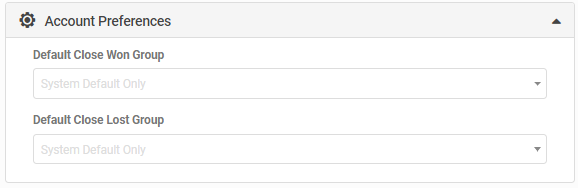
6. Account preferences
- Default Closed Won and Default Closed Lost: the groups leads are automatically added to when closed.
- User Sort Order: controls how users are listed in any user dropdown within AutoPlay. Set to "Last Name + First Name" or "First Name + Last Name".
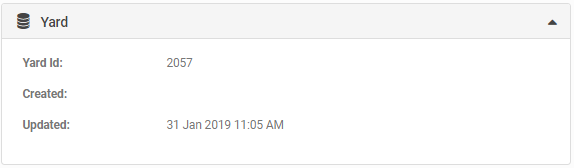
7. Yard
- Company ID: the unique ID assigned to your AutoPlay yard.
- Created: the date the yard was first created.
- Updated: the date the yard was last modified.
8. Save
Once you have entered all your details, click SAVE to save your changes.
9. Audit
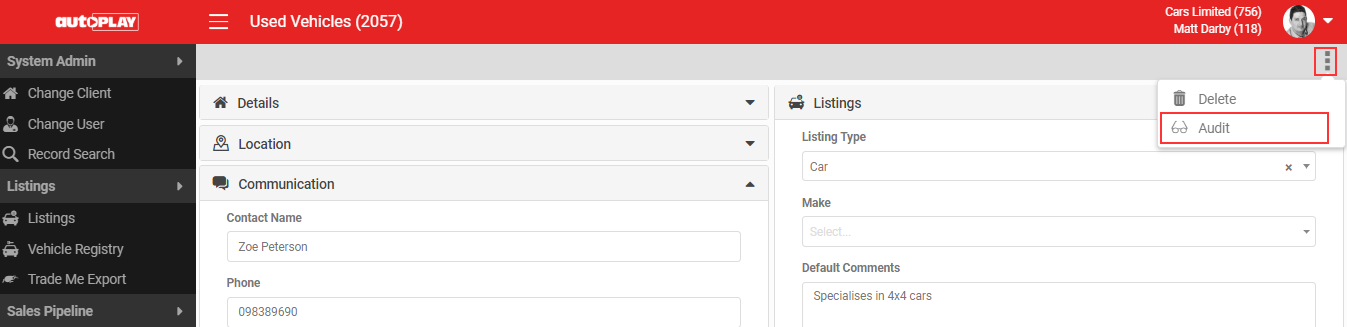
If you have the Audit role, run an audit from the grey action menu to see every change made to the My Yards screen and who made it.
10. Delete
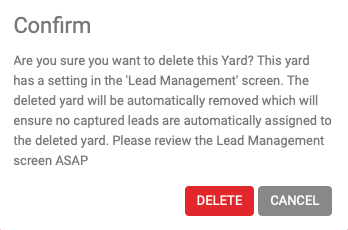
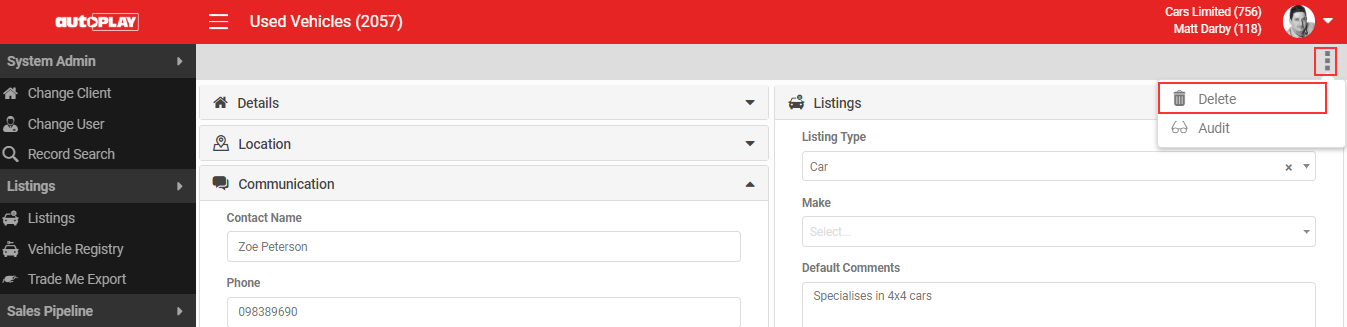
If you are a manager in the Yard Admin role, click Delete to remove the yard.
If a Lead Management record still points to the yard you are deleting, AutoPlay shows a notification warning you that the record exists, so you can keep your lead management settings consistent with your active yards.