
What this article helps you do
Capture a customer's privacy consent correctly when you create a lead, and understand the extra GDPR compliant options available under the Privacy Enhanced role.
Sign the Privacy Policy
Your customers' data privacy matters, and falling short of privacy obligations can mean large fines. Privacy rules differ by country, so check the current privacy law that applies to your market. AutoPlay lets you upload a Privacy Policy PDF that salespeople can show customers, covering what data you collect, how you use it, and any other relevant disclosures.
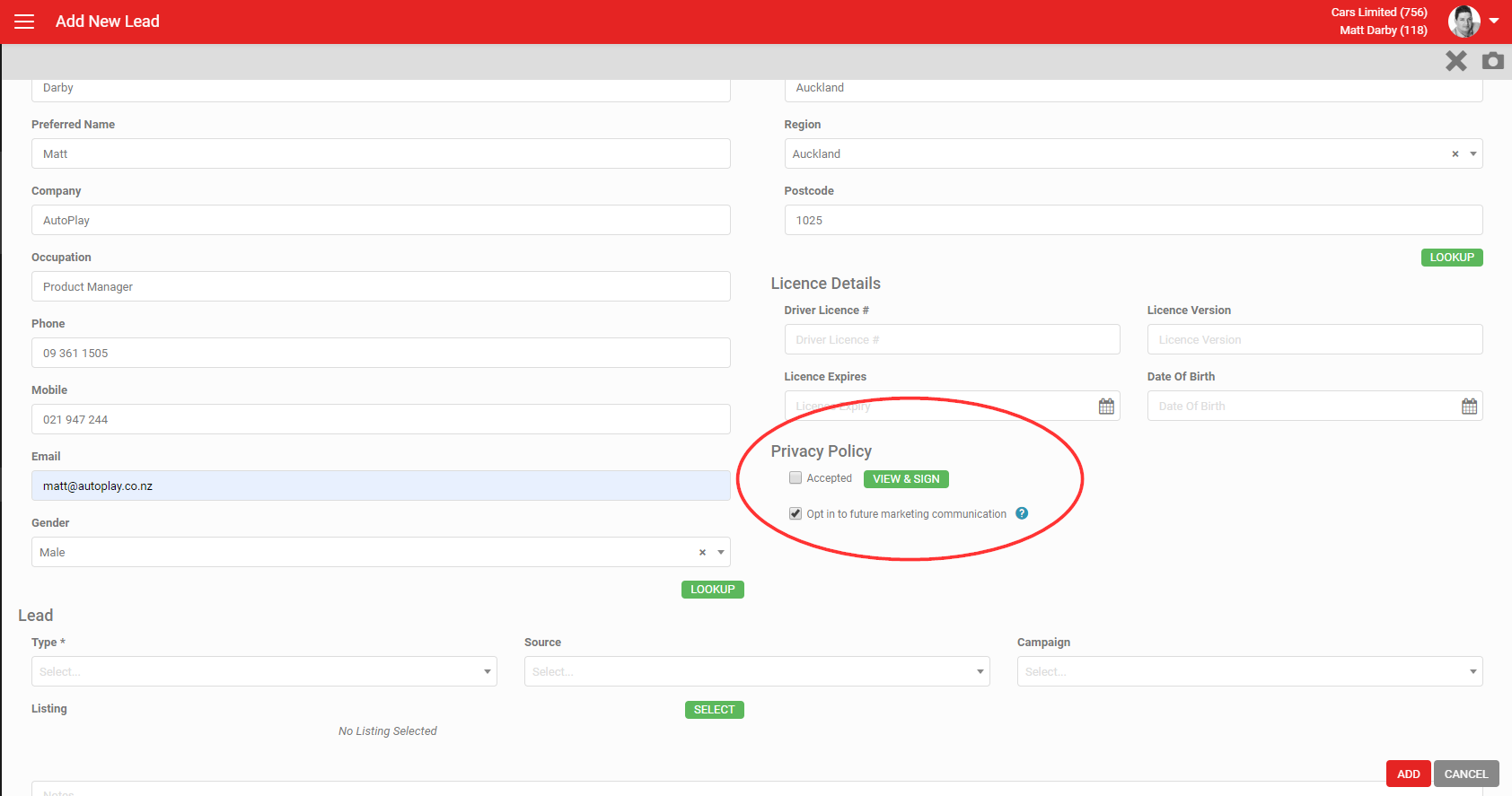
- If the customer is with you, click VIEW & SIGN in the Privacy Policy section to open the Terms and Conditions document. Scroll through it with the customer if it runs to more than one page.
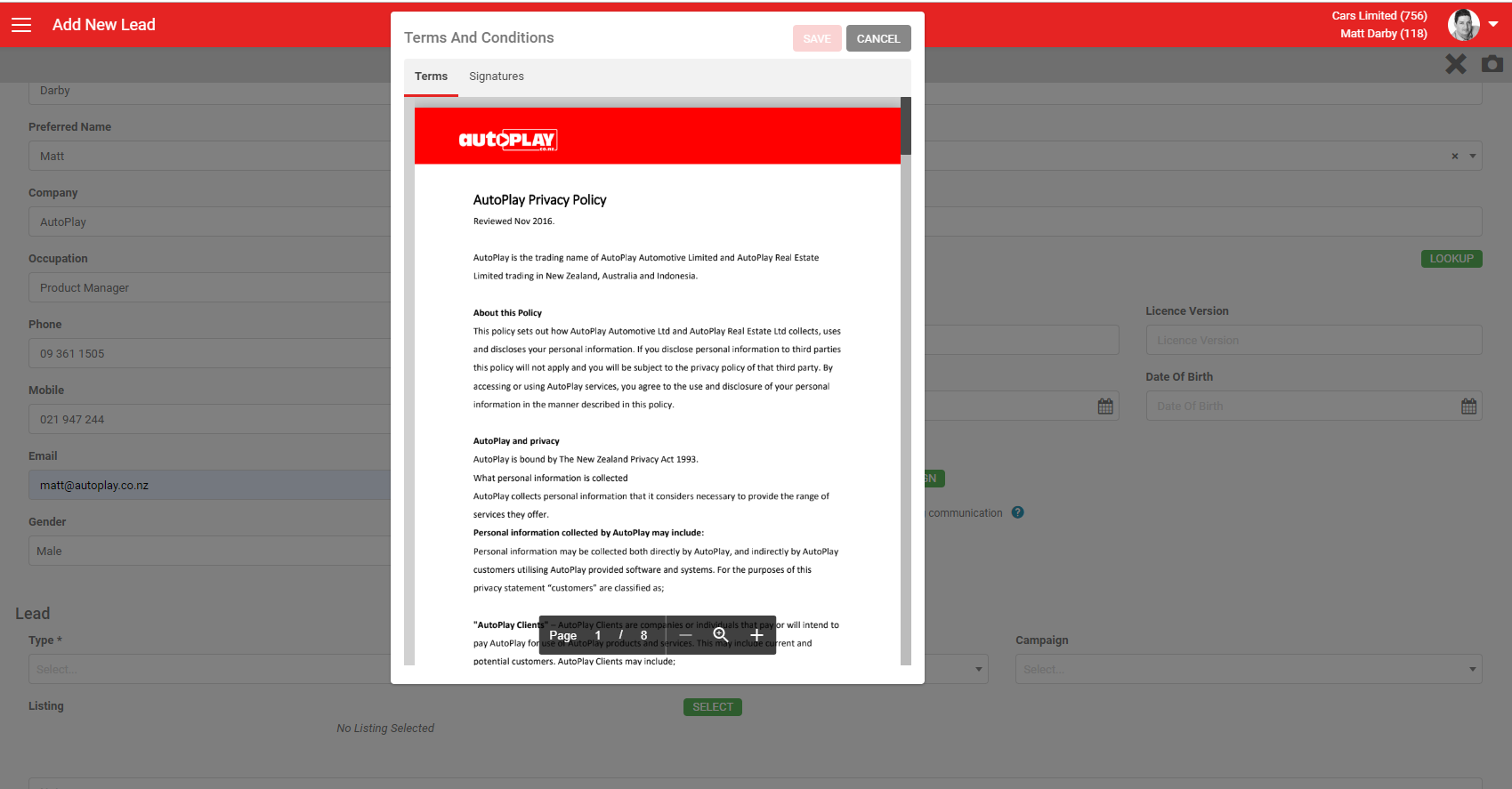
- Once the customer has read the Privacy Policy, click the Signatures tab to record the signature. On a smartphone or tablet, sign with a finger or stylus. On desktop, sign with the mouse.
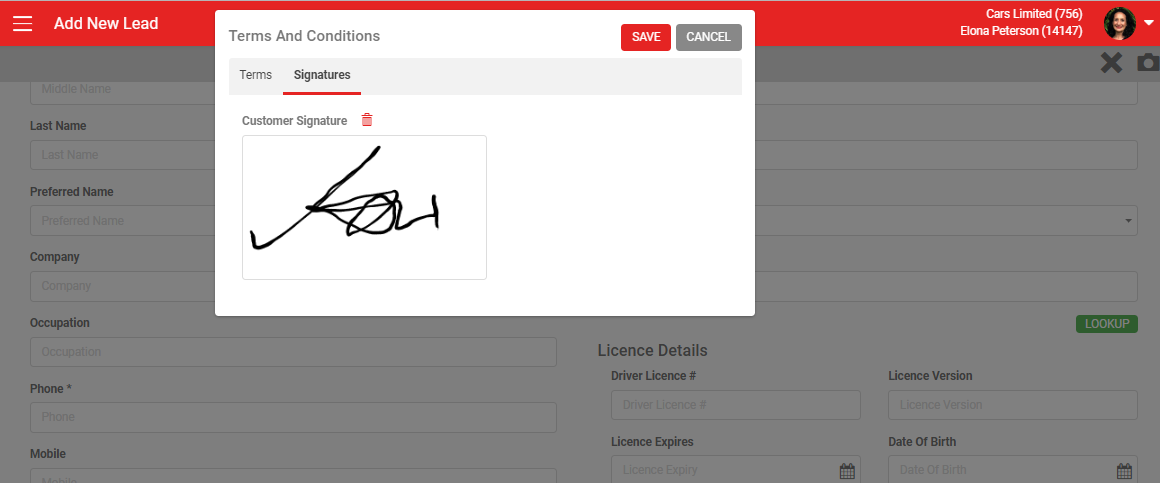
What you should see when it worked
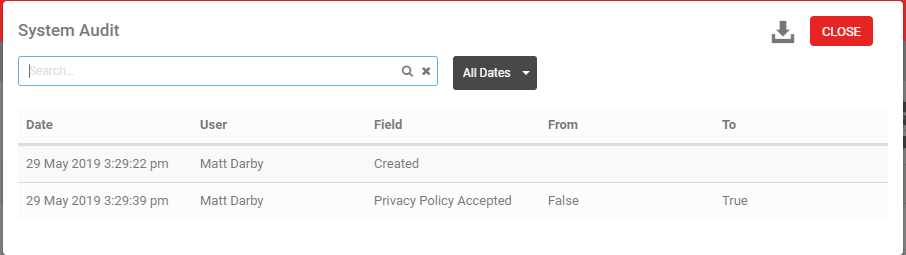
Once signed, the lead shows Privacy Policy Accepted on the View Lead screen. Open the signature to see the date and time it was accepted. If you have the Audit role, the Audit view (from the grey action menu) shows the change from Privacy Policy Accepted "False" to "True".
Add or update your Privacy Policy document
Load the Privacy Policy PDF from Settings > Listing Settings > Images. Read How To Add A Privacy Policy for the steps.
GDPR compliance
To support expansion into the UK, AutoPlay added a higher level of privacy compliance covering how you sign the Privacy Policy and which channels a customer has agreed to be contacted through. This is available in the UK, NZ and AU markets.
To turn on GDPR level privacy compliance, you need the Privacy Enhanced role. This is an account level role, with no make, yard, user or manager level settings. Adding it turns on GDPR compliant privacy functionality across the whole account.
What changes on the New Lead screen
With the Privacy Enhanced role turned on, the usual Opt In checkbox is replaced by a Preferred Contact Method dropdown. This lets the customer specify how they would like to be contacted, and is separate from the privacy opt in options below.
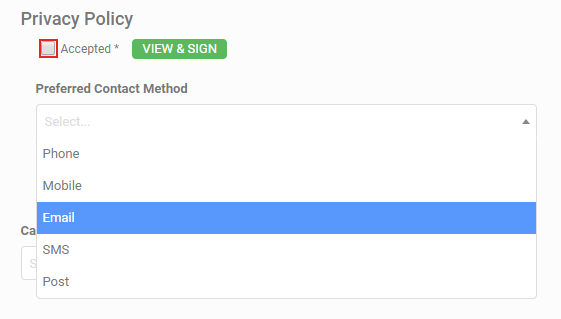
With Privacy Enhanced turned on, signing the Privacy Policy is compulsory. Click the green VIEW & SIGN button to open the PDF Terms and Conditions you have loaded for your account (see How To Add A Privacy Policy).
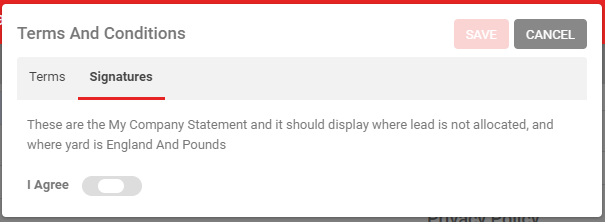
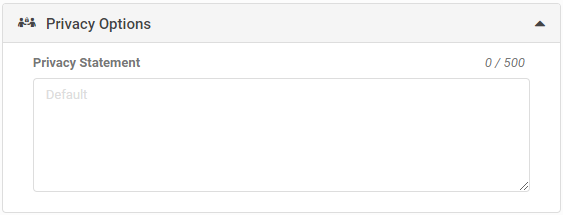
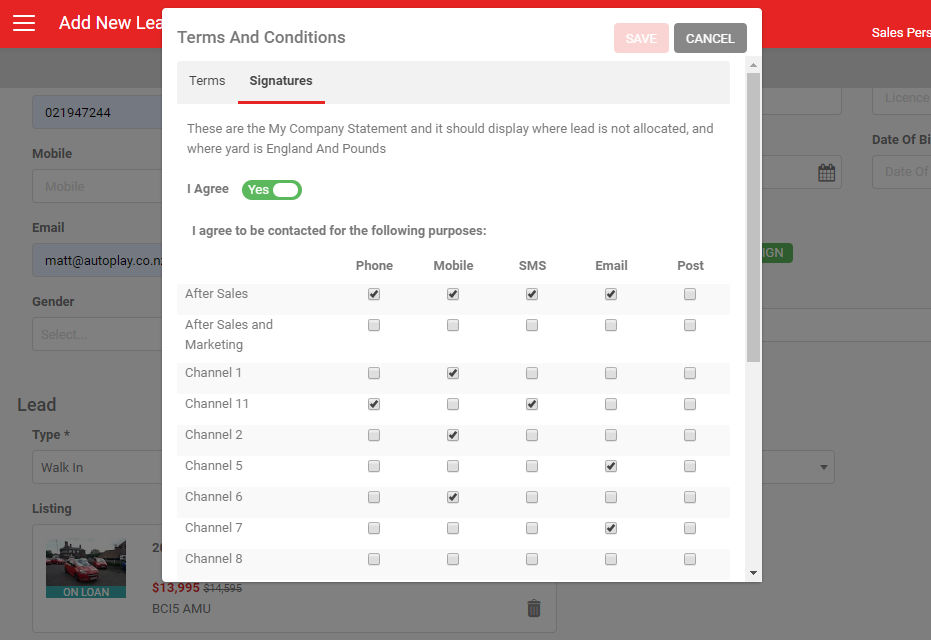
Click the Signatures tab to see a short disclaimer that the customer can agree to or decline. The Privacy Statement itself can run up to 500 words, and is set up in My Company or My Yards under the Privacy Options accordion.
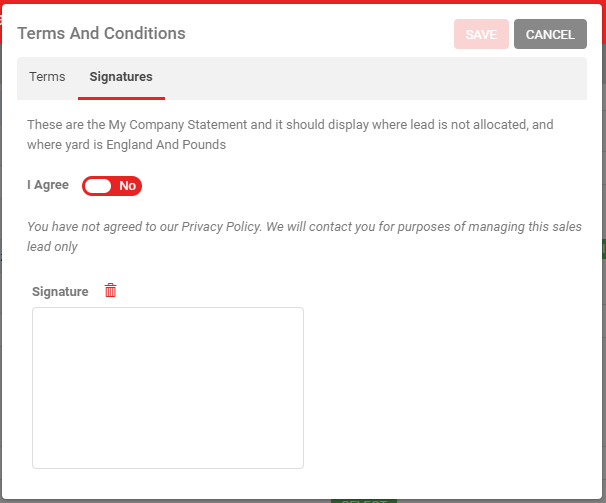
If the customer declines
If the customer does not agree to the terms and the Privacy Statement, you can still create the lead. The customer is then marked Opted Out, and cannot be sent bulk Live Leads emails, email campaigns or SMS. You can still send individual, one to one communications to follow up their enquiry, but take care not to send anything that could count as unsolicited marketing.
If the customer agrees
If the customer agrees to the terms and the Privacy Statement, they then see a set of channels and contact methods to choose from.
Privacy Channels and Contact Methods
- Privacy Channels: fully customisable. Add or edit these at Settings > Sales Pipeline Settings > Privacy Channels, if you have the Manage Company role. The defaults are Vehicle Sales, After Sales and Marketing & Promotions, and you can tailor these to the kinds of communications your dealership sends. Read How To Set Up Communication Channels for the steps.
- Contact Methods: fixed to Phone, Mobile, SMS, Email and Post, shown along the top of the screen. These are the methods the customer is willing to be contacted through, which is different from their single Preferred Contact Method. A customer might agree to be contacted by both phone and email, for example, while preferring email.
Tick every channel and method the customer agrees to. GDPR rules mean these cannot be pre-ticked for the customer. Once complete, sign the pop-up and click SAVE.
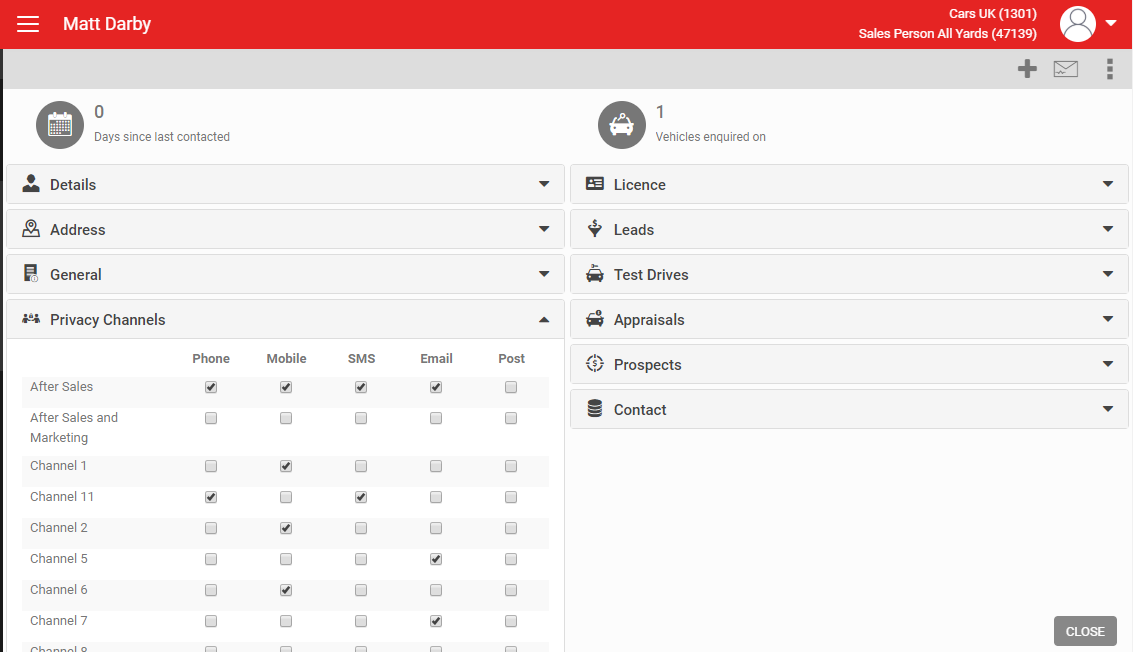
After the lead is created, open the customer record any time to edit their privacy settings.
If you select an existing customer record when signing the Privacy Policy, and that customer has already ticked these options on a previous lead or in the Contact screen, those settings load in automatically on the Signature screen.
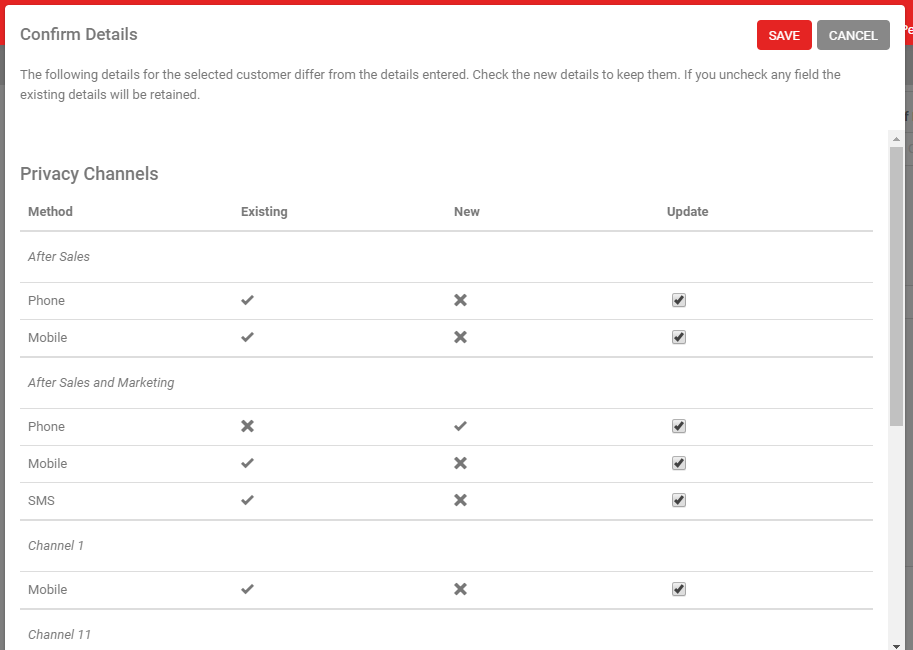
If a privacy selection is made before you select the customer record, and it differs from what is already on file, the system shows a warning: "The Privacy options you have selected differ from what was previously set against this customer record. Please confirm you wish to update the customer's Privacy options." It shows both the existing and the newly selected settings side by side so you can confirm the change.
When a lead is captured from an external website or a third party system such as a DMS, AutoPlay treats the external provider as the source of truth for privacy data where it is supplied, unless configured otherwise. Review any changes to a customer's privacy information from the Contact screen, via Audit in the grey action menu.
The right to be forgotten
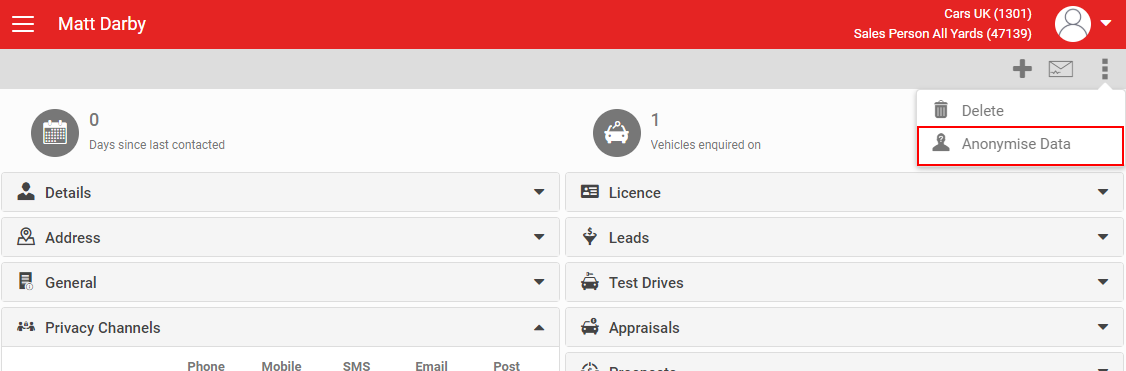
One of the core GDPR principles is the right to be forgotten. If a customer asks to be removed from your database, select Anonymise Data on the Contact record. This keeps the Contact record itself but replaces all customer details with placeholder text across Contact, Prospect, Lead, Test Drive, Appraisal and Write Up forms. Where a customer has signed a form, that signed record is retained.
Anonymise Data is only available when the Privacy Enhanced role is turned on.
You can also set up an automated privacy disclaimer email or SMS that triggers on every new lead, directing the customer to the full Privacy Policy on your website. Read Automated Privacy Disclaimer Email for the steps.