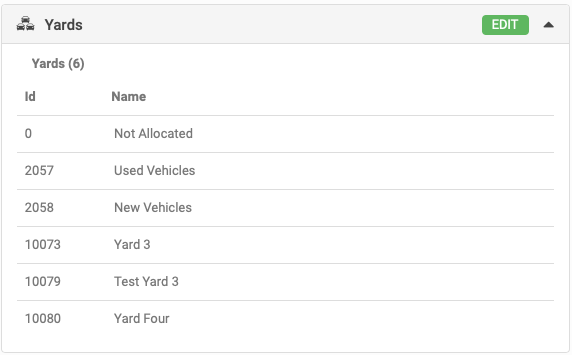
This article helps you open or create a Role, and configure its notifications, users and yards.
Open or create a Role
- Go to Company Settings > Role Management.
- To create a new Role, or a different configuration of an existing Role, click the + icon on the Role Management list screen. The Add New Client Role screen opens.
- To edit an existing Role, open it from the Role Management list screen. The Edit Client Role screen opens.
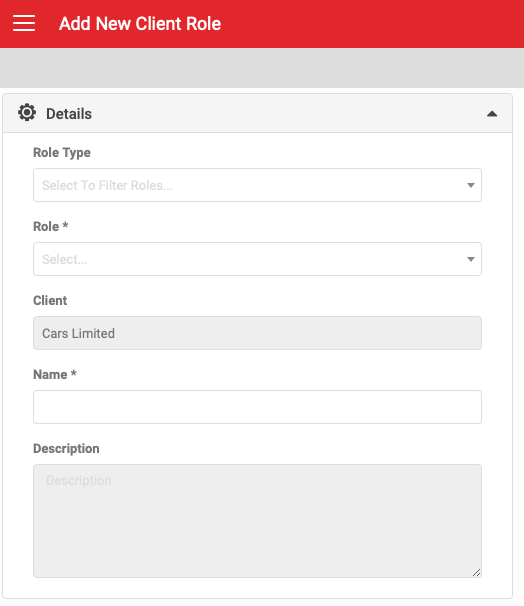
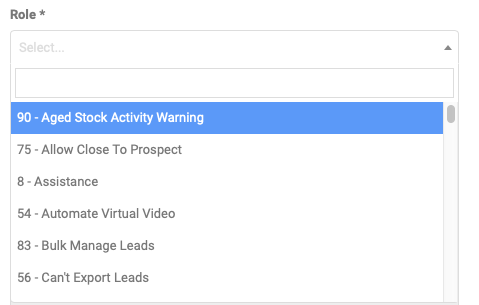
- Filter by Role Type, or search the Role dropdown, and select the Role you need.
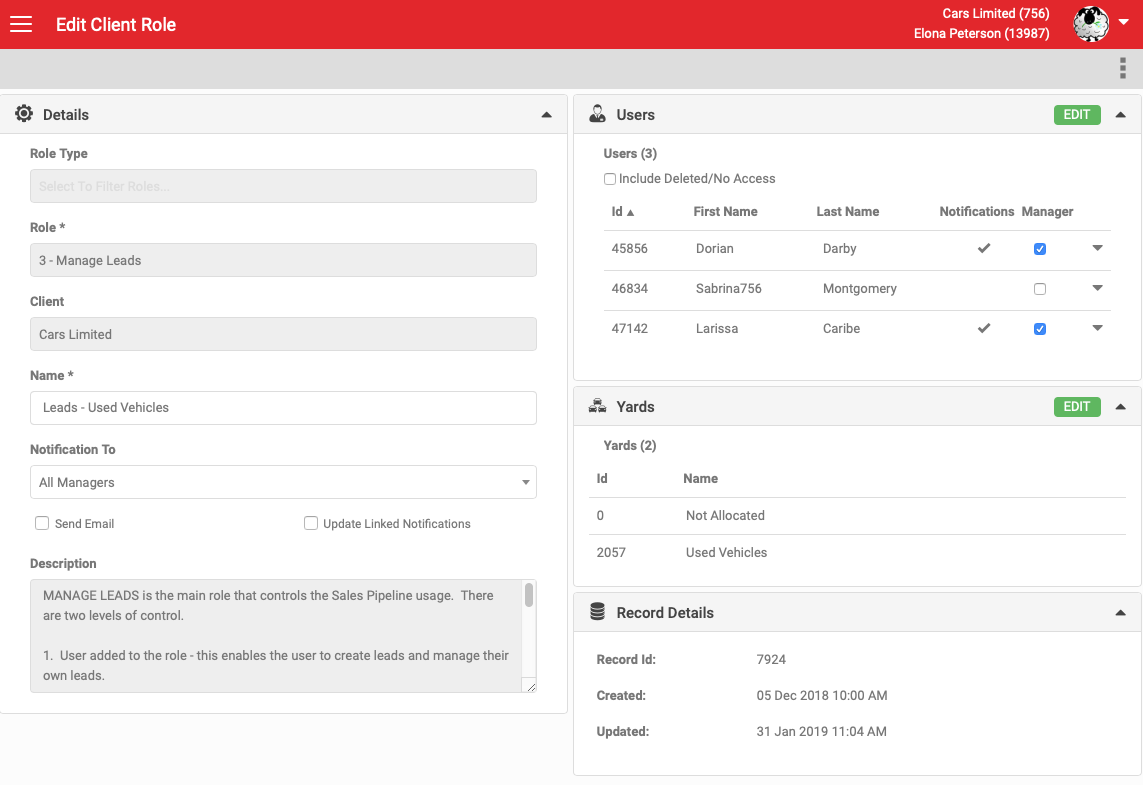
- The Role's details display, with the Name field pre-filled from the Role name. You can overwrite this. For example, a Manage Leads role that needs different settings per yard could be renamed "Manage Leads - Used Vehicles".
- Set the notification settings and click Save.
- Once saved, the Users, Yards and Record Details sections appear.
Manage notifications
- Notification To options are All Managers, Users and None.
- Selecting All Managers turns on the notification flag for all managers.
- Selecting Users turns on the notification flag for all users.
- Selecting None removes the notification flag from all users, if it already exists.
- Send Email turns on email notifications as well as in-app notifications.
- When Update Linked Notifications is on, one user clearing a notification clears it from the notification list of every user it was sent to.
Add users
- Click Edit in the Users section to open the Select Users pop-up.
- Use the keyword search to find specific users.
- Use Select All or Clear All as needed.
- Select a single user or multiple users.
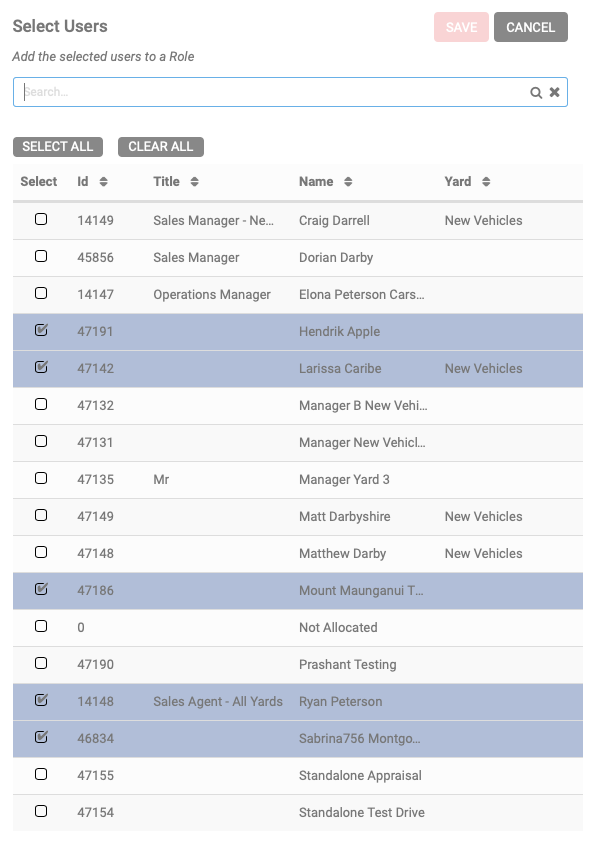
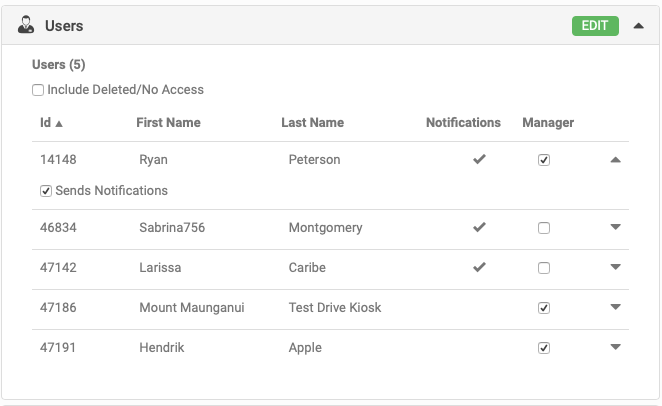
- Click Save. The Users section now shows the users added to the Role.
- You can choose to include users marked as deleted or no access.
- Click the arrow next to a user's name to expand the Sends Notifications options and turn notifications on or off for that user. When on, the user receives notifications, subject to the notification setting on the Role itself. When off, the user does not receive notifications.
- Where Manager settings exist for the Role, you can turn the Manager setting on or off for each user.
Add yards
- Click Edit in the Yards section to open the Yards selection.
- Use the keyword search to find specific yards.
- Use Select All or Clear All as needed.
- Select a single yard or multiple yards.