What this article helps you do
Merge two leads for the same customer into one, so you are not managing duplicates.
Merge two leads
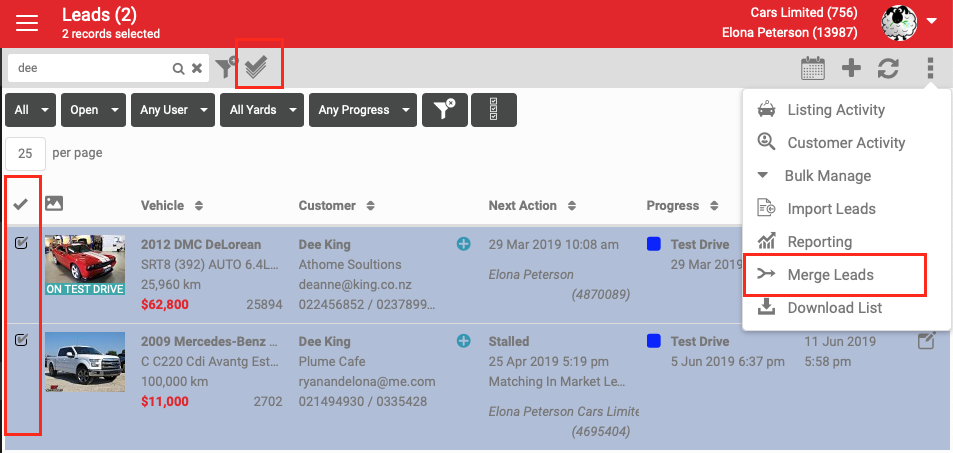
- On the Dashboard, click the Multi-Select icon.
- Select the two leads you want to merge.
- Click Merge Leads from the More menu.
What happens in the Merge Leads pop-up
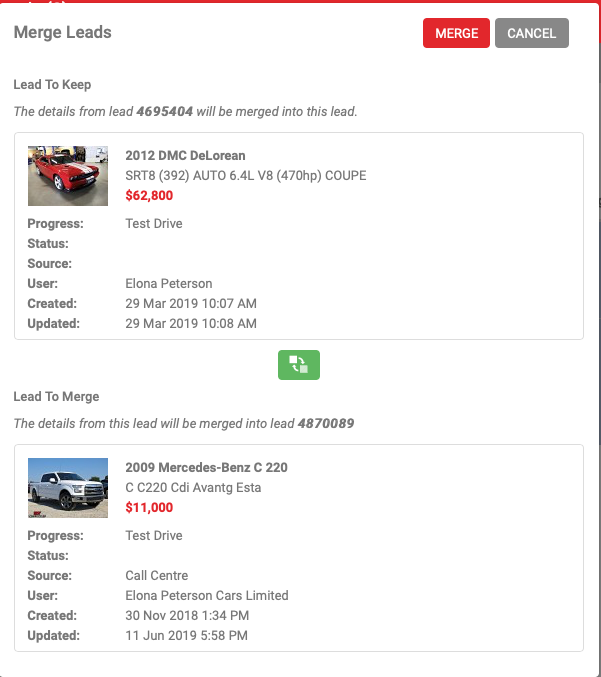
The top lead becomes the kept lead. The bottom lead is the one that gets merged away.
The customer and lead details on the kept lead are retained as they are, and are not overwritten from the merged lead. Everything else, listing, communication, calendar events (open and closed), test drives, appraisals, write ups and wishlists, moves across from the merged lead onto the kept lead.
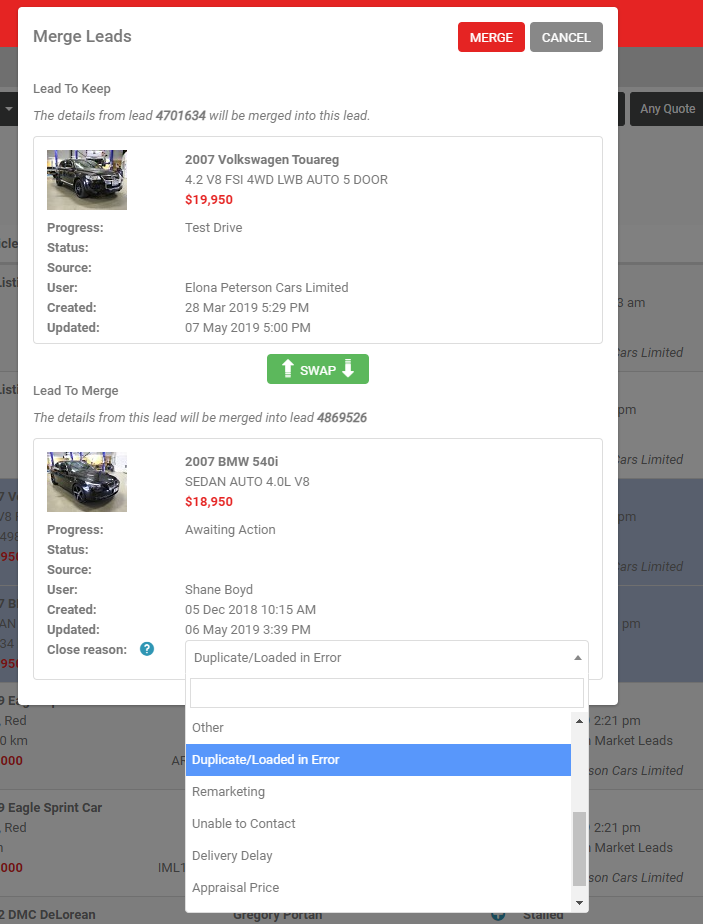
The merged lead is set to Closed Lost, with the default Close Reason of "Duplicate/Loaded in Error". This close reason keeps the merged lead out of your reporting, other than raw lead audits. If you choose a different Close Reason, the merge still goes ahead, but that lead stays counted in AutoPlay reporting.
What you should see when it worked
The Lead History pop-up on both leads shows that the merge took place.


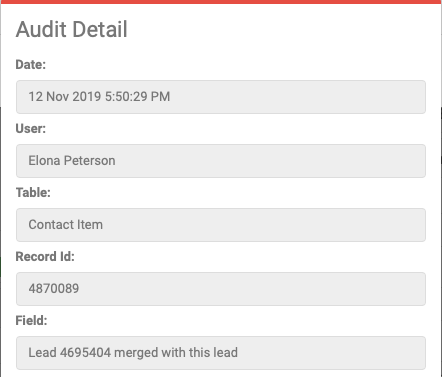
An audit record is created on both leads showing the merge.