
Opening the calendar
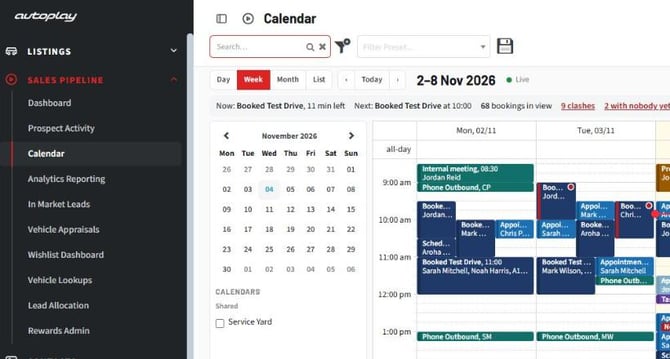
Select Calendar under Sales Pipeline in the menu, directly below Prospect Activity (Screenshot 1). The menu item only shows when the Calendar feature is turned on for your account. Contact support if you can't see it.
You can also open it from:
- the calendar icon on the Lead Dashboard
- the Calendar button beside Add contact on the Contact Dashboard
- the calendar control on Lead Detail
- the calendar on Edit Listing
Opened from a lead or a listing, the calendar jumps to that record's next booking and pre-fills the search with the lead number or stock number. Clear the search to see everything else. From Edit Listing you see every booking and test drive on that car, including ones you can't edit.
Layouts and moving around
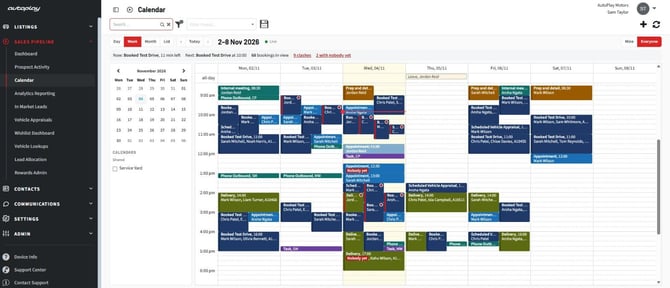
Switch between Day, Week, Month and List on the toolbar (Screenshot 2), or press D, W, M or L. Use Previous, Next and Today to change the period, or the arrow keys and T.
In Day view, Group by splits the day into columns by person, by car or by yard. Columns with nothing booked are hidden.
The strip above the grid shows what's on now, what's next, the day's booking count, and any clashes or unowned bookings. Select the clash or unowned count to filter the grid to those bookings. Leave and all day bookings sit in the band at the top of the grid.
Reading a booking
Each booking shows its type and owner whatever its length. Longer bookings also show the start time, customer, stock number and location. The colour comes from the booking type.
A booking with no owner shows Nobody yet in red. Anyone who can see it can claim it.
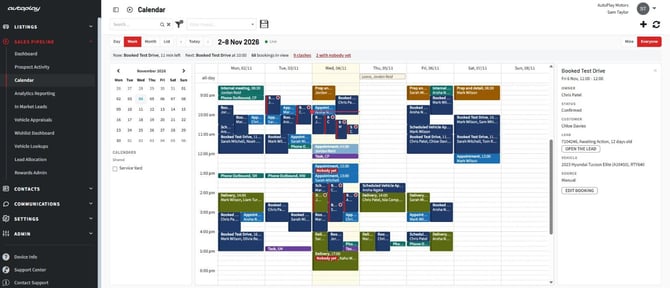
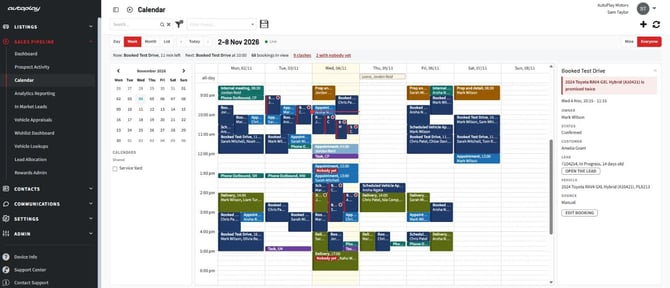
Select a booking to open its details panel, with the lead, the car and links to open them (Screenshot 3).
Filtering and searching
Use Mine and Everyone on the toolbar to switch between your own bookings and everyone you can see. Managers open on Everyone.
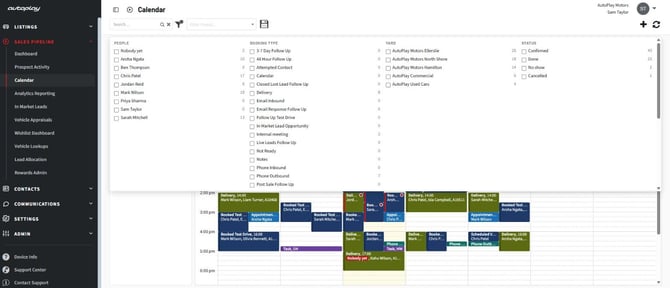
Select the show/hide filters toggle on the grey bar to filter by People, Booking type, Yard and Status (Screenshot 4). Each option shows how many bookings it matches in the period on screen. Pick Nobody yet under People to see unowned bookings only.
The search box finds customer name, stock number, rego and lead number.
Creating and changing bookings
Create a booking
Drag across an empty part of the grid, or select + on the grey bar and choose New booking. The end time defaults from the booking type's duration. Press Esc to cancel.
Some booking types need a lead, a car or both before they'll save, for example Booked Test Drive and Delivery. If one is missing, the booking stays open with a message saying what to add. Where the customer has more than one open lead, the Lead field is left empty for you to choose.
Move, resize or reassign
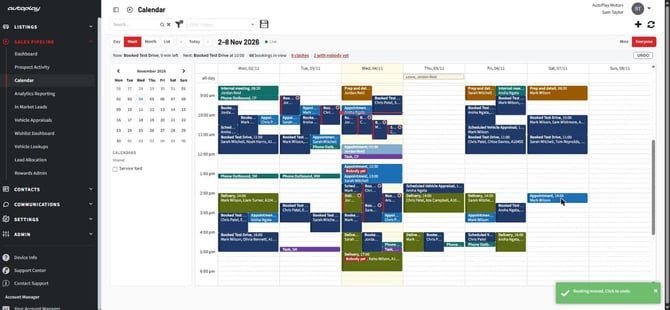
Drag a booking to a new time or day. Drag its bottom edge to change the end time. Moves save as soon as you drop, and an Undo message appears in case you got it wrong (Screenshot 5).
In Day view grouped by person, drop a booking in another person's column to give it to them. Grouped by car, drop it in another car's column to swap the car. Only the owner or a manager can move someone's booking.
Bookings snap to 15 minutes. Hold Alt while dragging to snap to 5.
Booking status
A booking is Confirmed, Done, No show or Cancelled. Tick Completed to mark it Done. The dropdown that used to be called No Show is now called Result. Choose Cancelled for a cancelled booking, or any other result to record a no show.
A cancelled booking never clashes, is removed from the owner's Outlook or Google calendar, and doesn't run the No Show workflow.
Clash warnings
The calendar warns you, but never stops you, when:
- one person is booked in two places at once
- one car is booked twice at the same time, including test drives
- someone is booked on a day they're on leave
- someone is busy in their Outlook or Google calendar at that time
A clashing booking shows a red edge and dot, and the details panel says what the clash is (Screenshot 6). You see the warning as you drag, before you drop. A car clash can come from a booking you can't see, in which case the warning names the car only.
Other items on the calendar
These show alongside bookings but can't be edited, dragged or claimed from the calendar. Select one to open it in its own screen.
- Outlook and Google busy time, shown as a hatched band, for users who have connected their calendar
- scheduled prospect activity
- lead reminders set for collaborators
- webform events, such as accepted calendar invites
- test drives, loan vehicles and employee loans
- leave recorded on My Users
- bookings from other dealerships in your dealer group, labelled with the dealership name
You only see the ones your account and role give you access to. Each one is listed under its own heading in the Booking type filter, so you can hide it.
Shared calendars
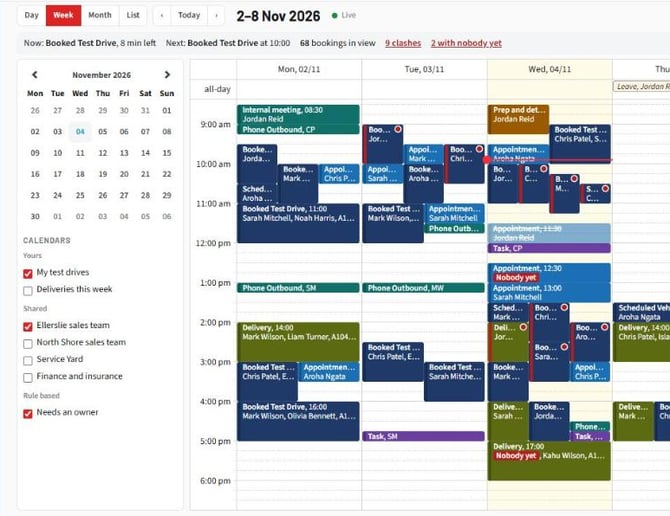
The panel on the left holds the month picker and your calendar list (Screenshot 7). A shared calendar is a saved selection of people, booking types and yards. Turn calendars on and off to layer them on the grid, or select Only to show just one.
To make one, select + on the grey bar and choose New calendar. Choose whose bookings it collects (named users, a manager's team, or everyone), which booking types and which yards. You can then share it with named users or everyone, at one of four levels:
- View: see the calendar and turn it on
- Add: new bookings made while it's on are pre-filled from it
- Modify: change its name and what it collects
- Admin: change who it's shared with, and delete it
A shared calendar never shows a booking you couldn't already see. Managers also get Needs an owner, which collects unowned and clashing bookings in one place.
Saved views
Save your filters, layout and grouping under a name from the Filter Preset dropdown on the grey bar, the same as on the Lead and Listing dashboards. Choose it again to bring it all back in one click. Saved views are personal. The calendar also remembers where you left it for the rest of your session.
Seeing other people's changes
Bookings made or moved by your colleagues appear on your screen without a refresh. The Refresh button on the grey bar is still there if you want to force one.
Who can see and change what
Calendar access follows your Manage Leads role, the same as the old calendar.
- Without the manager tick, you see and move your own bookings only.
- With the manager tick, you see and move bookings for the users you manage, in your yards, and can reassign them.
Setting up booking types
Booking types are your Lead Log Types. A type shows on the calendar when it has both Calendar and Calendar Dashboard ticked. Each type now also has:
- Colour: the booking's colour on the grid
- Requires a lead: a lead must be attached before it saves
- Requires a listing: a car must be attached before it saves
- Never abbreviate: always show the full type name, even on short bookings
Changes you make apply to your account only. Internal meeting, Prep and detail, and Task are new types that don't need a lead.