
This article helps you understand how AutoPlay Automation works so you can set up triggered actions such as email responses, calendar events or lead reallocation.
The Automation settings screen lets you set up actions, such as an email response, that are triggered by events like closing a lead as won or lost. You choose the timeframe for the action and the Standard Text template to use.
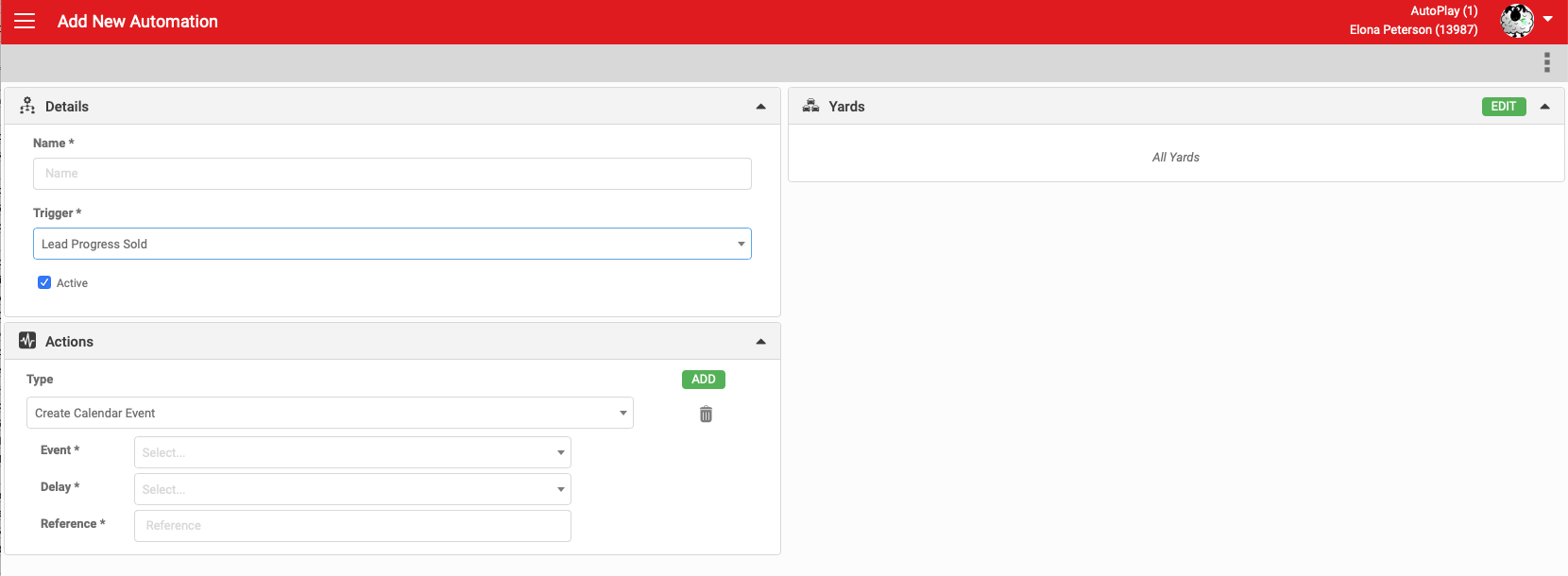
Set up an Automation record
Each Automation record needs:
- Name: specific to the dealer.
- Trigger: the event that starts the automation. Trigger options are:
- Calendar Event Completed
- Calendar Event Created
- Calendar Event Due
- Calendar Event No Show
- Customer Replied to Email
- Customer Replied to SMS
- Email/SMS Failed to Send
- Lead Closed Lost
- Lead Closed Won
- Lead Created
- Lead Inactive
- Lead Not Updated
- Lead Overdue
- Lead Progress Not Updated
- Lead Progress Reached
- Lead Progress Sold
- Lead Stalled
- Test Drive Completed
- User Created
- Active: must be ticked for the automation to run.
- Automation records can be set by yard.
You can stop automation running on selected leads:
- Read more about excluding individual leads from automation.
- Read more about blackout periods and time zone settings.
- Read more about automation brakes.
- Download the attached spreadsheet to see how AutoPlay Automation can be configured.
Download: Automation_Configuration_2020.xlsx
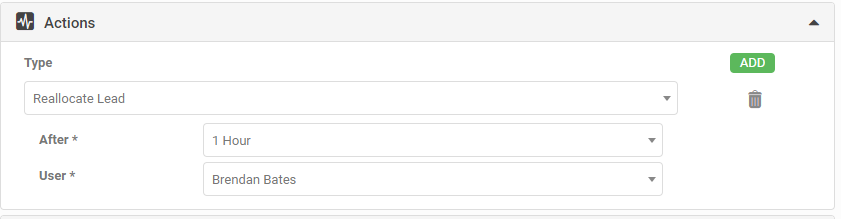
Actions
Read more about Automation actions.
For any Automation trigger, you can run a specific action instead of, or alongside, sending emails, SMS or in-app notifications:
- Close Lead As Lost: automatically closes the lead as lost. You can select a close reason to apply.
- Create Calendar Event: automatically creates a calendar event. You can select an event type to apply.
- Reallocate Lead: automatically reallocates the lead. You can select the user to reallocate to.
- Create Appraisal Offer: used with the Group Account Visibility role to automate creation of Appraisal Group Offers when completing appraisals.
Communications
Read more about automated communications.
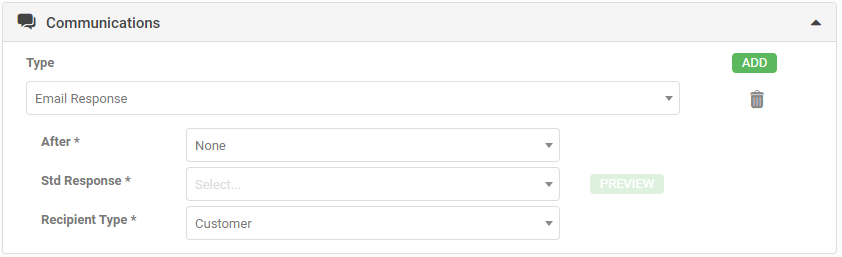
Automation can set up automated external or internal communications. You can configure:
- Email Notification
- Email Response
- In App Notification
- SMS Message
- SMS Notification
- SMS Response
Controlling which leads trigger automation
Lead age
You can set the age of leads you want a trigger to apply to. This gives you control over whether an automation should also reach out to older, still-open leads, or only recently created ones.

Process each lead only once
You can specify whether an automation trigger should fire only once per lead, or repeatedly where appropriate. Most existing automation settings are set to trigger once, with the exception of the Customer Replied to Email/SMS and Email/SMS Failed to Send triggers. An example of a trigger that may suit repeat firing is Lead Inactive, where you might want a reminder sent to the lead owner every four hours until the record is updated.

Lead Inactive timeframe
You can specify the Lead Inactive period in hours and minutes as well as days. This makes the trigger more flexible as an alternative to Lead Not Updated or Lead Progress Not Updated.

Status
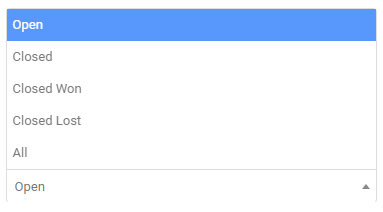
A Status drop-down lets you control which lead statuses the automation applies to: All Leads, Open Leads only, Closed Leads only, or more specifically Closed Lost or Closed Won leads. The right message for an open lead is often different to the right message for a closed won lead, and this setting gives you control over which leads trigger which automation.

Selecting leads to trigger automation
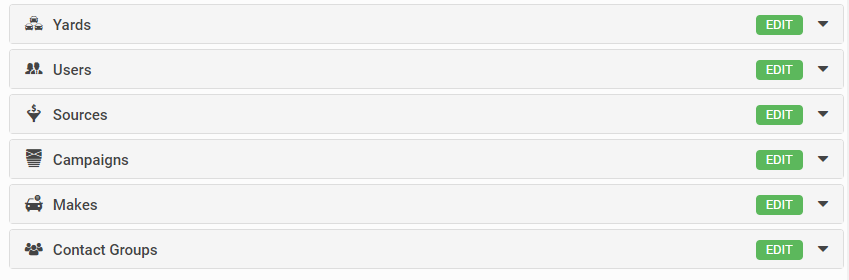
You can specify the type of leads that trigger the automation, choosing from:
- Yards (one or more, including Not Allocated)
- Users (one or more, including Not Allocated)
- Source (one or more, including Not Specified)
- Campaign (one or more, including Not Specified)
- Makes (one or more)
- Contact Groups (one or more)
When you specify more than one of these, a lead must match all of them to trigger the automation action.
Trigger filters
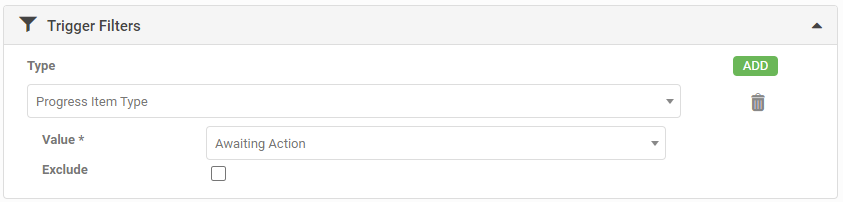
Trigger filters narrow the leads further. Available filter types include:
- Calendar Event Type (for example Booked Test Drive, Scheduled Vehicle Appraisal, Visit Inbound)
- Form Type (for example Test Drive Form, Appraisal Form, Write Up Form, Wishlist Form)
- Lead Closed Type (for example the close reason supplied when a lead is closed as lost)
- Lead Origin (the fixed source of where the lead came from, such as Manually Loaded or API)
- Lead Type (Walk In, Phone, Email, Other)
- Listing Body Type (for example Hatch, Sedan, SUV)
- Listing Fuel Type (for example Petrol, Diesel, Electric, Hybrid)
- Manager Approved Status (whether the appraisal is approved or not)
- Progress Item Type (for example Awaiting Action, Phone Call Made, Meet & Qualify, Test Drive, Finance)
- Traded Status (whether the appraisal is marked as traded or not)
Setting automation at dealer group level
Read more about automation and Dealer Group settings.
Instead of replicating the same automation across every account in a group, you can set up one automation under the parent account and apply it to child dealers.
Selecting Process For Child Dealers adds a Dealers box to the Automation screen.
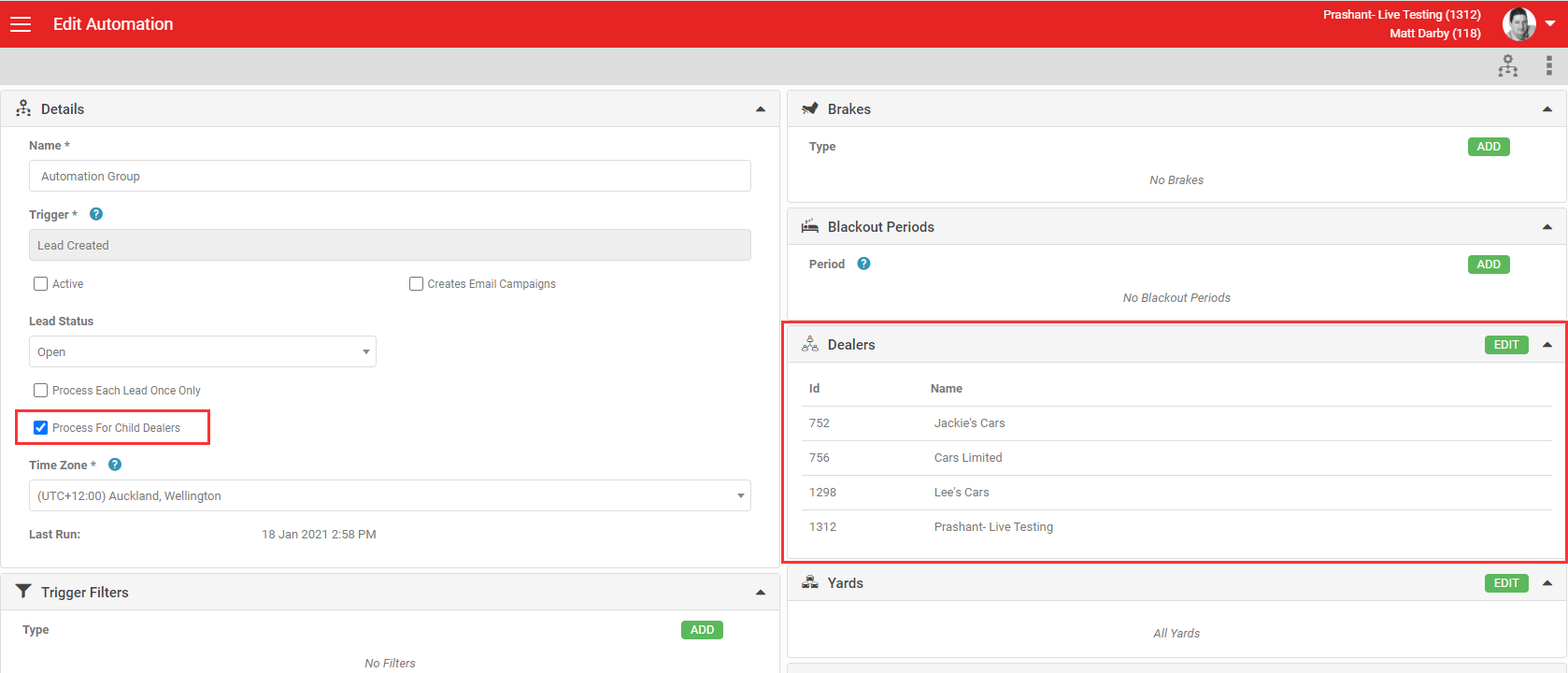
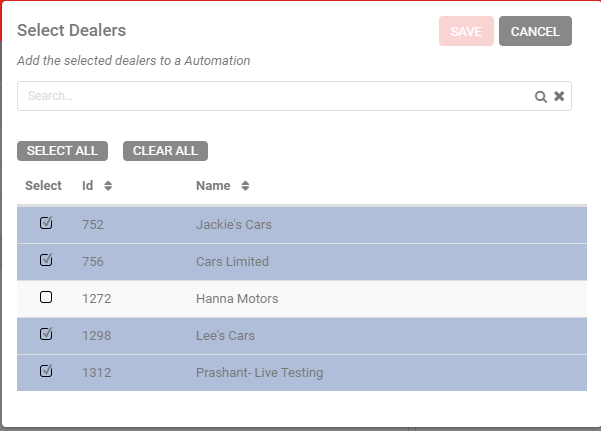
In the Dealers section, select any dealer that shares a Dealer Group with the parent account you are viewing. You can trigger the automation for the parent account as well as the child accounts, or exclude the parent account and trigger it only for the children. Selecting All Dealers includes the parent account.
Group-level automation is restricted to yards enabled as brochureware. If you need to target other yards within a dealership, set up an individual automation in that dealer's account, or use the Make filter to control which leads trigger the automation without specifying individual yards.
Viewing a group automation record from an individual dealer account shows the record but locks it from editing (event logging is still available in each account). To change something like the Email Response template for one dealership, create an individual automation setting for that dealer instead.
You can also trigger automated Live Leads or other email campaigns on an on-demand or monthly basis. Read more about automated on-demand Live Leads.
Related articles
- Read more about what AutoPlay Automation is and its benefits.
- Read more about a sample Automation deployment.