Understand how AutoPlay notifications work, where they show up, and how to clear them.
When a notification triggers
Certain actions or events trigger a notification. Notifications are unique to each user. To set up your own notifications, see How to manage your notifications.
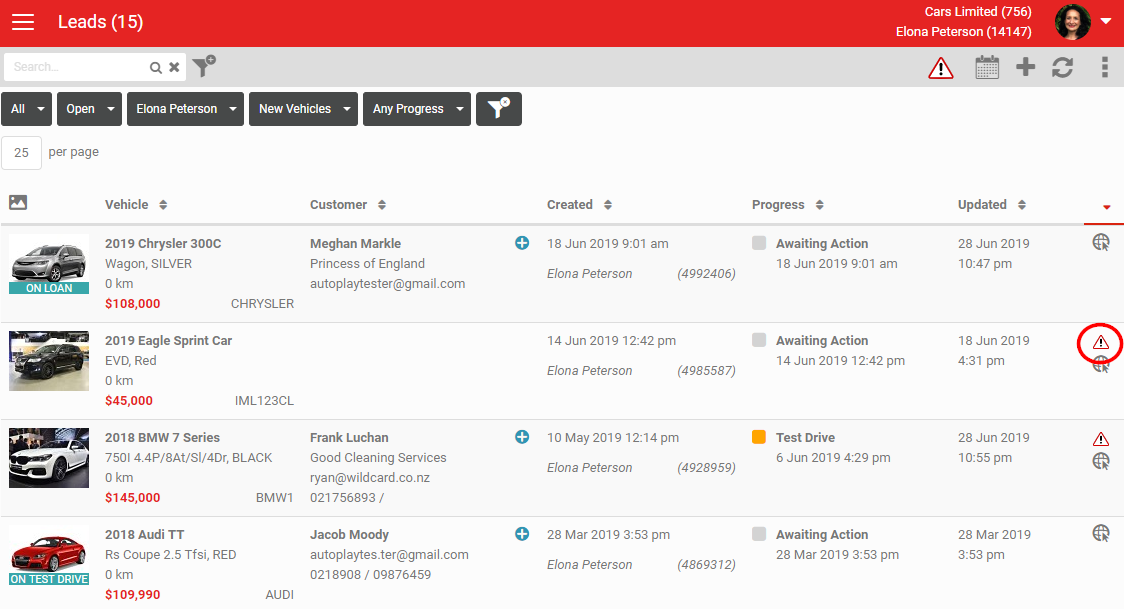
On a lead that has generated a notification, you will see a warning icon in the far right column, circled below.
Where notifications appear
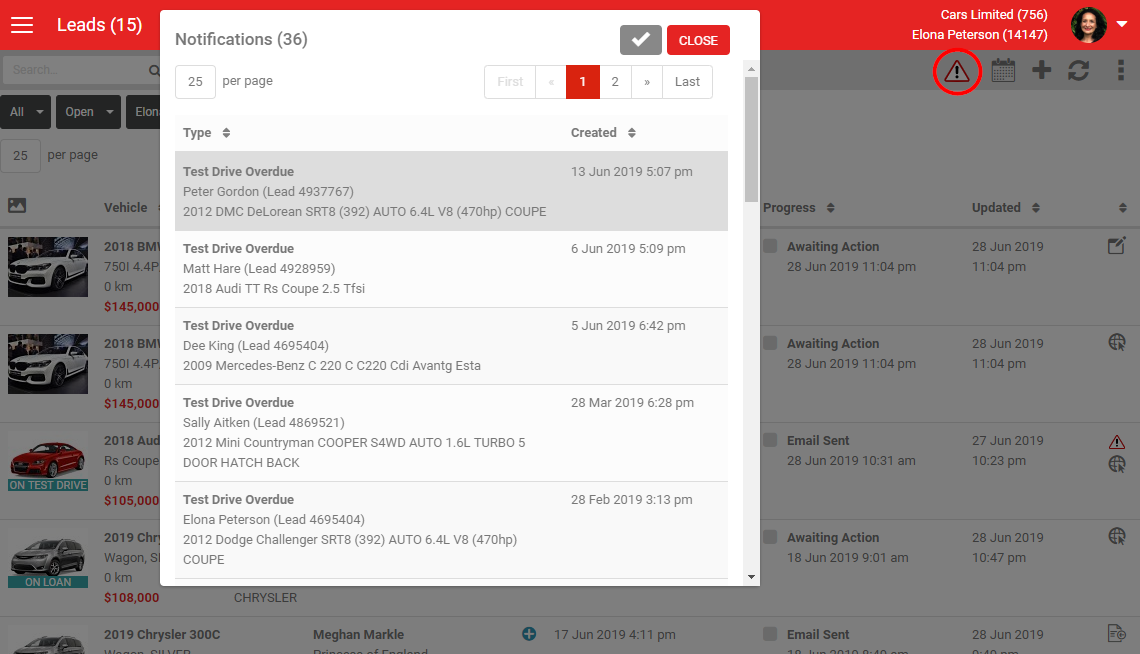
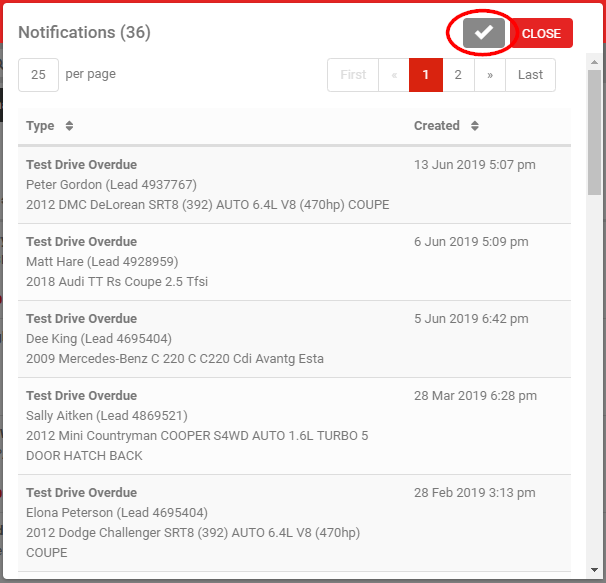
On the Dashboard, you will see a warning icon in the grey action menu, circled below. The Notifications list shows every notification generated for the logged in user.
Clearing a notification
Click a notification to go to the lead and the item that caused it. Open the lead and take the relevant action to clear the notification. For example:
- If the notification is "Test Drive Overdue", complete the test drive or change its end time to a date and time in the future to clear it.
- If the notification is "Customer Replied To SMS", open the customer SMS to clear it.
Clearing notifications in bulk
Click the tick icon to clear notifications in bulk. Clearing notifications for one user clears them for all users.
Setting notification type per role
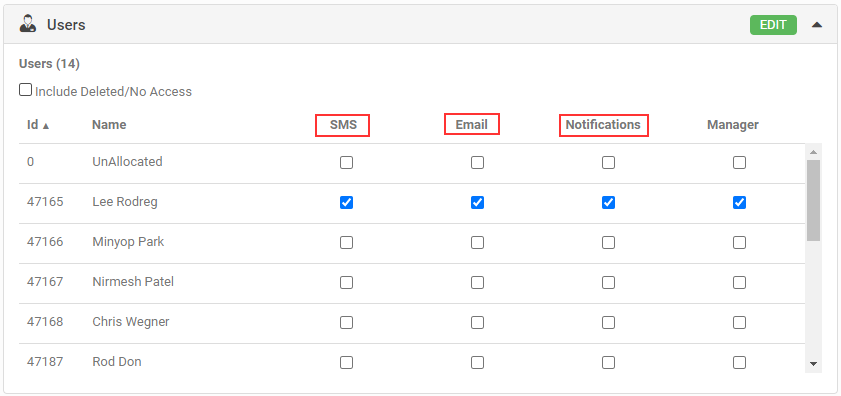
From version 20.8.1, you can control notification types per user within a role. Previously, in-app, email and SMS notifications were all controlled by a single "Notifications" checkbox. Now you can set each user's preferred notification type individually.
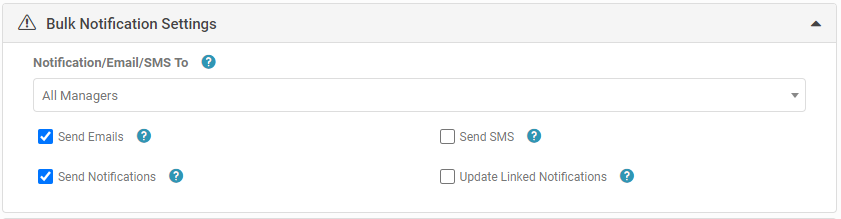
Bulk Notification Settings
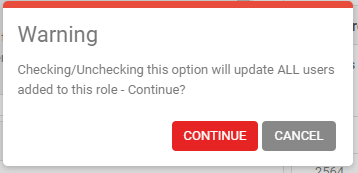
Bulk Notification Settings give AutoPlay administrators and users with the Role Manager Admin role a faster way to manage notification settings across large groups of users. Applying a bulk setting prompts you to overwrite each user's individual settings.
Depending on the role, up to three notification types are available:
- Send Emails: if an email notification exists for the role, this sends email notifications to the selected group of users.
- Send SMS: if an SMS notification exists for the role, this sends SMS notifications to the selected group of users.
- Send Notifications: if an in-app notification exists for the role, this sends in-app notifications to the selected group of users.
After ticking the notification types you want to apply, choose which users to apply them to:
- All Managers: applies the ticked notification types to any user flagged as Manager within the role.
- User: applies the ticked notification types to all users in the role, both managers and non-managers.
- None: applies no bulk setting. Use this to clear all individual user settings.