This article shows you how to remove a user's access to AutoPlay, either by setting them to No Access or deleting them, and what happens to their leads when you do.
Set a user to No Access
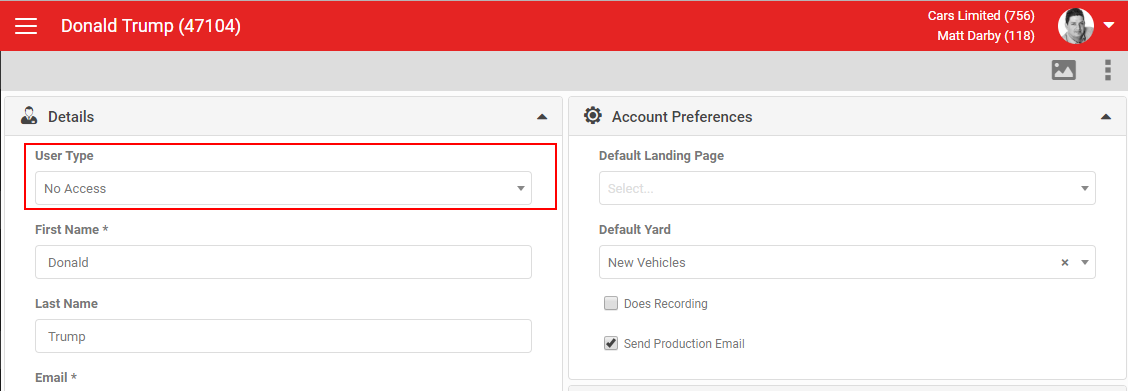
Available to AutoPlay employees only, as of July 2019. Change the User Type dropdown to No Access and the user is immediately unable to log in.
A No Access user cannot log in, but their name still appears in the User dropdown on any lead still assigned to them, and in reporting.autoplay.co.nz. The lead stays assigned to them. They no longer appear in user allocation lists.
Delete a user
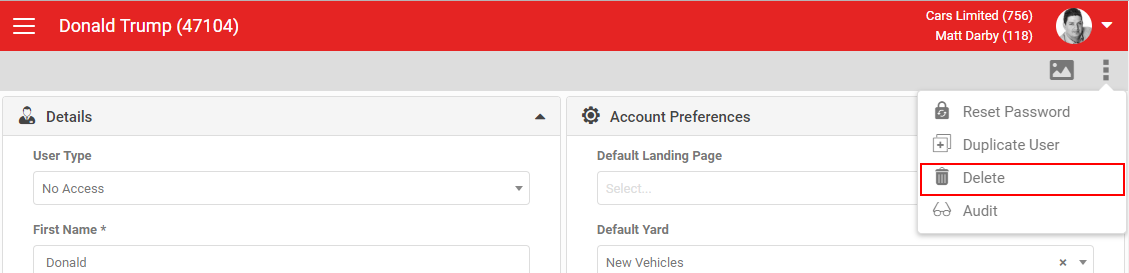
If you have the User Admin role, you can remove access completely by deleting the user. A deleted user cannot log in, and their name no longer appears in any list or dropdown in AutoPlayAuto.com or in Reporting.
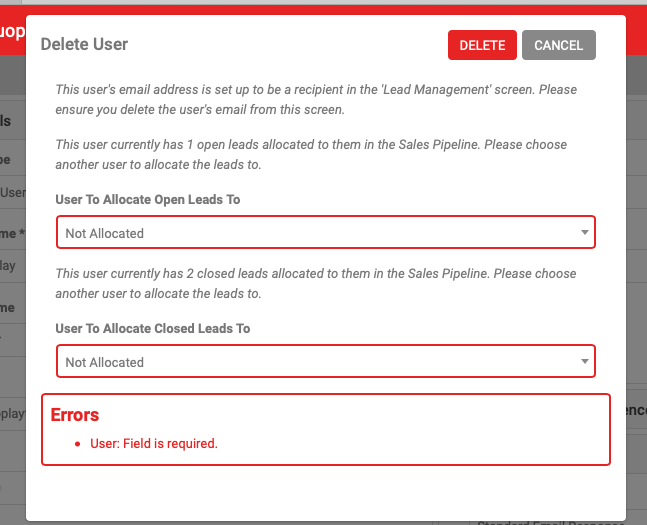
If the user's email is set up in the Lead Management screen, a warning reminds you to update Lead Management when you delete them. This matters because Lead Management determines who receives new leads for that yard, source or campaign.
You can also choose how to reallocate their leads. If the user has leads assigned to them, you'll see the option to reallocate both closed and open leads, either to Not Allocated or to another user on the account. Bulk-reallocating leads during a delete does not trigger individual lead alerts.
Find No Access and deleted users
Use the User Type dropdown on the User List to filter to No Access or Deleted users. By default this shows Any User Type, which includes System Admin, Data Admin and Basic users. Change the dropdown to filter to other user types.
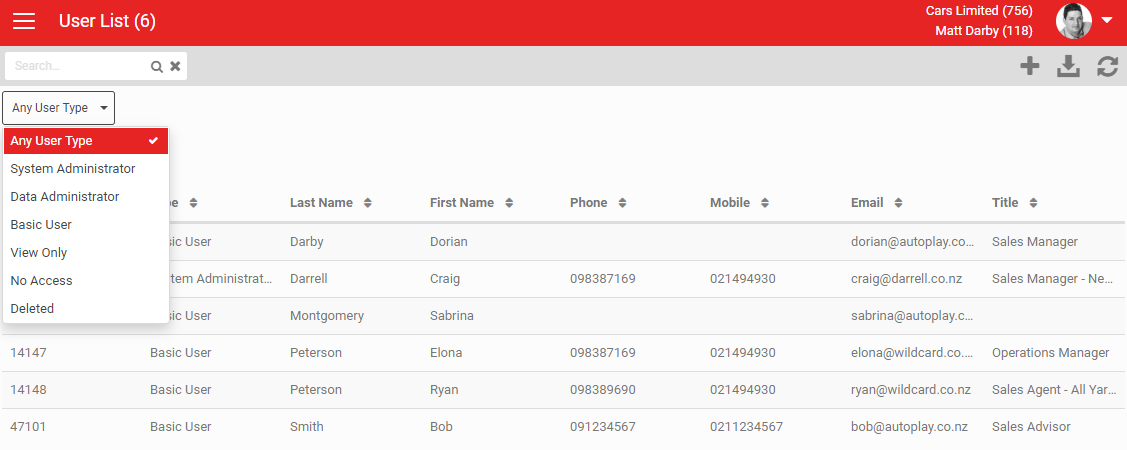
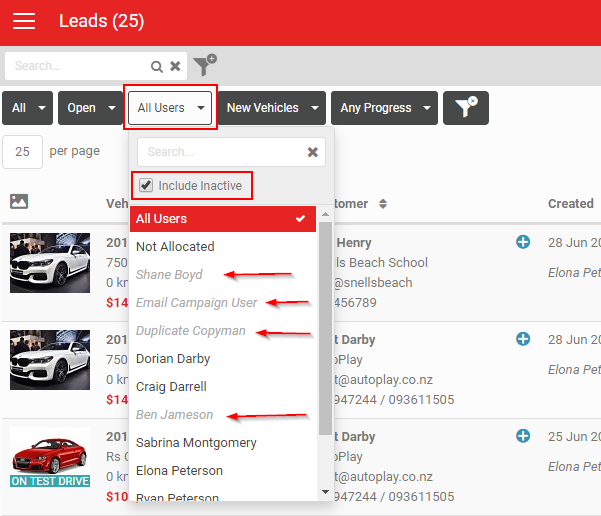
To see No Access users on the Dashboard, tick Include Inactive. No Access users appear in grey italics, provided you have role management rights to view them. Deleted users never appear in this search filter.