This article helps you use the Group Lead Allocation role to move leads from one AutoPlay account to another within a dealer group.
What this role does
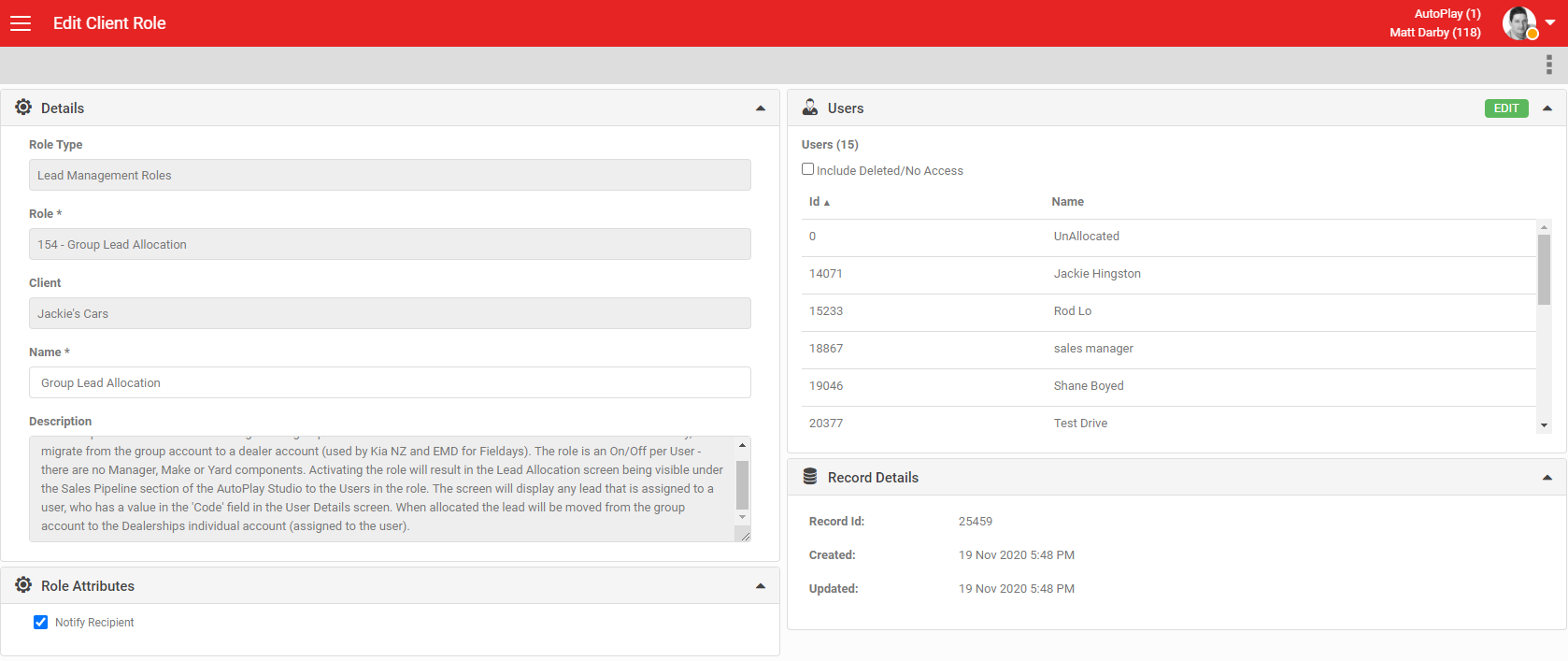
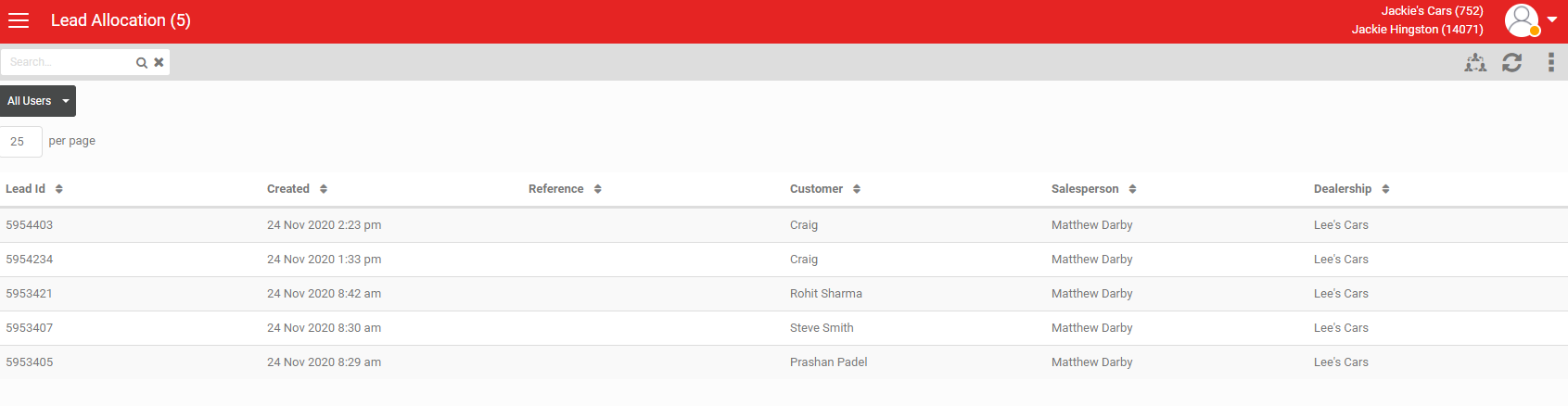
If a dealership is part of a group, you can activate the Group Lead Allocation role to move leads from one AutoPlay account to another. With this role, you add the user ID of a user in the destination account to your user in the account where the lead was created. The lead then appears in a screen called Lead Allocation, and users with this role can click export to migrate the lead to the user in the other account.
Historically this was designed for OEMs running events, where leads were captured in one centralised AutoPlay account, then distributed out to dealers after the event. It is designed for group accounts that need to load leads into one account first, then migrate them to a dealer account, such as a distributor using it for a field day event.
The role is a simple on/off setting per user. There are no Manager, Make or Yard components.
How it works
Activating the role makes the Lead Allocation screen visible under the Sales Pipeline section of AutoPlay Studio to users who hold the role. The screen shows any lead assigned to a user who has a value in the Code field on the User Details screen. When you allocate a lead, it moves from the group account to the dealership's individual account, assigned to that user.
Set up the Code field
In the account where the lead first originates, the Code field on the User screen must hold the user ID of the user in the account you want to migrate the lead to. For example:
- User A in Account 1 (User ID 33333) wants to migrate a lead to User B in Account 2 (User ID 12345).
- In the Code field for User A, enter User B's AutoPlay ID, 12345.
- Any lead loaded in Account 1 against User A now appears in the Lead Allocation screen, ready to export to User B.
- Once exported, the lead moves from User A to User B in Account 2.

What happens to a migrated lead
Leads migrated this way will:
- Remain visible to managers in the recipient account for all yards that user has manage leads rights for, including from brochureware.
- Keep all forms and emails from the original lead attached to the new lead in the recipient account.
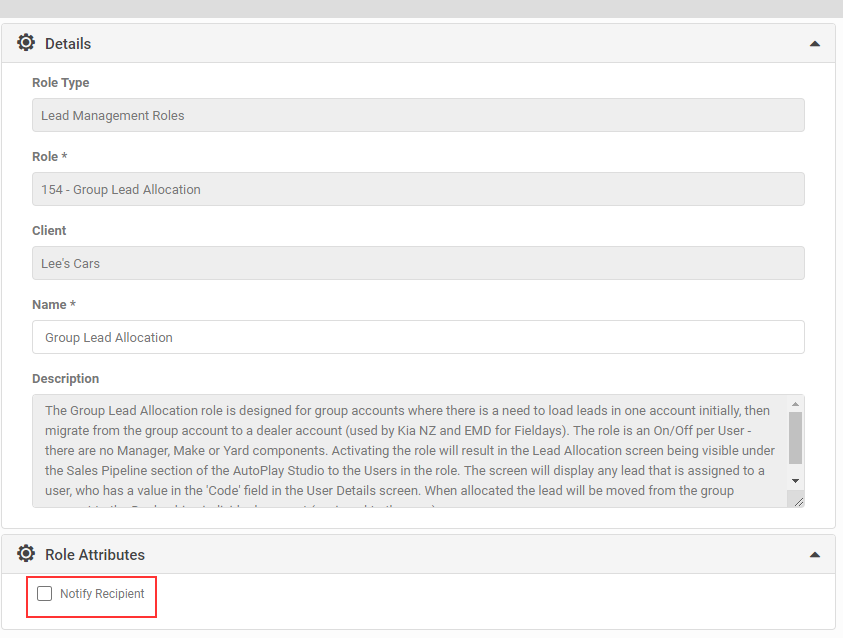
- Trigger the New Lead alert to the recipient if the Notify Recipient attribute is ticked in the Group Lead Allocation role.
- The user receives an email or in-app notification if these options are ticked in the Manage Leads role.
- The user receives an SMS notification if this is enabled in the Receive SMS Lead Notification role.