This article helps you understand how Role Management works, who can administer it, and where to find Role reporting.
Who can use Role Management
Role Management is available to AutoPlay users and to users assigned the Role Manager Admin role.
- Managers can add or remove users from a Role. Non-managers have view-only access.
- Not every Role can be administered by users with the Role Manager Admin role. Some Roles are more complex and are best handled by AutoPlay staff.
This article covers how Role Management is administered and the reporting options available. See these related articles for more detail:
- Managing Roles: how to add dealers and users to Roles, and set the yard and notification settings for a Role. Not every Role has notification, yard or user settings.
- Managing Role Groups: how to set up Role Groups and assign them to users.
- Deleting Roles from a Dealer: how to remove a Role from a dealer. Role Management restrictions apply.
- Managing Roles from the User Screen.
Navigation and the Role Management list screen
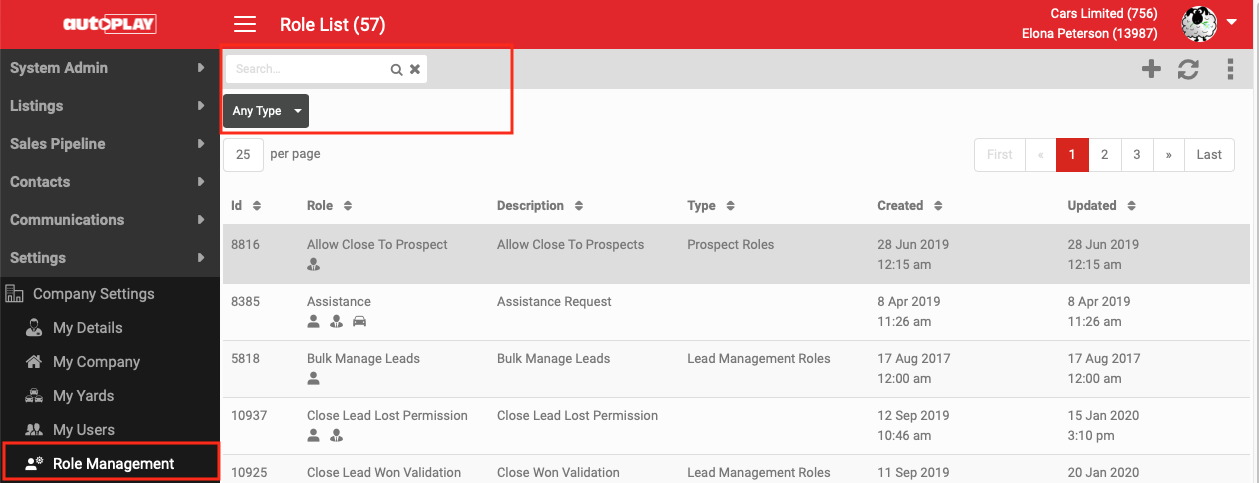
- Go to Company Settings > Role Management.
- The Role list screen shows all Roles currently allocated to the logged-in dealer. AutoPlay users see all Roles.
- Search the list by keyword, and filter by Role Type:
- Admin Roles
- Autoplay Roles
- Contact Management Roles
- Email Roles
- Form Roles
- Lead Management Roles
- Listing Management Roles
- Notification Roles
- Prospect Roles
- Report Roles
- Service Pipeline Roles
Use the + icon to add a Role. Use the three-dot More menu for reporting and the download list function.
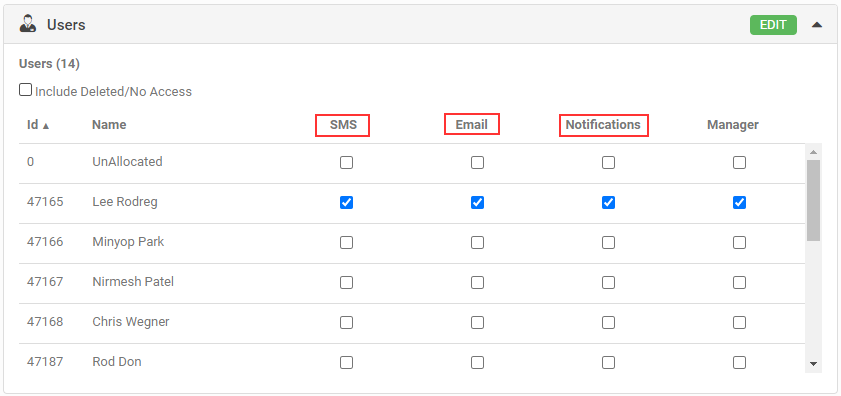
Notification controls on a Role
In release 20.8.1, notification handling within selected Roles changed. Previously, in-app, email and SMS notifications were controlled through a single Notifications checkbox. You can now specify, per user, which type of notification that user wants to receive.
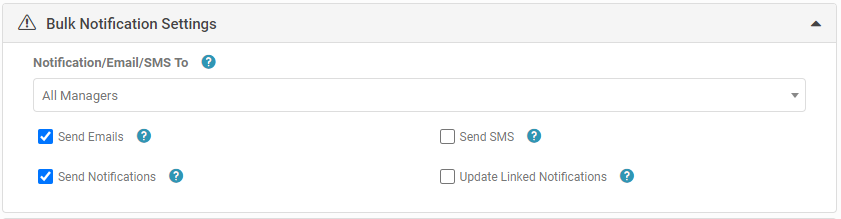
Bulk Notification Settings
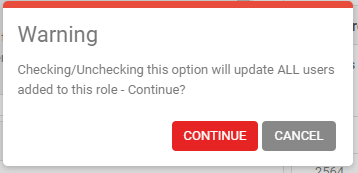
Bulk Notification Settings give AutoPlay staff and users with the Role Manager Admin role more control and efficiency when managing notification settings for large groups of users. Applying a bulk setting prompts you to overwrite each user's individual settings. Any later change to an individual user overrides the bulk setting: the tick against each user is what is applied when notifications are sent.
Depending on what is available for a particular Role, Bulk Notification Settings can cover up to three notification types:
- Send Emails: if an email notification exists for the Role, you can set email notifications to go to the selected group of users.
- Send SMS: if an SMS notification exists for the Role, you can set SMS notifications to go to the selected group of users.
- Send Notifications: if an in-app notification exists for the Role, you can set in-app notifications to go to the selected group of users.
Once you have ticked the notification types to bulk-apply, choose the group of users to apply them to:
- All Managers: applies the ticked notification types to any user marked as Manager in the Role.
- User: applies the ticked notification types to all users in the Role, managers and non-managers alike.
- None: applies no bulk setting. Use this to clear all individual user settings.
Reporting
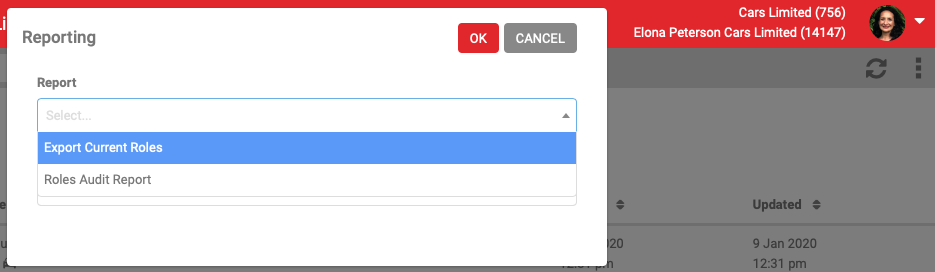
The three-dot menu on the grey menu bar includes a Reporting option with two reports available.
Export Current Roles
- Provides a snapshot of Roles assigned to the dealer and each user, including the yards for each Role.
- Sort order is by User_id.
Columns
- Dealership
- User_ID
- First_Name
- Last_Name
- Email_Address
- Role
- Role Name
- Role_Yard
- Is_Role_Manager
Roles Audit Report
- Provides a snapshot, by Role, of all actions on that Role, including but not limited to the date created and the users and yards added to the Role.
- Sort order is by Role.
Columns
- Dealership
- User_ID
- First_Name
- Last_Name
- Role
- Description
- Audit_Action
- Audit_Date