
This article helps you set up Auto Responses so electronic leads receive an automatic reply as soon as they are captured.
Before you start
You need to be set up as a manager in the Company Admin role to access this screen.
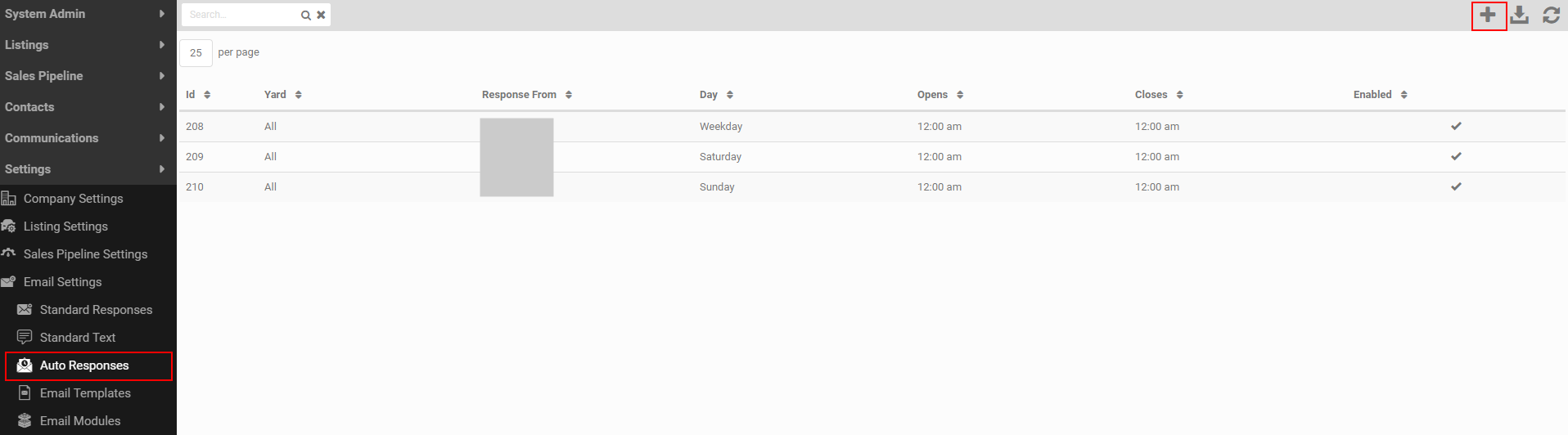
Find your Auto Responses
- Go to Settings > Email Settings > Auto Responses.
- Search by ID, Yard, Response From or Day.
- Click a column header to sort the list alphabetically or numerically.
- Click the Download icon in the grey action menu to download a list of all your Auto Responses.
Create an Auto Response
You can set up separate Auto Responses to handle automatic replies on different days of the week, in different yards, and for different lead sources. Click the + icon in the grey action menu to start a new record.
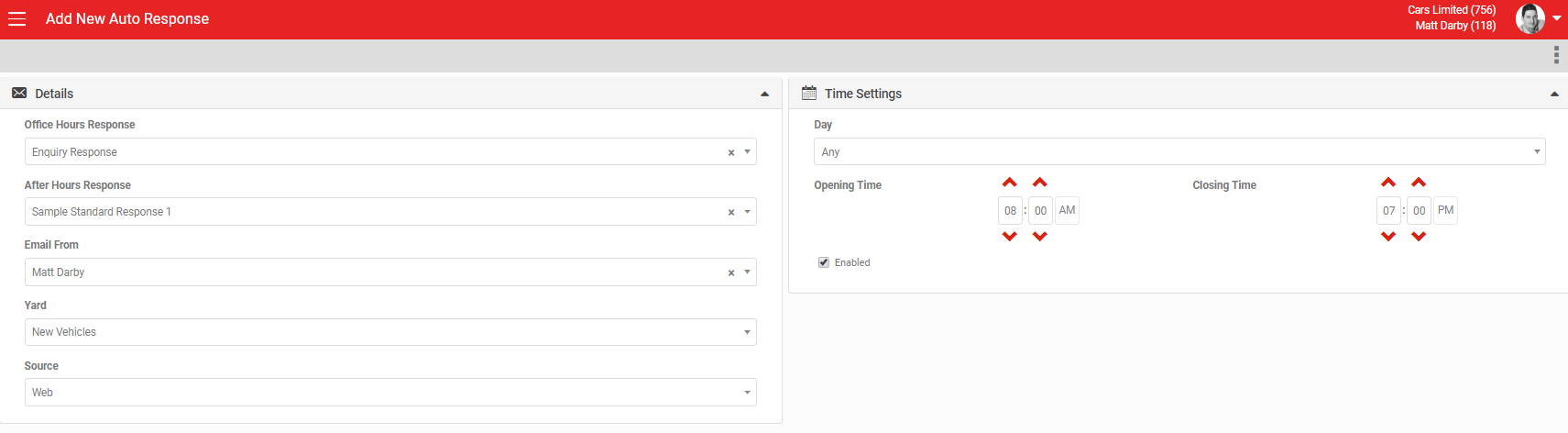
- Office Hours Response: the template sent automatically to an electronic lead captured during business hours.
- After Hours Response: the template sent automatically to an electronic lead captured after business hours.
- Use Listing Video: sends captured leads a response including a listing video. Where a listing has no images, a standard generic image is used instead.
- Email From: the user all Auto Responses are sent from.
- Yard: the yard this Auto Response applies to.
- Source: the lead source this Auto Response applies to.
- Time Settings: the day of the week the Auto Response should send. Choose from Any, Weekday, Saturday or Sunday.
- Opening Time and Closing Time: the business hours for the dealership or yard.
- Enabled: tick this to turn the Auto Response on. If it is not ticked, the Auto Response will not send.
Delete or audit an Auto Response
Click the MORE menu to delete an Auto Response record or view an audit of all changes made to it.