
This article helps you configure your dealership's company-level settings, from company details and location through to mandatory fields and account preferences.
Before you start
You need to be a manager in the Company Admin role to edit this screen.
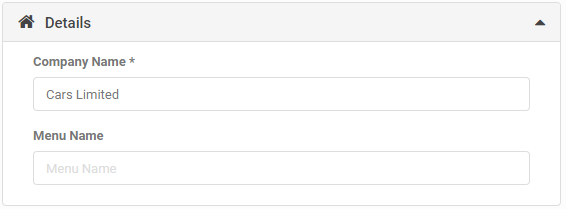
1. Details
- Company Name: the name for your account. This can pull through to emails and Standard Text via the @company tag, so use your full company name.
- Menu Name: a shorter name to show within AutoPlay if your Company Name is too long. This only shows within AutoPlay.
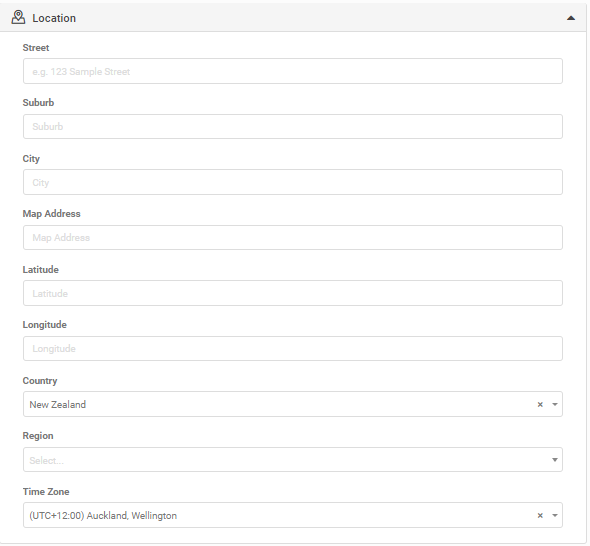
2. Location
- Street, Suburb, City, Region: your dealership location. Street covers both the street number and street name, for example "123 Sample Street".
- Map Address, Latitude, Longitude: use these fields if you use AutoPlay Vehicle Display Pages, or if this data feeds into your own website, to pin your dealership location more accurately.
- Country: several functions, such as Appraisals and Vehicle Lookups, are country-specific.
- Time Zone: important for date-stamping activity within AutoPlay.
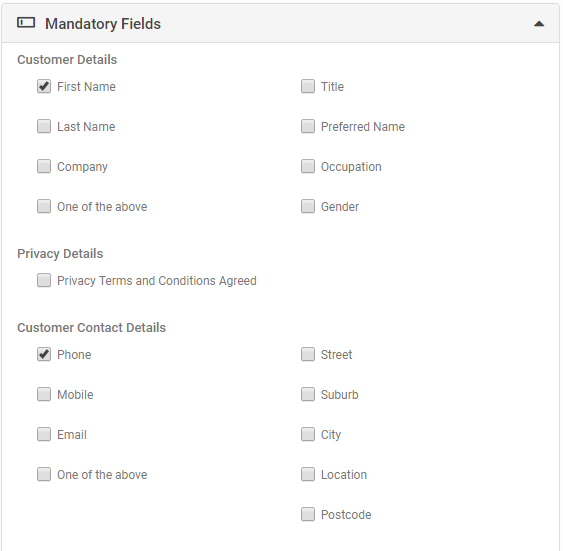
3. Mandatory Fields
- This section is split into Customer Details, Privacy Details, Customer Contact Details, Lead Details, Trade In Vehicle Details, Trade In Vehicle Specifications, Trade In Valuation, Test Drive Details and Write Up Details.
- Each part controls which fields are compulsory in the matching part of AutoPlay, including loading a lead, creating a test drive, or completing an appraisal form.
- Ticking a field makes it compulsory. In some sections, such as Customer Details, you can select "One Of The Above" to require any one of First Name, Last Name or Company, instead of all three.
- Search the AutoPlay Support Centre for more detail on each set of mandatory fields.
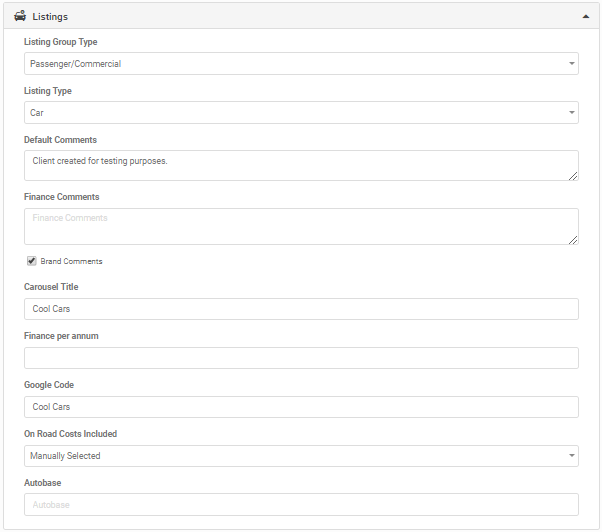
4. Listings
- Listing Group Type: Passenger/Commercial or Machinery. Controls which fields display by default when you load a listing to AutoPlay.
- Listing Type: Car, Motorcycle, Boat, Truck, Bus or Motorhome/Caravan. Controls which fields display by default when you load a listing to AutoPlay.
- Default Comments: text automatically added to every listing when displayed on an AutoPlay Vehicle Display Page, or exported to a third-party listing site or your own website. Default Comments can also be set at yard or export level.
- Finance Comments: text automatically added to a finance calculator or AutoPlay Vehicle Display Pages.
- Brand Comments: tick this to automatically append your listings with whatever brand comments are set up in your brand or OEM parent account, for example Toyota NZ.
- Carousel Title: used on AutoPlay Vehicle Display Pages to add a title above the carousel module.
- Finance Per Annum: used on AutoPlay Vehicle Display Pages to set a default finance rate for the finance calculator.
- On Road Costs Included: determines whether on-road costs apply to listings. Search the Support Centre for "How To Manage On Road Costs" under Data Management > Managing Listings for more detail.
- Autobase: an NZ-only field used to set the export limit for Autobase exports.
5. Email Preferences
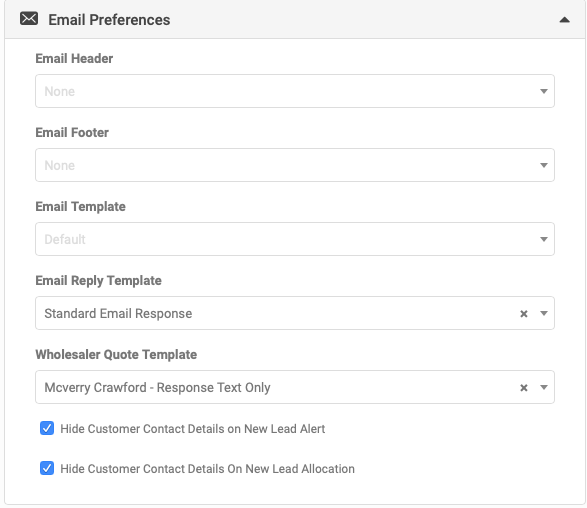
These fields set the company defaults for email templates used within AutoPlay. See the separate Email Preferences article for more detail.
6. Communication
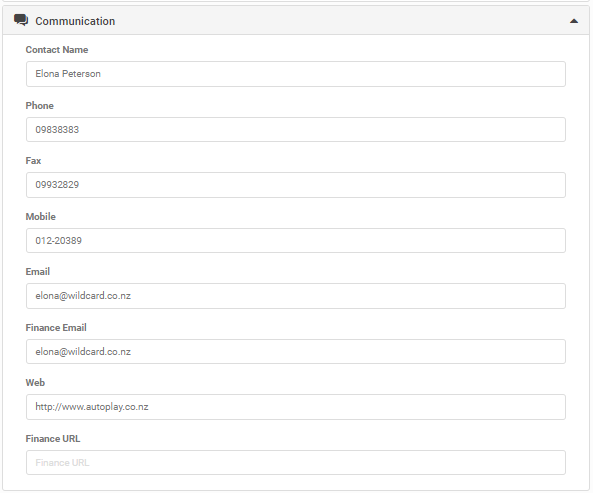
These fields are used by AutoPlay when we need to contact your dealership. Keeping them up to date helps us give you better service.
7. Account Preferences
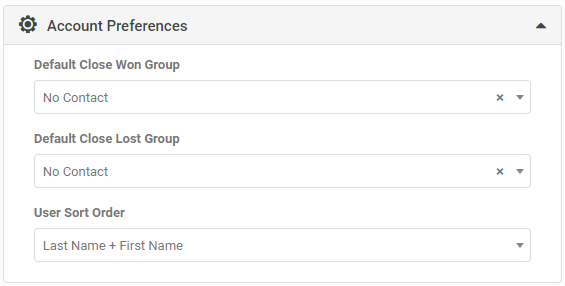
- Default Closed Won and Lost fields: specify which groups you want leads automatically added to when they are closed.
- User Sort Order: controls how users are listed in any user drop-down within AutoPlay. Set as "Last Name + First Name" or "First Name + Last Name".
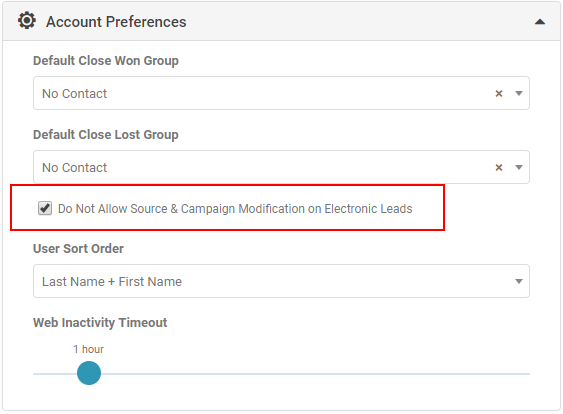
You can also lock down Source and Campaign when a lead is captured electronically, whether by email, website, API or DMS/CRM integration. Manage this in the My Company screen, under Account Preferences.
- With the setting on, users cannot edit Lead Source and Campaign on electronically captured leads, unless the fields are blank.
- With the setting off, editing works as before.
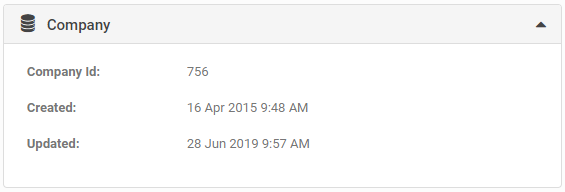
8. Company
- Company ID: the unique ID assigned to your AutoPlay account.
- Created: the date the account was first created.
- Updated: the date the account was last modified.
9. Audit
If you have the Audit role, run an audit from the grey action menu to see every change made to the My Company screen and which user made it.

Related articles
Re-applying defaults on the My Company screen