
This article explains how to set up Single Sign On (SSO) so a Dealer Group account can log in once and access data across its Dealer Network.
Since March 2022, Dealer Group accounts can give specific users a single set of credentials to access and edit data across their Dealer Network.
Several settings need to be enabled to get this working for your reporting or group account. These settings are only available to AutoPlay staff, so contact your Account Manager or our support team to have them turned on.
How to set up SSO to a Dealer Group account
- Create the role "Dealer Group Single Sign On" in the parent account.
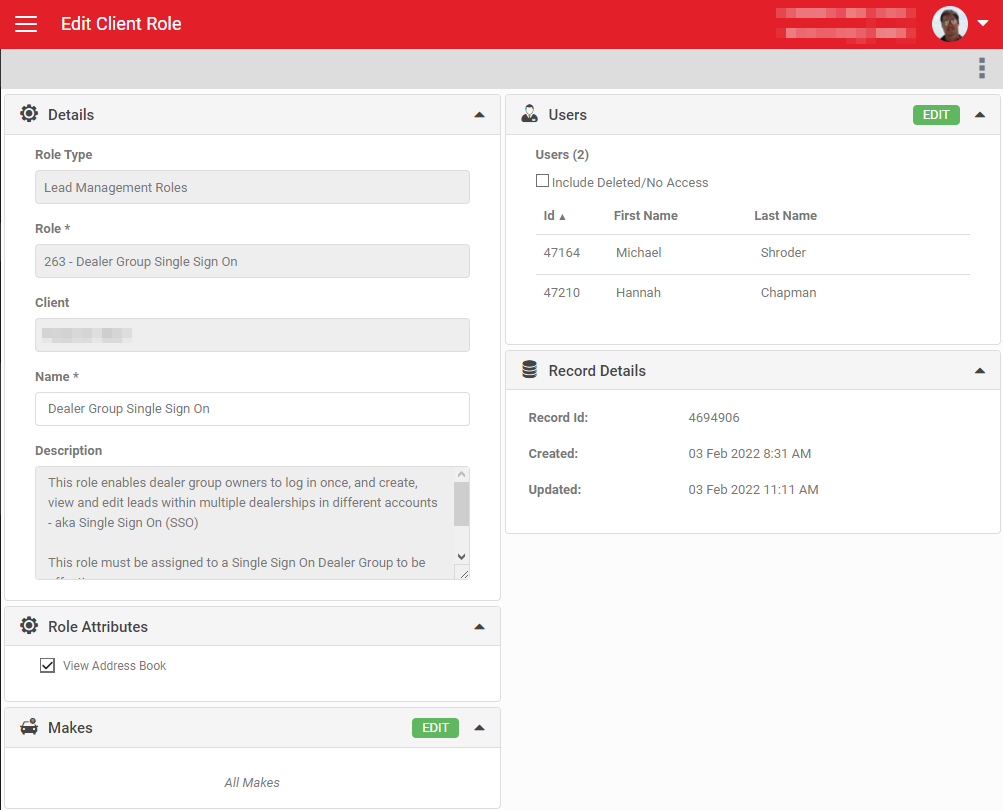
This role has several configurable options, including a role attribute that enables access to the Network accounts' contact databases, an option to restrict access to a specific make, and the list of users who can access the Network accounts.
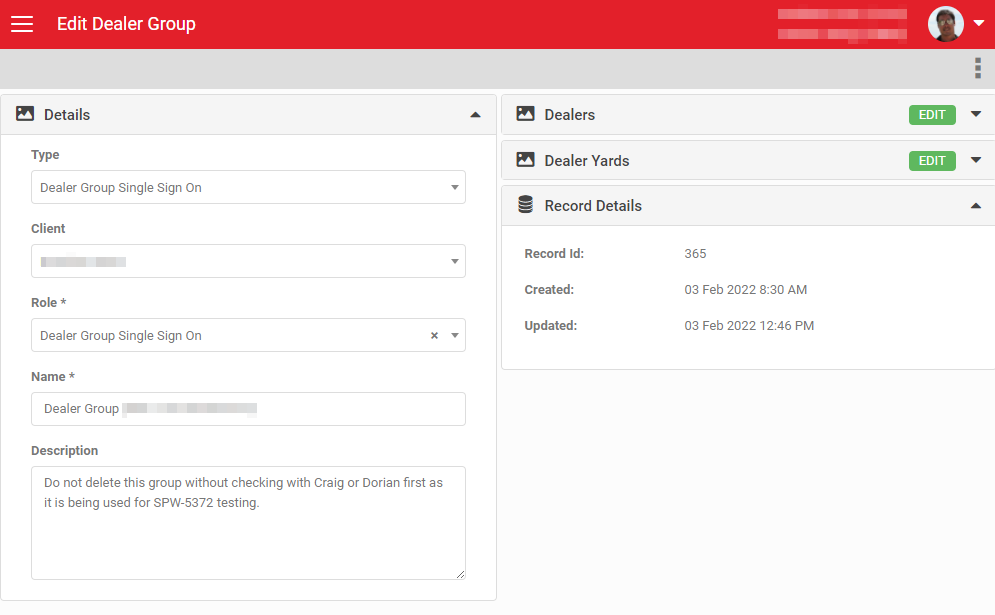
- Create a Dealer Group record named "Dealer Group Single Sign On".
Within this record, select the accounts and the yards within those accounts. This sets the visibility the role's users get across the network.
Child dealership settings menu
To access a child dealership's settings menus, the SSO user needs manager access in the reciprocal Company Admin, Yard Admin or User Admin role on the master account.
What access do users get to the network accounts?
When a Dealer Group level user with this access logs in, they see a view almost identical to their current dashboards, with one addition: a dropdown filter to select a dealership, including the parent account they logged in to.
Users can fully edit and create leads and forms in each network account, the same as if they were logged in to it directly.
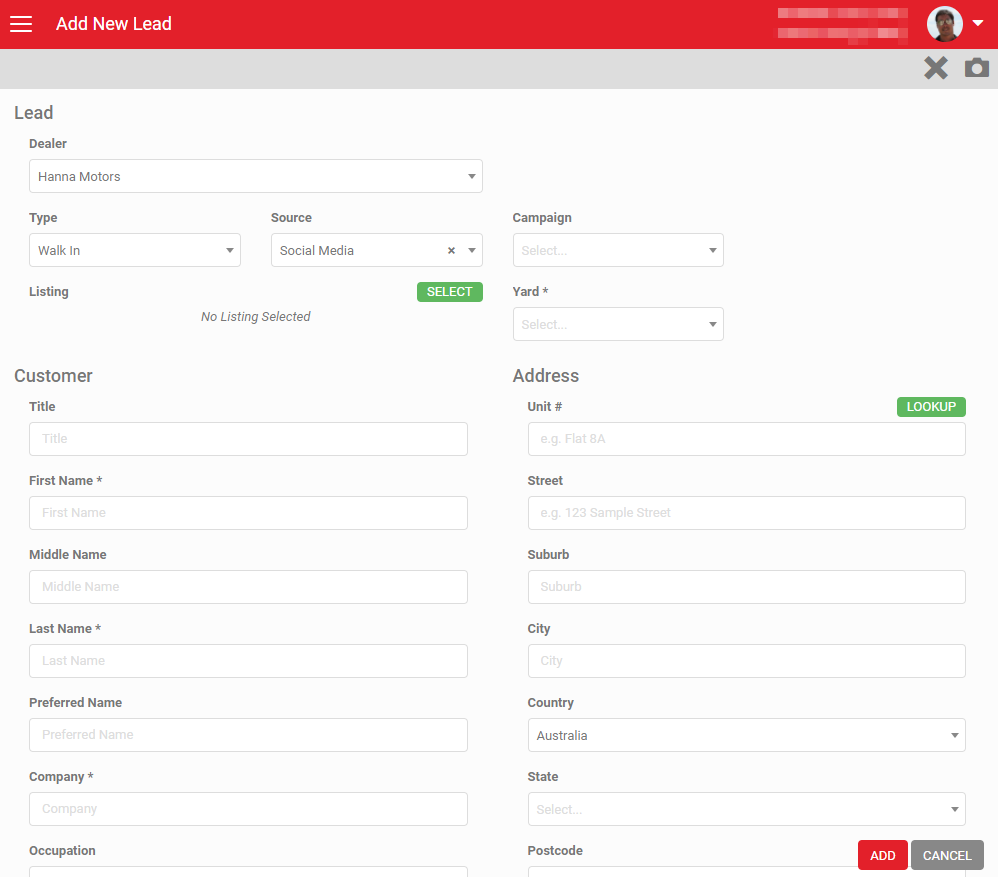
The creation screens differ slightly for SSO users. You're prompted to select the dealership to create the new record in, and the Listing, Type, Source and Campaign fields sit near the top of the form. Once you select a dealership, AutoPlay searches that account's address book only for matching contacts. If you change the dealership in the dropdown, you're warned that all entered data will be discarded and you'll need to redo the lookup against the new account.
SSO access currently extends to:
- Listings
- Lead Dashboard
- Communications
- Address Book
- Appraisals
- Appraisal Look Ups
- Test Drives / Loan Forms
- Wishlists
- Write Ups
As part of the 22.9.2 release, child dealerships' company, yard and user settings were also provisioned for SSO users:
- My Company
- My Yards
- My Users
A new "SSO Settings" option appears in the Settings menu.
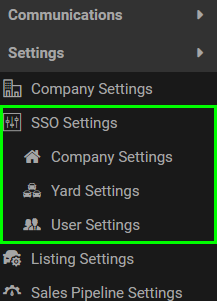
To access each of the three menu items above, the SSO user must have manager access in the corresponding Company Admin, Yard Admin and User Admin roles on the master account.
Group users creating appraisal forms can use Appraisal Look Up services, which are charged back to the account the appraisal was created in. A group user can see previous lookups done in that specific account, but not across accounts.
You can also create collaborators at Dealer Group level and set them on a lead. These can be visible or hidden to the Group or the Network Account, and they show in their own section on the lead. Use the Collaborator Admin screen to create them. If a Group account user creates a lead, they're automatically added to it as a collaborator. The Account Collaborator section is read only for Group users when visible, and the Group Collaborators section is read only for Network users when visible.
Points to note for SSO functionality:
- You can't transfer a lead from one account to another.
- You can't transfer a contact from one account to another.
- Full auditing is maintained on all records updated.
- Group account collaborators aren't automatically assigned to new leads ingested into a Network account. They are applied if the lead is entered manually by a Group account user.
- There's no way to restrict Group users from using specific forms.