What Test Drive Kiosk mode does
Kiosk mode gives a tablet on the yard a locked down view that can only create test drives and search listings. No other menu options display.
Set up a Kiosk user by adding the user to the Kiosk role and flagging them as a Manager.
Salesperson
You can assign a test drive to a salesperson. The salesperson dropdown lists users who have the Kiosk role but are not flagged as a Manager.
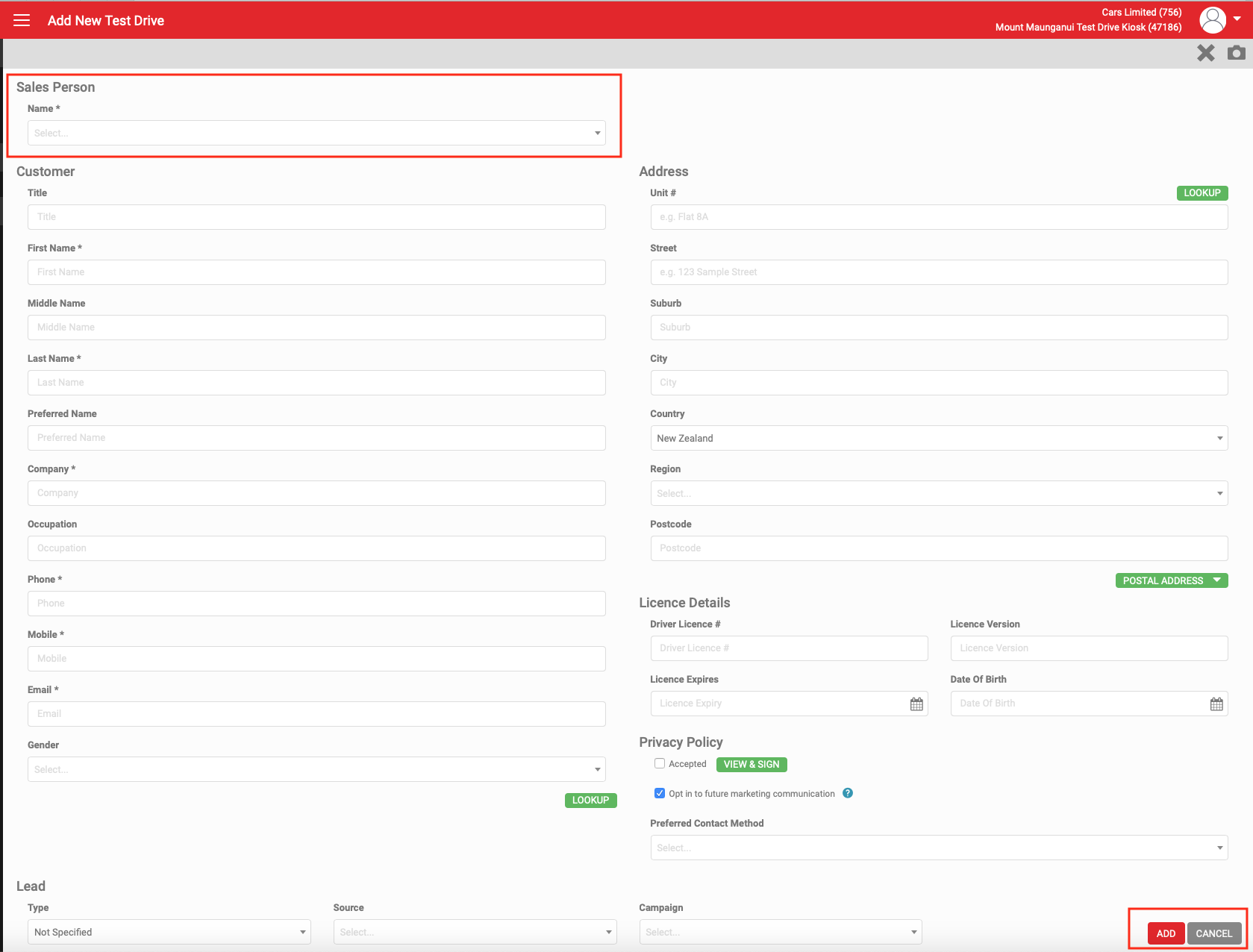
Customer details
Complete the customer details on the form one of two ways:
- Enter the customer's information manually, including their name, address and licence details. Capture this accurately: it is how you identify who had the vehicle at any time.
- Scan the customer's business card or driving licence using the camera icon in the grey action menu. This saves you typing the details in and keeps driving licence information accurate, which matters when you are loaning out a vehicle. Scan the licence here and it saves automatically once you complete the test drive form.
Driving licence scanning
Read more in Scanning driving licences.
Customer lookup
Once you complete the customer details and click LOOKUP, or click ADD, AutoPlay searches existing customers for a match. To protect customer privacy, dealers can configure the role to control how a lookup runs, in one of two ways.
Option 1: PIN protected lookup
Turn on the role attribute Allow Similar Customer Search with PIN.
- Once the salesperson enters the customer details and any mandatory fields on the test drive and clicks Lookup, AutoPlay prompts them for a PIN before the lookup runs. See How to create a test drive form for more on creating test drives.
Option 2: Match on licence number only
Leave the role attribute off.
- The Lookup option does not display. AutoPlay runs the search automatically on SAVE. If it finds a match on the driving licence number or mobile number, it uses the existing customer record without prompting the user.
- Any existing customer record field that differs from the test drive form gets overwritten. Blank test drive fields do not overwrite existing customer record fields.
- On SAVE or ADD, AutoPlay displays the customer's existing leads with the option to add a test drive or appraisal to one of them.
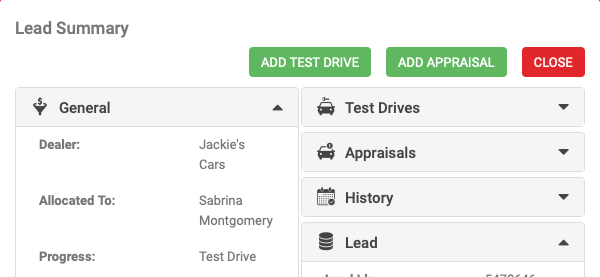
If AutoPlay finds no match, or no driving licence number was supplied, you can create the test drive as normal.
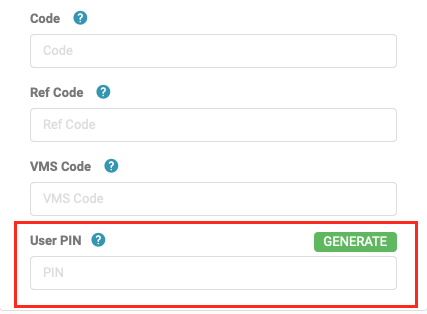
Setting up your PIN
If your dealership uses PIN protected lookup, set your PIN on the My Details page. In the Details section, find the User PIN field. You can generate a PIN or enter your own.
Populate test drive details
- Complete Lead Type, Source and Campaign.
- Click SELECT next to Listing to choose a listing. This opens a list of available yards and listings with a keyword search.
- Click ADD.
The test drive is now complete and assigned to the selected salesperson to manage. See Overview: test drives for more.
Add an appraisal or test drive to an existing lead
- After entering the customer details, run a customer lookup. AutoPlay matches against existing records and lets you preview any existing leads and select one if it finds a match.
- On SAVE or ADD, AutoPlay displays the existing leads with the option to add a test drive or appraisal to one of them.
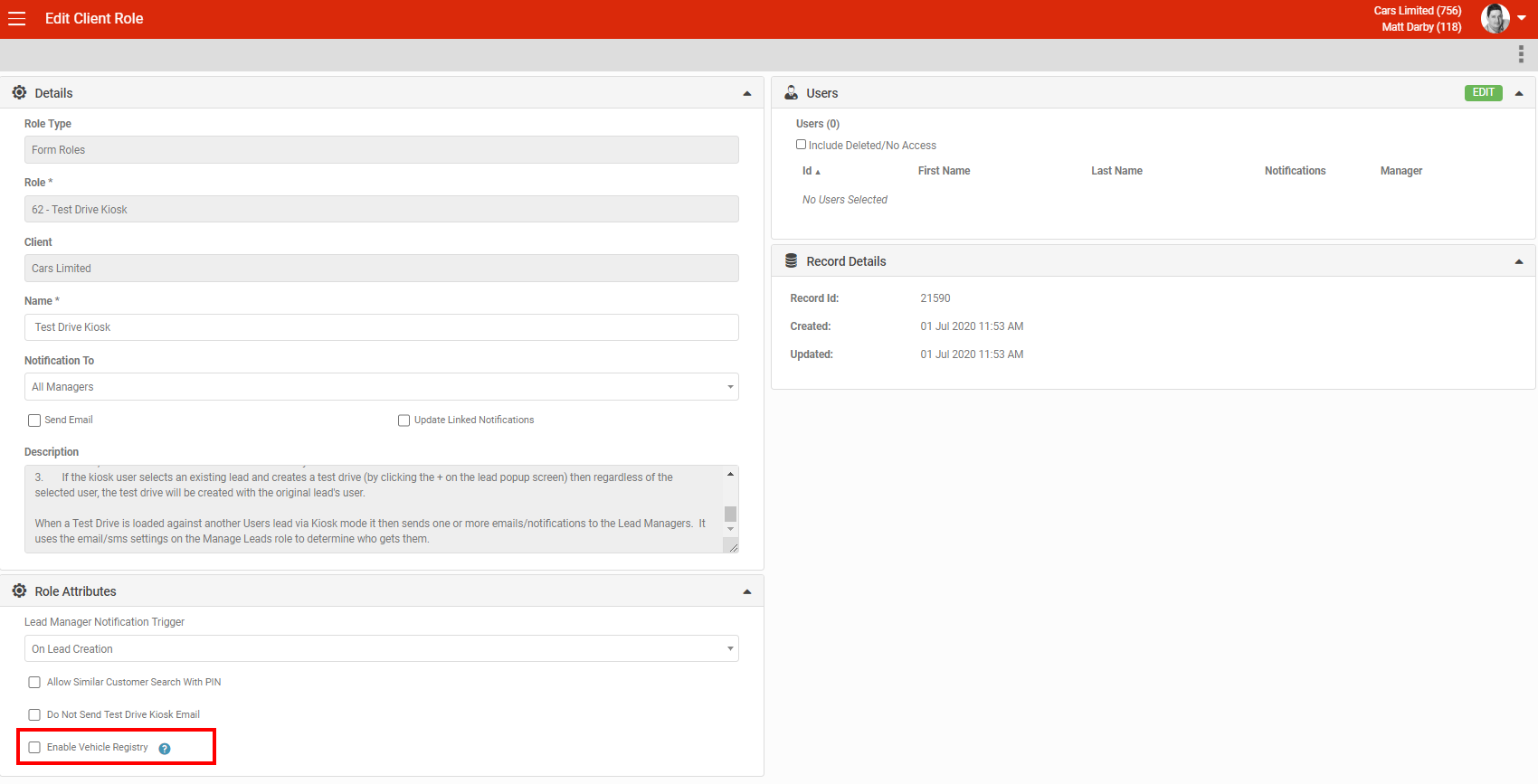
Enabling Vehicle Registry in Kiosk mode
Kiosk mode works best set up on a tablet in a physical kiosk. Because the tablet is accessible to the public, AutoPlay blocks a customer from browsing other customers' information by default. Unless the role attribute Allow Similar Customer Search By PIN is enabled, AutoPlay does not search customer records for similar customers at all.
For the same reason, Kiosk mode blocks access to other screens, including Vehicle Registry, by default. To allow Vehicle Registry access from a Kiosk device, enable the role attribute Enable Vehicle Registry on the Kiosk role. This lets staff load loan cars from the kiosk, but it remains the dealership's responsibility to make sure customers cannot search other customers' personal information on that device.
Read more in Role management: Test Drive Kiosk.