
Setting up declaration items
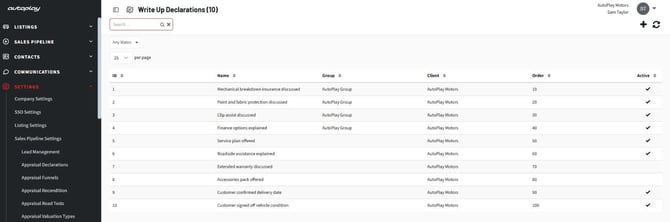
Go to Settings > Sales Pipeline Settings > Write Up Declarations (Screenshot 1). The screen lists your items with their ID, Name, Group, Client, Order and Active status. Use Keyword Search and the status dropdown to find one.
Users with the Company Admin role can view the screen. Managers in that role can add, edit and delete items.
Add an item
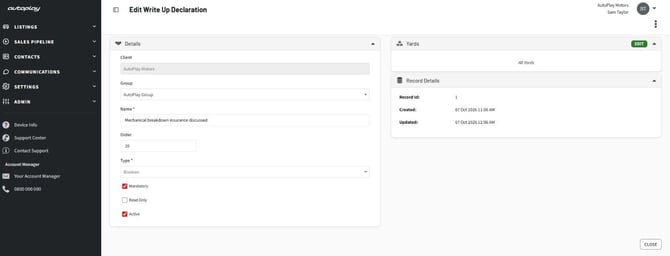
Select Add New and fill in the item (Screenshot 2):
- Name: the question or statement shown on the form
- Group: a dealer group, or any group
- Order: where it sits in the list, lowest first
- Type: Boolean, Date, Dropdown, Integer, Text or Toggle. For Dropdown, add at least one value.
- Mandatory: the Write Up can't be saved until this is answered
- Read Only: the answer comes from an integration and can't be changed on the form
- Active: untick to stop it appearing on new Write Ups
- Yards: the yards it applies to. Leave every yard unticked to apply it to all of them.
An item can't be both Mandatory and Read Only.
Change or remove an item
Renaming an item doesn't change answers already given. Old Write Ups show the new name next to the answer recorded at the time.
Once an item has been answered on any Write Up it can't be deleted. Untick Active instead. It drops off new Write Ups, and existing Write Ups keep showing their answer.
Every change to an item is recorded. Select Audit from the 3-dot menu on the edit screen to see the history.
Answering declarations on the Write Up
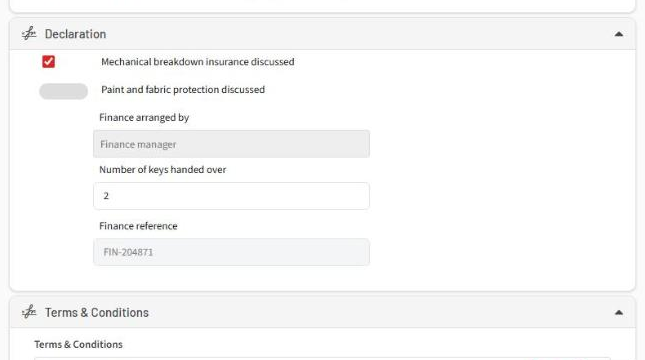
The Declaration section sits directly above Terms and Conditions on the Write Up form (Screenshot 3). It only appears when at least one active item applies to the Write Up's yard. The same section shows on desktop and iPad.
If a mandatory item is left blank, Save shows a message against it and the Write Up isn't saved until it's answered. Anything you've already entered stays on the form.
Using answers in emails
Each item has a question tag and an answer tag, where n is the item's ID from the Write Up Declarations screen:
- @[WUDECLARATIONQUESTION_n]
- @[WUDECLARATIONANSWER_n]
Boolean and Toggle answers show as Yes or No in emails, and dates show as DD/MM/YYYY.
Integrations
Declaration answers are available through the Lead API, which can also write the answers for Read Only items. Talk to support if you want an integration to fill these in.